> ## Documentation Index
> Fetch the complete documentation index at: https://documentation.idenfy.com/llms.txt
> Use this file to discover all available pages before exploring further.
# Proof of Address and Custom Steps
> Configure proof of address or custom image collection as an additional verification step in your iDenfy KYC or KYB workflow settings.
* [ Proof of Address (PoA)](#PoA/Customadditionalstep-ProofofAddress\(PoA\))
You can use an additional step that can be used specifically for **Proof of Address** or to collect **Custom images**
**Good to know**
* Only **one Utility Bill** can be collected for processing.
* **Multiple Custom steps** can be collected in a single flow.
* **Utility Bill** can be combined with **Custom steps** to collect several different documents.
* Titles and descriptions of steps **support localization**.
* Titles and descriptions of both **Utility Bill** and **Custom steps** are **fully customizable**.
* Supported file formats: - JPG - PNG - PDF
## Proof of Address (POA)
When using an **additional step** to collect a **Utility Bill** for proof of address, three different **upload handling types** are available:
***
## Upload Types
When an additional step is used to collect a **Utility bill** for proof of address, there are 3 types of handling provided: images of the document.
### Upload
* User uploads the document
* The document is attached to the identity verification
**No additional processing** or **validation** happens for these upload types
### Extract
* User uploads the document
* The document is attached to the identity verification
* The address is read (using OCR) from the uploaded document and added to the verification
If an address is provided by partner during this step, it is ignored during
### Compare
* The user uploads the document.
* The document is attached to the identity verification.
* The address is read and **compared** with the address provided by a partner.
***
## POA AI Checks
Additional checks for the uploaded POA document. These **tags** will result in verification to be marked as **APPROVED (SUSPECTED).**
#### Allowed POA Documents
Restricts POA submissions to specific document types.
* If an unsupported type is uploaded, the IDV is flagged with:
`NOT SUPPORTED POA DOCUMENT TYPE`
#### Allowed POA Countries
Defines which issuing countries are accepted for POA documents.
* If the issuing country is not on the list, the IDV is flagged with:
`NOT SUPPORTED POA DOCUMENT COUNTRY`
#### POA Country Match
Checks if the issuing country of the document matches the country stated in the POA.
* If there’s a mismatch, the IDV is flagged with:
`POA COUNTRY MISMATCH`
#### Block POA Screenshots
Detects whether the submitted POA document is a screenshot.
* If enabled and a screenshot is detected, the IDV is flagged with:
`POA SCREENSHOT DETECTED`
#### POA Issuing Date Range
Defines an acceptable date range for POA issuance (e.g., last **12 months**).
* If the document was issued **before this range**, the IDV is flagged with:
`EXPIRED ADDITIONAL STEP INFORMATION`
***
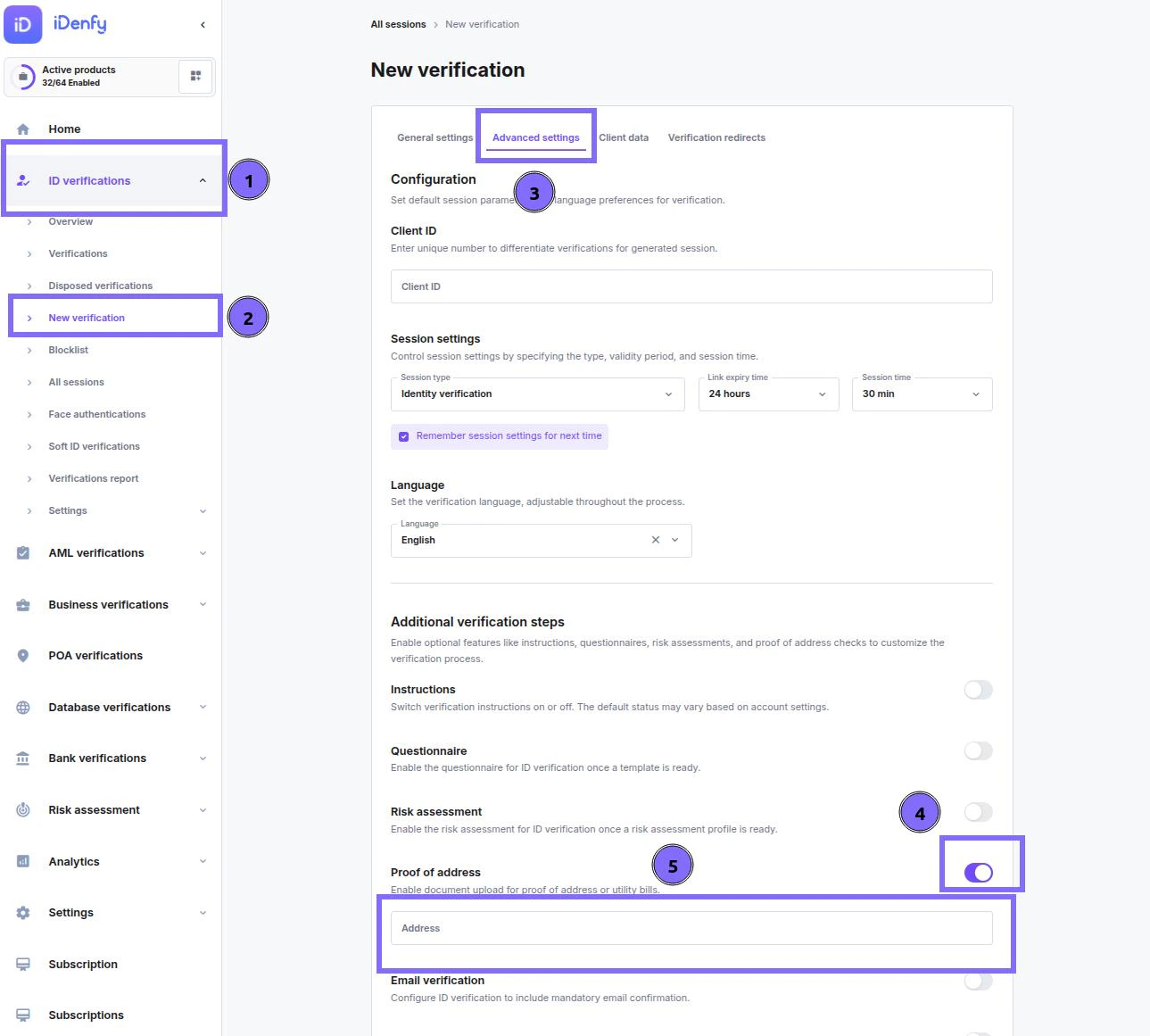
## Providing an Address for the Compare Method
### Through Dashboard
1. Select ID Verifications section
2. Select ***New Verification***
3. Select tab ***Advanced settings***
4. In the section ***Additional verification steps,*** find the option ***Proof of address*** and ensure it’s **enabled**
5. There will be a field ***Address*** where you should provide the information
 ### Through API
You can also enable and provide an address when generating verification tokens via API. You can read more about it in our API documentation.
***
## Custom Additional Step
Custom steps allow you to collect **any additional documents or images** required by your industry.
### Examples of Supported Documents
* Second ID document
* Second utility bill
* Back side of documents
* Industry-specific documents (e.g., licenses, certificates, declarations)
### Upload Types
* **Only the Upload** type is supported.
* **No processing or OCR is applied** — these steps are meant to remain **flexible and customizable**.
### Through API
You can also enable and provide an address when generating verification tokens via API. You can read more about it in our API documentation.
***
## Custom Additional Step
Custom steps allow you to collect **any additional documents or images** required by your industry.
### Examples of Supported Documents
* Second ID document
* Second utility bill
* Back side of documents
* Industry-specific documents (e.g., licenses, certificates, declarations)
### Upload Types
* **Only the Upload** type is supported.
* **No processing or OCR is applied** — these steps are meant to remain **flexible and customizable**.