> ## Documentation Index
> Fetch the complete documentation index at: https://documentation.idenfy.com/llms.txt
> Use this file to discover all available pages before exploring further.
# Finding Results
> Search, filter, and locate verification results by name, status, date, or custom criteria in the iDenfy dashboard verification list.
## Finding Verifications
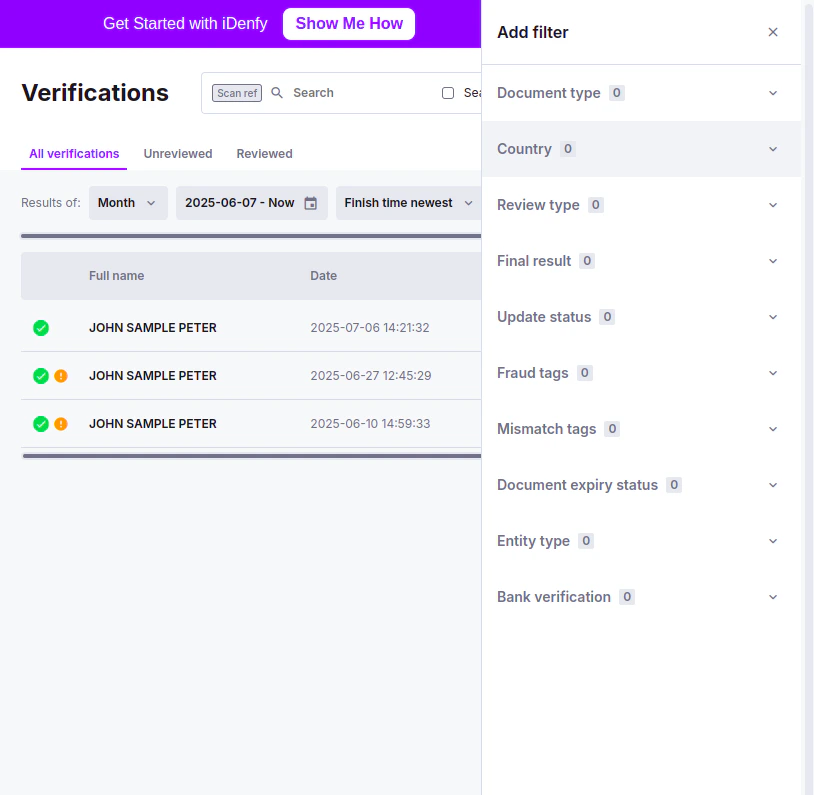
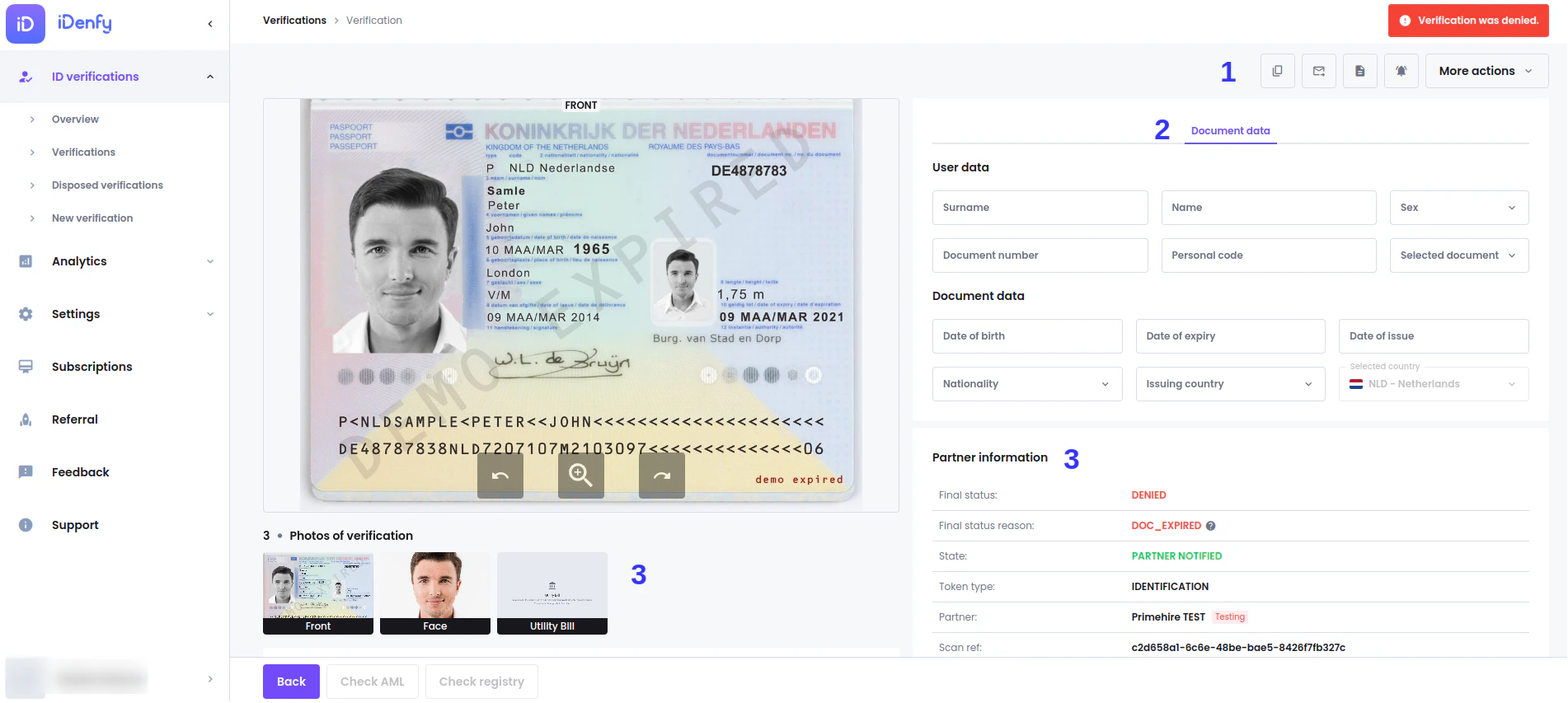
To see all verifications, navigate to **ID Verifications** → **Verifications**
* You can **click** the verified **person's name** to open the details window
* **Click** the **arrow** on the left side of the record
 ***
## Filtering
You can filter by:
* Client data, statuses
* Time & Date
* Client identifiers
### Client Data, Statuses
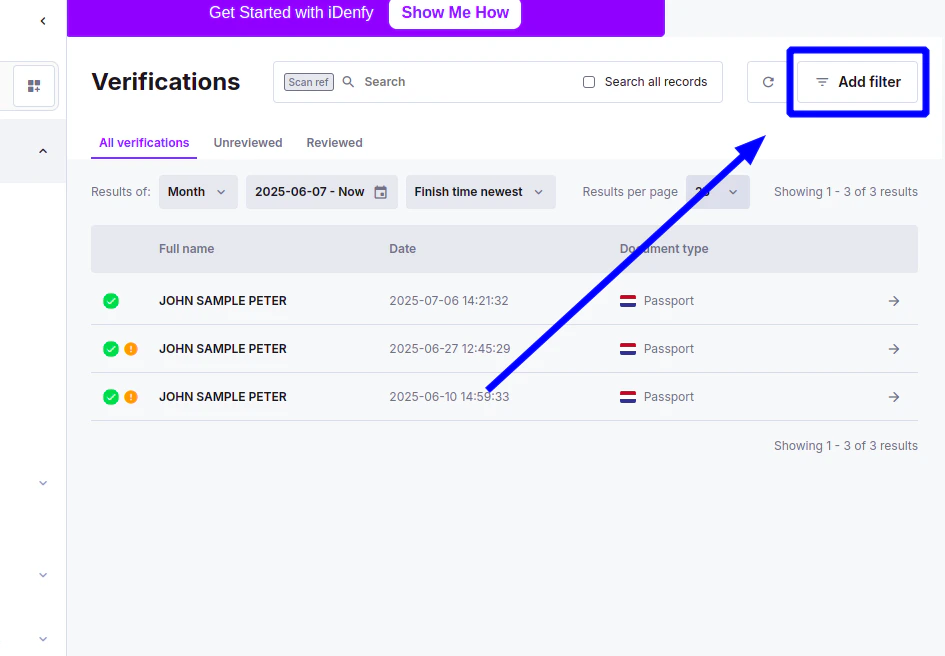
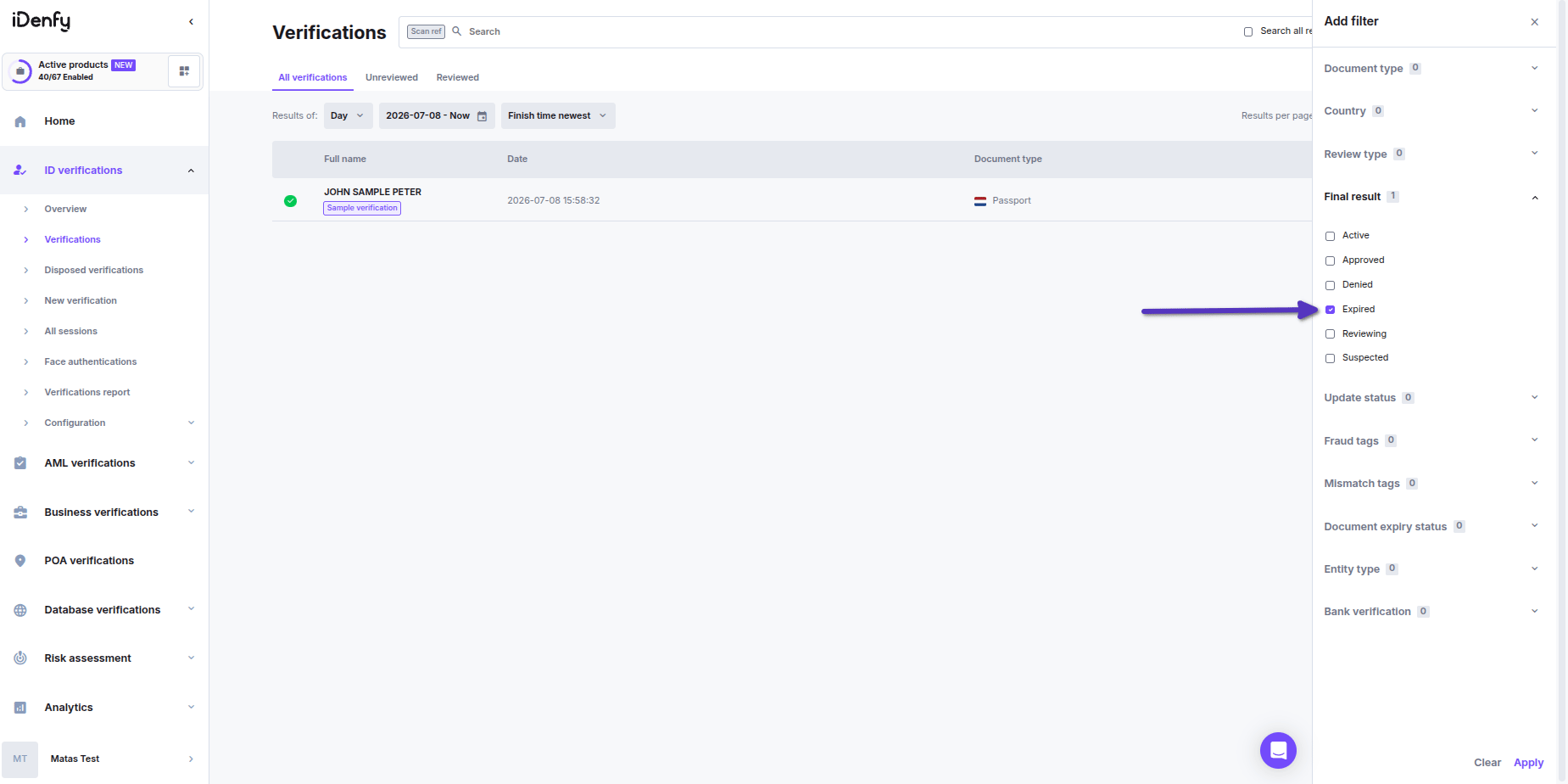
In the top right corner, select **Add filter**
A sidebar will open, with all the selectable options
***
## Filtering
You can filter by:
* Client data, statuses
* Time & Date
* Client identifiers
### Client Data, Statuses
In the top right corner, select **Add filter**
A sidebar will open, with all the selectable options
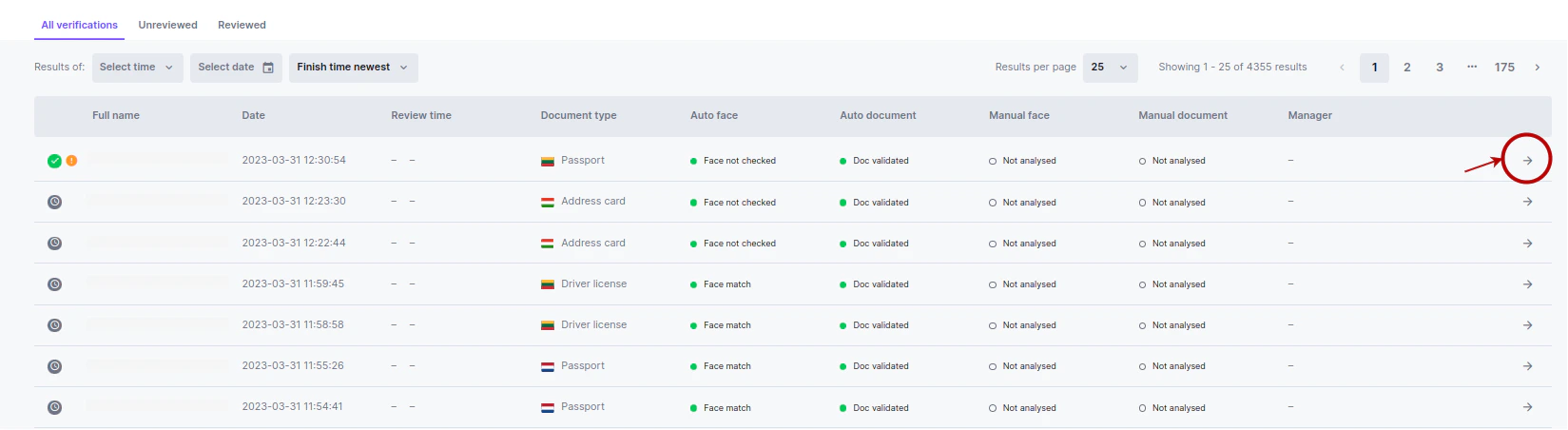 Verifications that are `EXPIRED` will **only appear** in the list if specifically filtered out
 ***
### Time and Date
You can use pre-made periods, or a specific time period, or use ***Search all records*** to filter all your database.
Additionally, you can **sort** by age
***
### Time and Date
You can use pre-made periods, or a specific time period, or use ***Search all records*** to filter all your database.
Additionally, you can **sort** by age
 ***
### Client Identifiers
**Click** **on** the **current** **identifier** and select the identifier you want to use:
* **Name** - client’s name, can be filtered either by name, surname, or both
* **Personal code**
* **scanRef** - this is an identifier generated for verification by **iDenfy**
* **Token string** - identifier used pre-verification
* **Client ID** - identifier added by partner
* **Email** - by the client's email, **only** **usable** if collecting this information during verification.
***
### Client Identifiers
**Click** **on** the **current** **identifier** and select the identifier you want to use:
* **Name** - client’s name, can be filtered either by name, surname, or both
* **Personal code**
* **scanRef** - this is an identifier generated for verification by **iDenfy**
* **Token string** - identifier used pre-verification
* **Client ID** - identifier added by partner
* **Email** - by the client's email, **only** **usable** if collecting this information during verification.