> ## Documentation Index
> Fetch the complete documentation index at: https://documentation.idenfy.com/llms.txt
> Use this file to discover all available pages before exploring further.
# SMS and Phone Verification
> Enable SMS or email verification as an extra security layer before identity verification begins to reduce fraud in the iDenfy flow.
**SMS (phone) and Email verification** are optional security features that add an extra layer of protection before the identity verification process begins.
* Users must **confirm their phone number or email** before starting verification.
* Helps reduce fraudulent attempts and ensures the identity belongs to the person initiating the process.
## SMS Verification
### SMS Verification for Individual Verifications
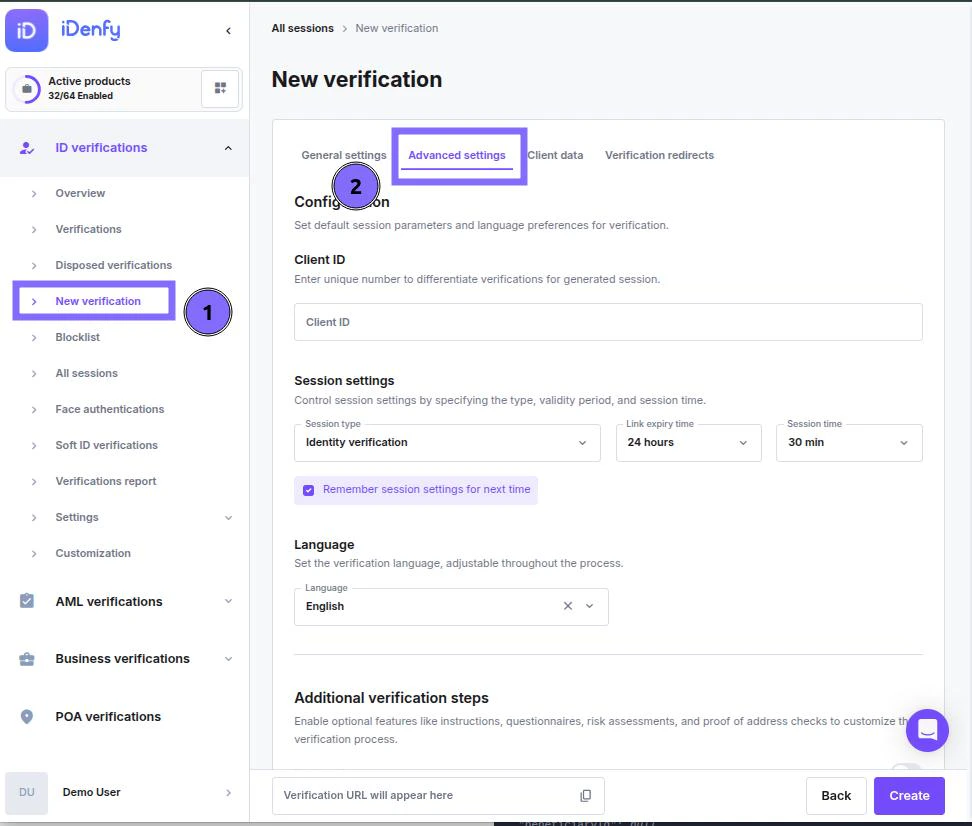
On the dashboard, navigate to the ***New verification*** section
Select the ***Advanced Settings*** tab
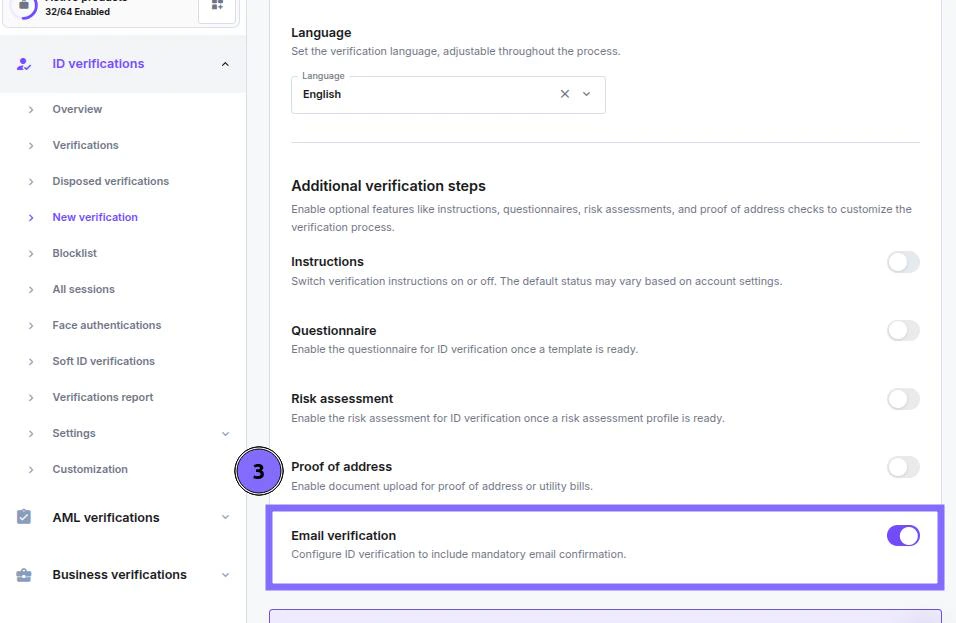
Scroll to the bottom of the settings and enable ***SMS verification***
 ### SMS Verification for All Verifications
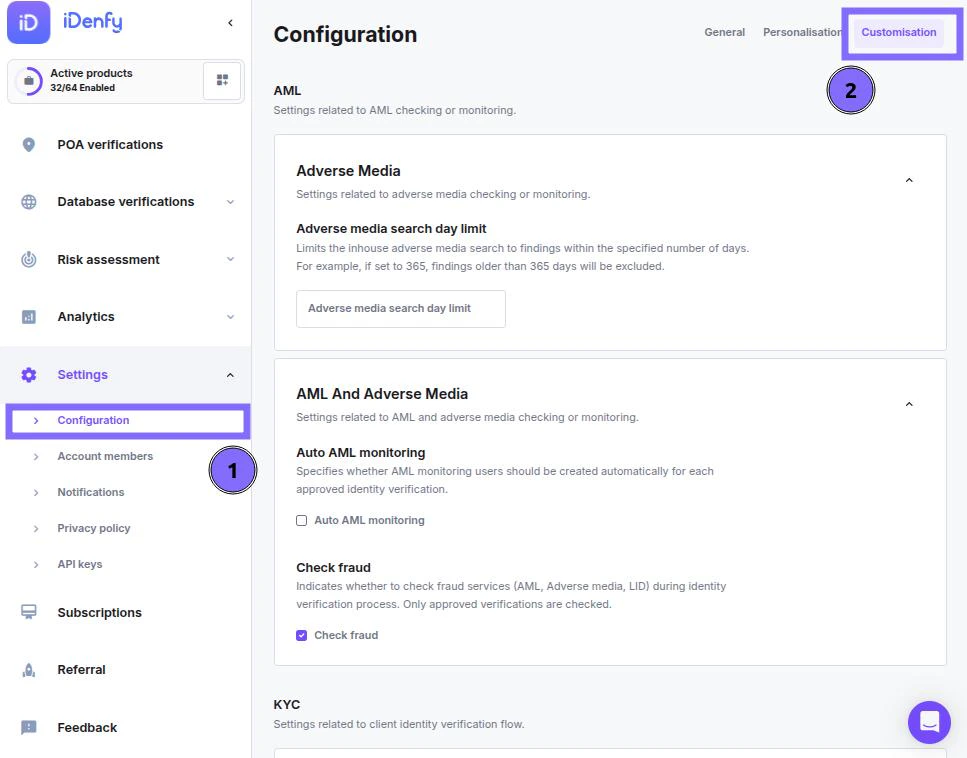
Navigate to ***Configurations*** in the Settings section
Select ***Customisation*** Tab
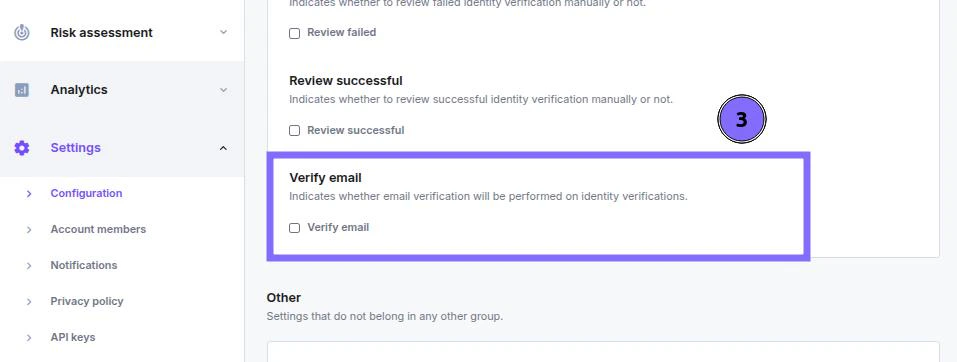
Enable the ***Verify phone*** option
### SMS Verification for All Verifications
Navigate to ***Configurations*** in the Settings section
Select ***Customisation*** Tab
Enable the ***Verify phone*** option
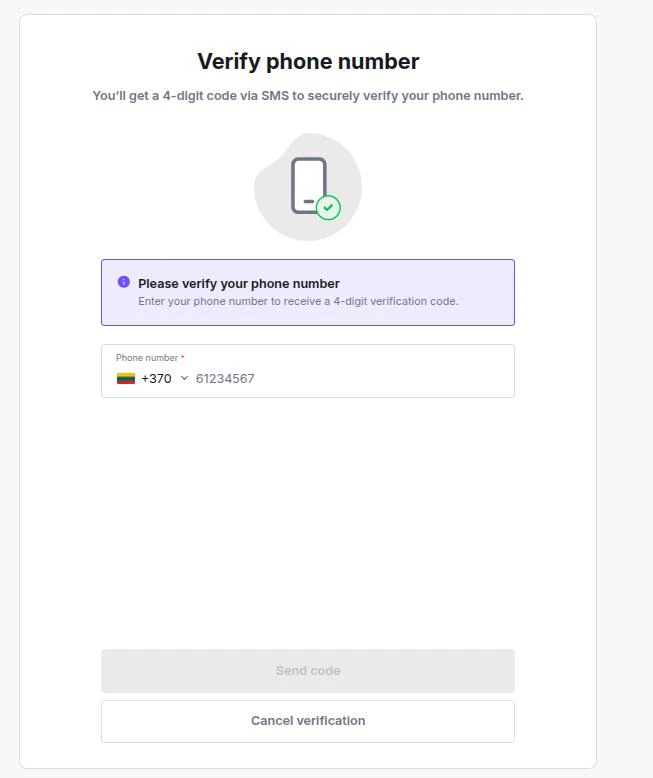
 ### User's Perspective (SMS)
Before your user can perform verification, they must confirm their **phone number**
Enter their **phone number**
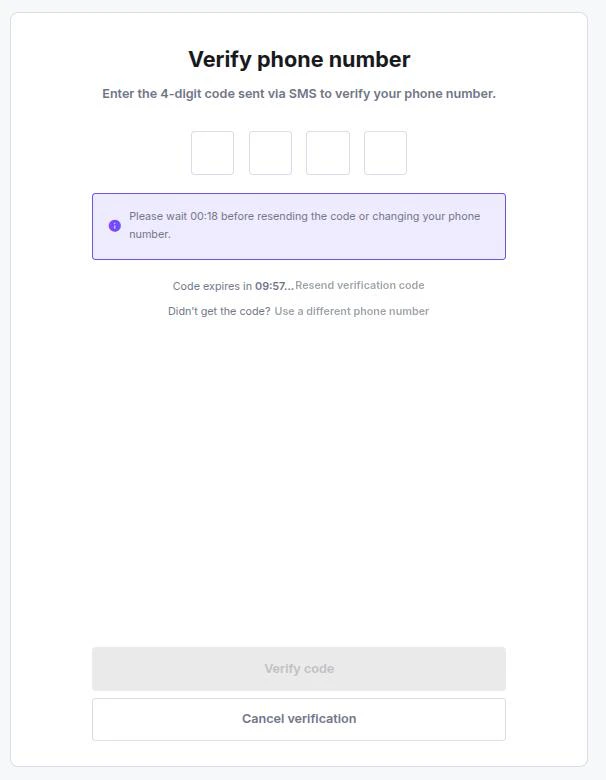
Receive a ***4-digit*** code to their phone
After entering the code, they will be allowed to complete verification
### User's Perspective (SMS)
Before your user can perform verification, they must confirm their **phone number**
Enter their **phone number**
Receive a ***4-digit*** code to their phone
After entering the code, they will be allowed to complete verification
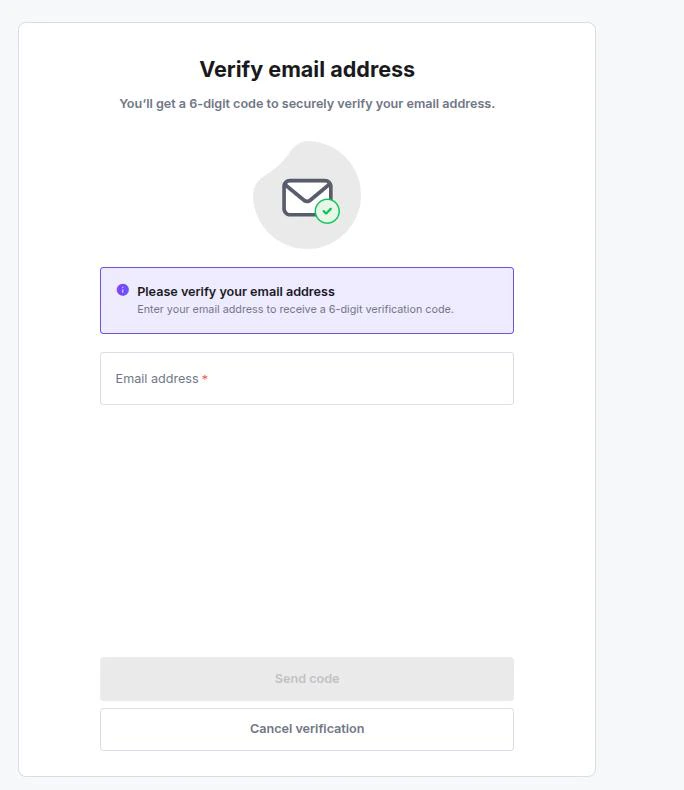
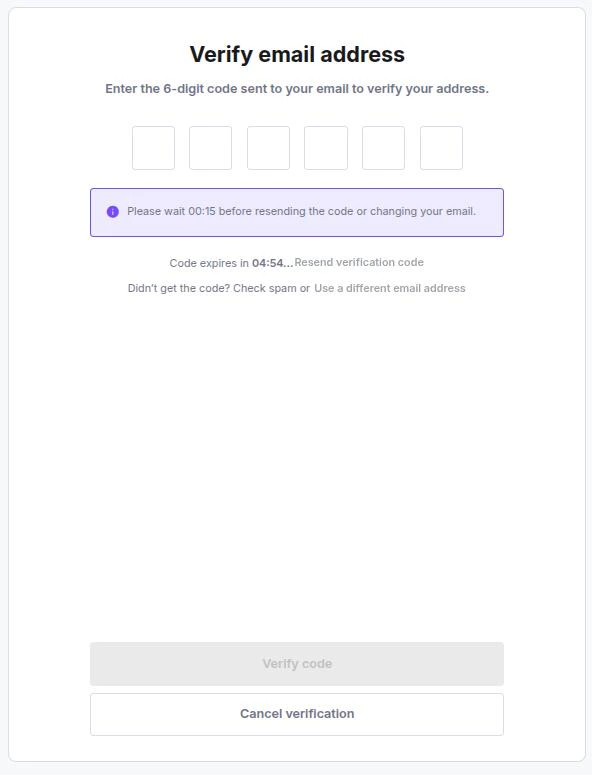 User is given **3 attempts** to resend and enter their number, after which the verification link will expire.
***
## Email Verification
Email verification can always be performed either by turning it on for all KYC verifications or only enabling this for specific verifications via the dashboard when generating a token.
### Email Verification for Individual Verifications
On the dashboard, navigate to the ***New verification*** section
Select the ***Advanced Settings*** tab
Scroll to the bottom of the settings and enable ***Email verification***
User is given **3 attempts** to resend and enter their number, after which the verification link will expire.
***
## Email Verification
Email verification can always be performed either by turning it on for all KYC verifications or only enabling this for specific verifications via the dashboard when generating a token.
### Email Verification for Individual Verifications
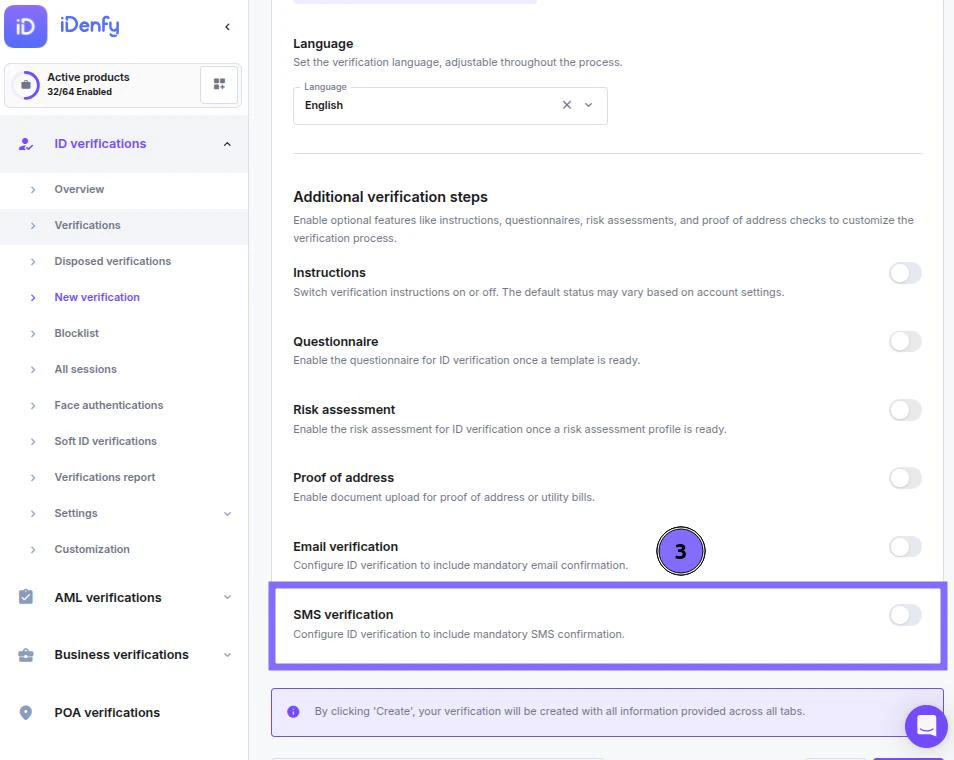
On the dashboard, navigate to the ***New verification*** section
Select the ***Advanced Settings*** tab
Scroll to the bottom of the settings and enable ***Email verification***
 ### Email Verification for All Verifications
Navigate to ***Configurations*** in the Settings section
Select ***Customisation*** Tab
Enable the ***Verify email*** option
### Email Verification for All Verifications
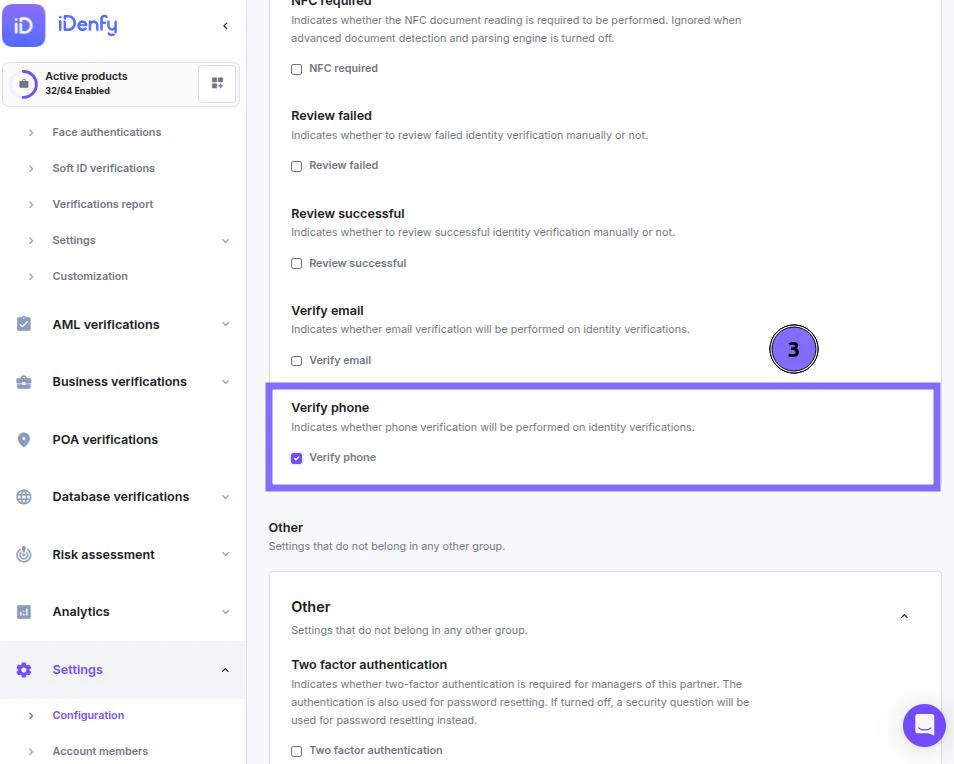
Navigate to ***Configurations*** in the Settings section
Select ***Customisation*** Tab
Enable the ***Verify email*** option
 ### User's Perspective
Before your user can perform verification, they must confirm their email
Enter their email
Receive a ***6-digit*** code to their email
After entering the code, they will be allowed to complete verification
### User's Perspective
Before your user can perform verification, they must confirm their email
Enter their email
Receive a ***6-digit*** code to their email
After entering the code, they will be allowed to complete verification
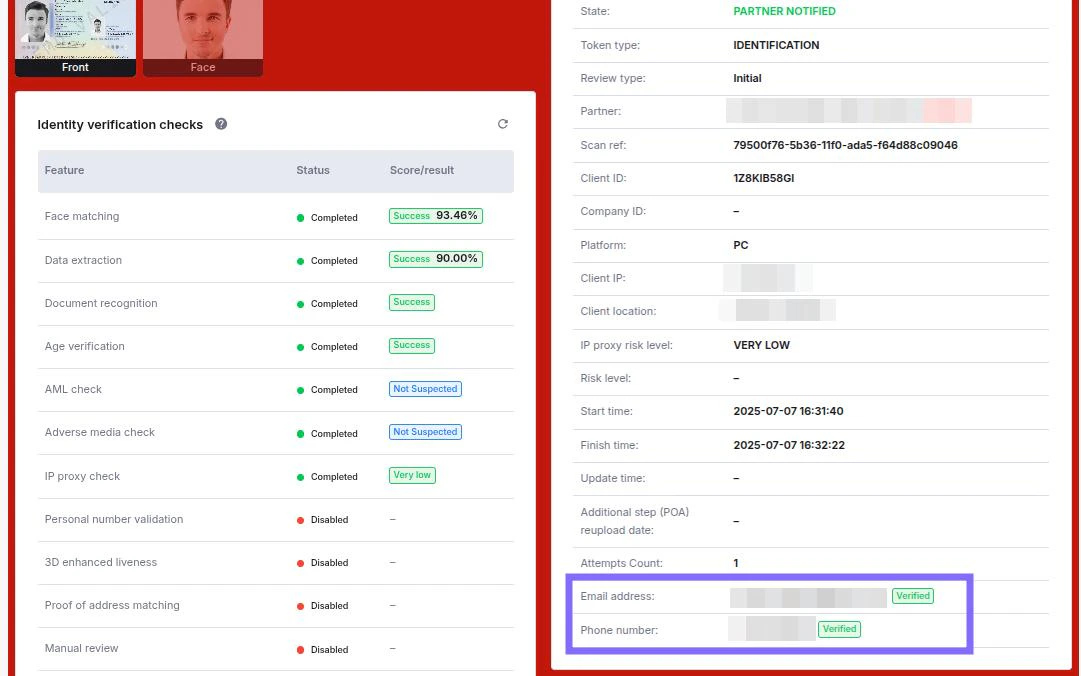 ***
### Contact Verification in the Verification Window
Find contact verification information in the verification window under the **Partner information** section.
***
## SMS and Email Verification in KYB
SMS and email verification can also be enabled per individual subject (director, representative, etc.) within a KYB workflow.
### Configuring Verification Settings for a KYB Subject
Navigate to **Settings** and open your **KYB Workflow configuration**
Select the relevant step — ***Director information***, ***Representative information***, or ***Ownership structure***
Click the **gear icon** next to the ID verification toggle for that step
***
### Contact Verification in the Verification Window
Find contact verification information in the verification window under the **Partner information** section.
***
## SMS and Email Verification in KYB
SMS and email verification can also be enabled per individual subject (director, representative, etc.) within a KYB workflow.
### Configuring Verification Settings for a KYB Subject
Navigate to **Settings** and open your **KYB Workflow configuration**
Select the relevant step — ***Director information***, ***Representative information***, or ***Ownership structure***
Click the **gear icon** next to the ID verification toggle for that step
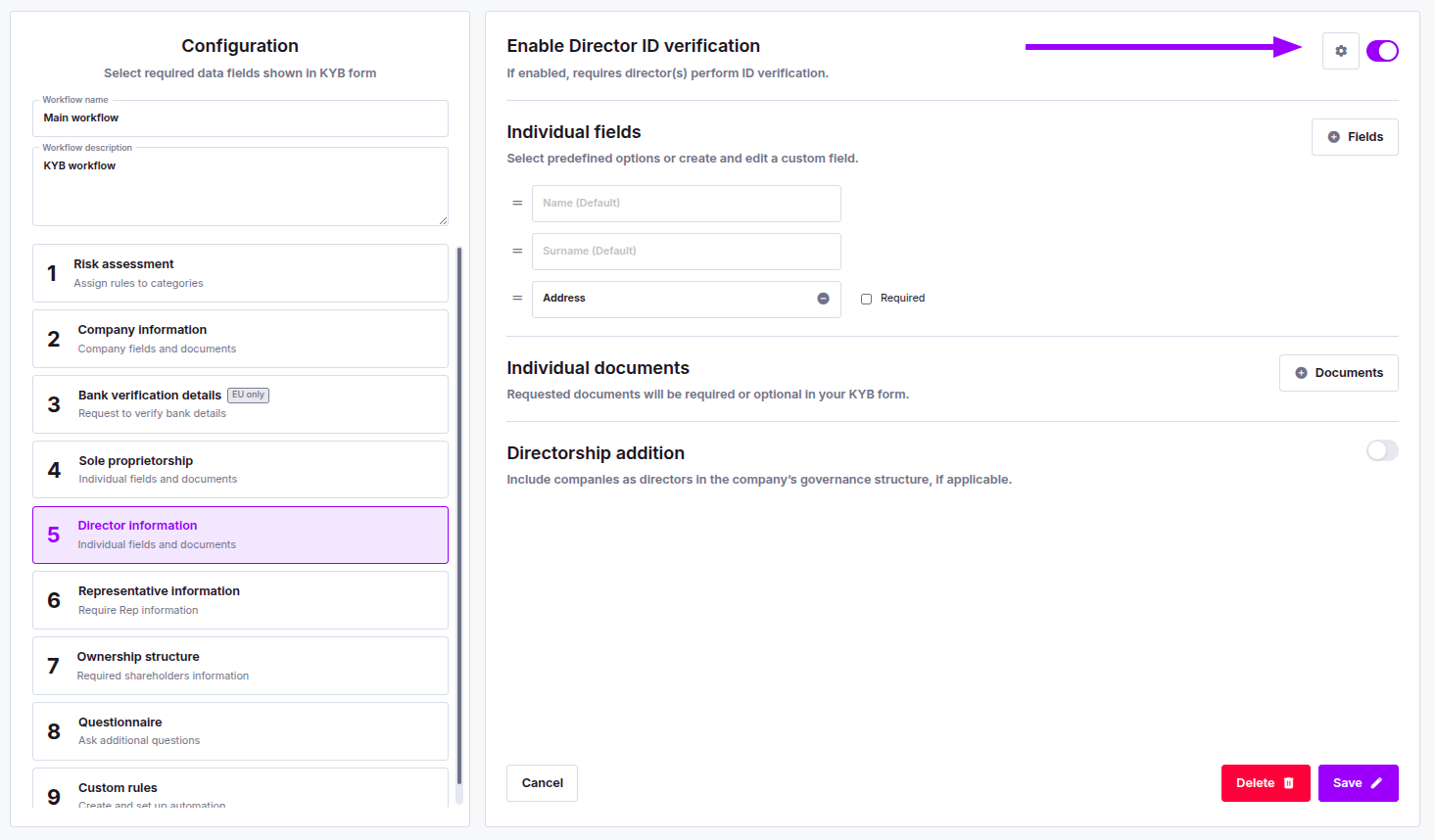 In the ***Edit verification settings*** modal that opens, scroll to the bottom and enable **Email verification** or **SMS verification** as needed
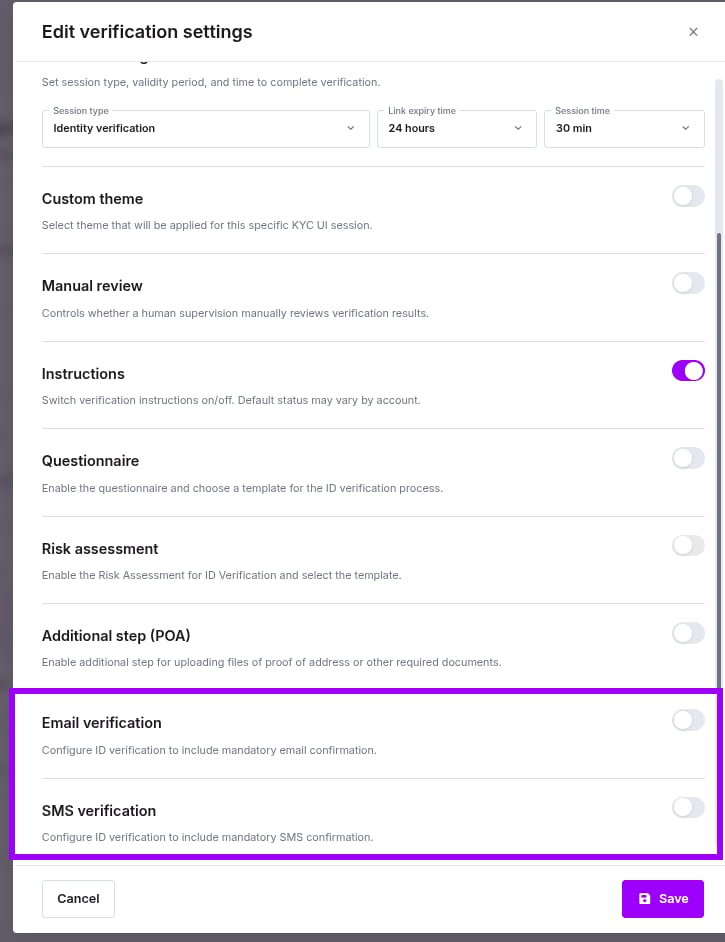 Click **Save** to apply the changes.