> ## Documentation Index
> Fetch the complete documentation index at: https://documentation.idenfy.com/llms.txt
> Use this file to discover all available pages before exploring further.
# AI Reviewer for KYB
> Run automated AI-powered KYB reviews, interpret outcomes, and learn how the iDenfy AI reviewer evaluates companies and their associated people.
**Feature enabling**
To use this feature, you first need [**settings enabled**](https://idenfy-ivs.atlassian.net/servicedesk/customer/portal/1) and an **AI flow** configured. See [AI Reviewer Settings](/guides/dashboard/settings/ai-reviewer) for setup instructions.
## How the AI Reviewer Works
The AI reviewer runs a configured sequence of checks against a company and its associated people (directors, shareholders, UBOs, and so on). Each check produces one of three outcomes:
| Outcome | Meaning |
| -------------- | --------------------------------------------------------------------- |
| **Accepted** | The check passed all configured criteria. |
| **Unaccepted** | The check failed. One unaccepted check is enough to deny the company. |
| **Skipped** | The check could not run — usually because required data was missing. |
Once all checks complete, the reviewer sets the overall company result:
* **Approved** — every check is Accepted or Skipped.
* **Denied** — at least one check is Unaccepted.
* **Flagged** — checks passed, but unresolved AML flags exist on the case. The company stays in its previous status until the flags are resolved manually.
***
## Initiating a Review
If the automated analysis has not been triggered yet, the main window will show an **"AI review not yet initiated"** status.
There are two ways to start it:
* Click **Run AI reviewer** in the center of the screen.
* Click **Get AI reviewer insights** in the top header, next to the company status.
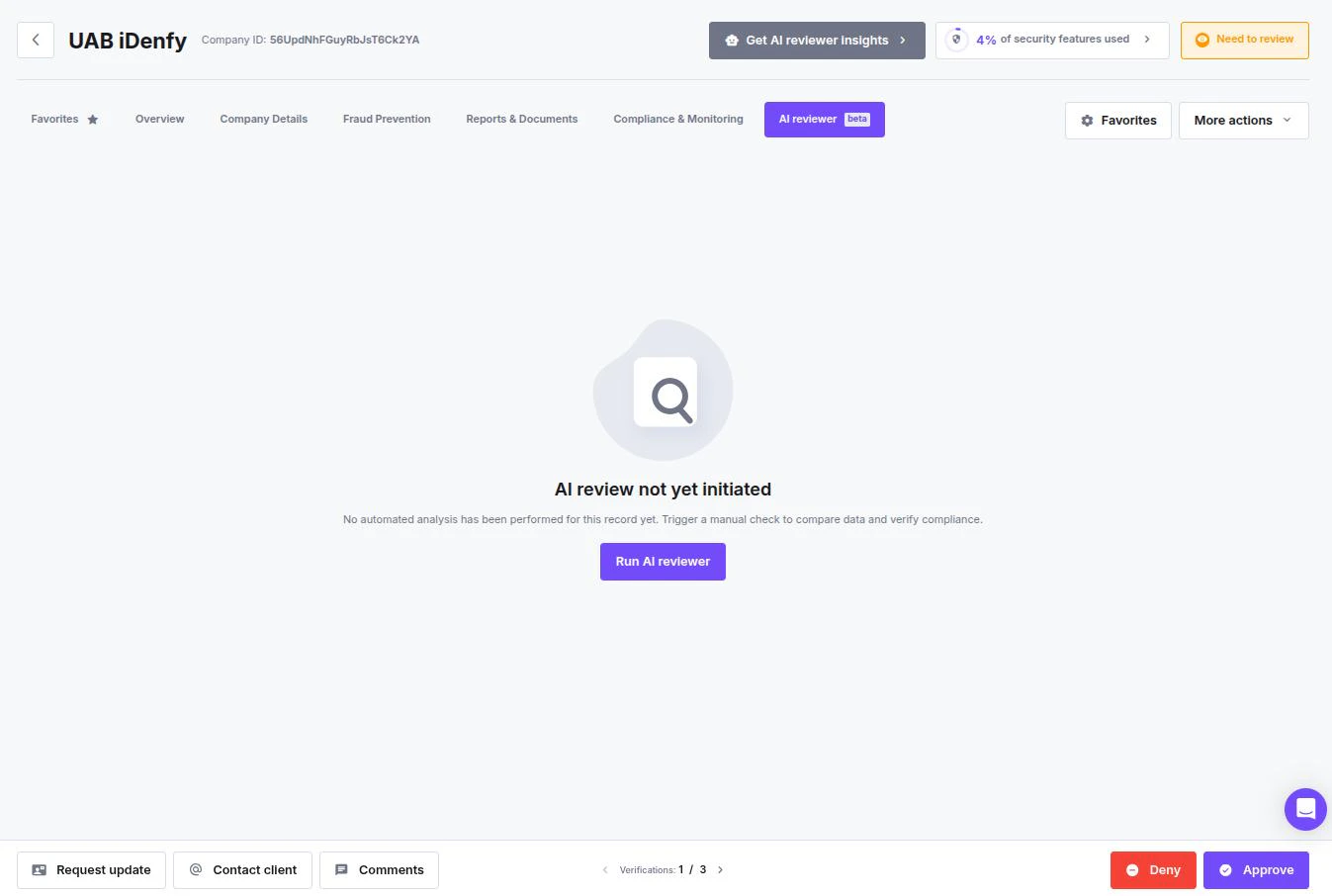 If the **Automated AI review** toggle is enabled in settings, the reviewer runs automatically for every new business verification — no manual trigger needed.
***
## Reading the Results
Once the review finishes, the interface updates to reflect the automated decision.
### Overall Outcome
Check the top of the company profile:
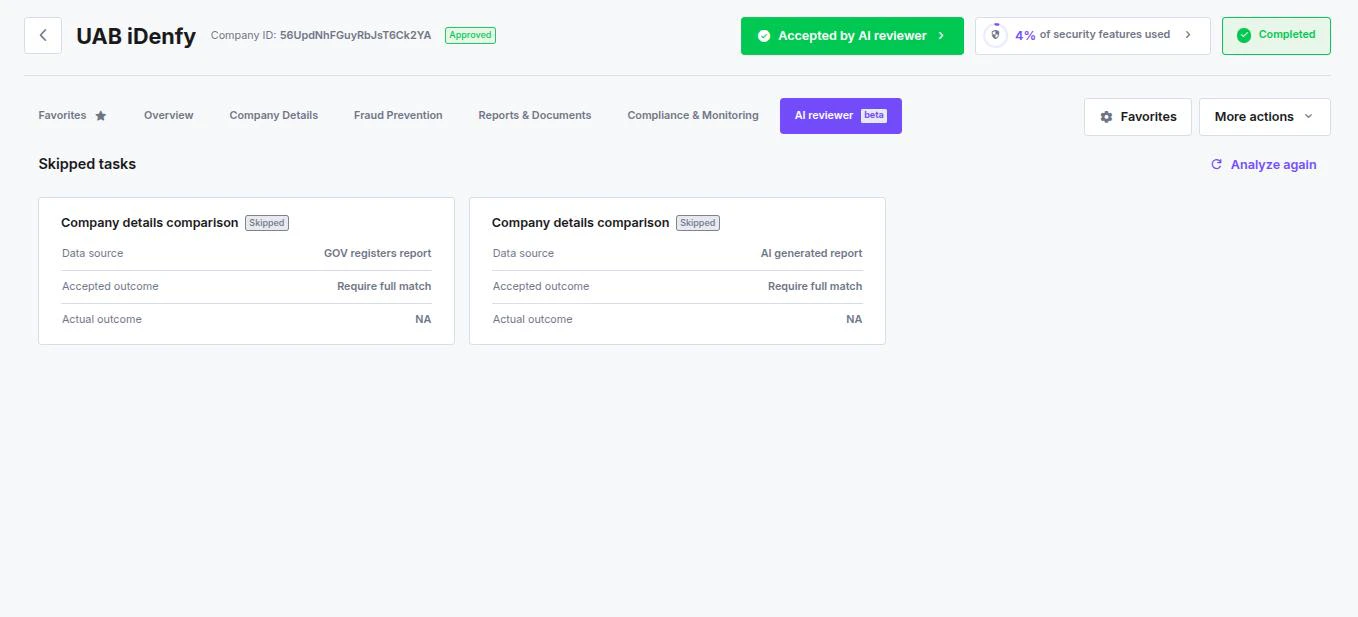
* **Company Status Badge** — shows the current status (e.g. a green **Approved** badge).
* **AI Decision Button** — a green **Accepted by AI reviewer** button confirms the automation cleared the entity.
### Task Cards
The **AI reviewer** tab breaks the review down into individual check cards, one per configured rule.
Each card shows:
* **Check name** — identifies which rule ran (e.g. AML check, Company details comparison).
* **Actual outcome** — the result of the check. Shows **NA** if the check was skipped.
* **Skipped indicator** — if the AI could not perform a check (missing data, unavailable report, API error), the card is marked **Skipped**.
* **Analyze again** icon — re-runs this specific check after you have updated data or fixed a configuration issue.
If the **Automated AI review** toggle is enabled in settings, the reviewer runs automatically for every new business verification — no manual trigger needed.
***
## Reading the Results
Once the review finishes, the interface updates to reflect the automated decision.
### Overall Outcome
Check the top of the company profile:
* **Company Status Badge** — shows the current status (e.g. a green **Approved** badge).
* **AI Decision Button** — a green **Accepted by AI reviewer** button confirms the automation cleared the entity.
### Task Cards
The **AI reviewer** tab breaks the review down into individual check cards, one per configured rule.
Each card shows:
* **Check name** — identifies which rule ran (e.g. AML check, Company details comparison).
* **Actual outcome** — the result of the check. Shows **NA** if the check was skipped.
* **Skipped indicator** — if the AI could not perform a check (missing data, unavailable report, API error), the card is marked **Skipped**.
* **Analyze again** icon — re-runs this specific check after you have updated data or fixed a configuration issue.
 **Company name matching** treats minor spelling and formatting differences as **Full match** — including case variants, special-character equivalents (e.g. Müller = Mueller), legal-form abbreviations, punctuation, "&" vs "and", and extra whitespace. Word-order differences still produce a Partial match. The same logic applies to beneficiary name and surname fields.
***
## Concurrent Reviews
The system locks per company during a review run. If two people trigger a review at the same time, only one runs — the other is rejected. Wait for the first review to complete before retrying.
***
## Next Steps
* For skip and failure reasons on each check type, see [Checks Reference](/guides/dashboard/kyb/ai-reviwer-check-reference).
* To configure rules and automation settings, see [AI Reviewer Settings](/guides/dashboard/settings/ai-reviewer).
**Company name matching** treats minor spelling and formatting differences as **Full match** — including case variants, special-character equivalents (e.g. Müller = Mueller), legal-form abbreviations, punctuation, "&" vs "and", and extra whitespace. Word-order differences still produce a Partial match. The same logic applies to beneficiary name and surname fields.
***
## Concurrent Reviews
The system locks per company during a review run. If two people trigger a review at the same time, only one runs — the other is rejected. Wait for the first review to complete before retrying.
***
## Next Steps
* For skip and failure reasons on each check type, see [Checks Reference](/guides/dashboard/kyb/ai-reviwer-check-reference).
* To configure rules and automation settings, see [AI Reviewer Settings](/guides/dashboard/settings/ai-reviewer).