> ## Documentation Index
> Fetch the complete documentation index at: https://documentation.idenfy.com/llms.txt
> Use this file to discover all available pages before exploring further.
# Company Profile Overview
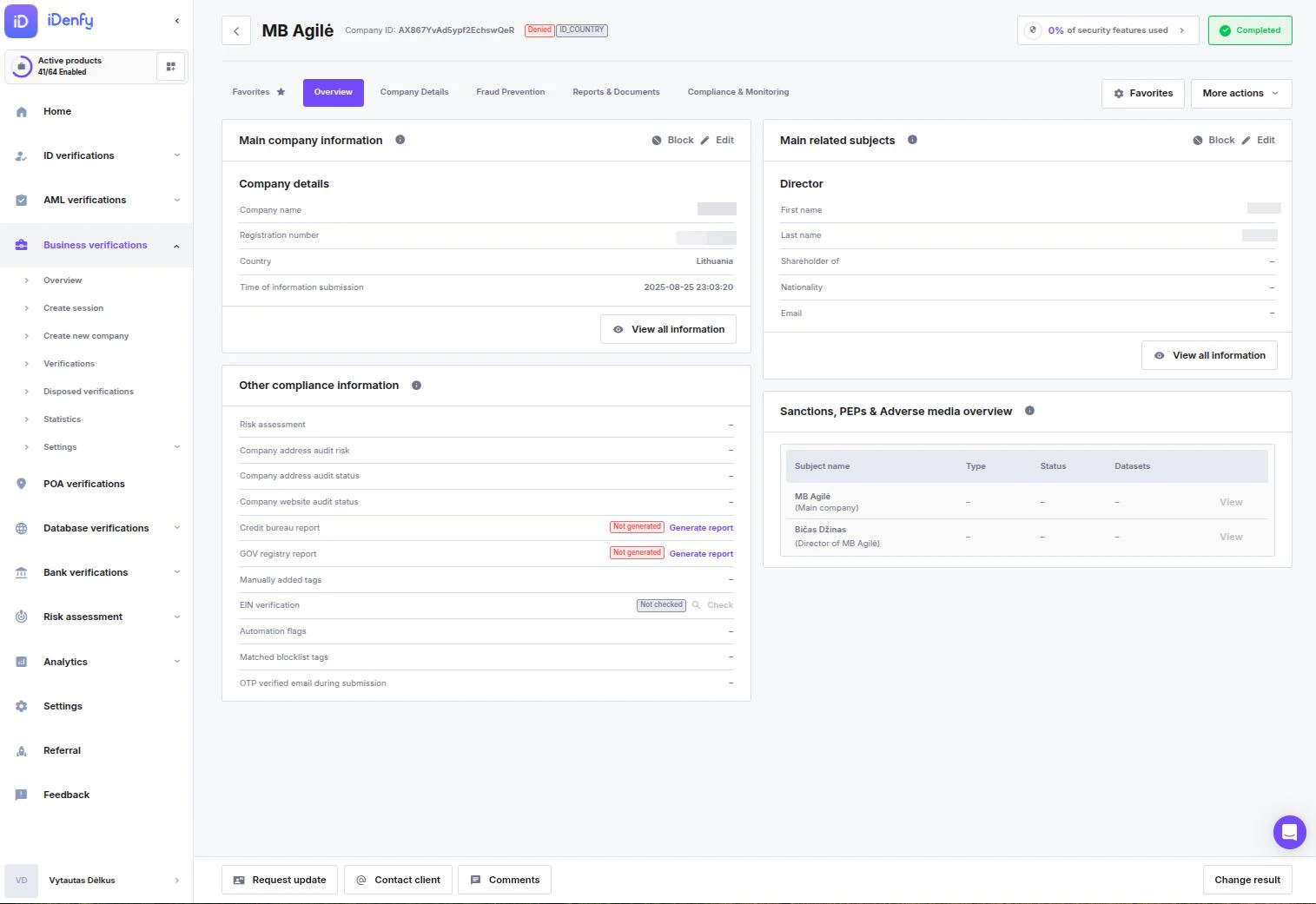
> Navigate the company profile header, overview, compliance status, and workflow toolbar in the iDenfy business verification dashboard.
## Header Information and Status
The top bar displays critical identification and state data for the record:
* **Company Name** — The legal name of the entity as submitted or retrieved.
* **Company ID** — A unique internal identifier (e.g., `7bPN6YMQ9F7...`). This ID is the primary way to reference specific companies when contacting iDenfy support.
* **Verification Result** — Displays the final outcome:
* **Approved** — The company has passed all checks.
* **Denied** — The verification failed. A reason badge (e.g., `ID_COUNTRY`) indicates why.
* **Security Progress** — Percentage indicating how many available security features are active for this record.
* **Process Status:**
| Status | Meaning |
| -------------------- | ------------------------------------------------------------------------------------------- |
| **Processing** | Business verification is submitted and being auto-processed |
| **Under submission** | [Request Update](/guides/dashboard/kyb/request-update-kyb) feature used, waiting for update |
| **Need to process** | Submission awaiting initial automated or manual handling |
| **Need to review** | Records flagged for manual oversight by a manager |
| **Completed** | Finalized verifications (Approved or Denied) |
| **Expired** | Sessions that passed their validity timeframe without completion |
***
## Favorites Tab
Your personalized dashboard where you can pin the most relevant data cards for your workflow.
* **Setup** — Click **"Configure favorite cards"** to select which sections (like Risk Factors or Documents) appear here.
* **Customize** — Use the **Star icon** on any individual card throughout the profile to add or remove it from this view.
***
## Overview Tab
The Overview tab centralizes summary data for quick manual review.
### Main Company Information
* **Core Data** — View the legal name, registration number, and country.
* **Quick Actions** — Use the **Edit** button to correct details or **Block** to restrict the record.
### Compliance and Risk Overview
* **Other Compliance Info** — View the status of external reports like GOV Registry or Credit Bureau checks.
* **Other Risk Factors** — Real-time indicators for technical risks, including IP Proxy use, email duplicates, and fraud probability.
* **AML & Monitoring** — Manage screening results for the company and its directors. Trigger AML Single Checks or enroll subjects into continuous AML Monitoring.
### Related Subjects and Ownership
* **Main Related Subjects** — Summary of key personnel (directors/beneficiaries).
* **Ownership Structure** — Visual or tabular breakdown of the company's legal structure (where data is available).
 ***
## Workflow Toolbar
The fixed toolbar at the bottom of the screen allows you to take immediate action:
***
## Workflow Toolbar
The fixed toolbar at the bottom of the screen allows you to take immediate action:
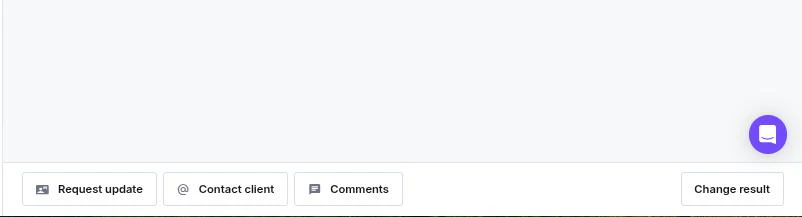 * **Request Update** — Send a request to the client to update specific information or documents.
* **Comments** — Log internal notes or view the audit history of team discussions.
* **Change Result** — Manually override the verification outcome (e.g., approving a record after manual document review).
* **Navigation** — Cycle through the previous or next records in your filtered list.
* **Request Update** — Send a request to the client to update specific information or documents.
* **Comments** — Log internal notes or view the audit history of team discussions.
* **Change Result** — Manually override the verification outcome (e.g., approving a record after manual document review).
* **Navigation** — Cycle through the previous or next records in your filtered list.