> ## Documentation Index
> Fetch the complete documentation index at: https://documentation.idenfy.com/llms.txt
> Use this file to discover all available pages before exploring further.
# Getting Started with KYB
> Get started with iDenfy business verification by setting up workflows, onboarding clients, reviewing data, and generating PDF reports.
## Workflow
Before companies, you will need to understand workflows, as they enable you to request specific information about companies and stakeholders.
You can find a full procedure on how you can create your personalized flow [here](/guides/dashboard/setup/setup-workflow).
***
## Onboard Your Client
### Client-Side of the Business Client Onboarding Flow
First, you can manually onboard a client using the dashboard. You can find out how you can manually create a session for your client here:
There is also a way to use the API. You can create a KYB session through the API by following this documentation:
[/kyb/generate-token](/kyb/generate-token)
### Your Side of the Business Client Onboarding Flow
First and foremost, it's important to note that the business flow can be tailored to fit your specific needs. Below is an example of how the custom flow might appear from the client's perspective.
## Review Onboarded Client Information
Once the company has submitted its information, you can view it on the iDenfy dashboard under Business Verifications → Verifications. In the company profile, all provided information is accessible, and you can conduct additional security checks and order Gov registers and Credit Bureau reports.
***
## Download PDF
We provide an option to download all the business verification information or only just enough to fulfill your business needs.
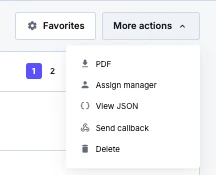
To download a PDF, please visit business verifications, click more actions, then select PDF.
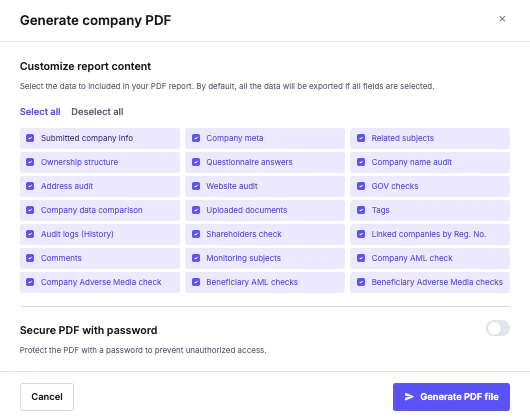 You will then be able to generate a PDF with the selected fields.
 **Important:** We still provide the option to download all data fields, even if no data was generated. In such cases, the fields will be returned empty.