> ## Documentation Index
> Fetch the complete documentation index at: https://documentation.idenfy.com/llms.txt
> Use this file to discover all available pages before exploring further.
# Crossmatch Functionality
> Cross-check user-provided personal data against document-extracted data to detect discrepancies and mismatches in iDenfy verification.
Data crossmatch is a method of comparing data from different datasets to find similarities, discrepancies, or correlations between them. The process generally ensures data consistency, accuracy, and information validity across various sources.
## Why Is Crossmatching Companies Important?
Crossmatching lets you perform additional checks between companies that use KYB verification and databases such as the Credit bureau, government registers, and government register filings (company mortgages). This adds an extra layer of security and helps you screen companies more efficiently.
## How Does iDenfy Help You Use Data Crossmatching for KYB Solutions?
iDenfy's solution enables your compliance officer, or the person responsible for compliance, to cross-check data across various databases efficiently. This significantly reduces the time required to verify a client's compliance and lowers operational costs.
Once everything’s set up, our user-friendly, no-code, AI-powered tool swiftly processes the selected databases to generate results. To learn how the functionality can be enabled and set up, please proceed to section 5.
## With What GOV Check Report Types Can We Compare Data?
You have the option to generate one of five report types:
* Credit bureau
* GOV register report
* GOV register lite
* Credit bureau lite
* Register reports
Due to the amount of data required to find the best match, the crossmatch functionality works well with Credit bureaus, Gov register reports, and register reports. *The cross-match functionality is incompatible with GOV register lite and Credit bureau lite reports.*
## How Can I Start Using the Crossmatch Functionality?
To start using the crossmatch functionality, you must first enable it. If you are already using our products, contact your account manager. You will then agree on details and the amount of credits needed, and they will also set up the required permissions.
When you have the credits and the service enabled, you need to generate the reports you’ll compare. Otherwise, the crossmatch will not work. First, click on 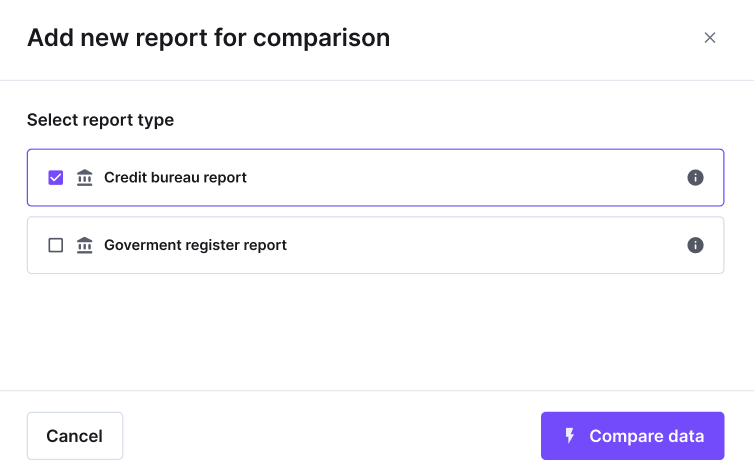 next to Gov checks in the business verification to see which report type compares the data you need. Then, click on “Add check“ in the GOV Checks section:
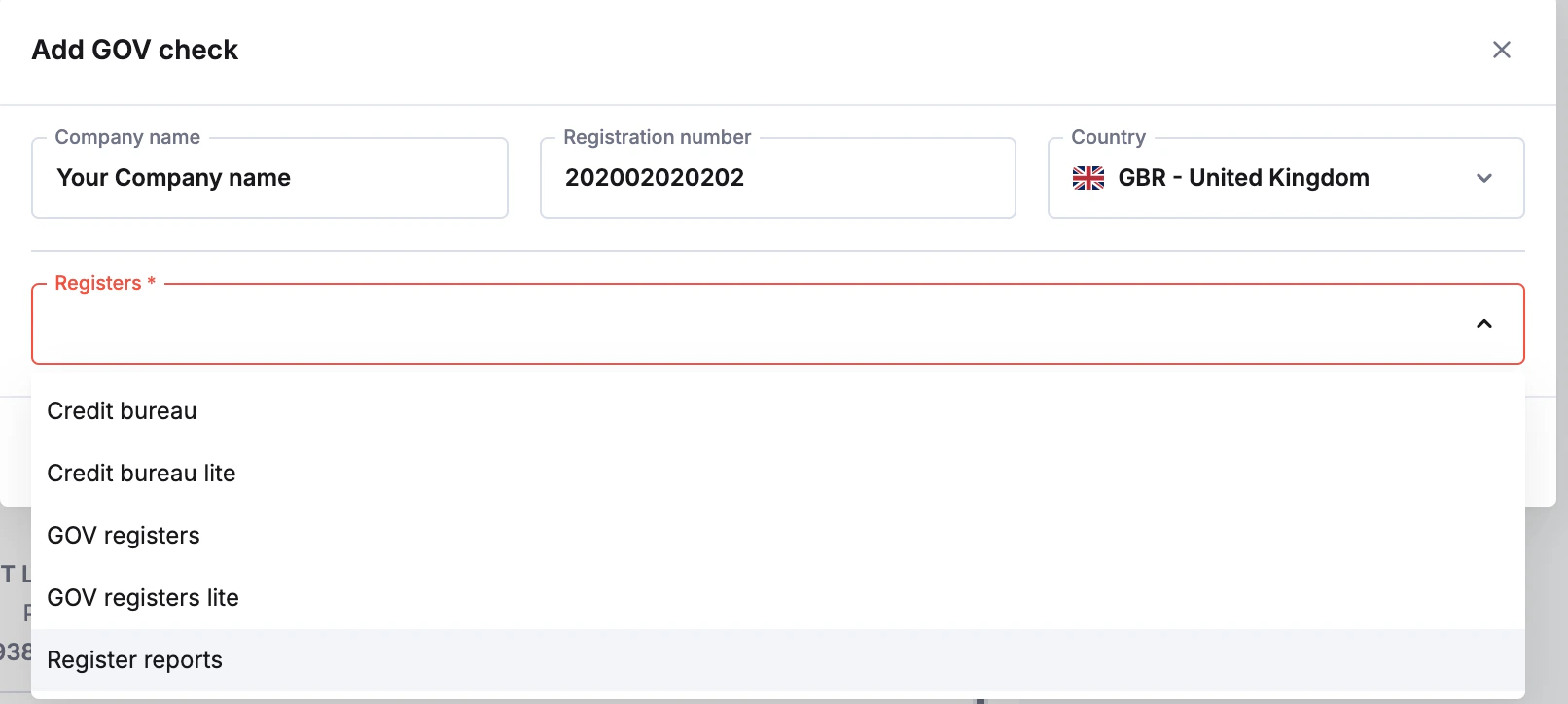
 You will then be brought to the Registers selection:
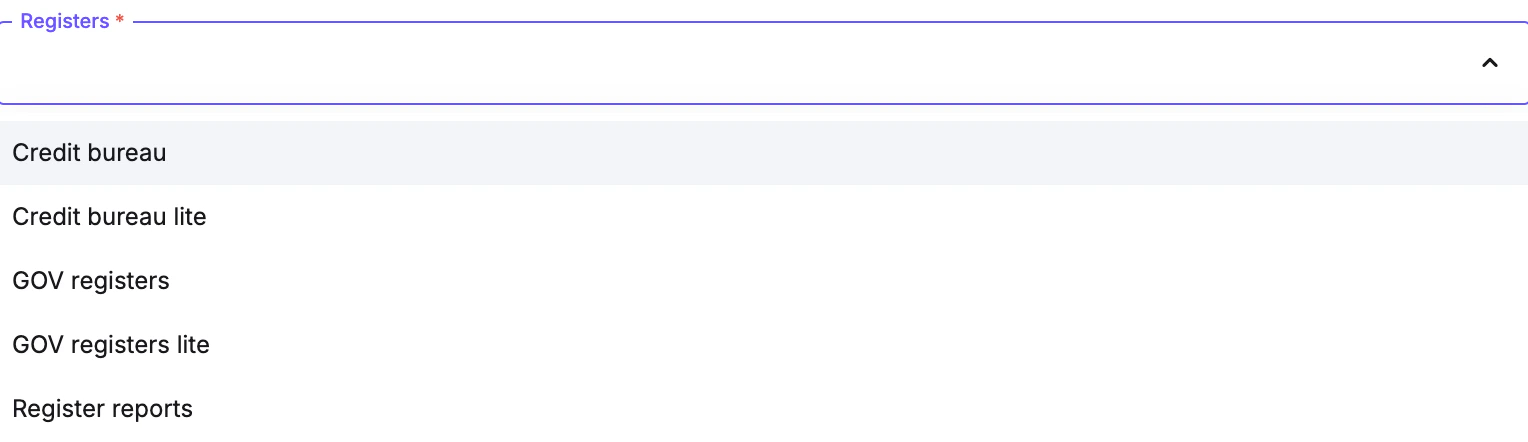 To start the process, you must generate one of the three possible reports:
* Government records,
* Credit bureau
* Government register fillings (company mortgages)
Once you have one or more reports generated, click on the "Company Data Comparison" field, select one of the available reports from the list, and then click "Compare Data" to initiate the comparison:
To start the process, you must generate one of the three possible reports:
* Government records,
* Credit bureau
* Government register fillings (company mortgages)
Once you have one or more reports generated, click on the "Company Data Comparison" field, select one of the available reports from the list, and then click "Compare Data" to initiate the comparison:
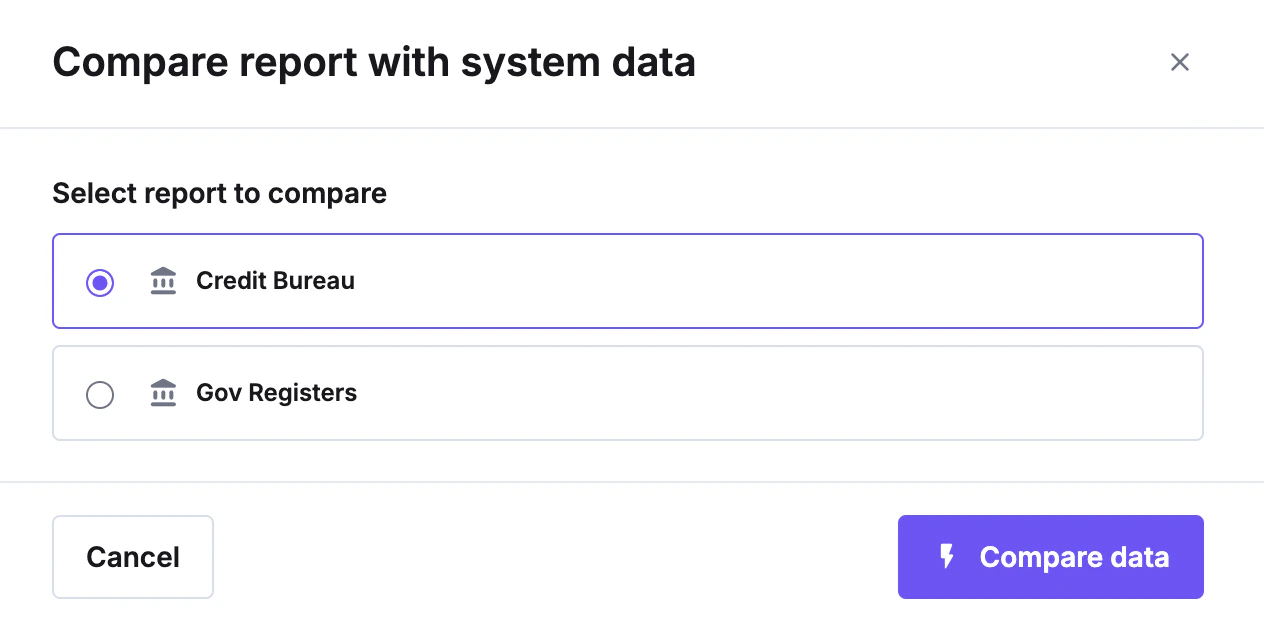
 Based on the reports you generated in the gov checks list, you will be able to select the reports with which you can compare data. In this case, we had 2 reports generated previously, so both of them can be used for comparison:
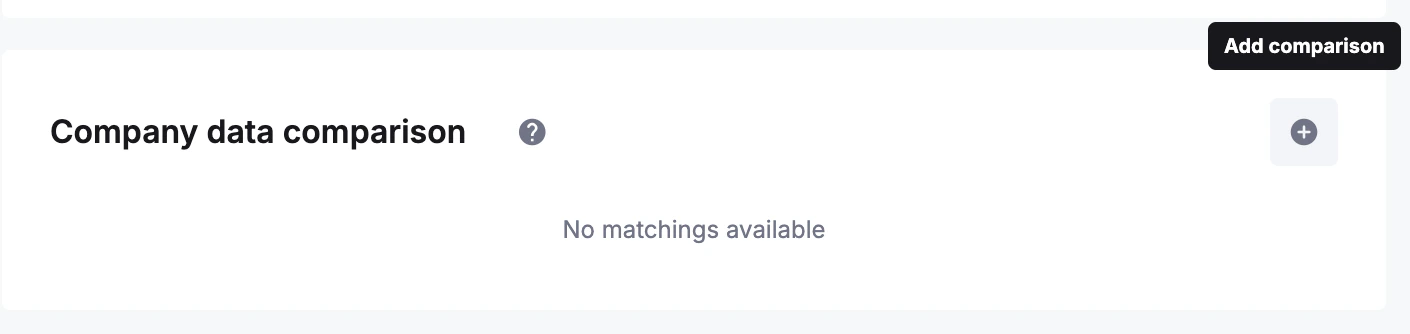 After choosing which report to compare, click “Compare data“. When you click the “Compare data” button, the process is initiated, and the crossmatching starts. Once the crossmatching results are returned, you can see them in the “Company data comparison field”:
 To get a more detailed view, click “Detailed view” and check different provided fields.
To better understand the Overall result, there are four different match levels:
1. Match
2. Partial match
3. No Match
4. Not provided in the system
Depending on the results, one of these levels is returned.
## How Does the Full Flow Look?
To get a more detailed view, click “Detailed view” and check different provided fields.
To better understand the Overall result, there are four different match levels:
1. Match
2. Partial match
3. No Match
4. Not provided in the system
Depending on the results, one of these levels is returned.
## How Does the Full Flow Look?