> ## Documentation Index
> Fetch the complete documentation index at: https://documentation.idenfy.com/llms.txt
> Use this file to discover all available pages before exploring further.
# Custom Rules for PoA Matching
> Configure PoA verification custom rules in iDenfy KYB to match proof of address name, address, and recency per stakeholder, then automate the decision with the AI reviewer.
Proof of address (PoA) matching turns an uploaded utility bill or bank statement into a **decision input**. The platform extracts the name, address, issue date, and document type from the file, compares them against the data already held on the case, and exposes every mismatch as a condition you can build a rule on.
Two layers do the work, and they are configured separately:
Runs the extraction and comparison for a chosen stakeholder, then **flags or blocks** the company when the conditions you selected are met.
Reads the PoA outcome alongside every other check on the case and issues the **final decision** — approve, flag for investigation, or deny.
Use the custom rule alone if you only need a tag on the company. Use both when the PoA result should influence whether the case is approved or denied automatically.
***
## What PoA Matching Compares
The PoA automation extracts five data points from the submitted document:
| Extracted | Used for |
| -------------------------------- | ------------------------------------------------------------------- |
| Full name of the document holder | Name match against the stakeholder's declared name |
| Full address | Address match against the declared address |
| Issue date | Recency check — the document must be no older than **three months** |
| Document type | Checked against the allowed PoA document types |
| Presence of an issuer logo | Authenticity signal (missing logo is a common forgery indicator) |
Name and address are **optional inputs**. If a stakeholder record has no address on it, there is nothing to compare against and the address portion of the check cannot produce a mismatch — so the matching quality depends directly on how complete the workflow step that collects the stakeholder is.
PoA documents are always processed automatically and never enter manual review. If a file cannot be read, the system retries and then raises a mismatch rather than creating a review task.
***
## Choosing the Rule Type
Two automation types cover PoA, and they differ only in **whose** data the document is matched against:
| Automation type | Matches the document against | Typical use |
| -------------------------------- | ------------------------------------------------------ | --------------------------------------------------------------------------------------- |
| **PoA verification** | The company's name and registered or operating address | Confirming the business trades from the address it declared |
| **PoA verification beneficiary** | A stakeholder's name, surname, and residential address | Confirming a Director, Representative, UBO, or shareholder lives where they say they do |
The rest of this page uses **PoA verification beneficiary**, which is the more common of the two. The configuration screen is identical for both apart from the **Apply for** selector.
***
## Step 1 — Create the Custom Rule
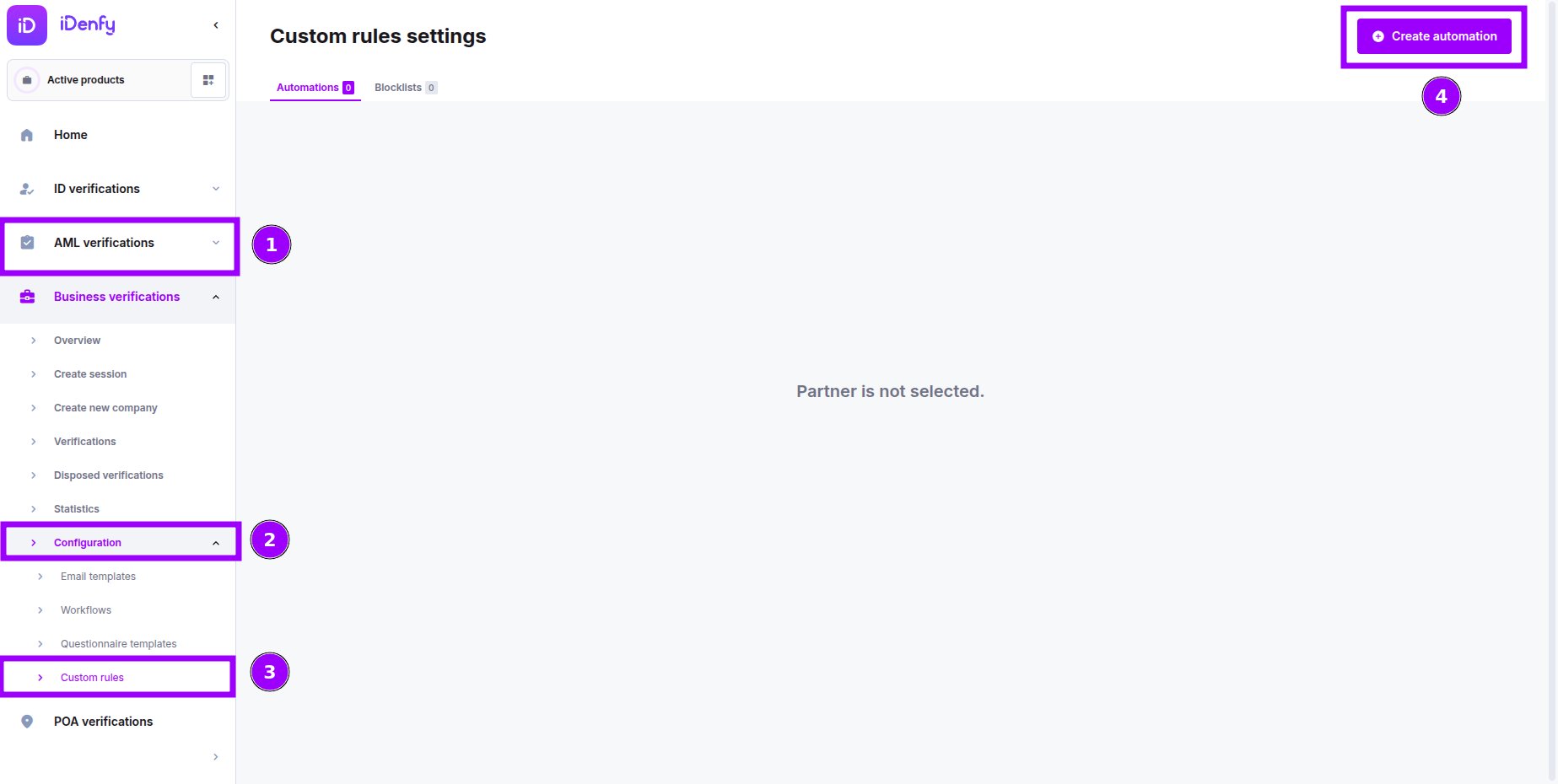
Go to **Business verifications → Configuration → Custom rules**, stay on the **Automations** tab, and click **Create automation**.
 Give the automation a **Title** that states the stakeholder and the intent — for example `PoA – Director address mismatch (flag)` — and optionally a description. The title is how you identify the rule when adding it to a workflow, so avoid a bare `PoA` if you plan to run more than one.
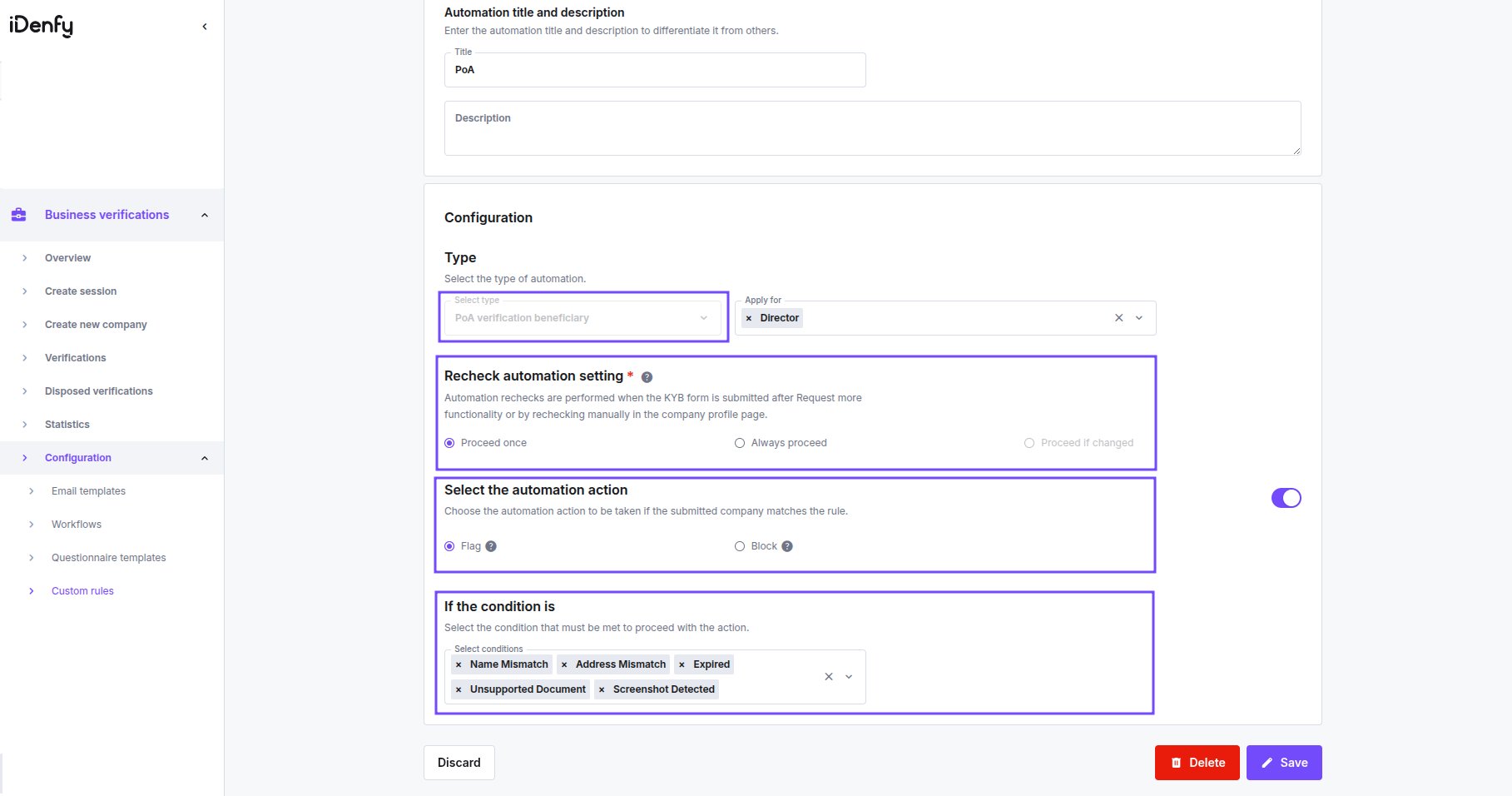 ### Type
Select **PoA verification beneficiary** from the **Select type** dropdown.
### Apply For
Select which stakeholder roles the rule targets. Each selected role is evaluated independently — a rule applied to both Director and Representative fires if **either** person's document fails.
Available roles depend on what your workflow collects. See [Stakeholder Roles in KYB Workflows](/guides/dashboard/kyb/stakeholder-roles) for the full list.
A rule that targets a role your workflow does not collect never fires. If you enable UBO PoA matching but the Ownership Structure step has UBO switched off, the check is silently skipped.
### Recheck Automation Setting
Controls what happens when the KYB form is resubmitted — after a **Request more information** cycle, or when a reviewer rechecks the company manually from the company profile.
| Option | Behaviour |
| ---------------------- | ----------------------------------------------------------------------------------------------------------------------- |
| **Proceed once** | The document is checked on first submission only. Later uploads are not re-evaluated. |
| **Always proceed** | Every resubmission re-runs the check on the current document. |
| **Proceed if changed** | Not available for PoA rules — a replaced document is always a new document, so there is no "unchanged" state to detect. |
Choose **Always proceed** whenever you ask clients to re-upload a rejected PoA. With **Proceed once**, the corrected document is accepted without being checked.
### Automation Action
| Action | Effect |
| -------------- | --------------------------------------------------------------------------------------------------------------------------- |
| **Do nothing** | The check runs and the result is recorded, but nothing happens to the case. Use this to observe hit rates before enforcing. |
| **Flag** | The company is tagged and highlighted. The workflow continues and later automations still run. |
| **Block** | The company is denied immediately and **all subsequent automations are skipped**. Optional deny reasons can be attached. |
When you plan to let the AI reviewer make the final call, set the action to **Flag**. **Block** ends the case before the reviewer sees it, which removes the reviewer's ability to weigh the PoA result against the other checks.
### Conditions
The **If the condition is** selector defines which failure modes trigger the action. Select as many as apply — the rule fires if **any** selected condition is met.
| Condition | Meaning |
| ------------------------ | ------------------------------------------------------------------------------------------ |
| **Name Mismatch** | The name on the document does not match the stakeholder's declared name. |
| **Address Mismatch** | The address on the document does not match the declared address. |
| **Expired** | The document is older than the accepted recency window. |
| **Unsupported Document** | The document type is not in the allowed PoA document list. |
| **Unsupported Country** | The issuing country is not in the allowed PoA country list. |
| **Screenshot Detected** | The upload is a screenshot rather than an original file or a photo of a physical document. |
| **Missing Logo** | No issuer logo was detected on the document. |
Allowed document types, allowed countries, and the recency window are not set on the rule — they come from your [Proof of Address settings](/guides/dashboard/settings/proof-of-address). The rule only decides what to *do* when one of those constraints is breached.
Splitting conditions across several rules gives you finer control than one rule with everything selected. A rule containing only **Screenshot Detected** and **Missing Logo** can block outright, while a separate rule for **Name Mismatch** and **Address Mismatch** only flags — the two failure classes rarely deserve the same treatment.
Save the rule when the configuration is complete, and confirm the enable toggle in the top right of the configuration card is on.
***
## Step 2 — Add the Rule to the Workflow
A saved rule does nothing until it is attached to a flow template.
1. Open the workflow and go to the [Custom Rules step](/guides/dashboard/risk/step-custom-rules).
2. Drag your PoA rule from **Available rules** into **Selected rules**.
3. Position it in the sequence. Rules run top to bottom, so place PoA rules **after** the automations that could block the case for a cheaper reason, and **before** any rule whose outcome should depend on the PoA result.
***
## Step 3 — Let the AI Reviewer Decide
The custom rule produces an outcome. The AI reviewer decides what that outcome means for the company as a whole.
### Open the Configuration
Go to **Settings → Business verifications (KYB) → AI reviewer** and click **Set up** next to **AI reviewer configuration**.
### Type
Select **PoA verification beneficiary** from the **Select type** dropdown.
### Apply For
Select which stakeholder roles the rule targets. Each selected role is evaluated independently — a rule applied to both Director and Representative fires if **either** person's document fails.
Available roles depend on what your workflow collects. See [Stakeholder Roles in KYB Workflows](/guides/dashboard/kyb/stakeholder-roles) for the full list.
A rule that targets a role your workflow does not collect never fires. If you enable UBO PoA matching but the Ownership Structure step has UBO switched off, the check is silently skipped.
### Recheck Automation Setting
Controls what happens when the KYB form is resubmitted — after a **Request more information** cycle, or when a reviewer rechecks the company manually from the company profile.
| Option | Behaviour |
| ---------------------- | ----------------------------------------------------------------------------------------------------------------------- |
| **Proceed once** | The document is checked on first submission only. Later uploads are not re-evaluated. |
| **Always proceed** | Every resubmission re-runs the check on the current document. |
| **Proceed if changed** | Not available for PoA rules — a replaced document is always a new document, so there is no "unchanged" state to detect. |
Choose **Always proceed** whenever you ask clients to re-upload a rejected PoA. With **Proceed once**, the corrected document is accepted without being checked.
### Automation Action
| Action | Effect |
| -------------- | --------------------------------------------------------------------------------------------------------------------------- |
| **Do nothing** | The check runs and the result is recorded, but nothing happens to the case. Use this to observe hit rates before enforcing. |
| **Flag** | The company is tagged and highlighted. The workflow continues and later automations still run. |
| **Block** | The company is denied immediately and **all subsequent automations are skipped**. Optional deny reasons can be attached. |
When you plan to let the AI reviewer make the final call, set the action to **Flag**. **Block** ends the case before the reviewer sees it, which removes the reviewer's ability to weigh the PoA result against the other checks.
### Conditions
The **If the condition is** selector defines which failure modes trigger the action. Select as many as apply — the rule fires if **any** selected condition is met.
| Condition | Meaning |
| ------------------------ | ------------------------------------------------------------------------------------------ |
| **Name Mismatch** | The name on the document does not match the stakeholder's declared name. |
| **Address Mismatch** | The address on the document does not match the declared address. |
| **Expired** | The document is older than the accepted recency window. |
| **Unsupported Document** | The document type is not in the allowed PoA document list. |
| **Unsupported Country** | The issuing country is not in the allowed PoA country list. |
| **Screenshot Detected** | The upload is a screenshot rather than an original file or a photo of a physical document. |
| **Missing Logo** | No issuer logo was detected on the document. |
Allowed document types, allowed countries, and the recency window are not set on the rule — they come from your [Proof of Address settings](/guides/dashboard/settings/proof-of-address). The rule only decides what to *do* when one of those constraints is breached.
Splitting conditions across several rules gives you finer control than one rule with everything selected. A rule containing only **Screenshot Detected** and **Missing Logo** can block outright, while a separate rule for **Name Mismatch** and **Address Mismatch** only flags — the two failure classes rarely deserve the same treatment.
Save the rule when the configuration is complete, and confirm the enable toggle in the top right of the configuration card is on.
***
## Step 2 — Add the Rule to the Workflow
A saved rule does nothing until it is attached to a flow template.
1. Open the workflow and go to the [Custom Rules step](/guides/dashboard/risk/step-custom-rules).
2. Drag your PoA rule from **Available rules** into **Selected rules**.
3. Position it in the sequence. Rules run top to bottom, so place PoA rules **after** the automations that could block the case for a cheaper reason, and **before** any rule whose outcome should depend on the PoA result.
***
## Step 3 — Let the AI Reviewer Decide
The custom rule produces an outcome. The AI reviewer decides what that outcome means for the company as a whole.
### Open the Configuration
Go to **Settings → Business verifications (KYB) → AI reviewer** and click **Set up** next to **AI reviewer configuration**.
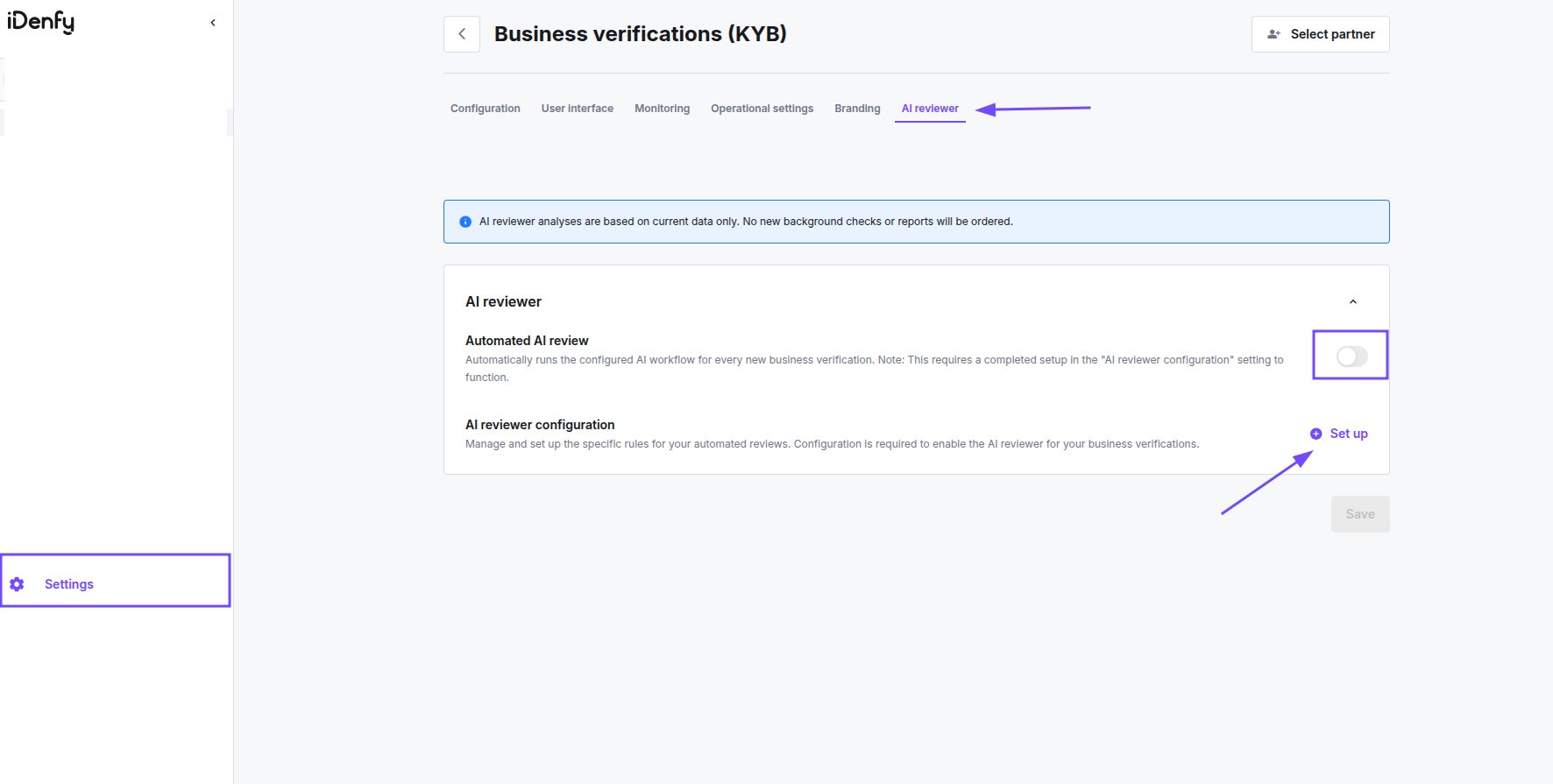 The **Automated AI review** toggle stays inactive until a configuration exists. Build the flow first, then come back and switch the toggle on — otherwise the reviewer never runs.
### Add the Proof of Address Task
In the **Choose a task** menu, pick **Proof of address** from the **Fraud prevention** category, then set its parameters.
The **Automated AI review** toggle stays inactive until a configuration exists. Build the flow first, then come back and switch the toggle on — otherwise the reviewer never runs.
### Add the Proof of Address Task
In the **Choose a task** menu, pick **Proof of address** from the **Fraud prevention** category, then set its parameters.
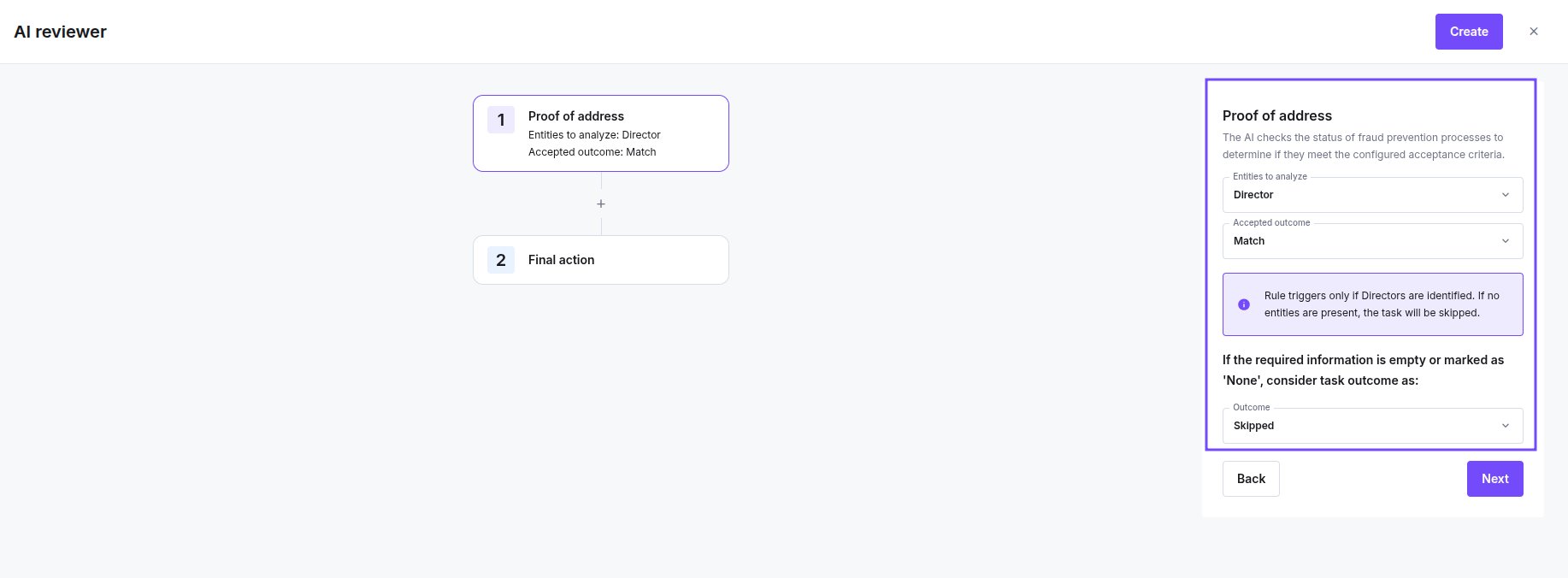 **Entities to analyze** — Company, Director, Representative, UBO, Individual shareholder, or Company shareholder. Match this to the roles the custom rule targets; a reviewer task pointed at a role the rule never evaluated has nothing to read. The panel restates the same constraint: *"Rule triggers only if Directors are identified. If no entities are present, the task will be skipped."*
**Accepted outcome** — **Match**. Anything else (No match, Not compared) counts as unaccepted.
**If the required information is empty or marked as "None"** — decides how a missing result is treated:
* **Skipped** — the task is disregarded and does not affect the final action. Use this when a stakeholder may legitimately have no PoA on file.
* Treating it as unaccepted instead makes a *missing* document as serious as a *failed* one. That is a deliberate choice, not a default — pick it only when a PoA is mandatory for every targeted stakeholder.
Click **Next** to add the task to the Rules Flow.
### Configure the Final Action
**Final action** is always the last step in the flow.
**Entities to analyze** — Company, Director, Representative, UBO, Individual shareholder, or Company shareholder. Match this to the roles the custom rule targets; a reviewer task pointed at a role the rule never evaluated has nothing to read. The panel restates the same constraint: *"Rule triggers only if Directors are identified. If no entities are present, the task will be skipped."*
**Accepted outcome** — **Match**. Anything else (No match, Not compared) counts as unaccepted.
**If the required information is empty or marked as "None"** — decides how a missing result is treated:
* **Skipped** — the task is disregarded and does not affect the final action. Use this when a stakeholder may legitimately have no PoA on file.
* Treating it as unaccepted instead makes a *missing* document as serious as a *failed* one. That is a deliberate choice, not a default — pick it only when a PoA is mandatory for every targeted stakeholder.
Click **Next** to add the task to the Rules Flow.
### Configure the Final Action
**Final action** is always the last step in the flow.
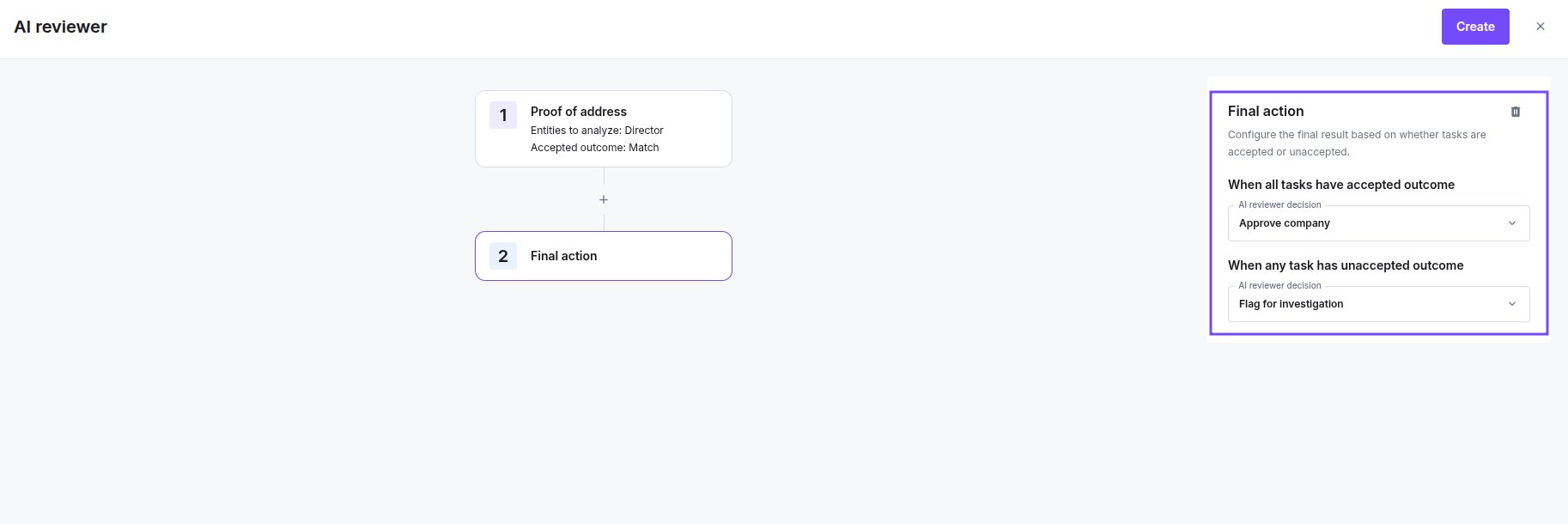 * **When all tasks have accepted outcome** — the decision applied when every check on the case passes.
* **When any task has unaccepted outcome** — the decision applied when at least one check fails, including the PoA task.
Both dropdowns offer **Approve company**, **Flag for investigation**, and **Deny company**.
Click **Create** to save the flow (or **Update** when editing an existing one), then return to the AI reviewer tab and enable **Automated AI review**.
Final action is evaluated across **all** tasks in the flow, not just the PoA task. Setting "any unaccepted → Deny company" means a failed website audit denies the company just as a mismatched PoA does. If PoA is the only check you want to be strict about, keep it as the only task in the flow, or accept that the strictness applies to everything.
***
## Decision Patterns
Three configurations that cover most requirements:
**Custom rule:** action **Flag**, conditions **Name Mismatch**, **Address Mismatch**, **Expired**, **Unsupported Document**.
**AI reviewer:** Proof of address task, entities Director + Representative, accepted outcome Match. Final action — all accepted → **Approve company**; any unaccepted → **Deny company**.
Suitable where an unverifiable address is disqualifying on its own, such as regulated financial onboarding. Expect a higher false-rejection rate from clients whose bills are in a spouse's or landlord's name.
**Rule A:** conditions **Screenshot Detected**, **Missing Logo**, **Unsupported Document** → action **Block**.
**Rule B:** conditions **Name Mismatch**, **Address Mismatch**, **Expired** → action **Flag**.
**AI reviewer:** Final action — any unaccepted → **Flag for investigation**.
Documents that look manipulated never reach a human. Genuine documents that simply don't line up go to review, where the analyst can request a replacement. This is the pattern most partners settle on.
**Custom rule:** action **Do nothing**, all conditions selected.
**AI reviewer:** no Proof of address task yet.
The check runs and results appear on the company profile, but nothing is flagged, blocked, or denied. Run this for a few weeks to see how often each condition actually fires against your real client base, then promote the conditions that carry signal into an enforcing rule.
***
## When the Check Does Not Run
A PoA rule produces no result — rather than a failure — in these cases:
| Situation | Result |
| ------------------------------------------------------------- | ------------------------------------------------------ |
| No PoA document was requested or uploaded for the stakeholder | Check skipped, no record created |
| The targeted role is not present on the case | Rule silently skipped |
| The stakeholder has no declared name or address to compare | The corresponding comparison cannot produce a mismatch |
| A blocklist entry already matched and blocked the company | Automations do not run at all |
For the AI reviewer, a skipped PoA check is not the same as a passed one. If the targeted role is absent from the case the task is skipped outright; if the role exists but has no usable PoA result, the **empty or "None"** outcome dropdown on the task decides whether that counts as skipped or unaccepted. See the [Checks Reference](/guides/dashboard/kyb/ai-reviwer-check-reference) for the full skip and failure matrix.
Blocklist matches take priority over automations. If a company matches a blocklist entry with the **Block** action, no PoA rule is evaluated.
***
## Related Pages
The full automation type catalogue and rule creation flow.
Building the rules flow and configuring final actions.
Allowed document types, countries, and the issuing date range.
Why a check was skipped or marked unaccepted.
## Related topics
- [Custom Rules for KYB Risk Automation](/guides/dashboard/risk/custom-rules.md)
- [Custom Rule Blocklist](/guides/dashboard/risk/custom-rule-blocklist.md)
- [Proof of Address and Custom Steps](/guides/dashboard/features/poa-custom-additional-step.md)
- [AI Proof of Address](/fraud-prevention/ai-poa.md)
- [Feature Setup](/guides/dashboard/setup/feature-setup.md)
* **When all tasks have accepted outcome** — the decision applied when every check on the case passes.
* **When any task has unaccepted outcome** — the decision applied when at least one check fails, including the PoA task.
Both dropdowns offer **Approve company**, **Flag for investigation**, and **Deny company**.
Click **Create** to save the flow (or **Update** when editing an existing one), then return to the AI reviewer tab and enable **Automated AI review**.
Final action is evaluated across **all** tasks in the flow, not just the PoA task. Setting "any unaccepted → Deny company" means a failed website audit denies the company just as a mismatched PoA does. If PoA is the only check you want to be strict about, keep it as the only task in the flow, or accept that the strictness applies to everything.
***
## Decision Patterns
Three configurations that cover most requirements:
**Custom rule:** action **Flag**, conditions **Name Mismatch**, **Address Mismatch**, **Expired**, **Unsupported Document**.
**AI reviewer:** Proof of address task, entities Director + Representative, accepted outcome Match. Final action — all accepted → **Approve company**; any unaccepted → **Deny company**.
Suitable where an unverifiable address is disqualifying on its own, such as regulated financial onboarding. Expect a higher false-rejection rate from clients whose bills are in a spouse's or landlord's name.
**Rule A:** conditions **Screenshot Detected**, **Missing Logo**, **Unsupported Document** → action **Block**.
**Rule B:** conditions **Name Mismatch**, **Address Mismatch**, **Expired** → action **Flag**.
**AI reviewer:** Final action — any unaccepted → **Flag for investigation**.
Documents that look manipulated never reach a human. Genuine documents that simply don't line up go to review, where the analyst can request a replacement. This is the pattern most partners settle on.
**Custom rule:** action **Do nothing**, all conditions selected.
**AI reviewer:** no Proof of address task yet.
The check runs and results appear on the company profile, but nothing is flagged, blocked, or denied. Run this for a few weeks to see how often each condition actually fires against your real client base, then promote the conditions that carry signal into an enforcing rule.
***
## When the Check Does Not Run
A PoA rule produces no result — rather than a failure — in these cases:
| Situation | Result |
| ------------------------------------------------------------- | ------------------------------------------------------ |
| No PoA document was requested or uploaded for the stakeholder | Check skipped, no record created |
| The targeted role is not present on the case | Rule silently skipped |
| The stakeholder has no declared name or address to compare | The corresponding comparison cannot produce a mismatch |
| A blocklist entry already matched and blocked the company | Automations do not run at all |
For the AI reviewer, a skipped PoA check is not the same as a passed one. If the targeted role is absent from the case the task is skipped outright; if the role exists but has no usable PoA result, the **empty or "None"** outcome dropdown on the task decides whether that counts as skipped or unaccepted. See the [Checks Reference](/guides/dashboard/kyb/ai-reviwer-check-reference) for the full skip and failure matrix.
Blocklist matches take priority over automations. If a company matches a blocklist entry with the **Block** action, no PoA rule is evaluated.
***
## Related Pages
The full automation type catalogue and rule creation flow.
Building the rules flow and configuring final actions.
Allowed document types, countries, and the issuing date range.
Why a check was skipped or marked unaccepted.
## Related topics
- [Custom Rules for KYB Risk Automation](/guides/dashboard/risk/custom-rules.md)
- [Custom Rule Blocklist](/guides/dashboard/risk/custom-rule-blocklist.md)
- [Proof of Address and Custom Steps](/guides/dashboard/features/poa-custom-additional-step.md)
- [AI Proof of Address](/fraud-prevention/ai-poa.md)
- [Feature Setup](/guides/dashboard/setup/feature-setup.md)