> ## Documentation Index
> Fetch the complete documentation index at: https://documentation.idenfy.com/llms.txt
> Use this file to discover all available pages before exploring further.
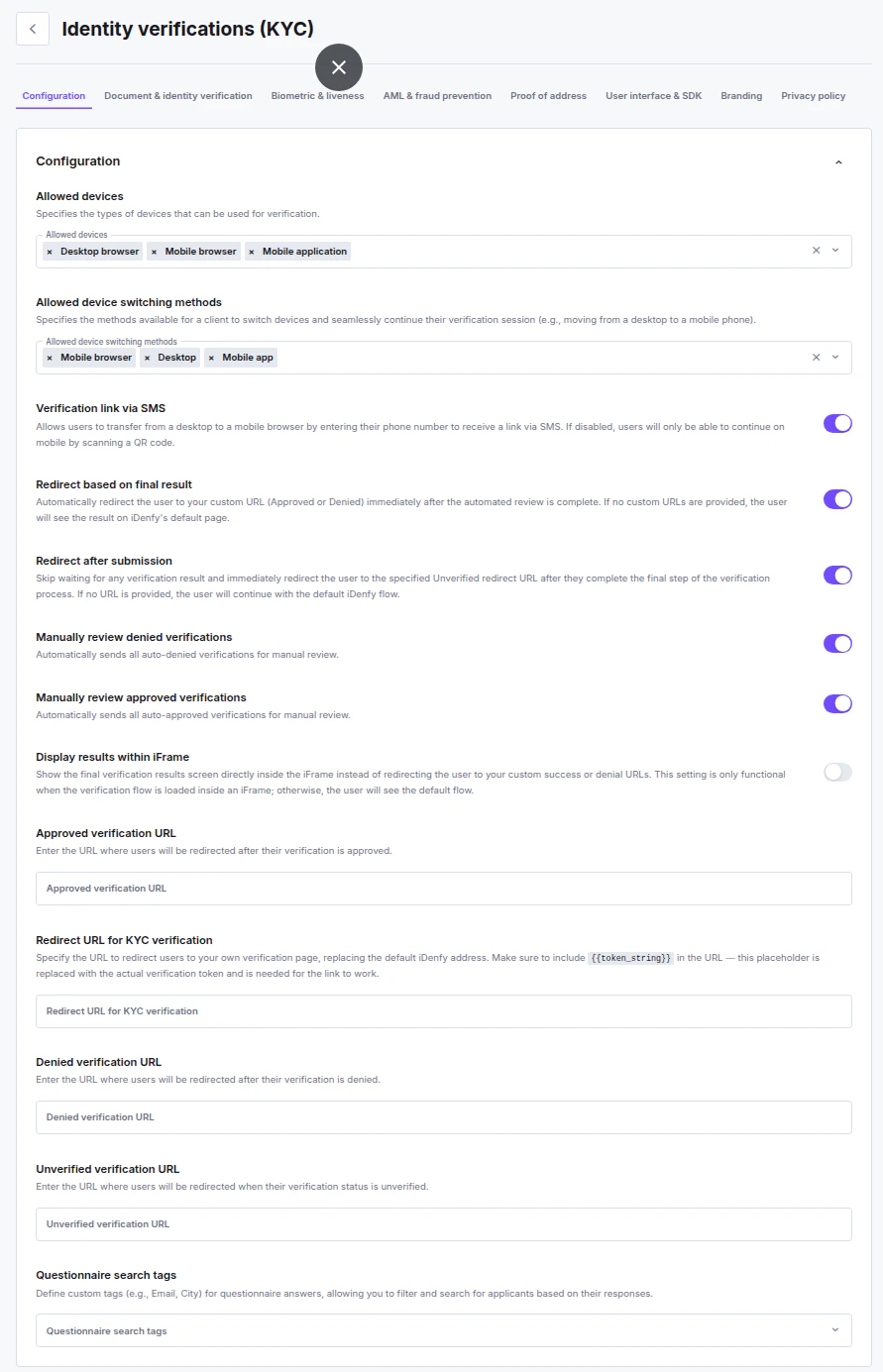
# Configuration
> Customize KYC verification behavior including device restrictions, redirection logic, and result handling in the iDenfy dashboard settings.
**Location:** **Settings** → **Know Your Customer** → **Configuration**
 ***
## Settings
### Allowed Devices
Specifies the types of devices that can be used for verification.
Available options: **Mobile application**, **Desktop browser**, **Mobile browser**.
***
### Allowed Device Switching Methods
Specifies the methods available for a user to switch devices and continue their verification session (e.g., moving from desktop to mobile).
Available options: **Mobile app**, **Mobile browser**, **Desktop**.
***
### Verification Link via SMS
Allows users to transfer from a desktop to a mobile browser by entering their phone number to receive a verification link via SMS. If disabled, users can only continue on mobile by scanning a QR code.
***
### Redirect Based on Final Result
Automatically redirects the user to your custom URL (Approved or Denied) immediately after the automated review is complete. If no custom URLs are configured, the user sees the result on iDenfy's default page.
Manual review will still be performed and a notification sent. This setting allows for smoother and faster user onboarding.
***
### Redirect After Submission
Skips waiting for any verification result and immediately redirects the user to the Unverified URL after they complete the final step. If no URL is provided, the user continues with the default iDenfy flow.
***
### Manually Review Denied Verifications
Automatically sends all auto-denied verifications for manual review.
***
### Manually Review Approved Verifications
Automatically sends all auto-approved verifications for manual review.
Enabling manual review adds approximately **3 minutes** to the final result time.
| Goal | Configuration |
| ------------- | ---------------------------------------- |
| Always review | Enable both options |
| Never review | Disable both options |
| Only denied | Enable **Manually review denied** only |
| Only approved | Enable **Manually review approved** only |
***
### Display Results Within iFrame
Shows the final verification result screen directly inside the iFrame instead of redirecting the user to your custom success or denial URLs. Only functional when the verification flow is loaded inside an iFrame — otherwise the user sees the default flow.
***
### Redirect URL for KYC Verification
Redirects users to your own verification page instead of the default iDenfy address. Must include `{{token_string}}` in the URL — this placeholder is replaced with the actual verification token and is required for the link to work.
***
### Approved Verification URL
URL where users are redirected after their verification is approved.
***
### Denied Verification URL
URL where users are redirected after their verification is denied.
***
### Unverified Verification URL
URL where users are redirected when their verification status is unverified (e.g., session expired or user dropped off).
***
### Questionnaire Search Tags
Define custom tags (e.g., Email, City) for questionnaire answers, allowing you to filter and search for applicants based on their responses in the Verifications page.
***
## Uploading vs. Capturing Images
**Enable image upload** allows users to upload photos from their device storage rather than taking live captures with the camera.
This setting is **disabled by default in Production** and cannot be enabled from the dashboard. To turn it on, a team member with the highest role must [contact Support](https://idenfy-ivs.atlassian.net/servicedesk/customer/portal/1) to request a manual override.
Enable only if you have a specific use case that requires it — uploaded images carry significant risk:
* **Fraud risk:** Uploaded files can be edited, spoofed, or reused from previous sessions, making fraudulent identity claims much easier to execute.
* **Liveness failure rate:** Uploaded images frequently fail liveness and authenticity checks due to cropping, compression, or quality issues.
***
## Settings
### Allowed Devices
Specifies the types of devices that can be used for verification.
Available options: **Mobile application**, **Desktop browser**, **Mobile browser**.
***
### Allowed Device Switching Methods
Specifies the methods available for a user to switch devices and continue their verification session (e.g., moving from desktop to mobile).
Available options: **Mobile app**, **Mobile browser**, **Desktop**.
***
### Verification Link via SMS
Allows users to transfer from a desktop to a mobile browser by entering their phone number to receive a verification link via SMS. If disabled, users can only continue on mobile by scanning a QR code.
***
### Redirect Based on Final Result
Automatically redirects the user to your custom URL (Approved or Denied) immediately after the automated review is complete. If no custom URLs are configured, the user sees the result on iDenfy's default page.
Manual review will still be performed and a notification sent. This setting allows for smoother and faster user onboarding.
***
### Redirect After Submission
Skips waiting for any verification result and immediately redirects the user to the Unverified URL after they complete the final step. If no URL is provided, the user continues with the default iDenfy flow.
***
### Manually Review Denied Verifications
Automatically sends all auto-denied verifications for manual review.
***
### Manually Review Approved Verifications
Automatically sends all auto-approved verifications for manual review.
Enabling manual review adds approximately **3 minutes** to the final result time.
| Goal | Configuration |
| ------------- | ---------------------------------------- |
| Always review | Enable both options |
| Never review | Disable both options |
| Only denied | Enable **Manually review denied** only |
| Only approved | Enable **Manually review approved** only |
***
### Display Results Within iFrame
Shows the final verification result screen directly inside the iFrame instead of redirecting the user to your custom success or denial URLs. Only functional when the verification flow is loaded inside an iFrame — otherwise the user sees the default flow.
***
### Redirect URL for KYC Verification
Redirects users to your own verification page instead of the default iDenfy address. Must include `{{token_string}}` in the URL — this placeholder is replaced with the actual verification token and is required for the link to work.
***
### Approved Verification URL
URL where users are redirected after their verification is approved.
***
### Denied Verification URL
URL where users are redirected after their verification is denied.
***
### Unverified Verification URL
URL where users are redirected when their verification status is unverified (e.g., session expired or user dropped off).
***
### Questionnaire Search Tags
Define custom tags (e.g., Email, City) for questionnaire answers, allowing you to filter and search for applicants based on their responses in the Verifications page.
***
## Uploading vs. Capturing Images
**Enable image upload** allows users to upload photos from their device storage rather than taking live captures with the camera.
This setting is **disabled by default in Production** and cannot be enabled from the dashboard. To turn it on, a team member with the highest role must [contact Support](https://idenfy-ivs.atlassian.net/servicedesk/customer/portal/1) to request a manual override.
Enable only if you have a specific use case that requires it — uploaded images carry significant risk:
* **Fraud risk:** Uploaded files can be edited, spoofed, or reused from previous sessions, making fraudulent identity claims much easier to execute.
* **Liveness failure rate:** Uploaded images frequently fail liveness and authenticity checks due to cropping, compression, or quality issues.