> ## Documentation Index
> Fetch the complete documentation index at: https://documentation.idenfy.com/llms.txt
> Use this file to discover all available pages before exploring further.
# Branding (KYC)
> Create and manage multiple KYC verification branding themes in the iDenfy dashboard — logo, colors, fonts, watermark, and support email.
**Location:** **Settings** → **Know Your Customer (KYC)** → **Branding**
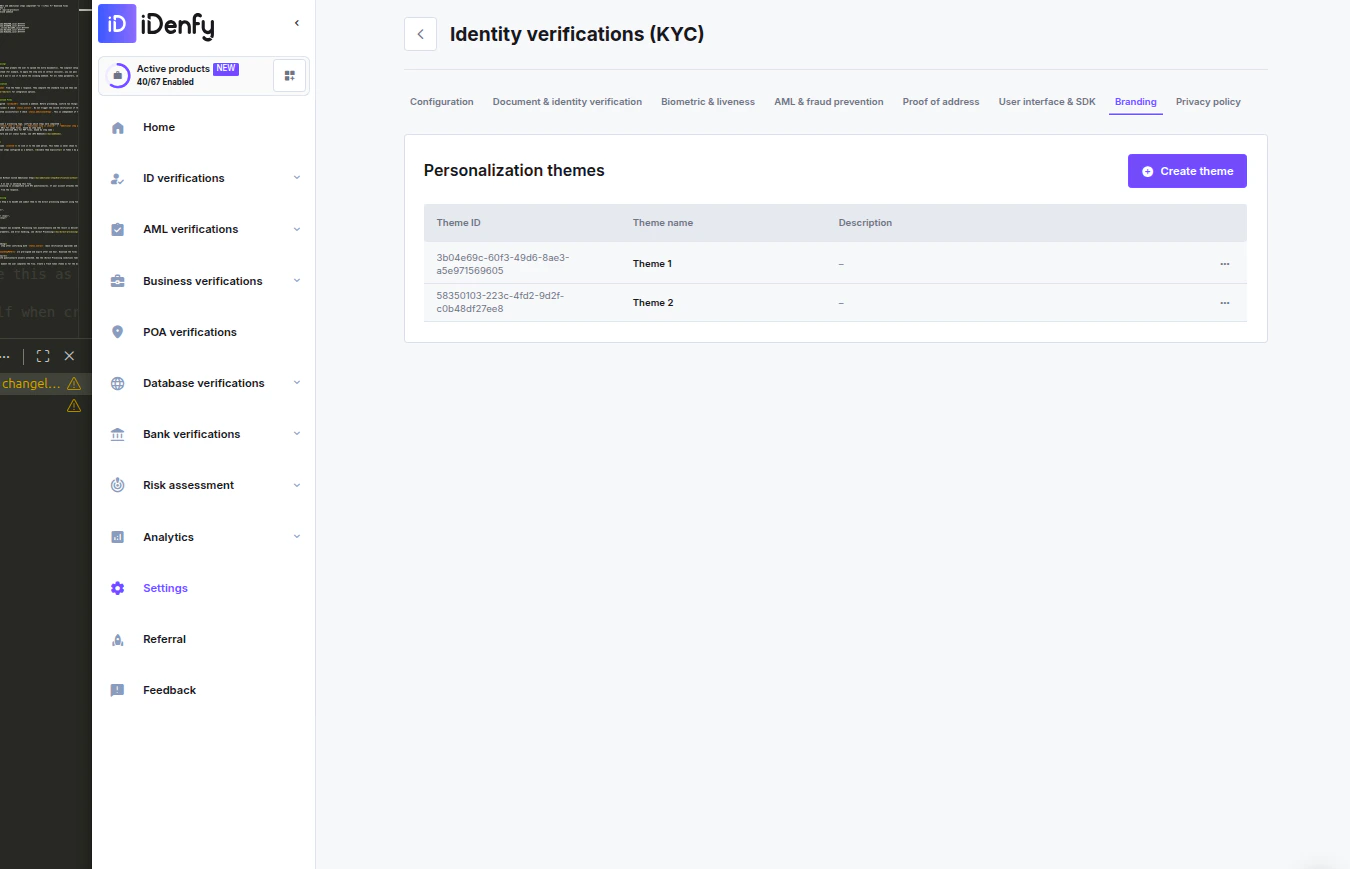
The Branding section lets you create and manage multiple personalization themes for the KYC verification flow. Each theme defines the visual identity shown to end users during verification — logo, colors, font, watermark, and support email. You can apply a different theme per magic link or flow configuration, making it straightforward to serve multiple brands from a single account.
 Your existing KYC branding settings have been automatically migrated to a **Default** theme. No reconfiguration is required.
***
## Managing Themes
The **Personalization themes** overview lists all configured themes:
| Column | Description |
| --------------- | --------------------------------------- |
| **Theme ID** | Unique identifier for the theme |
| **Theme name** | Internal label shown in the themes list |
| **Description** | Optional notes for team context |
Click **Create theme** to add a new theme. Use the action menu on any existing theme row to edit or delete it.
***
## Creating or Editing a Theme
### Configuration
| Field | Description |
| --------------------- | --------------------------------------------------------- |
| **Theme name** | Internal label displayed in the themes list (required) |
| **Theme description** | Optional notes for team context |
| **Support email** | Contact email shown to users during the verification flow |
### UI Files
Your existing KYC branding settings have been automatically migrated to a **Default** theme. No reconfiguration is required.
***
## Managing Themes
The **Personalization themes** overview lists all configured themes:
| Column | Description |
| --------------- | --------------------------------------- |
| **Theme ID** | Unique identifier for the theme |
| **Theme name** | Internal label shown in the themes list |
| **Description** | Optional notes for team context |
Click **Create theme** to add a new theme. Use the action menu on any existing theme row to edit or delete it.
***
## Creating or Editing a Theme
### Configuration
| Field | Description |
| --------------------- | --------------------------------------------------------- |
| **Theme name** | Internal label displayed in the themes list (required) |
| **Theme description** | Optional notes for team context |
| **Support email** | Contact email shown to users during the verification flow |
### UI Files
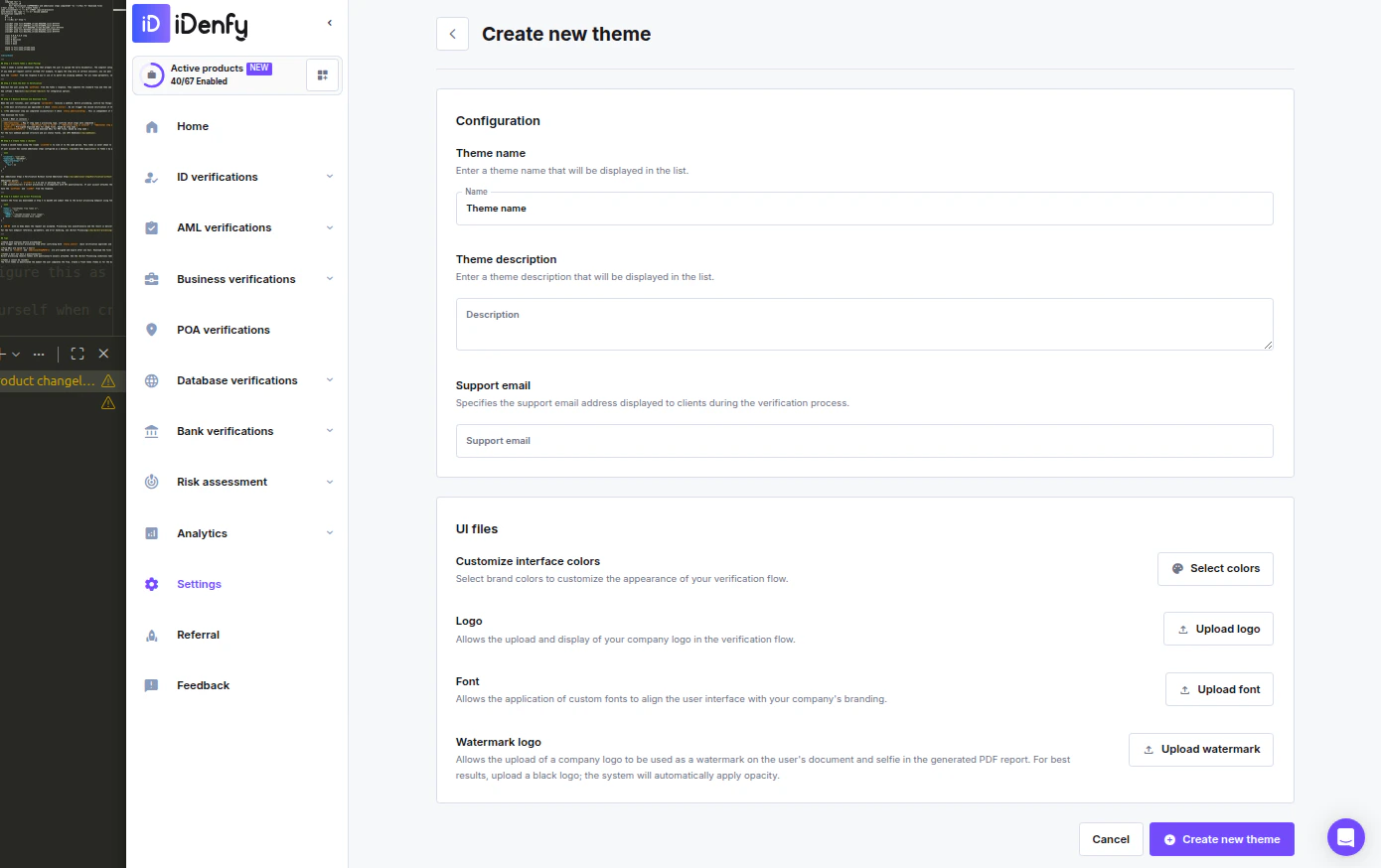 | Asset | Format | Max size | Description |
| ------------------------------ | ---------------- | -------- | -------------------------------------------------------------------------------------------------------------------------------------------------------------------- |
| **Customize interface colors** | — | — | Open the color picker to configure your brand palette across two tabs |
| **Logo** | SVG | 5 MB | Company logo shown in the header of the verification flow |
| **Font** | `.otf` or `.ttf` | 5 MB | Custom brand font applied across the interface |
| **Watermark logo** | PNG | 5 MB | Logo applied as a watermark on document and selfie photos in the generated verification PDF. For best results upload a black logo — opacity is applied automatically |
### Interface Colors
Click **Select colors** to open the color picker. Colors are split across two tabs:
**Main UI colors**
| Color | Purpose |
| -------------------------------- | --------------------------------------------------- |
| Primary brand color | Core brand color for buttons, links, and highlights |
| Primary background color | Main canvas background |
| Secondary brand color | Secondary accent color |
| Secondary background color | Card and panel backgrounds |
| Typography color | Default body text color |
| Disabled typography color | Color for inactive or disabled text |
| Success state color / background | Approved steps and completed actions |
| Error state color / background | Failed checks and validation errors |
| Warning state color / background | Quality alerts (e.g. blurry image) |
| Info state color / background | Neutral informational messages |
**Other UI colors** — Additional interface color overrides.
Click **Save** when done.
***
## Assigning a Theme
A theme can be applied in two ways:
* **Per magic link** — When creating or editing a magic link, enable the **Custom theme** toggle in the Configuration section and select a theme from the dropdown. See [Verification via Magic Link](/guides/dashboard/kyc/verification-via-magic-link).
* **Per flow configuration** — Select a theme in the KYC flow settings so every session created with that flow uses the assigned branding automatically.
If no theme is assigned, the **Default** theme is used automatically.
***
**Branding and user flow limitations**
During verification, all texts are predefined and are not editable. These include localization, titles, descriptions, and all status messages.
**Need adjustments?** If your localization needs adjustments, [contact us](https://idenfy-ivs.atlassian.net/servicedesk/customer/portal/1).
| Asset | Format | Max size | Description |
| ------------------------------ | ---------------- | -------- | -------------------------------------------------------------------------------------------------------------------------------------------------------------------- |
| **Customize interface colors** | — | — | Open the color picker to configure your brand palette across two tabs |
| **Logo** | SVG | 5 MB | Company logo shown in the header of the verification flow |
| **Font** | `.otf` or `.ttf` | 5 MB | Custom brand font applied across the interface |
| **Watermark logo** | PNG | 5 MB | Logo applied as a watermark on document and selfie photos in the generated verification PDF. For best results upload a black logo — opacity is applied automatically |
### Interface Colors
Click **Select colors** to open the color picker. Colors are split across two tabs:
**Main UI colors**
| Color | Purpose |
| -------------------------------- | --------------------------------------------------- |
| Primary brand color | Core brand color for buttons, links, and highlights |
| Primary background color | Main canvas background |
| Secondary brand color | Secondary accent color |
| Secondary background color | Card and panel backgrounds |
| Typography color | Default body text color |
| Disabled typography color | Color for inactive or disabled text |
| Success state color / background | Approved steps and completed actions |
| Error state color / background | Failed checks and validation errors |
| Warning state color / background | Quality alerts (e.g. blurry image) |
| Info state color / background | Neutral informational messages |
**Other UI colors** — Additional interface color overrides.
Click **Save** when done.
***
## Assigning a Theme
A theme can be applied in two ways:
* **Per magic link** — When creating or editing a magic link, enable the **Custom theme** toggle in the Configuration section and select a theme from the dropdown. See [Verification via Magic Link](/guides/dashboard/kyc/verification-via-magic-link).
* **Per flow configuration** — Select a theme in the KYC flow settings so every session created with that flow uses the assigned branding automatically.
If no theme is assigned, the **Default** theme is used automatically.
***
**Branding and user flow limitations**
During verification, all texts are predefined and are not editable. These include localization, titles, descriptions, and all status messages.
**Need adjustments?** If your localization needs adjustments, [contact us](https://idenfy-ivs.atlassian.net/servicedesk/customer/portal/1).