> ## Documentation Index
> Fetch the complete documentation index at: https://documentation.idenfy.com/llms.txt
> Use this file to discover all available pages before exploring further.
# System Notifications for Webhooks and Emails
> Configure webhook endpoints and email notification rules for identity and business verification events in the iDenfy dashboard settings.
This guide will show you how you can create/remove/edit the notifications. For more information on how webhooks work in iDenfy, please visit [this page.](/callbacks/ResultCallback)
## Notification Settings
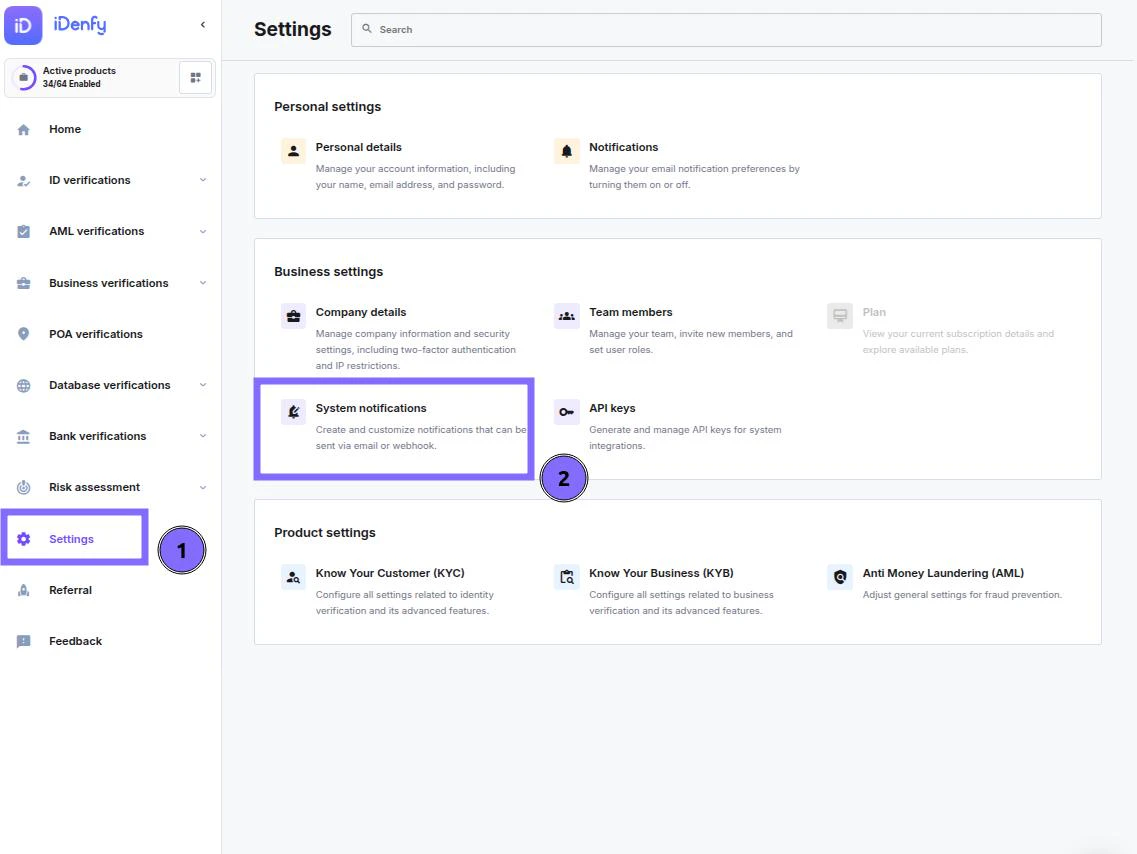
In the left sidebar, click **Settings**
Find **System notifications**
 ***
## Creating a Notification
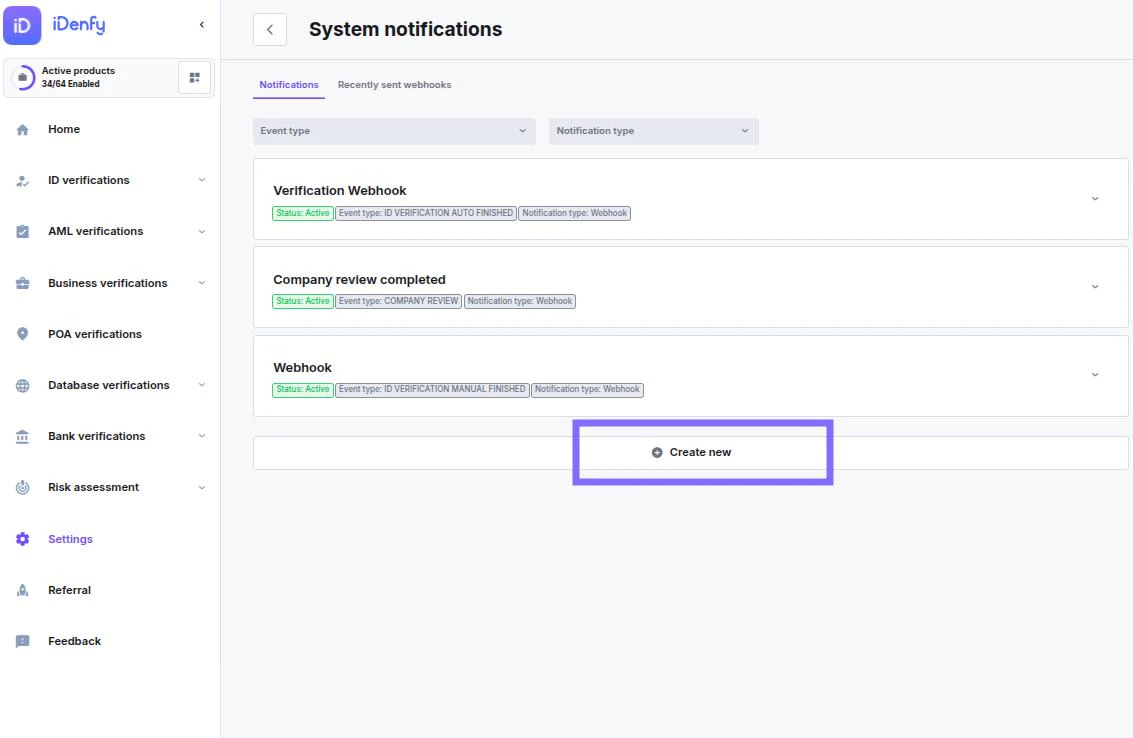
To start creating, simply select ***Create new***
***
## Creating a Notification
To start creating, simply select ***Create new***
 ***
## General Overview
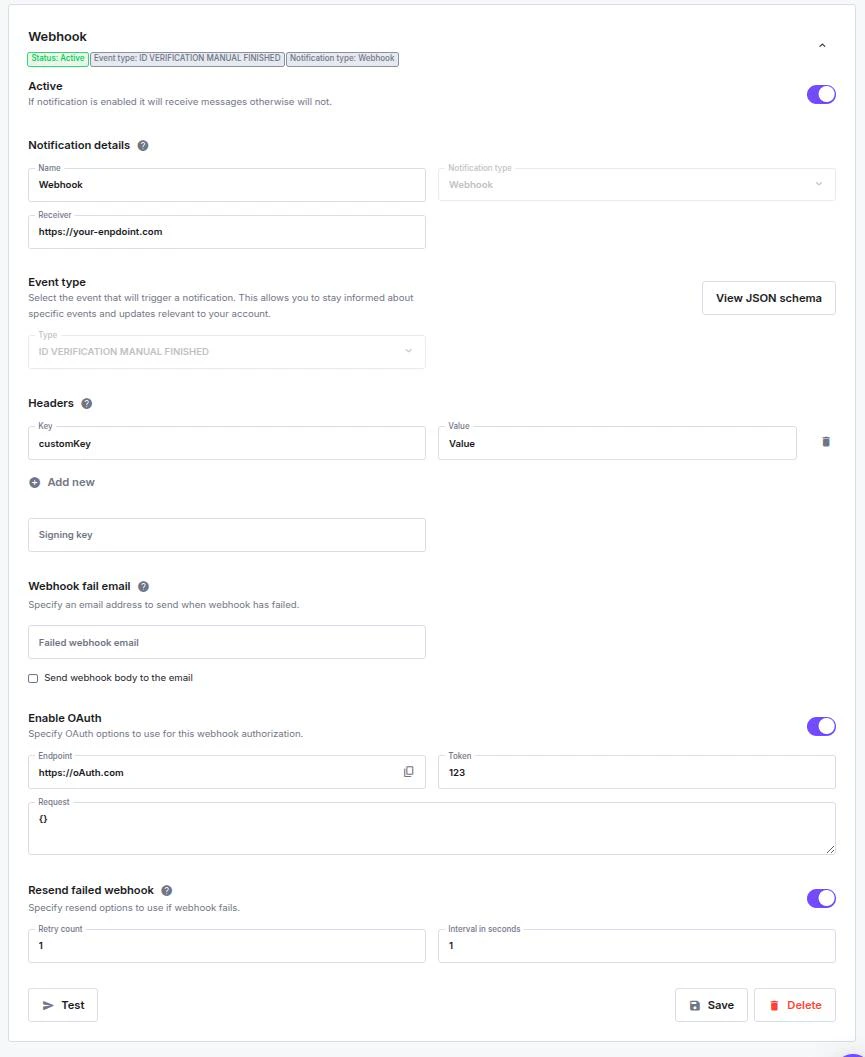
Each webhook configuration consists of:
* **Name** – internal name for your webhook
* **Receiver (URL)** – the endpoint where iDenfy will send the notification
* **Event Type** – defines which event will trigger this webhook (e.g., *ID VERIFICATION MANUAL FINISHED*)
* **Status** – shows whether your webhook is currently active
> *Only active webhooks will receive notifications.*
***
## General Overview
Each webhook configuration consists of:
* **Name** – internal name for your webhook
* **Receiver (URL)** – the endpoint where iDenfy will send the notification
* **Event Type** – defines which event will trigger this webhook (e.g., *ID VERIFICATION MANUAL FINISHED*)
* **Status** – shows whether your webhook is currently active
> *Only active webhooks will receive notifications.*
 ### Notification Details
**Name:** give your webhook an easy-to-recognize label.
**Receiver:** enter your endpoint URL (e.g. `https://your-endpoint.com`).
**Notification Type:** this field is fixed as **Webhook**.
***
### Event Type
Select the event that will trigger the webhook.
Click **“View JSON schema”** to see the payload structure for the selected event.
Notes
* **Use specific events** (e.g., `AUTO FINISHED`, `MANUAL FINISHED`) instead of the generic `ID VERIFICATION`.
* Each webhook type can be assigned its own URL, headers, or authentication secret.
* **Expiration events** are sent before or upon expiry — implement retry logic to ensure delivery.
#### Identity Verification
| ID VERIFICATION (Legacy) | Sent when a client completes an identity verification. Deprecated – use one of the specific events below instead. |
| ------------------------------- | ----------------------------------------------------------------------------------------------------------------- |
| ID VERIFICATION AUTO FINISHED | Sent when an identity verification completes automatically. |
| ID VERIFICATION MANUAL FINISHED | Sent when an identity verification is manually approved or denied. |
| ID VERIFICATION EXPIRED | Sent when an identity verification expires. |
| ID VERIFICATION CANCELED | Sent when a verification is canceled by the user or system. |
| ID VERIFICATION RESUBMITTED | Sent when a client resubmits their identity verification. |
| DOCUMENT EXPIRATION | Sent when a client’s identity document is nearing expiration or has expired. |
| FACIAL AUTHENTICATION | Sent when a facial authentication session ends (success, failure, or expiration). |
#### AML / Monitoring
| AML MONITORING | Sent when an AML monitoring user is checked, accepted, or declined. |
| ------------------------- | ---------------------------------------------------------------------- |
| AML MONITORING EXPIRATION | Sent when an AML monitoring user is nearing expiration or has expired. |
#### Company (KYB)
| COMPANY REVIEW | Sent when a company verification is completed. |
| -------------------- | ------------------------------------------------------------------------------------------- |
| COMPANY DELETE | Sent when a company is deleted. |
| COMPANY AML REVIEW | Sent when AML review status is manually updated for a company or its beneficiaries. |
| COMPANY INFO REQUEST | Sent when additional company information is requested or when a company form token expires. |
| COMPANY EXPIRATION | Sent when a company verification is nearing expiration or has expired. |
| COMPANY SUBMIT | Sent when company information is submitted. |
#### Other Services
| ACCOUNT CHECK | Sent when a social-media account check is completed. |
| -------------------- | ---------------------------------------------------------------------- |
| GOV ORDERED DOCUMENT | Sent when a government registry document ordered via API is delivered. |
| SOS\_REPORT | Sent when a SOS filing report is delivered. |
| BANK\_VERIFICATION | Sent when a bank verification is completed. |
***
### Headers
Add custom HTTP headers for your webhook requests.
Each header consists of:
* **Key** – name of the header (e.g. `Authorization`)
* **Value** – value for that header (e.g. `Bearer abcd...`)
> Click **“Add new”** to include multiple headers.
***
### Signing Key
Add a custom **signing key** to verify the authenticity of incoming webhook requests.
This helps ensure the payload wasn’t modified in transit.
***
### Webhook Fail Email
If the webhook cannot be delivered, iDenfy can send a failure notification to your chosen email address.
* **Failed webhook email:** enter your address
* Optional: enable **“Send webhook body to email”** to include the failed request details
***
### Enable OAuth (Optional)
You can authorize your webhook delivery using OAuth.
* **Endpoint:** OAuth authentication endpoint
* **Token:** your access token
* **Request:** additional OAuth request body, if needed
> This ensures webhook messages are securely delivered to your protected endpoints.
***
### Resend Failed Webhook
If a webhook fails, you can automatically retry sending it.
* **Retry count:** number of resend attempts
* **Interval in seconds:** time between each retry
> Useful for temporary downtime or network interruptions.
***
### Testing
Use the **Test** button to send a test request and confirm your configuration works correctly.
***
### Saving and Managing
When done:
* **Save** to store your settings
* **Delete** to remove the webhook configuration
***
## Debugging Notifications
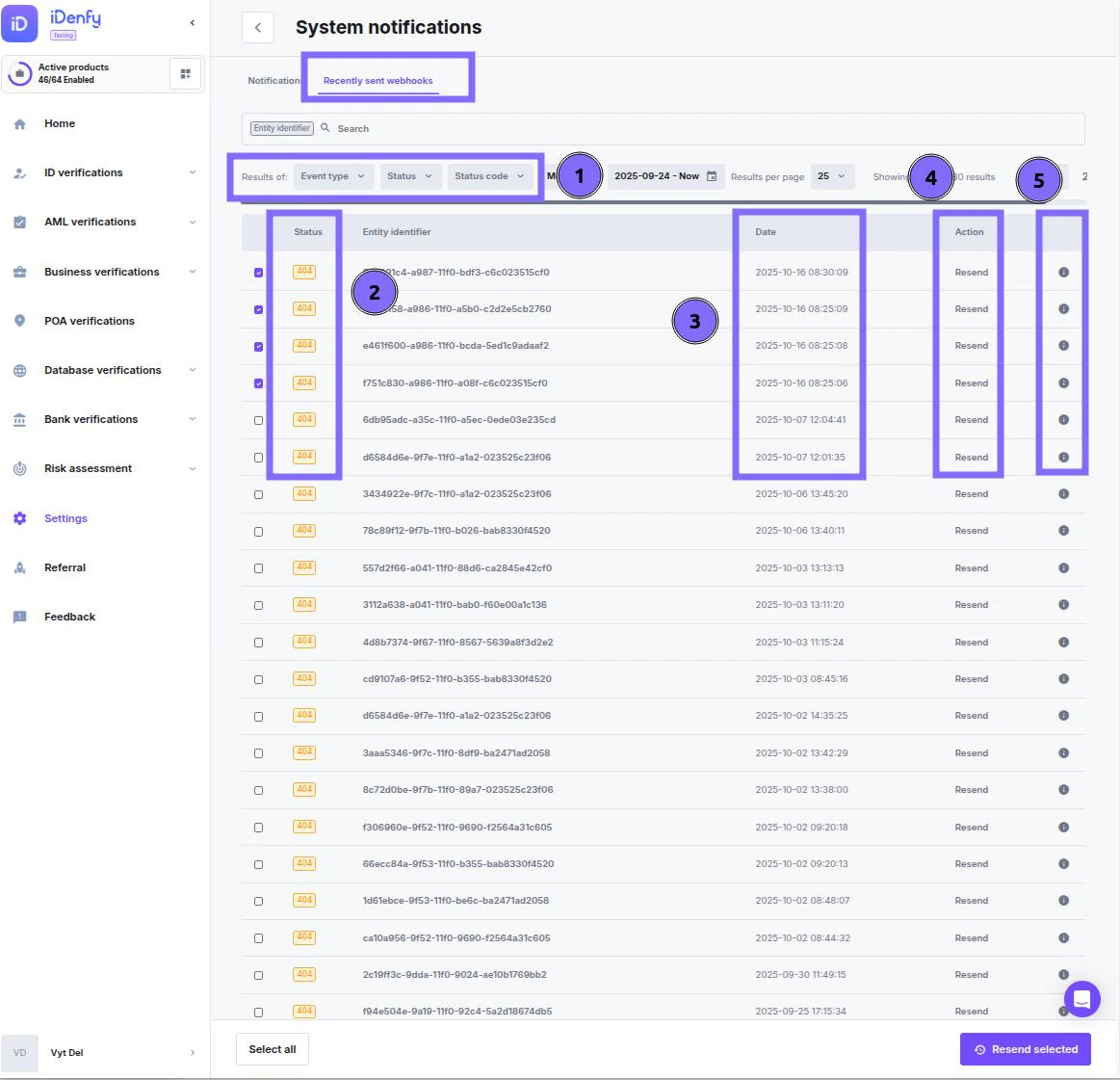
In **System notifications →** select ***Recently Sent*** (top-right corner) to review sent notifications. You can:
* **Search by scanRef** to find specific notifications.
* **View response codes** from your server:
* `0` – No Response: Server unreachable.
* `2xx` – Success: Request delivered successfully.
* `3xx` – Redirection: Further action needed.
* `4xx` – Client Error: Your server couldn’t handle the request.
* `5xx` – Server Error: Request valid, but the server failed.
* **See the date and time** each notification was sent.
* **Attempt to resend** the webhook.
* **View full payloads in JSON** format for debugging.
### Notification Details
**Name:** give your webhook an easy-to-recognize label.
**Receiver:** enter your endpoint URL (e.g. `https://your-endpoint.com`).
**Notification Type:** this field is fixed as **Webhook**.
***
### Event Type
Select the event that will trigger the webhook.
Click **“View JSON schema”** to see the payload structure for the selected event.
Notes
* **Use specific events** (e.g., `AUTO FINISHED`, `MANUAL FINISHED`) instead of the generic `ID VERIFICATION`.
* Each webhook type can be assigned its own URL, headers, or authentication secret.
* **Expiration events** are sent before or upon expiry — implement retry logic to ensure delivery.
#### Identity Verification
| ID VERIFICATION (Legacy) | Sent when a client completes an identity verification. Deprecated – use one of the specific events below instead. |
| ------------------------------- | ----------------------------------------------------------------------------------------------------------------- |
| ID VERIFICATION AUTO FINISHED | Sent when an identity verification completes automatically. |
| ID VERIFICATION MANUAL FINISHED | Sent when an identity verification is manually approved or denied. |
| ID VERIFICATION EXPIRED | Sent when an identity verification expires. |
| ID VERIFICATION CANCELED | Sent when a verification is canceled by the user or system. |
| ID VERIFICATION RESUBMITTED | Sent when a client resubmits their identity verification. |
| DOCUMENT EXPIRATION | Sent when a client’s identity document is nearing expiration or has expired. |
| FACIAL AUTHENTICATION | Sent when a facial authentication session ends (success, failure, or expiration). |
#### AML / Monitoring
| AML MONITORING | Sent when an AML monitoring user is checked, accepted, or declined. |
| ------------------------- | ---------------------------------------------------------------------- |
| AML MONITORING EXPIRATION | Sent when an AML monitoring user is nearing expiration or has expired. |
#### Company (KYB)
| COMPANY REVIEW | Sent when a company verification is completed. |
| -------------------- | ------------------------------------------------------------------------------------------- |
| COMPANY DELETE | Sent when a company is deleted. |
| COMPANY AML REVIEW | Sent when AML review status is manually updated for a company or its beneficiaries. |
| COMPANY INFO REQUEST | Sent when additional company information is requested or when a company form token expires. |
| COMPANY EXPIRATION | Sent when a company verification is nearing expiration or has expired. |
| COMPANY SUBMIT | Sent when company information is submitted. |
#### Other Services
| ACCOUNT CHECK | Sent when a social-media account check is completed. |
| -------------------- | ---------------------------------------------------------------------- |
| GOV ORDERED DOCUMENT | Sent when a government registry document ordered via API is delivered. |
| SOS\_REPORT | Sent when a SOS filing report is delivered. |
| BANK\_VERIFICATION | Sent when a bank verification is completed. |
***
### Headers
Add custom HTTP headers for your webhook requests.
Each header consists of:
* **Key** – name of the header (e.g. `Authorization`)
* **Value** – value for that header (e.g. `Bearer abcd...`)
> Click **“Add new”** to include multiple headers.
***
### Signing Key
Add a custom **signing key** to verify the authenticity of incoming webhook requests.
This helps ensure the payload wasn’t modified in transit.
***
### Webhook Fail Email
If the webhook cannot be delivered, iDenfy can send a failure notification to your chosen email address.
* **Failed webhook email:** enter your address
* Optional: enable **“Send webhook body to email”** to include the failed request details
***
### Enable OAuth (Optional)
You can authorize your webhook delivery using OAuth.
* **Endpoint:** OAuth authentication endpoint
* **Token:** your access token
* **Request:** additional OAuth request body, if needed
> This ensures webhook messages are securely delivered to your protected endpoints.
***
### Resend Failed Webhook
If a webhook fails, you can automatically retry sending it.
* **Retry count:** number of resend attempts
* **Interval in seconds:** time between each retry
> Useful for temporary downtime or network interruptions.
***
### Testing
Use the **Test** button to send a test request and confirm your configuration works correctly.
***
### Saving and Managing
When done:
* **Save** to store your settings
* **Delete** to remove the webhook configuration
***
## Debugging Notifications
In **System notifications →** select ***Recently Sent*** (top-right corner) to review sent notifications. You can:
* **Search by scanRef** to find specific notifications.
* **View response codes** from your server:
* `0` – No Response: Server unreachable.
* `2xx` – Success: Request delivered successfully.
* `3xx` – Redirection: Further action needed.
* `4xx` – Client Error: Your server couldn’t handle the request.
* `5xx` – Server Error: Request valid, but the server failed.
* **See the date and time** each notification was sent.
* **Attempt to resend** the webhook.
* **View full payloads in JSON** format for debugging.
 * We store Notification information for **30 days** before it's deleted
* We **do not** log information from callback responses.
* We store Notification information for **30 days** before it's deleted
* We **do not** log information from callback responses.