> ## Documentation Index
> Fetch the complete documentation index at: https://documentation.idenfy.com/llms.txt
> Use this file to discover all available pages before exploring further.
# Team Member Management
> Add, remove, and manage team member roles, permissions, and activity tracking in the iDenfy dashboard for secure admin and review access.
Quick guide on how to manage a team member
Some actions here require an ***Admin*** role, and without it, some options will not be visible to you
If you have an ***Admin*** role but still can’t perform some of these actions, contact [**techsupport**](https://idenfy-ivs.atlassian.net/servicedesk/customer/portal/1), as your environment permissions might need to be adjusted.
***
## Roles
* Each **team member** needs to have an assigned role
* **Roles** are meant to ensure that users have access only to what is necessary for tasks
| Role Name | Extended by | Permissions |
| --------- | ----------- | ------------------------------------------------------------------------------------------------------------------------------------------------------------------------------------------------------------------------------------------------------------------------------------------------------------------------------ |
| Viewer | - | View & list KYC verifications View & list KYB forms View All sessions & Disposed verifications page View & list single AML & AML monitoring subjects View & get AML monitoring comments and logs View & list face authentication verifications View & list other available environment services, such as: PoA, Blocklist, etc. |
| Member | Viewer | Create new KYC & KYB token(s)/session(s) Perform single AML & AML Monitoring checks Download KYC PDF reports Manage KYC & KYB questionnaires |
| Moderator | Member | View KYC & KYB statistics View environment settings, managers, API keys, and privacy policy View & Perform Soft KYC service Evaluate AML Monitoring subjects/findings Search/order GOV & Registry reports Generate KYC verification reports Manage environment notifications |
| Admin | Moderator | Change environment settings Manage API keys & privacy policy Manage the roles of Team members View finances |
***
## Team Member Setting
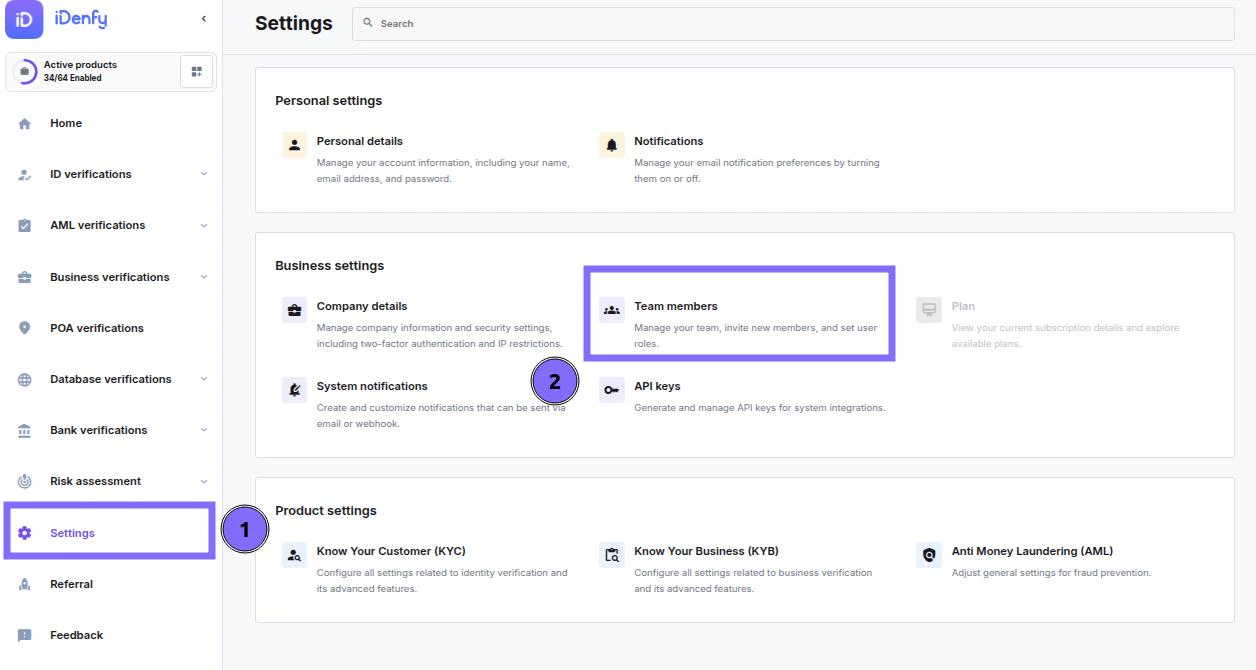
In the [**dashboard**](https://admin.idenfy.com), navigate to **Settings**
Select **Team members**.
 ***
## Inviting New Members
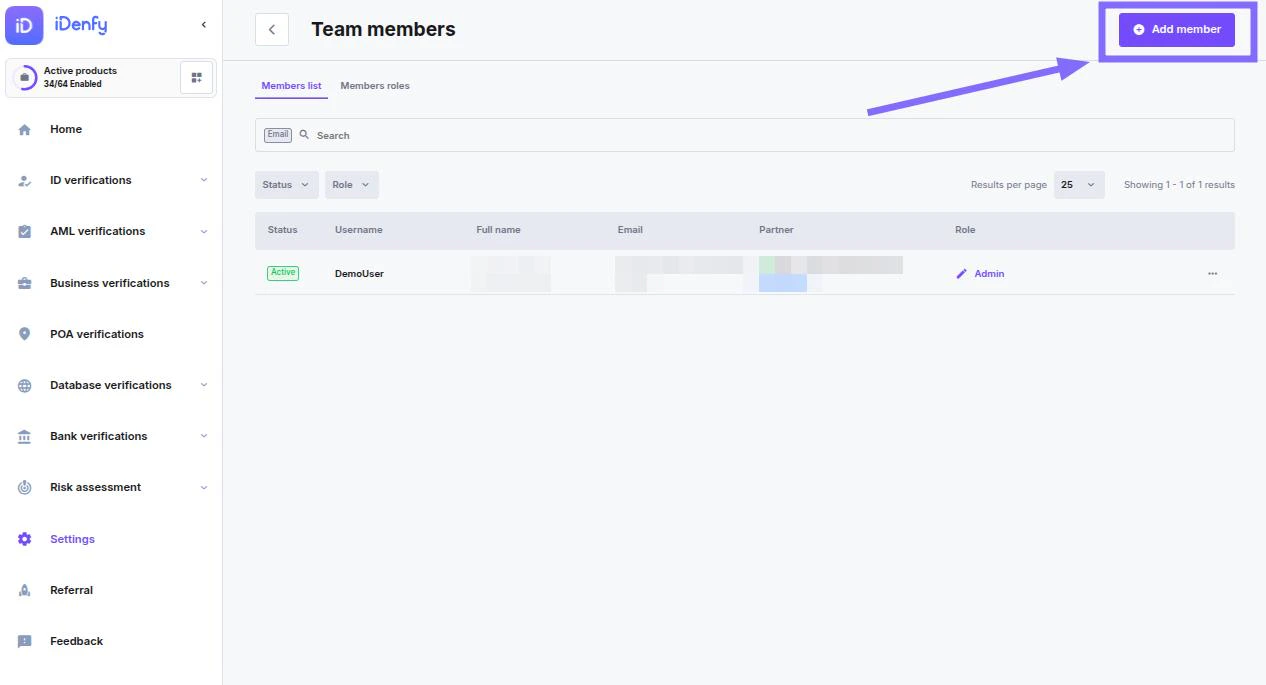
In the top right corner, click **Add member**
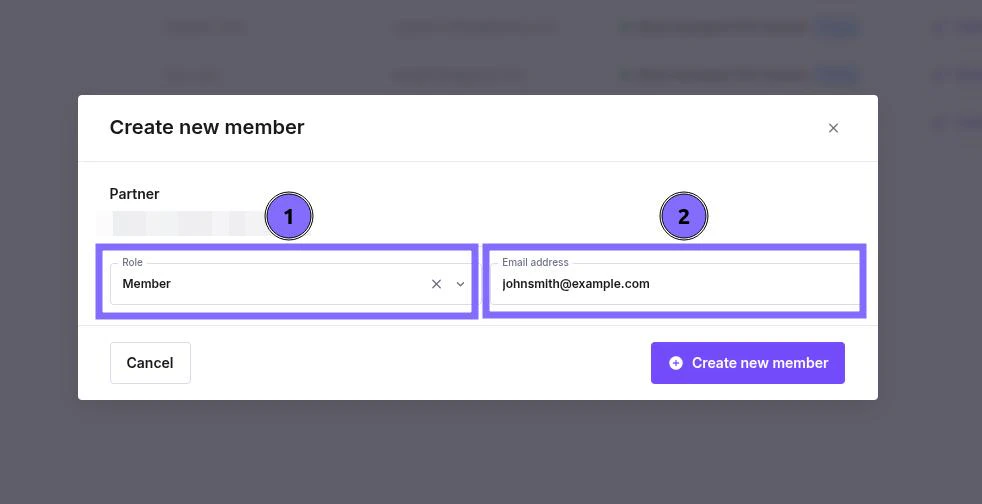
In the pop-up window:
Select a **role** from the **dropdown** options
**Enter** the new member's **email**
***
## Inviting New Members
In the top right corner, click **Add member**
In the pop-up window:
Select a **role** from the **dropdown** options
**Enter** the new member's **email**
 ***
### Changing the Role of the Current Member
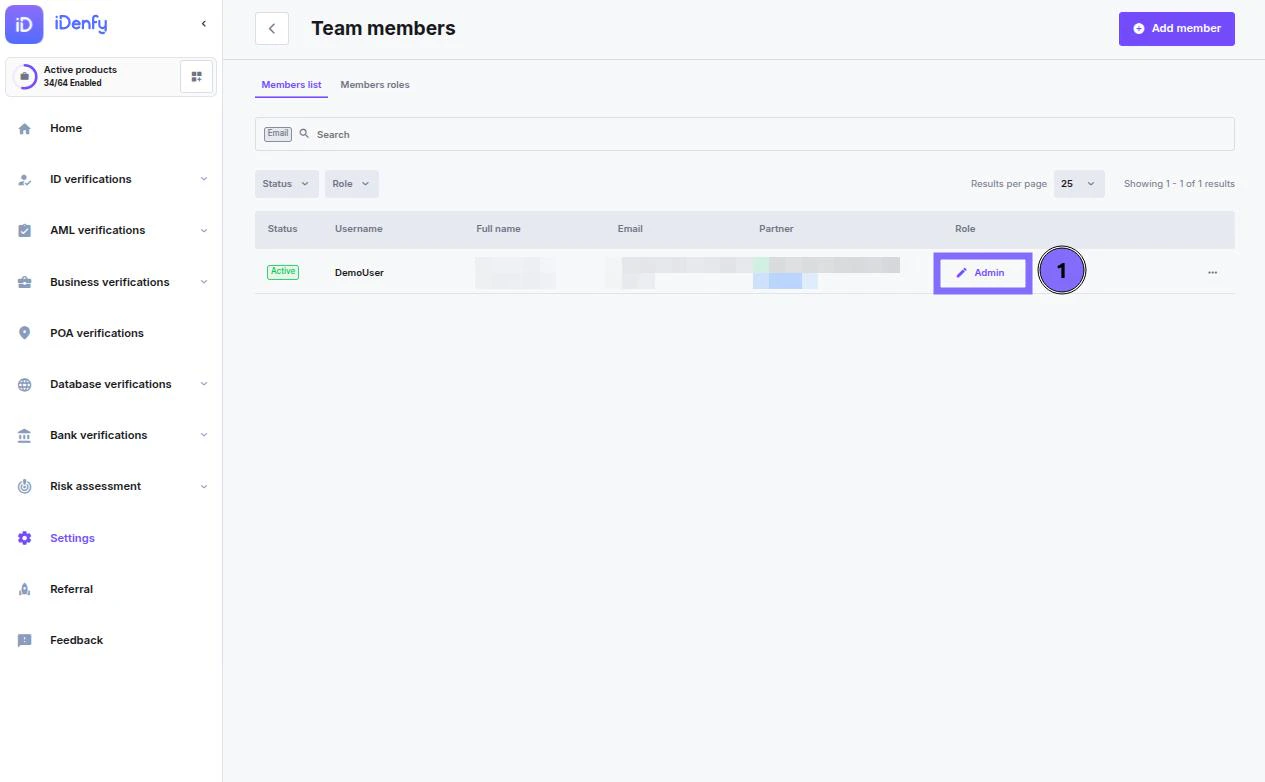
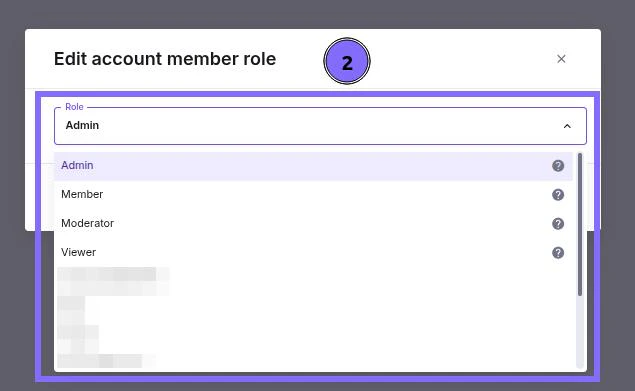
In the ***Team members*** page:
1. Click the current **role** of the member
2. In the pop-up window, select a new role
**Good to know**
* Role change requires the ***Admin*** role
* Members with the ***Admin*** role can promote other members to ***Admin***
***
### Changing the Role of the Current Member
In the ***Team members*** page:
1. Click the current **role** of the member
2. In the pop-up window, select a new role
**Good to know**
* Role change requires the ***Admin*** role
* Members with the ***Admin*** role can promote other members to ***Admin***
 ***
## Removing / Deactivating Members
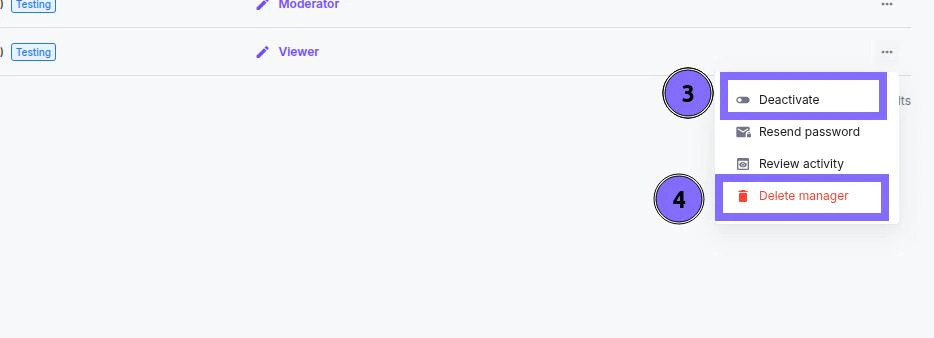
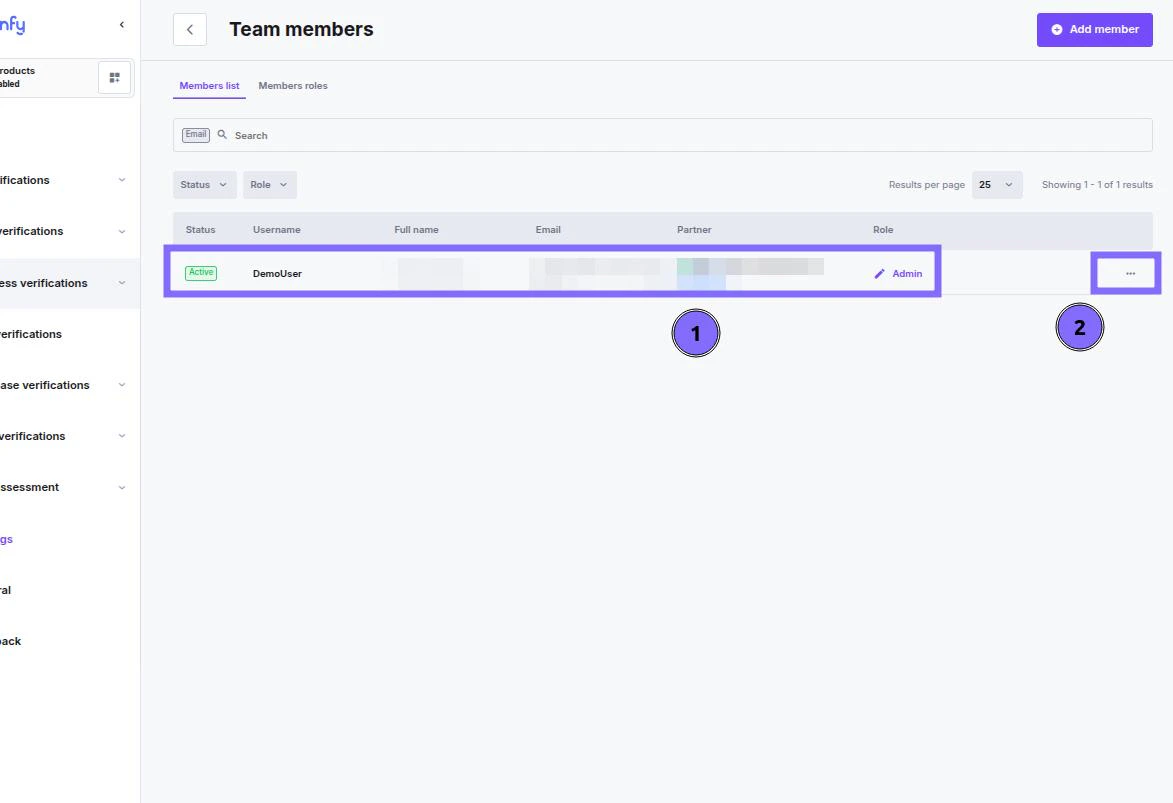
**Identify the member** you want to **remove** from the environment
On the far right side, in line with the account member, click **the 3 dots**
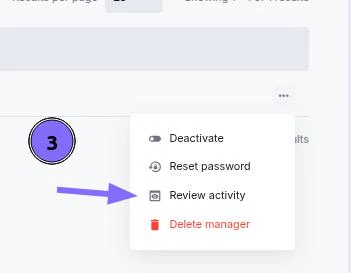
Select ***Deactivate*** if removing access **temporarily**
Select the ***Delete manager*** if you want to remove the member **permanently**
***
## Removing / Deactivating Members
**Identify the member** you want to **remove** from the environment
On the far right side, in line with the account member, click **the 3 dots**
Select ***Deactivate*** if removing access **temporarily**
Select the ***Delete manager*** if you want to remove the member **permanently**
 ***
## Resetting **OTP / Password**
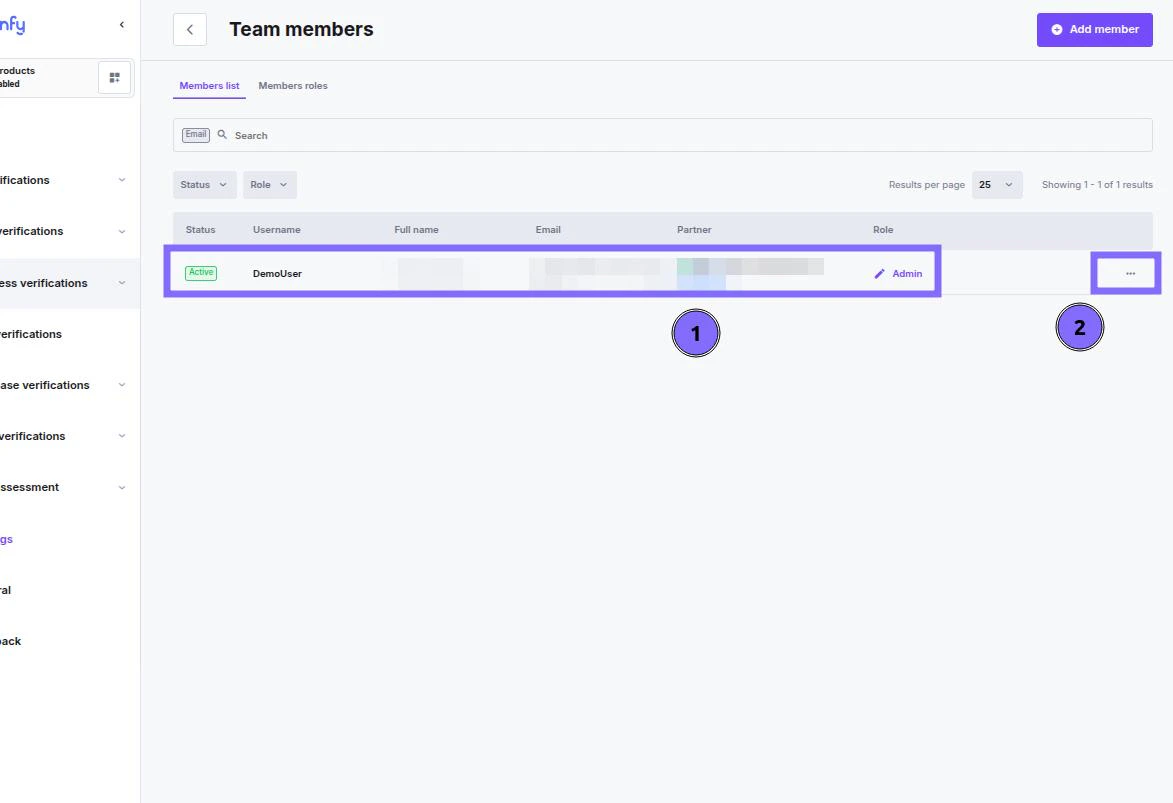
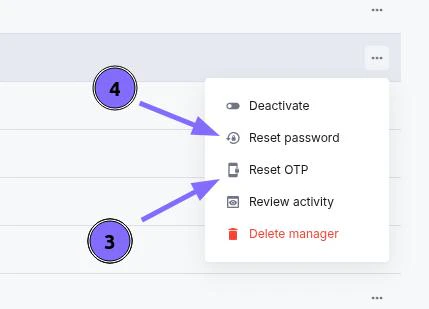
**Identify the member** whose credentials you need to **reset**
On the far right side, in line with the account member, click **the 3 dots**
Select what you would like to **reset**
***
## Resetting **OTP / Password**
**Identify the member** whose credentials you need to **reset**
On the far right side, in line with the account member, click **the 3 dots**
Select what you would like to **reset**
 ***
## Member Activity
You can review each member's activity and what endpoints (*webpages*) they visited.
**Identify the member** whose activity log you want to see
On the far right side, in line with the account member, click **the 3 dots**
Select **Review activity**
***
## Member Activity
You can review each member's activity and what endpoints (*webpages*) they visited.
**Identify the member** whose activity log you want to see
On the far right side, in line with the account member, click **the 3 dots**
Select **Review activity**
 ***
***