> ## Documentation Index
> Fetch the complete documentation index at: https://documentation.idenfy.com/llms.txt
> Use this file to discover all available pages before exploring further.
# Shopify
> Add identity verification to your Shopify store. Choose when to verify, who to verify, and what happens after — all from the Shopify Admin, no code required.
## Overview
The iDenfy Shopify app embeds identity verification directly into your store. Decide **when** customers verify (4 flows), **who** is asked (conditional triggers), and **what happens after** (order holds, auto-refunds, emails) — all from the Shopify Admin.
One-click install with automatic permission setup.
Account, cart, checkout, or post-purchase.
Cart value, region, risk score, products, collections.
Hold, release, and refund orders based on KYC.
***
## How It Works
The Shopify app combines a Shopify Admin app (built on Remix + Polaris), a Theme App Extension (Liquid), and a Checkout/Customer Account UI extension (React). When a verification trigger fires, the storefront fetches a one-time `authToken` from iDenfy, opens iDenfy's hosted UI, and writes the result back onto the Shopify customer and order via metafields, tags, and notes.
**You don't need to manage any of the moving parts** — the app handles tokens, webhooks, geolocation, holds, and refunds. This section is here so you know what to look for when something doesn't behave as expected.
***
## Quick Start
**Requirements**
* Active iDenfy **production environment** ([see pricing](https://idenfy.com/pricing-plans-v2/))
* iDenfy **API key** and **secret** ([Dashboard → Settings → API Keys](/guides/dashboard/settings/api-keys))
* A Shopify store on any plan that supports apps and theme editing
Install from the [Shopify App Store](https://apps.shopify.com/idenfy-id-verification) and approve the requested permissions (customers, orders, products, collections, fulfillment).
On first install the app pulls your existing **collections, products, and customers** into its database so they can be used in trigger rules.
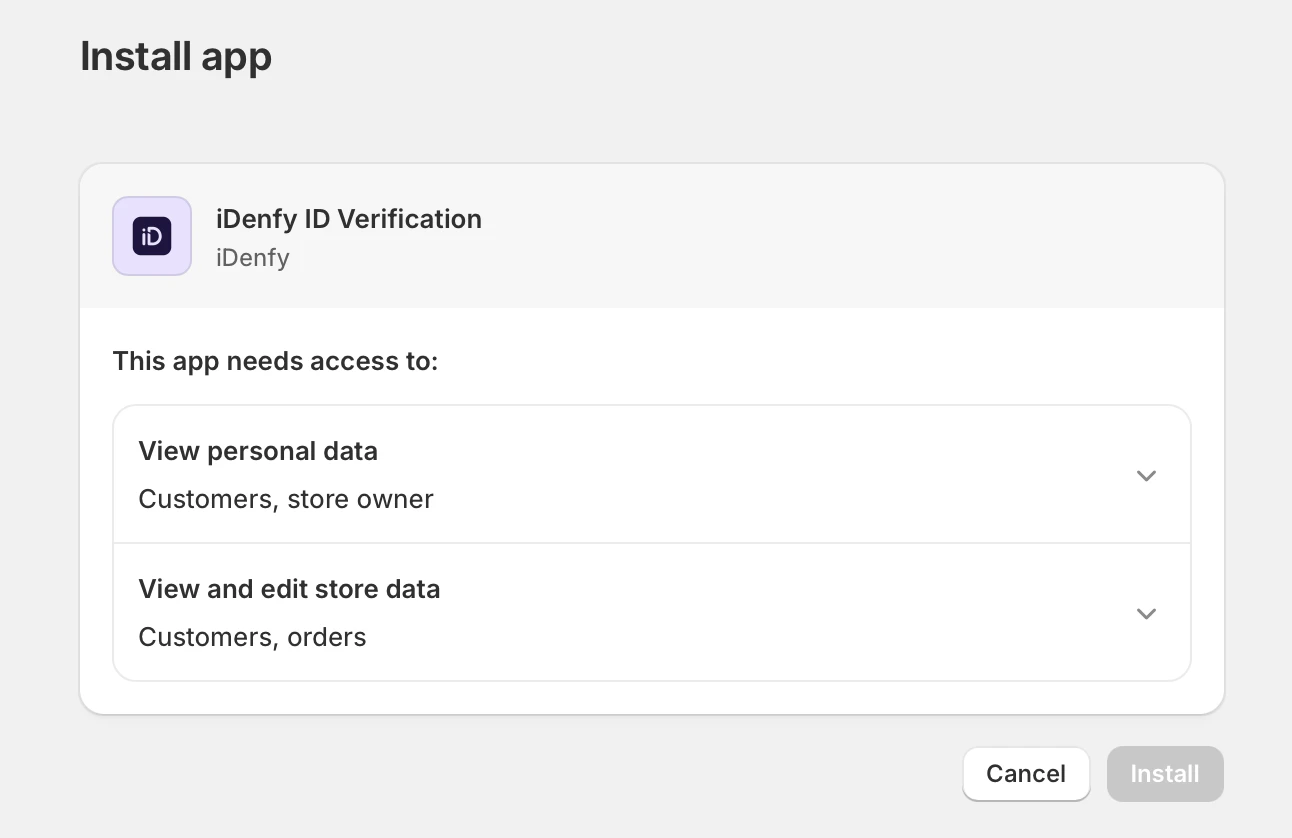 Open the **iDenfy Admin** page inside Shopify and connect using one of two methods:
Sign in with your iDenfy credentials — the API key is fetched automatically and rotated by iDenfy.
Paste the **API Key** and **API Secret** from [Dashboard → Settings → API Keys](/guides/dashboard/settings/api-keys).
The API secret is encrypted in storage and **cannot be read back** after saving. Save a copy somewhere safe before pasting.
Open the **iDenfy Admin** page inside Shopify and connect using one of two methods:
Sign in with your iDenfy credentials — the API key is fetched automatically and rotated by iDenfy.
Paste the **API Key** and **API Secret** from [Dashboard → Settings → API Keys](/guides/dashboard/settings/api-keys).
The API secret is encrypted in storage and **cannot be read back** after saving. Save a copy somewhere safe before pasting.
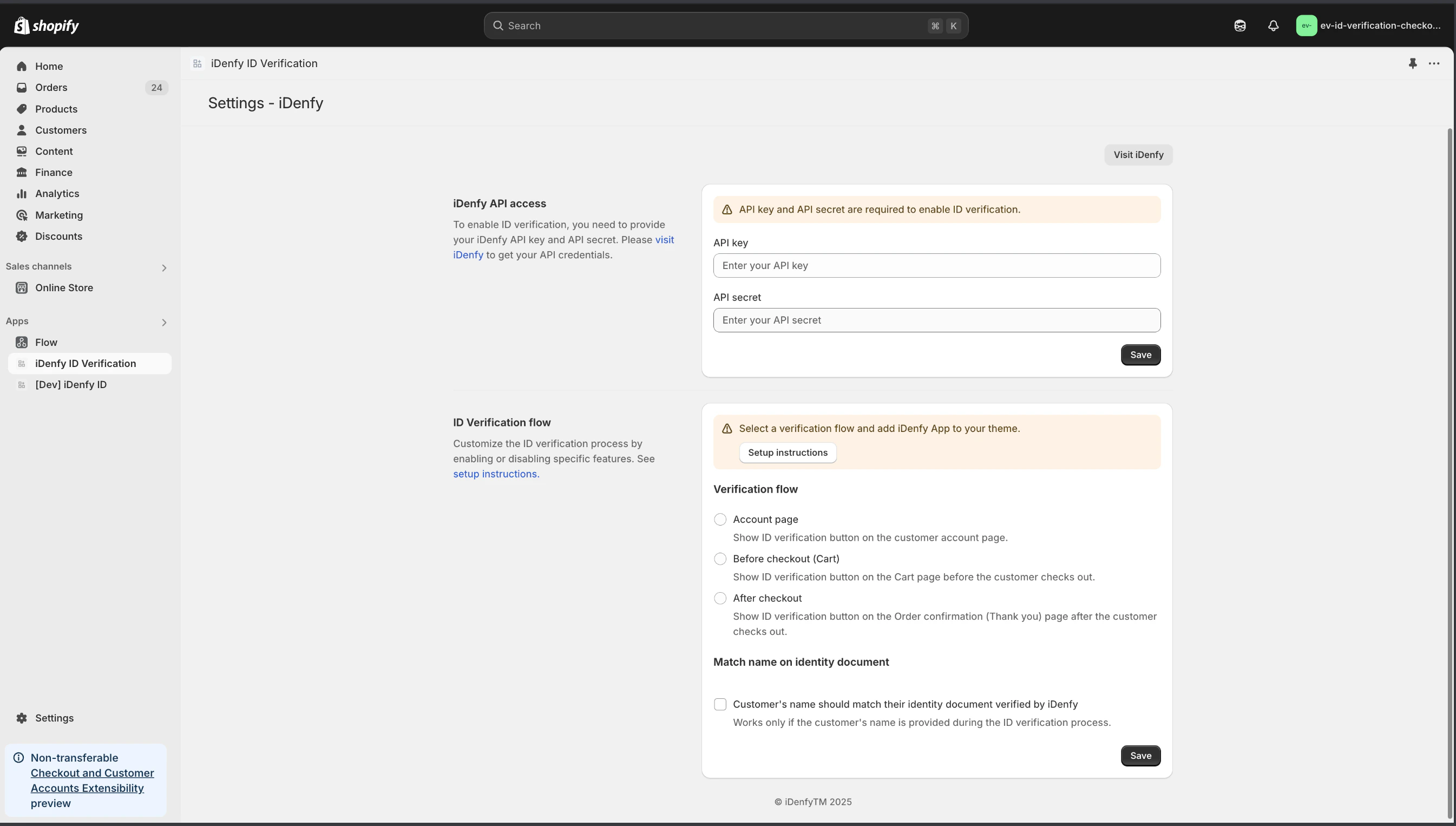 Pick exactly **one** flow — see [Verification Flows](#verification-flows) below for the trade-offs. Your choice is also written to a shop metafield so theme extensions can read it at runtime.
On the [iDenfy Dashboard → Webhooks](https://admin.idenfy.com/settings/v2/system-notifications), add an **ID verification auto finish** webhook.
* **Receiver:** `https://shopify.idenfy.com/api/sdk/verification/webhook`
* **Signing key:** the same API key you connected with above
The Shopify app verifies every incoming webhook signature against this key.
Pick exactly **one** flow — see [Verification Flows](#verification-flows) below for the trade-offs. Your choice is also written to a shop metafield so theme extensions can read it at runtime.
On the [iDenfy Dashboard → Webhooks](https://admin.idenfy.com/settings/v2/system-notifications), add an **ID verification auto finish** webhook.
* **Receiver:** `https://shopify.idenfy.com/api/sdk/verification/webhook`
* **Signing key:** the same API key you connected with above
The Shopify app verifies every incoming webhook signature against this key.
 Without the correct signing key, webhooks are rejected and verification results will not appear in your store.
Open **Online Store → Themes → Customize** and enable the extension that matches your chosen flow. See [Theme & UI Setup](#theme-&-ui-setup).
***
## Verification Flows
You pick **one** flow per store. Each flow controls *where* the verify button appears and *when* the customer is asked.
| Flow | Where the button appears | Best for |
| ------------------- | ------------------------------------ | ----------------------------------------------------- |
| **Account page** | Customer account page (Legacy & new) | Pre-qualify customers before they can check out |
| **Before checkout** | Cart page or cart drawer | Block checkout until verified |
| **During checkout** | The checkout page itself | Verify mid-checkout without leaving Shopify |
| **After checkout** | Thank-you & Order-status pages | Let purchase complete, then verify (with hold/refund) |
The verification button is shown on the customer account page. The checkout button is hidden site-wide until the customer is verified. If they are already verified, a success badge is shown.
Without the correct signing key, webhooks are rejected and verification results will not appear in your store.
Open **Online Store → Themes → Customize** and enable the extension that matches your chosen flow. See [Theme & UI Setup](#theme-&-ui-setup).
***
## Verification Flows
You pick **one** flow per store. Each flow controls *where* the verify button appears and *when* the customer is asked.
| Flow | Where the button appears | Best for |
| ------------------- | ------------------------------------ | ----------------------------------------------------- |
| **Account page** | Customer account page (Legacy & new) | Pre-qualify customers before they can check out |
| **Before checkout** | Cart page or cart drawer | Block checkout until verified |
| **During checkout** | The checkout page itself | Verify mid-checkout without leaving Shopify |
| **After checkout** | Thank-you & Order-status pages | Let purchase complete, then verify (with hold/refund) |
The verification button is shown on the customer account page. The checkout button is hidden site-wide until the customer is verified. If they are already verified, a success badge is shown.
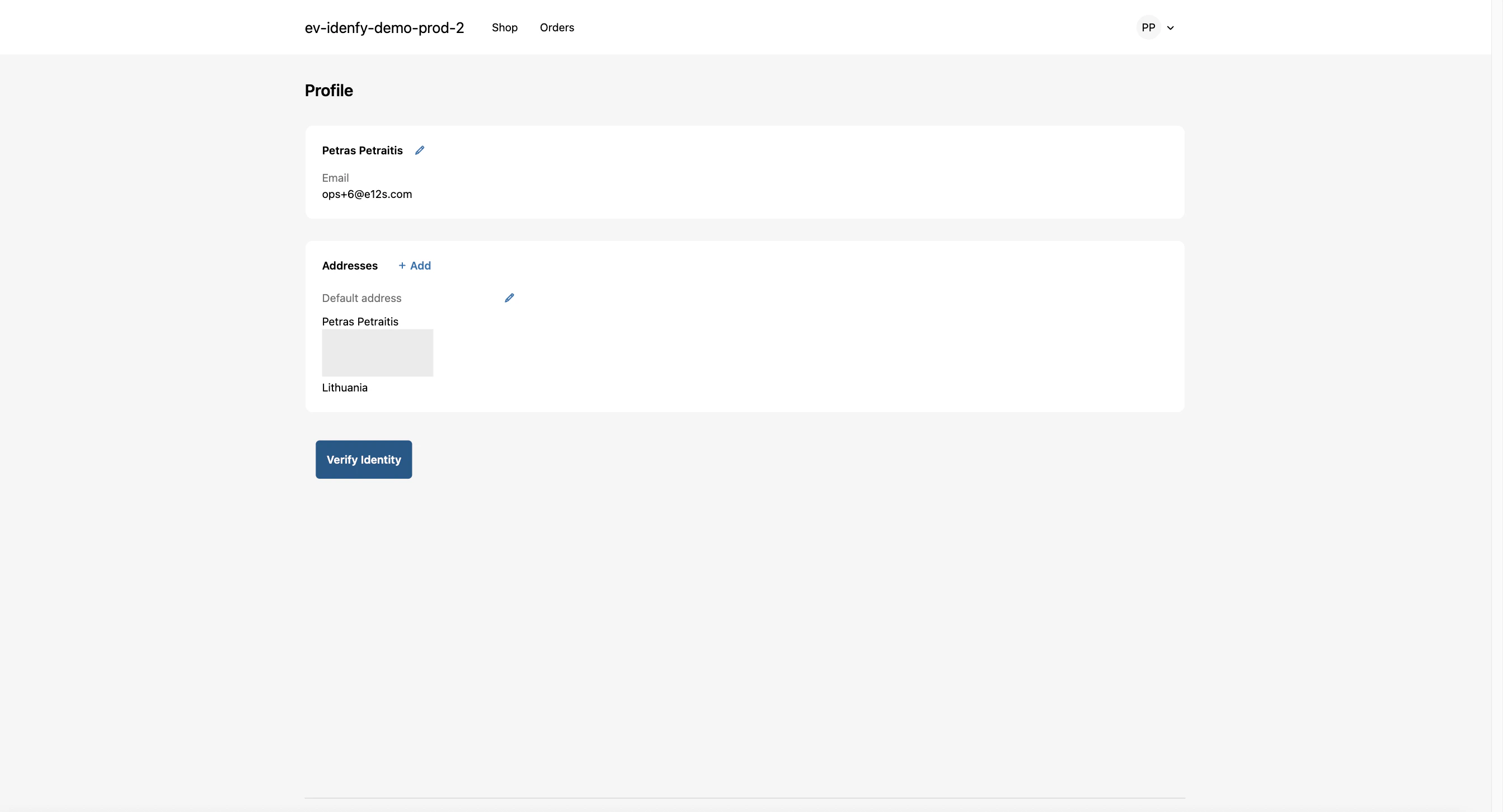 The verification button replaces the cart and checkout buttons whenever the cart matches a trigger rule. The check re-runs whenever the cart contents change.
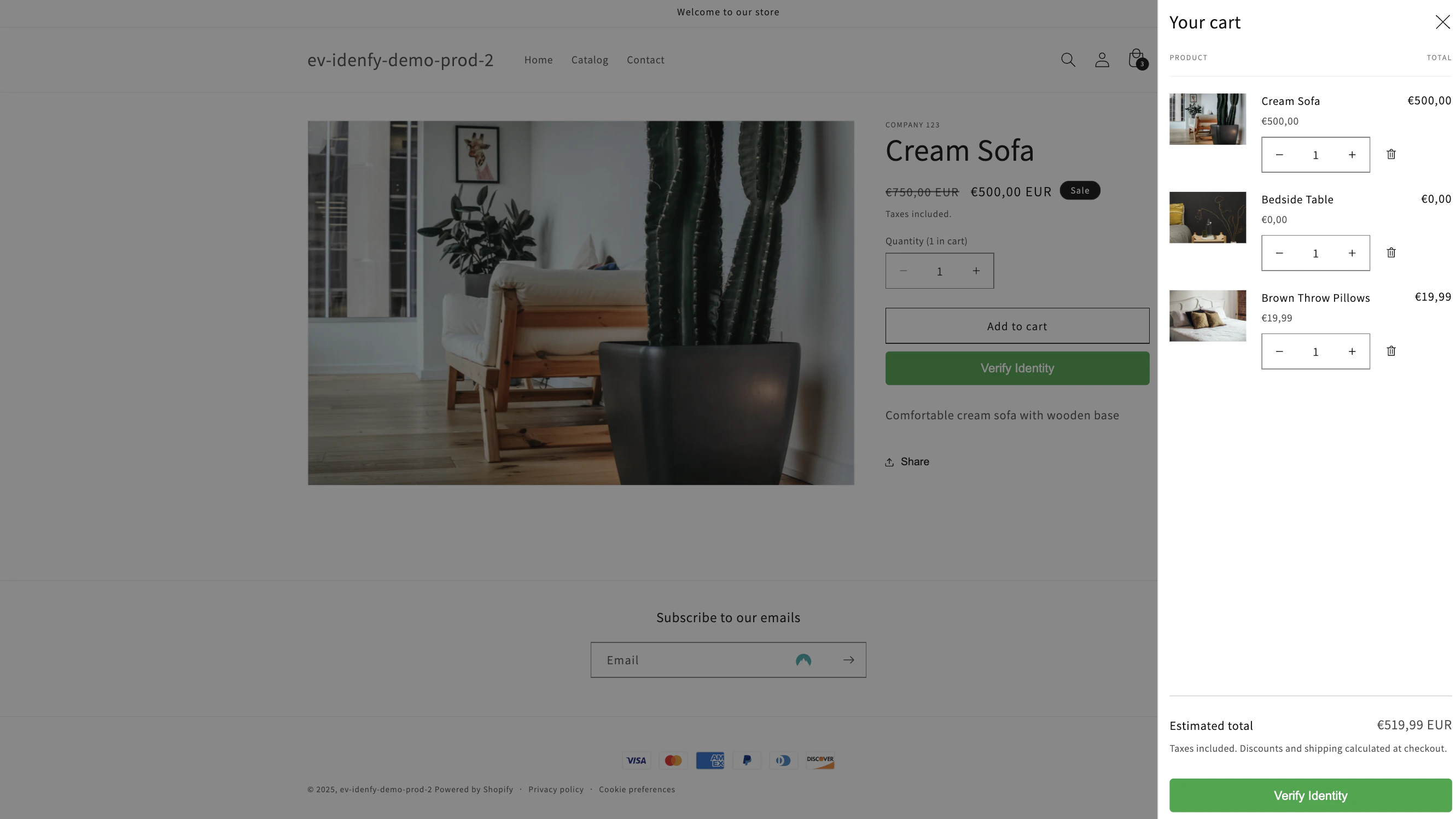
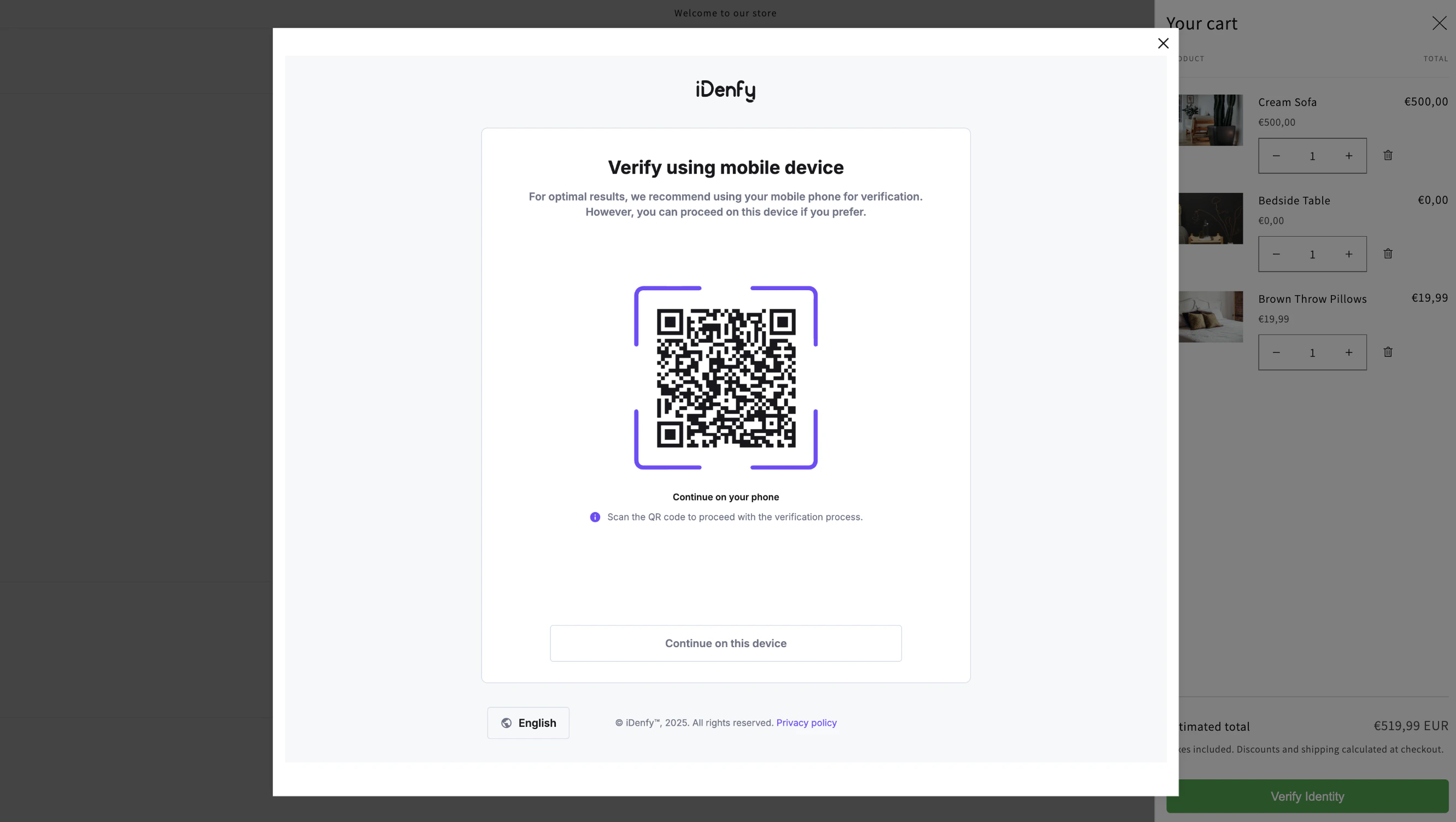 The verification button appears on the checkout page itself via a Checkout UI extension. Checkout progress is blocked until verification succeeds.
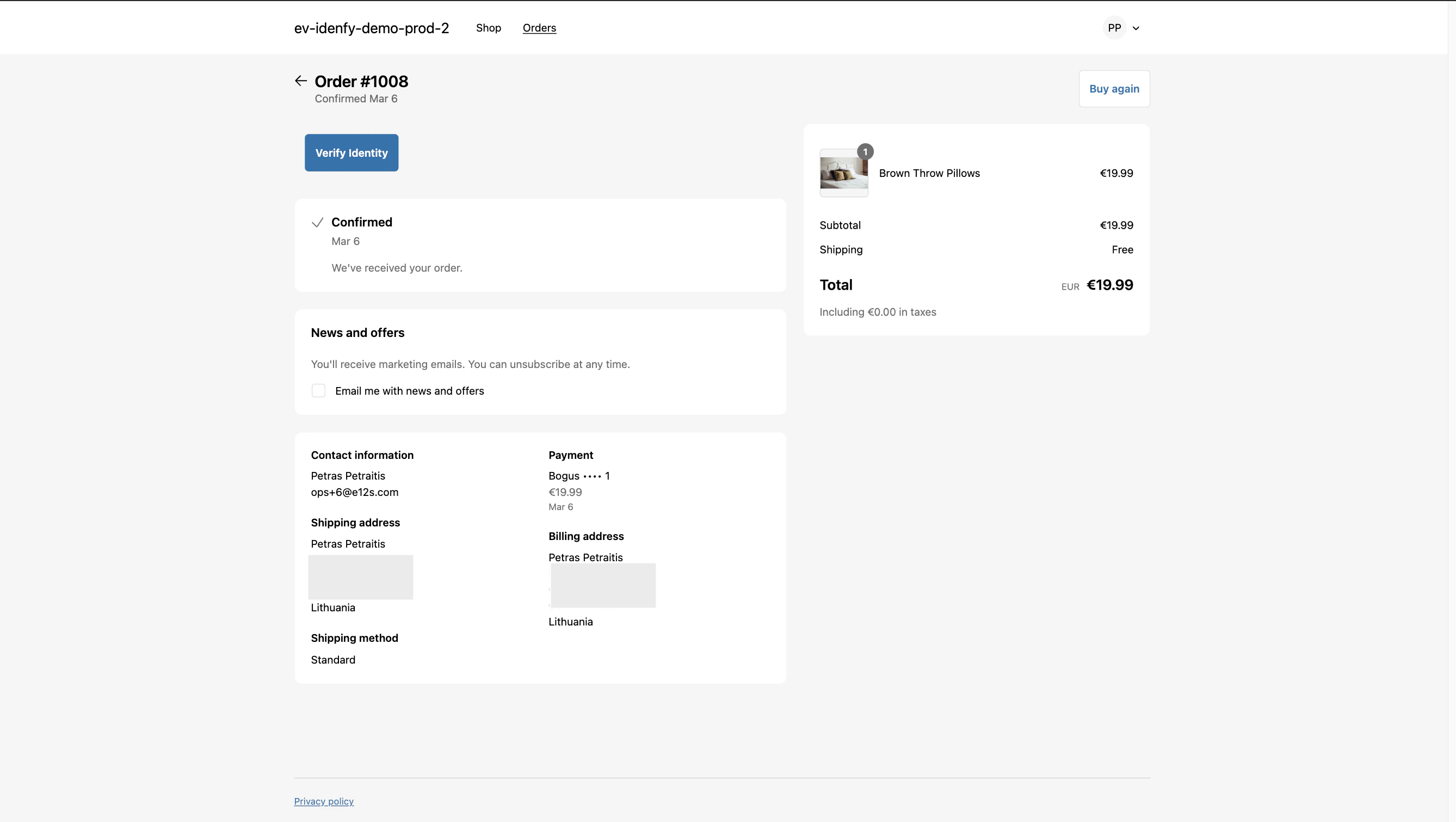
The order completes normally; the customer is prompted to verify on the **Thank-you** and **Order status** pages. Combined with [Order State Management](#order-state-management), this enables hold-and-refund behavior.
The verification button appears on the checkout page itself via a Checkout UI extension. Checkout progress is blocked until verification succeeds.
The order completes normally; the customer is prompted to verify on the **Thank-you** and **Order status** pages. Combined with [Order State Management](#order-state-management), this enables hold-and-refund behavior.
 **Flow-restricted features.** A few features are *only* available in the After-checkout flow because they need the order or shipping address to exist first:
* Risk-factor triggering
* Regional minimum age limits
* Order State Management (hold + auto-refund)
* The "Shipping address" geolocation method
***
## Theme and UI Setup
Once a flow is picked, enable its matching extension in **Online Store → Themes → Customize**.
The Liquid **iDenfy ID button** app-embed block is injected at the body level.
**Flow-restricted features.** A few features are *only* available in the After-checkout flow because they need the order or shipping address to exist first:
* Risk-factor triggering
* Regional minimum age limits
* Order State Management (hold + auto-refund)
* The "Shipping address" geolocation method
***
## Theme and UI Setup
Once a flow is picked, enable its matching extension in **Online Store → Themes → Customize**.
The Liquid **iDenfy ID button** app-embed block is injected at the body level.
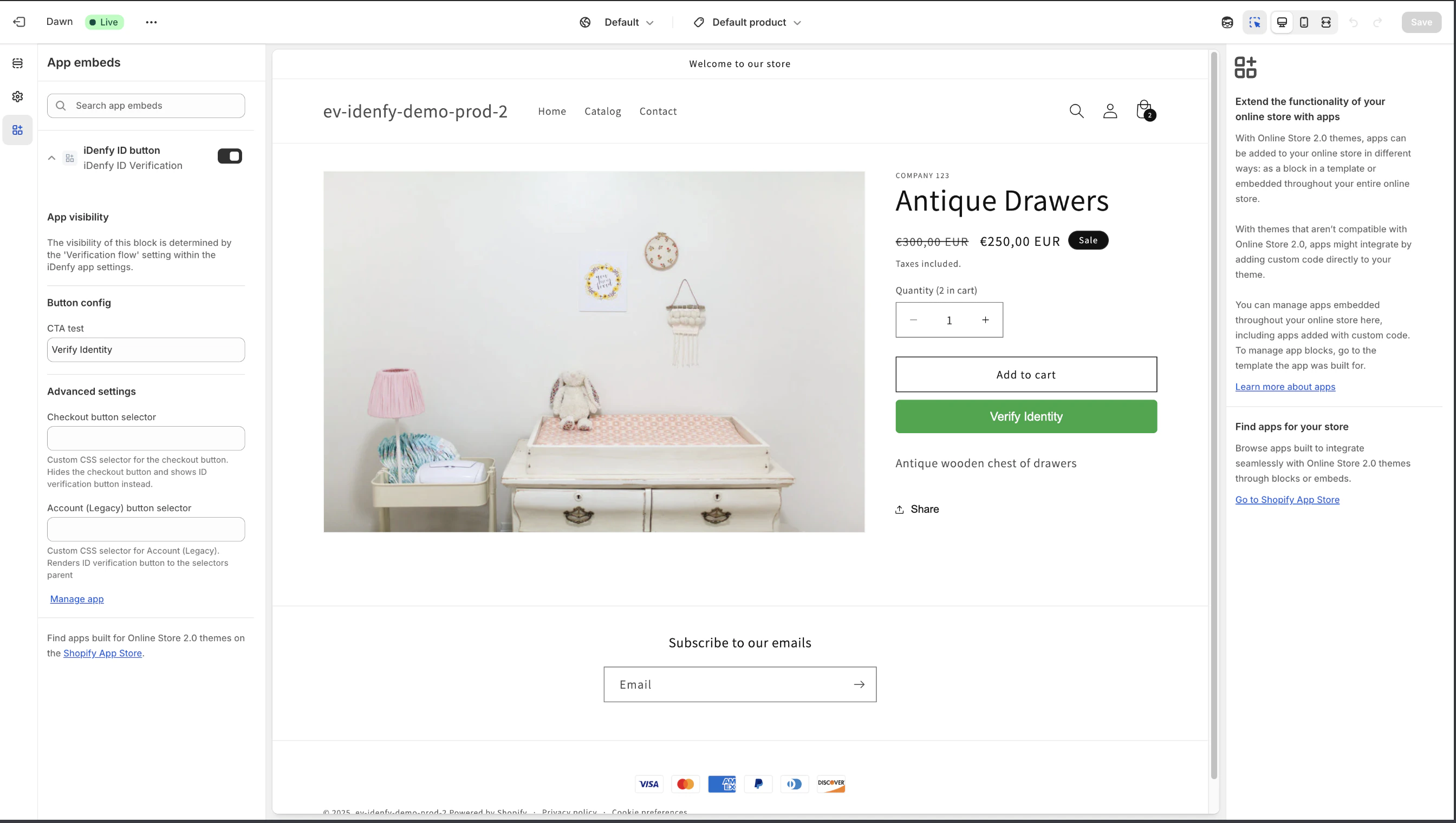 **Block settings:**
| Setting | Purpose |
| ---------------------------------------------- | -------------------------------------------------------------------------------------------------------------- |
| **CTA text** | Label on the verify button. |
| **Geolocation permission notice / retry text** | Shown when the browser blocks geolocation. |
| **Checkout button selector** | CSS selector for the theme's checkout button, so the app can hide it. Comma-separated for multi-theme support. |
| **Cart alter buttons selector** | CSS selector for cart add/remove buttons, so KYC is re-evaluated when the cart changes. |
| **Account (Legacy) button selector** | CSS selector used to anchor the verify button on the legacy account page. |
The block exposes CSS variables you can override in your theme stylesheet to match your brand.
```css theme={"system"}
:root {
--idenfy-modal-desktop-width: 60vw;
--idenfy-modal-desktop-height: 90vh;
--idenfy-modal-mobile-width: 100vw;
--idenfy-modal-mobile-height: 90vh;
--idenfy-modal-backdrop: rgba(0, 0, 0, 0.5);
--idenfy-btn-min-width: 160px;
--idenfy-btn-font-size: 16px;
--idenfy-btn-line-height: 1.5;
--idenfy-btn-padding: 10px 24px;
--idenfy-btn-border-radius: 5px;
--idenfy-btn-bg-color: #28a745;
--idenfy-btn-text-color: white;
--idenfy-btn-bg-color-hover: #218838;
--idenfy-btn-text-color-hover: white;
--idenfy-error-text-color: #c70a24;
--idenfy-message-font-size: 14px;
--idenfy-message-padding: 4px 16px;
--idenfy-message-margin: 16px 0;
--idenfy-message-border-radius: 5px;
--idenfy-message-success-bg-color: #28a745;
--idenfy-message-info-bg-color: #ffb800;
--idenfy-message-info-text: black;
--idenfy-message-success-text: white;
}
```
A React extension that targets four storefront surfaces.
| Surface | Where it renders |
| -------------------------------------------- | ------------------------------- |
| `purchase.checkout.block.render` | Checkout page |
| `purchase.thank-you.block.render` | Thank-you page |
| `customer-account.order-status.block.render` | Order status page |
| `customer-account.profile.block.render` | Customer profile (new accounts) |
**Setup:**
In the theme editor, change the dropdown to **Checkout and customer accounts**.
**Block settings:**
| Setting | Purpose |
| ---------------------------------------------- | -------------------------------------------------------------------------------------------------------------- |
| **CTA text** | Label on the verify button. |
| **Geolocation permission notice / retry text** | Shown when the browser blocks geolocation. |
| **Checkout button selector** | CSS selector for the theme's checkout button, so the app can hide it. Comma-separated for multi-theme support. |
| **Cart alter buttons selector** | CSS selector for cart add/remove buttons, so KYC is re-evaluated when the cart changes. |
| **Account (Legacy) button selector** | CSS selector used to anchor the verify button on the legacy account page. |
The block exposes CSS variables you can override in your theme stylesheet to match your brand.
```css theme={"system"}
:root {
--idenfy-modal-desktop-width: 60vw;
--idenfy-modal-desktop-height: 90vh;
--idenfy-modal-mobile-width: 100vw;
--idenfy-modal-mobile-height: 90vh;
--idenfy-modal-backdrop: rgba(0, 0, 0, 0.5);
--idenfy-btn-min-width: 160px;
--idenfy-btn-font-size: 16px;
--idenfy-btn-line-height: 1.5;
--idenfy-btn-padding: 10px 24px;
--idenfy-btn-border-radius: 5px;
--idenfy-btn-bg-color: #28a745;
--idenfy-btn-text-color: white;
--idenfy-btn-bg-color-hover: #218838;
--idenfy-btn-text-color-hover: white;
--idenfy-error-text-color: #c70a24;
--idenfy-message-font-size: 14px;
--idenfy-message-padding: 4px 16px;
--idenfy-message-margin: 16px 0;
--idenfy-message-border-radius: 5px;
--idenfy-message-success-bg-color: #28a745;
--idenfy-message-info-bg-color: #ffb800;
--idenfy-message-info-text: black;
--idenfy-message-success-text: white;
}
```
A React extension that targets four storefront surfaces.
| Surface | Where it renders |
| -------------------------------------------- | ------------------------------- |
| `purchase.checkout.block.render` | Checkout page |
| `purchase.thank-you.block.render` | Thank-you page |
| `customer-account.order-status.block.render` | Order status page |
| `customer-account.profile.block.render` | Customer profile (new accounts) |
**Setup:**
In the theme editor, change the dropdown to **Checkout and customer accounts**.
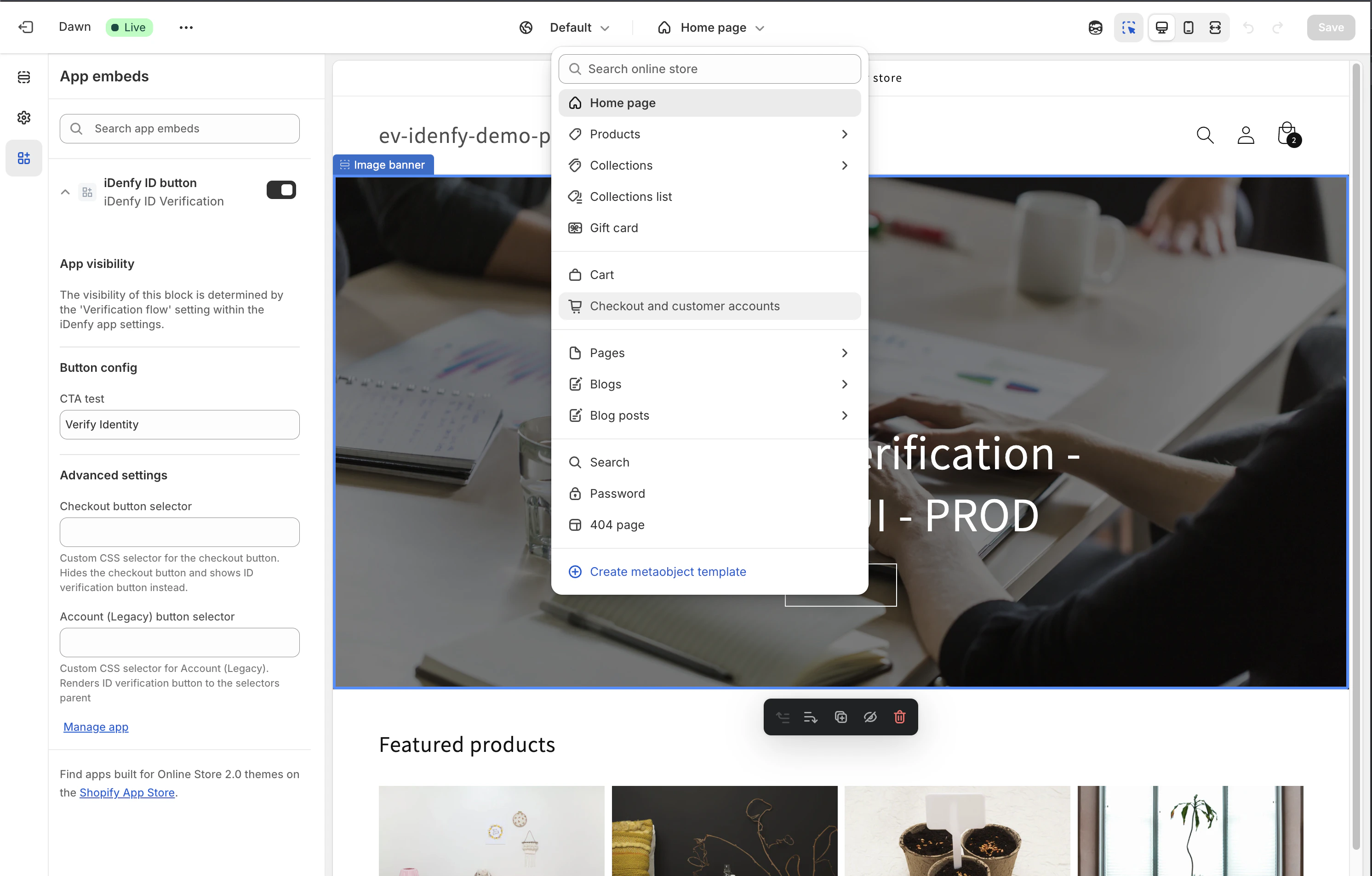 Add it to the **Thank you**, **Profile**, and **Order status** pages.
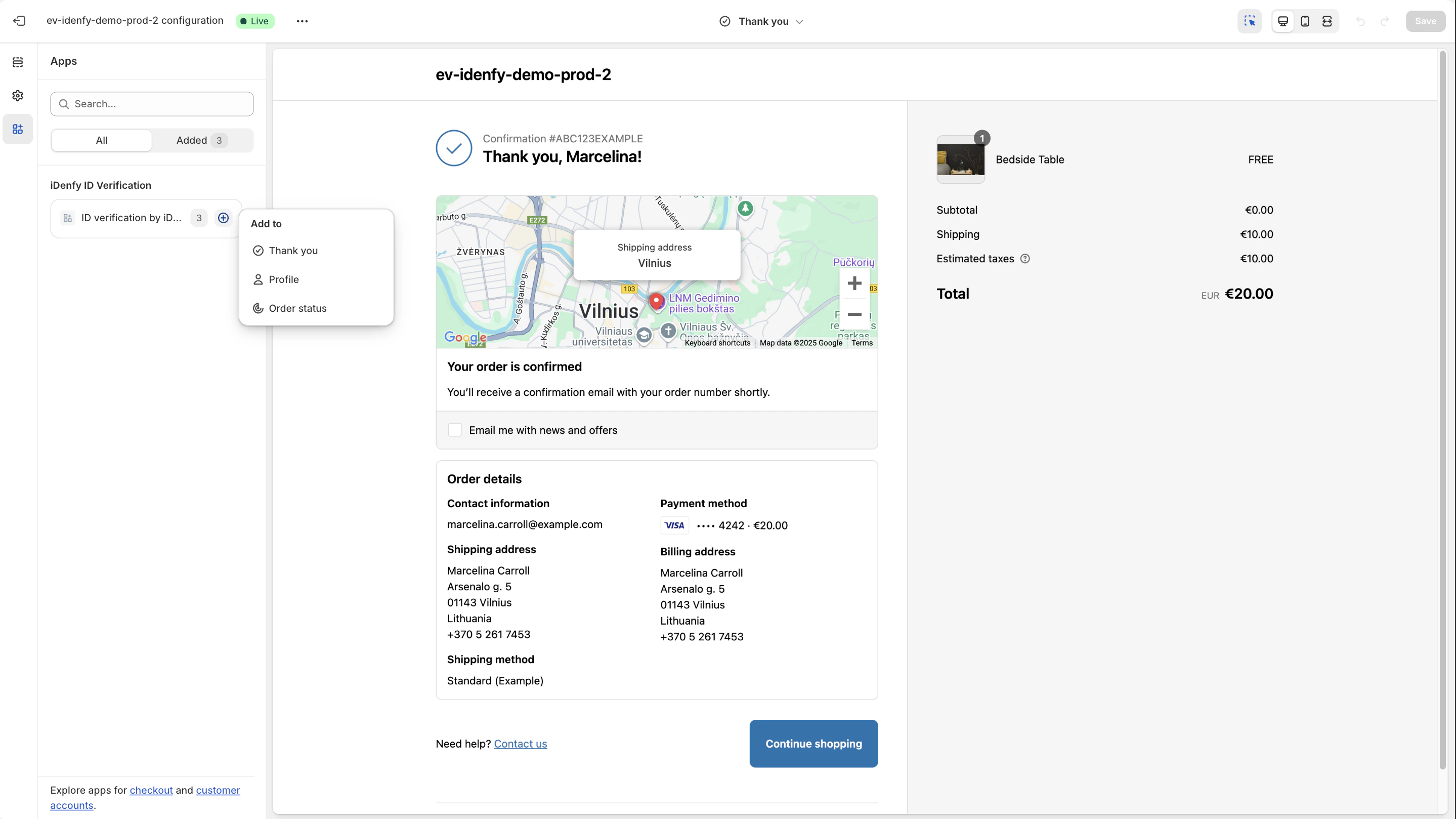 Click each extension instance to pick exactly where on the page it should appear.
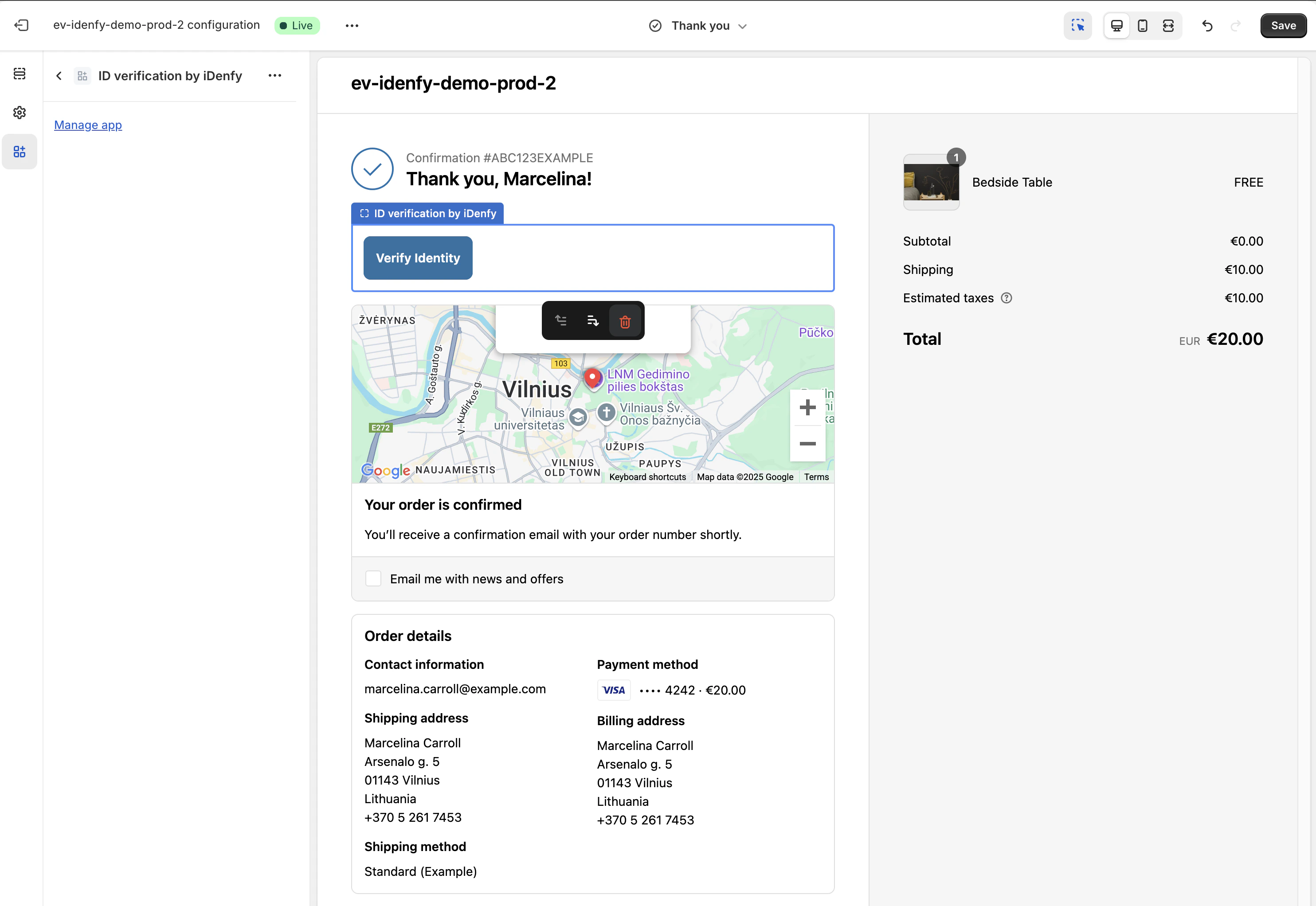 You can also set a "**Paragraph above button**" message shown directly above the Verify Identity button.
Styling is limited here — Checkout/Account UI extensions render in a sandboxed React environment that does not support arbitrary CSS overrides.
***
## Triggering Rules
In the **ID Verification flow** card you can layer multiple conditional triggers. The customer is asked to verify only when at least one rule matches.
| Rule | Description | Flow restriction |
| --------------------------- | ----------------------------------------------------------------------------------------------------------------------------------- | --------------------------------------------------- |
| **Daily money limit** | Customer's total ordered amount today reaches the limit. | All flows |
| **Monthly money limit** | Same, month-to-date. | All flows |
| **Daily order count** | Trigger after N orders today. | All flows |
| **Monthly order count** | Same, month-to-date. | All flows |
| **By region** | Trigger for customers in specific countries or US states. Detected via **browser geolocation** or **shipping address**. | Shipping-address detection is *after-checkout only* |
| **By risk factor** | Trigger when the order's Shopify risk score reaches `low` / `medium` / `high`. Optional "trigger when no risk factor yet" checkbox. | *After-checkout only* |
| **By product / collection** | Narrow *all the above* triggers to carts containing specific products or collection items. | All flows |
* The storefront requests the browser's coordinates via the [Geolocation API](https://developer.mozilla.org/en-US/docs/Web/API/Geolocation_API).
* Coordinates are POSTed to `/apps/sdk/geolocation` and stored as customer metafields (`idenfy.geolocation_latitude`, `idenfy.geolocation_longitude`, `idenfy.geolocation_date`).
* Coordinates older than \~5 min on the cart page are refreshed automatically. Coordinates older than 1 hour are flagged in logs but still used.
* The server uses PostGIS geometry to check whether the coordinates fall inside any of the configured countries or US states.
### Identity Constraints
Separate from triggers, the following identity constraints apply to *every* verification:
| Constraint | Description | Flow restriction |
| ------------------------------------- | ----------------------------------------------------------------------------------------- | ------------------- |
| **Name must match identity document** | iDenfy fails the verification if the Shopify-provided name does not match the document. | All flows |
| **Global minimum age** | Minimum age applied to every verification. | All flows |
| **Regional minimum age** | Per-country and per-state minimum age. Age is computed from the document's date of birth. | After-checkout only |
***
## Order State Management
Available **only** in the After-checkout flow.
When **Automatically manage Shopify's order state** is enabled:
If any KYC rule matches the order, the app puts the order's fulfillment **on hold** immediately.
The customer sees the verify button on the Thank-you and Order-status pages. Optionally, an email is sent.
If KYC returns `APPROVED`, the hold is released and the order proceeds to fulfillment automatically.
If verification is not completed within the configured **Order refund timeframe** (1 hour – 4 weeks), a cron job cancels the order and refunds the customer.
Two optional transactional emails are configurable here:
* **Ask Complete KYC** — sent while the order is on hold.
* **Order Cancelled** — sent when the order is auto-cancelled.
***
## Email Notifications
The app can send up to four transactional emails:
| Email | Sent when | Available in |
| ------------------------------- | -------------------------------------------------- | --------------------------------------- |
| **Ask Complete KYC** | Order placed and held for verification | After-checkout (Order State Management) |
| **Order Cancelled** | Order auto-cancelled after timeframe expires | After-checkout (Order State Management) |
| **Successful KYC verification** | Webhook returns `APPROVED` | All flows |
| **Failed KYC verification** | Webhook returns `DENIED` / `SUSPECTED` / `EXPIRED` | All flows |
### Custom Sender Identity
By default, emails are sent from iDenfy's shared address. You can configure a custom domain via [Resend](https://resend.com/):
Open **Configure custom email sender identity**. Enter a username (e.g. `noreply`), domain, and AWS region (`us-east-1`, `eu-west-1`, `sa-east-1`, or `ap-northeast-1`).
Open **Verify custom email sender identity**. Add the DNS records shown to your domain registrar. Resend verifies the records on its side.
Once verified, an **Edit email template** button appears for each email type. You can customize both the text and HTML bodies.
Variable availability depends on the email type:
| Variable | Available in |
| --------------------------- | ----------------------------------------------------------- |
| `{firstName}`, `{lastName}` | All emails |
| `{orderNumber}` | All order-bound emails |
| `{orderStatusPageUrl}` | Ask Complete KYC |
| `{timeframe}` | Ask Complete KYC |
| `{reason}` | Failed KYC |
| `{manageOrderState}` | Successful KYC (inserted when Order State Management is on) |
Custom templates can only be **saved** while a verified custom identity exists, but they are **kept in the database** if you later reset the identity — so re-verifying won't lose your work.
***
## Customer and Order Records
After every verification, the app writes the result onto Shopify.
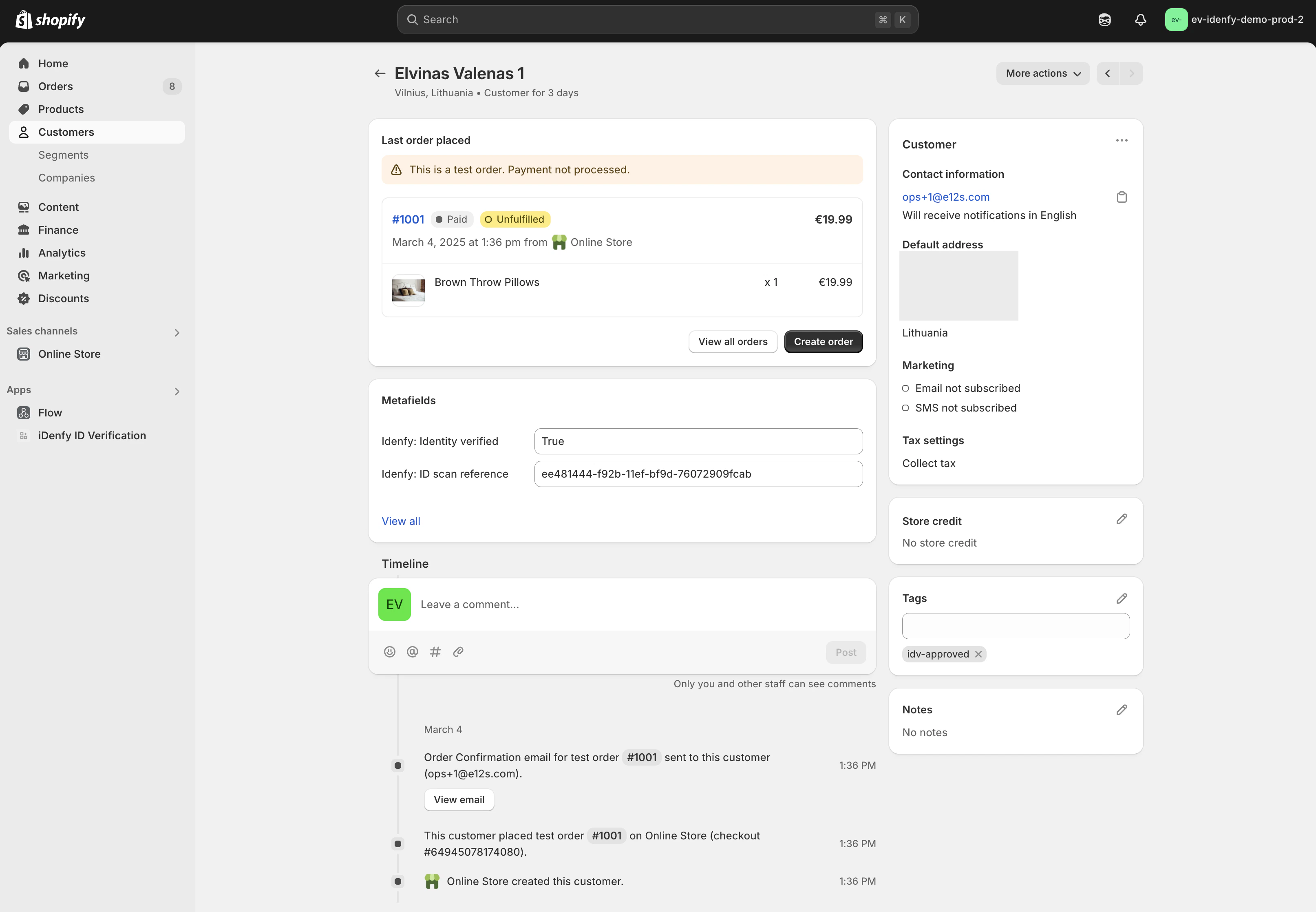
### Customer Record
| Field | Type | Meaning |
| ---------------------------- | --------------------------- | ----------------------------------------------------------------------------------------------------------- |
| `idenfy.is_verified` | metafield (boolean) | `true` if `APPROVED`. The source of truth across the app. |
| `idenfy.verification_status` | metafield (text) | `APPROVED` / `DENIED` / `SUSPECTED` / `EXPIRED` |
| `idenfy.scan_ref` | metafield (text) | iDenfy verification reference |
| `idenfy.fraud_tags` | metafield (text) | Comma-separated fraud flags from iDenfy |
| `idenfy.mismatch_tags` | metafield (text) | Comma-separated mismatch flags |
| `idenfy.geolocation_*` | metafield (number/datetime) | Last submitted geolocation (when geolocation triggering is on) |
| Tag | string | Exactly one of `idv-approved`, `idv-denied`, `idv-suspected`, `idv-failed`, `idv-expired`, `idv-unverified` |
Captured email or phone from the verification is also saved into the customer record when available.
You can also set a "**Paragraph above button**" message shown directly above the Verify Identity button.
Styling is limited here — Checkout/Account UI extensions render in a sandboxed React environment that does not support arbitrary CSS overrides.
***
## Triggering Rules
In the **ID Verification flow** card you can layer multiple conditional triggers. The customer is asked to verify only when at least one rule matches.
| Rule | Description | Flow restriction |
| --------------------------- | ----------------------------------------------------------------------------------------------------------------------------------- | --------------------------------------------------- |
| **Daily money limit** | Customer's total ordered amount today reaches the limit. | All flows |
| **Monthly money limit** | Same, month-to-date. | All flows |
| **Daily order count** | Trigger after N orders today. | All flows |
| **Monthly order count** | Same, month-to-date. | All flows |
| **By region** | Trigger for customers in specific countries or US states. Detected via **browser geolocation** or **shipping address**. | Shipping-address detection is *after-checkout only* |
| **By risk factor** | Trigger when the order's Shopify risk score reaches `low` / `medium` / `high`. Optional "trigger when no risk factor yet" checkbox. | *After-checkout only* |
| **By product / collection** | Narrow *all the above* triggers to carts containing specific products or collection items. | All flows |
* The storefront requests the browser's coordinates via the [Geolocation API](https://developer.mozilla.org/en-US/docs/Web/API/Geolocation_API).
* Coordinates are POSTed to `/apps/sdk/geolocation` and stored as customer metafields (`idenfy.geolocation_latitude`, `idenfy.geolocation_longitude`, `idenfy.geolocation_date`).
* Coordinates older than \~5 min on the cart page are refreshed automatically. Coordinates older than 1 hour are flagged in logs but still used.
* The server uses PostGIS geometry to check whether the coordinates fall inside any of the configured countries or US states.
### Identity Constraints
Separate from triggers, the following identity constraints apply to *every* verification:
| Constraint | Description | Flow restriction |
| ------------------------------------- | ----------------------------------------------------------------------------------------- | ------------------- |
| **Name must match identity document** | iDenfy fails the verification if the Shopify-provided name does not match the document. | All flows |
| **Global minimum age** | Minimum age applied to every verification. | All flows |
| **Regional minimum age** | Per-country and per-state minimum age. Age is computed from the document's date of birth. | After-checkout only |
***
## Order State Management
Available **only** in the After-checkout flow.
When **Automatically manage Shopify's order state** is enabled:
If any KYC rule matches the order, the app puts the order's fulfillment **on hold** immediately.
The customer sees the verify button on the Thank-you and Order-status pages. Optionally, an email is sent.
If KYC returns `APPROVED`, the hold is released and the order proceeds to fulfillment automatically.
If verification is not completed within the configured **Order refund timeframe** (1 hour – 4 weeks), a cron job cancels the order and refunds the customer.
Two optional transactional emails are configurable here:
* **Ask Complete KYC** — sent while the order is on hold.
* **Order Cancelled** — sent when the order is auto-cancelled.
***
## Email Notifications
The app can send up to four transactional emails:
| Email | Sent when | Available in |
| ------------------------------- | -------------------------------------------------- | --------------------------------------- |
| **Ask Complete KYC** | Order placed and held for verification | After-checkout (Order State Management) |
| **Order Cancelled** | Order auto-cancelled after timeframe expires | After-checkout (Order State Management) |
| **Successful KYC verification** | Webhook returns `APPROVED` | All flows |
| **Failed KYC verification** | Webhook returns `DENIED` / `SUSPECTED` / `EXPIRED` | All flows |
### Custom Sender Identity
By default, emails are sent from iDenfy's shared address. You can configure a custom domain via [Resend](https://resend.com/):
Open **Configure custom email sender identity**. Enter a username (e.g. `noreply`), domain, and AWS region (`us-east-1`, `eu-west-1`, `sa-east-1`, or `ap-northeast-1`).
Open **Verify custom email sender identity**. Add the DNS records shown to your domain registrar. Resend verifies the records on its side.
Once verified, an **Edit email template** button appears for each email type. You can customize both the text and HTML bodies.
Variable availability depends on the email type:
| Variable | Available in |
| --------------------------- | ----------------------------------------------------------- |
| `{firstName}`, `{lastName}` | All emails |
| `{orderNumber}` | All order-bound emails |
| `{orderStatusPageUrl}` | Ask Complete KYC |
| `{timeframe}` | Ask Complete KYC |
| `{reason}` | Failed KYC |
| `{manageOrderState}` | Successful KYC (inserted when Order State Management is on) |
Custom templates can only be **saved** while a verified custom identity exists, but they are **kept in the database** if you later reset the identity — so re-verifying won't lose your work.
***
## Customer and Order Records
After every verification, the app writes the result onto Shopify.
### Customer Record
| Field | Type | Meaning |
| ---------------------------- | --------------------------- | ----------------------------------------------------------------------------------------------------------- |
| `idenfy.is_verified` | metafield (boolean) | `true` if `APPROVED`. The source of truth across the app. |
| `idenfy.verification_status` | metafield (text) | `APPROVED` / `DENIED` / `SUSPECTED` / `EXPIRED` |
| `idenfy.scan_ref` | metafield (text) | iDenfy verification reference |
| `idenfy.fraud_tags` | metafield (text) | Comma-separated fraud flags from iDenfy |
| `idenfy.mismatch_tags` | metafield (text) | Comma-separated mismatch flags |
| `idenfy.geolocation_*` | metafield (number/datetime) | Last submitted geolocation (when geolocation triggering is on) |
| Tag | string | Exactly one of `idv-approved`, `idv-denied`, `idv-suspected`, `idv-failed`, `idv-expired`, `idv-unverified` |
Captured email or phone from the verification is also saved into the customer record when available.
 ### Order Record
When verification is tied to an order (Before checkout with a logged-in customer, During checkout, or After checkout):
* **Order Notes** — the app appends a line summarizing status, scan reference, and any fraud / mismatch tags.
* **Order Tags** — the same `idv-` tag is added.
* **Fulfillment hold / release** — automatic, under Order State Management.
* **Order cancellation & refund** — automatic, if the order remains unverified past the configured timeframe.
### Order Record
When verification is tied to an order (Before checkout with a logged-in customer, During checkout, or After checkout):
* **Order Notes** — the app appends a line summarizing status, scan reference, and any fraud / mismatch tags.
* **Order Tags** — the same `idv-` tag is added.
* **Fulfillment hold / release** — automatic, under Order State Management.
* **Order cancellation & refund** — automatic, if the order remains unverified past the configured timeframe.
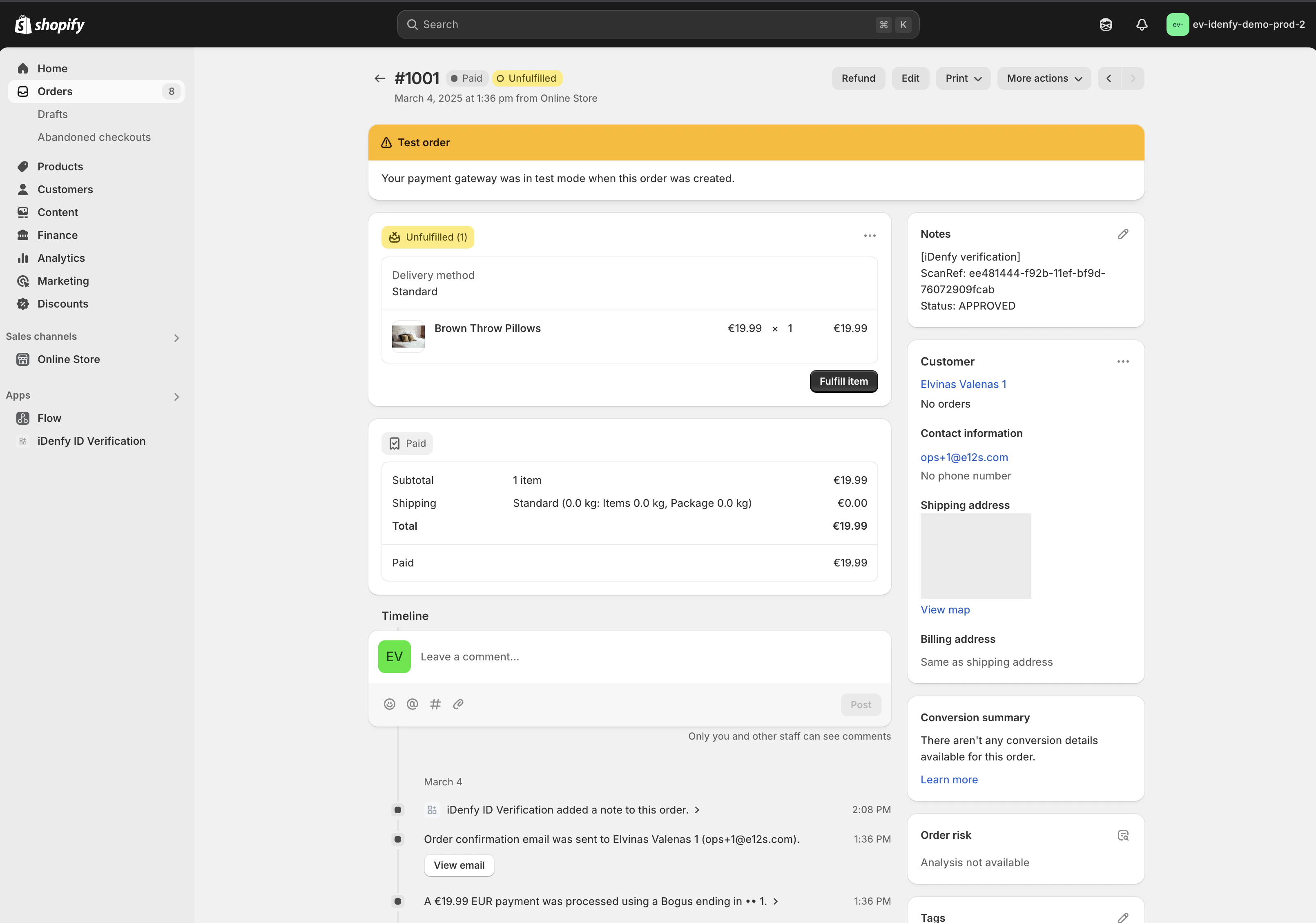 If the customer was **not logged in** during verification (guest checkout in the Before-checkout flow), only the order is updated. The app has no Shopify customer record to write to.
***
## Additional Settings
* **Automatically delete customer scan references** — when a customer is deleted in Shopify, their iDenfy scan reference is also deleted via the iDenfy API.
* **Customer scan-ref removal table** — a searchable, paginated list of customers with an `idenfy.scan_ref` metafield. You can manually delete a scan reference; the metafield is then replaced with `"Deleted on iDenfy Dashboard"` so the action is visible in the customer record.
***
## Reference
### Verification Statuses
| iDenfy status | Customer/order tag | Meaning |
| ------------- | ------------------ | ----------------------------------------------- |
| `APPROVED` | `idv-approved` | Verified successfully |
| `DENIED` | `idv-denied` | Failed verification |
| `SUSPECTED` | `idv-suspected` | Verified but flagged for manual review |
| `EXPIRED` | `idv-expired` | Verification session expired without completion |
| `FAILED` | `idv-failed` | Internal/system failure |
| *(none yet)* | `idv-unverified` | Session started, no result yet |
A `SUSPECTED` result returned during checkout triggers a banner asking the customer to retry.
### Troubleshooting
The signing key on the iDenfy Dashboard webhook **must be identical** to the API key the Shopify app is connected with. Mismatch causes every webhook to be rejected and no verifications will appear in the store. Re-paste the key on the iDenfy Dashboard if results stop appearing.
Verification triggered by **By region** with browser geolocation requires the customer to grant location permission. The block has configurable "geolocation permission notice" and "retry" copy — make sure those are translated and visible. If the customer denies permission, no coordinates are submitted and the region rule cannot fire.
On the Thank-you page the app may briefly show an "order not ready" message while Shopify finishes writing the order. The page polls automatically; no action is required.
`SUSPECTED` means iDenfy verified the identity but flagged the result for human review. By default these customers are *not* treated as verified — they appear with the `idv-suspected` tag and Order State Management keeps the order on hold until the status is changed on the iDenfy Dashboard.
If your theme uses non-standard CSS classes for the checkout or cart buttons, the default selectors will miss them. Update the **Checkout button selector** and **Cart alter buttons selector** in the app-embed block settings (comma-separated CSS selectors are supported).
***
## What's Next?
Tune document types, liveness, languages, and branding for everything triggered from Shopify.
Full payload spec for the verification results the app receives.
Simulate APPROVED / DENIED / SUSPECTED results before going live.
WooCommerce, Adobe Commerce, WordPress, Zapier.
If the customer was **not logged in** during verification (guest checkout in the Before-checkout flow), only the order is updated. The app has no Shopify customer record to write to.
***
## Additional Settings
* **Automatically delete customer scan references** — when a customer is deleted in Shopify, their iDenfy scan reference is also deleted via the iDenfy API.
* **Customer scan-ref removal table** — a searchable, paginated list of customers with an `idenfy.scan_ref` metafield. You can manually delete a scan reference; the metafield is then replaced with `"Deleted on iDenfy Dashboard"` so the action is visible in the customer record.
***
## Reference
### Verification Statuses
| iDenfy status | Customer/order tag | Meaning |
| ------------- | ------------------ | ----------------------------------------------- |
| `APPROVED` | `idv-approved` | Verified successfully |
| `DENIED` | `idv-denied` | Failed verification |
| `SUSPECTED` | `idv-suspected` | Verified but flagged for manual review |
| `EXPIRED` | `idv-expired` | Verification session expired without completion |
| `FAILED` | `idv-failed` | Internal/system failure |
| *(none yet)* | `idv-unverified` | Session started, no result yet |
A `SUSPECTED` result returned during checkout triggers a banner asking the customer to retry.
### Troubleshooting
The signing key on the iDenfy Dashboard webhook **must be identical** to the API key the Shopify app is connected with. Mismatch causes every webhook to be rejected and no verifications will appear in the store. Re-paste the key on the iDenfy Dashboard if results stop appearing.
Verification triggered by **By region** with browser geolocation requires the customer to grant location permission. The block has configurable "geolocation permission notice" and "retry" copy — make sure those are translated and visible. If the customer denies permission, no coordinates are submitted and the region rule cannot fire.
On the Thank-you page the app may briefly show an "order not ready" message while Shopify finishes writing the order. The page polls automatically; no action is required.
`SUSPECTED` means iDenfy verified the identity but flagged the result for human review. By default these customers are *not* treated as verified — they appear with the `idv-suspected` tag and Order State Management keeps the order on hold until the status is changed on the iDenfy Dashboard.
If your theme uses non-standard CSS classes for the checkout or cart buttons, the default selectors will miss them. Update the **Checkout button selector** and **Cart alter buttons selector** in the app-embed block settings (comma-separated CSS selectors are supported).
***
## What's Next?
Tune document types, liveness, languages, and branding for everything triggered from Shopify.
Full payload spec for the verification results the app receives.
Simulate APPROVED / DENIED / SUSPECTED results before going live.
WooCommerce, Adobe Commerce, WordPress, Zapier.