> ## Documentation Index
> Fetch the complete documentation index at: https://documentation.idenfy.com/llms.txt
> Use this file to discover all available pages before exploring further.
# WordPress
> Add iDenfy identity verification to your WordPress site with the official plugin including step-by-step installation and configuration.
This guide explains how to connect and set up iDenfy with WordPress. Below you will find step-by-step instructions on how to use the iDenfy plugin.
## iDenfy Plugin
### Install and Activate the iDenfy Plugin
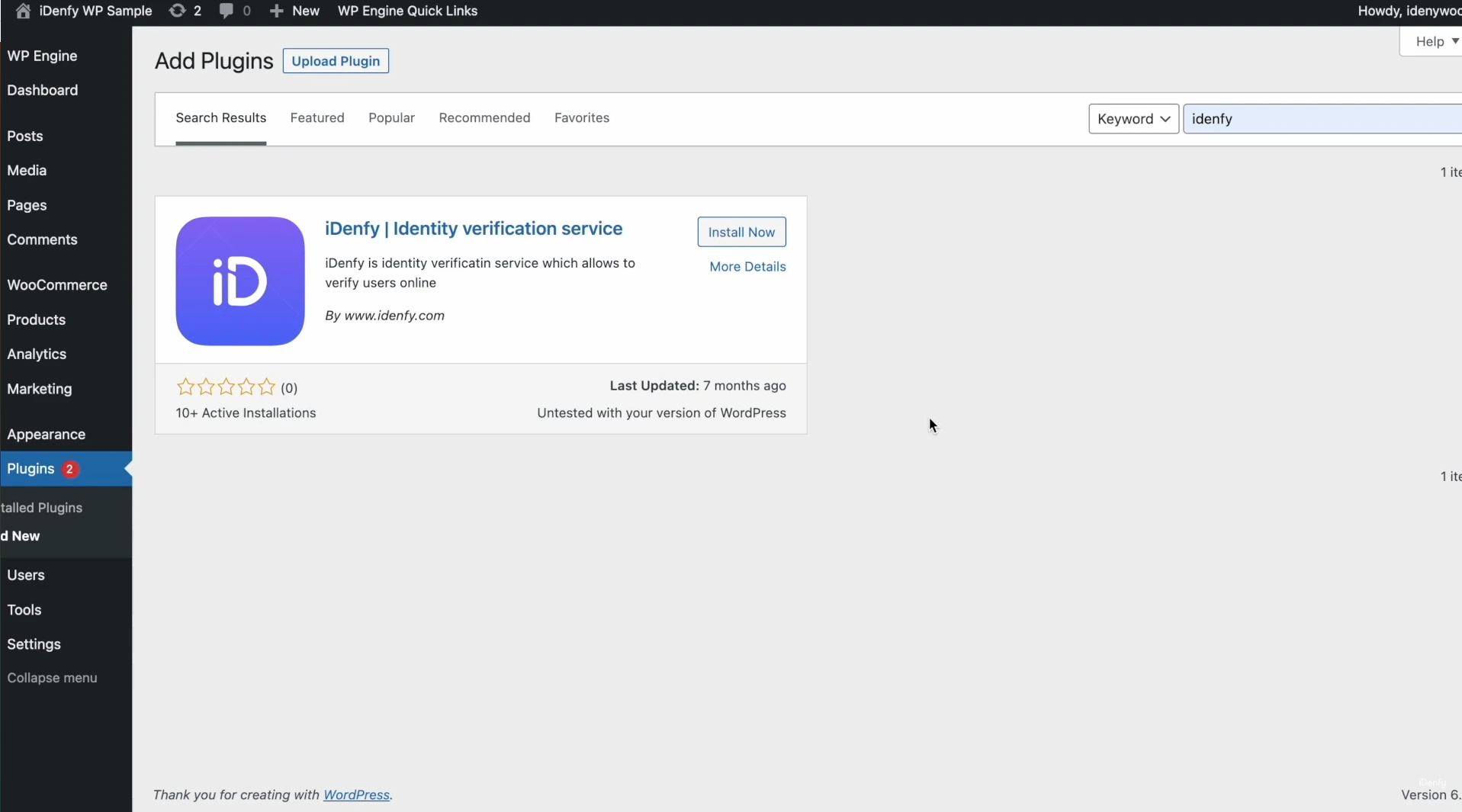
Log in to your WordPress panel, navigate to **Plugins** and search for the iDenfy plugin. Click **Install Now** and once it is downloaded click **Activate**.
### Authorize Connection
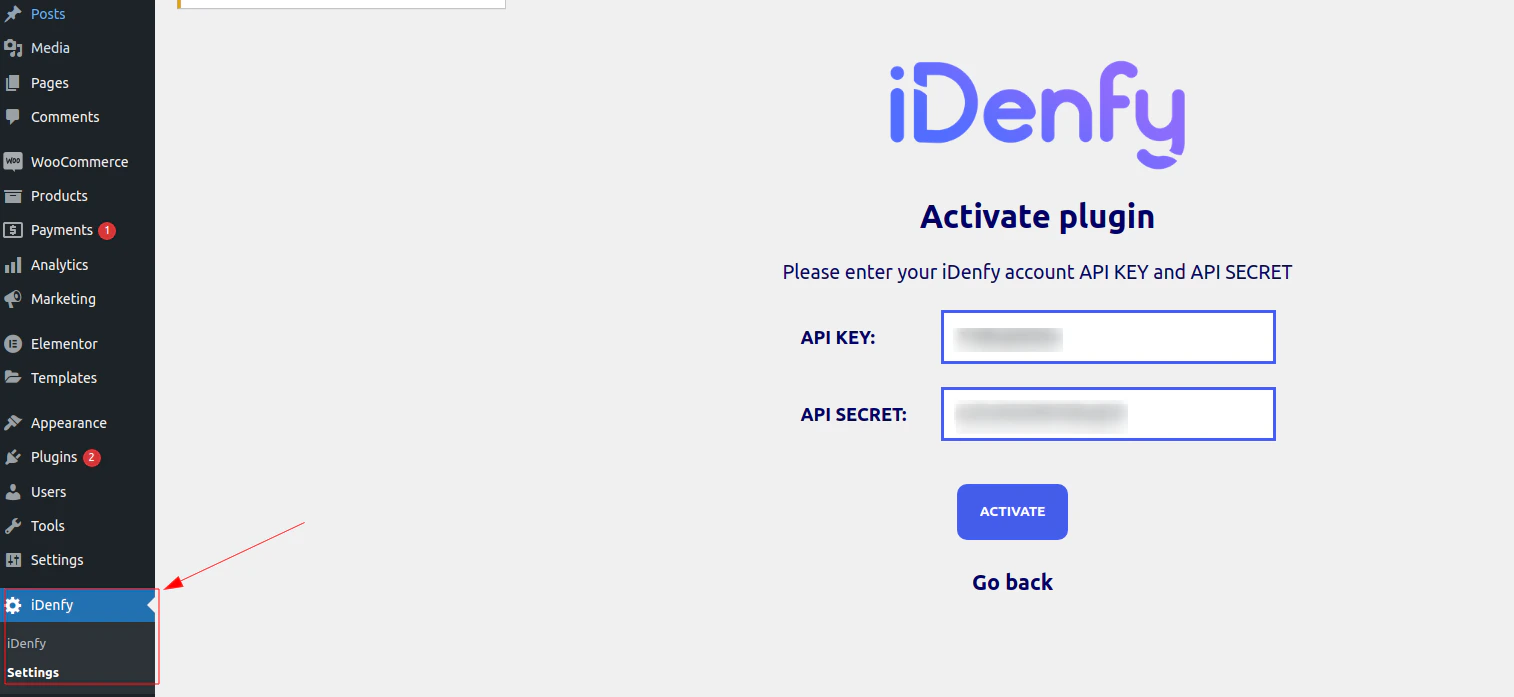
Once the plugin is activated, navigate to **iDenfy > Settings**.
To successfully connect and grant access to iDenfy, you need to complete authorization. You can manage your environment API key(s) and secret(s) on iDenfy's side by navigating to [Settings > API keys](/guides/dashboard/settings/api-keys).
### Implement the Verification Button
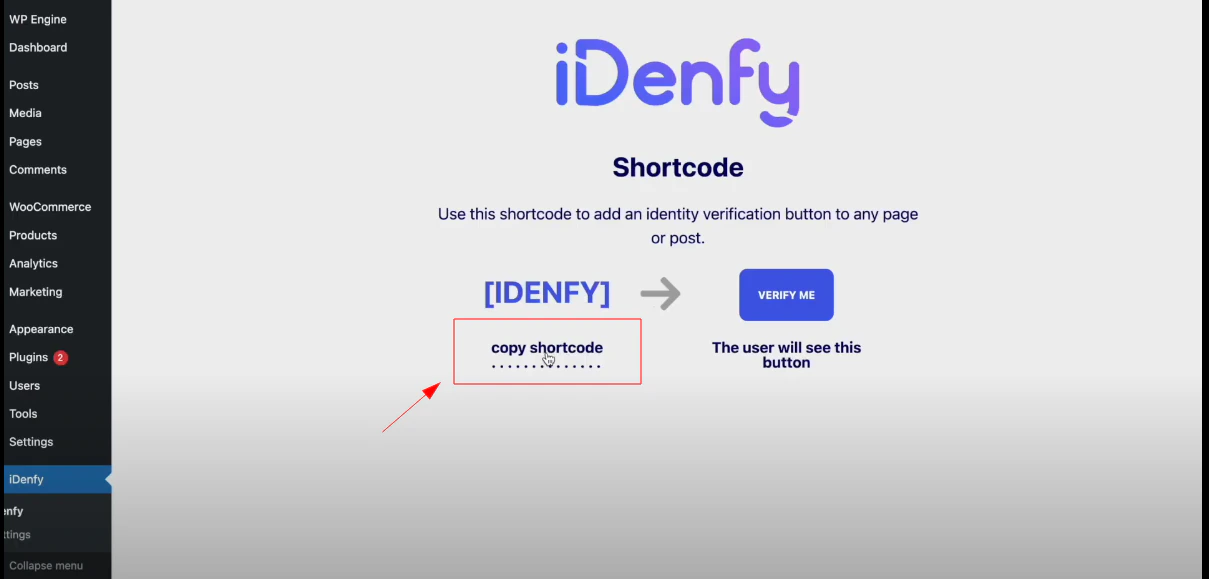
When the authorization step is finished, you can copy the shortcode.
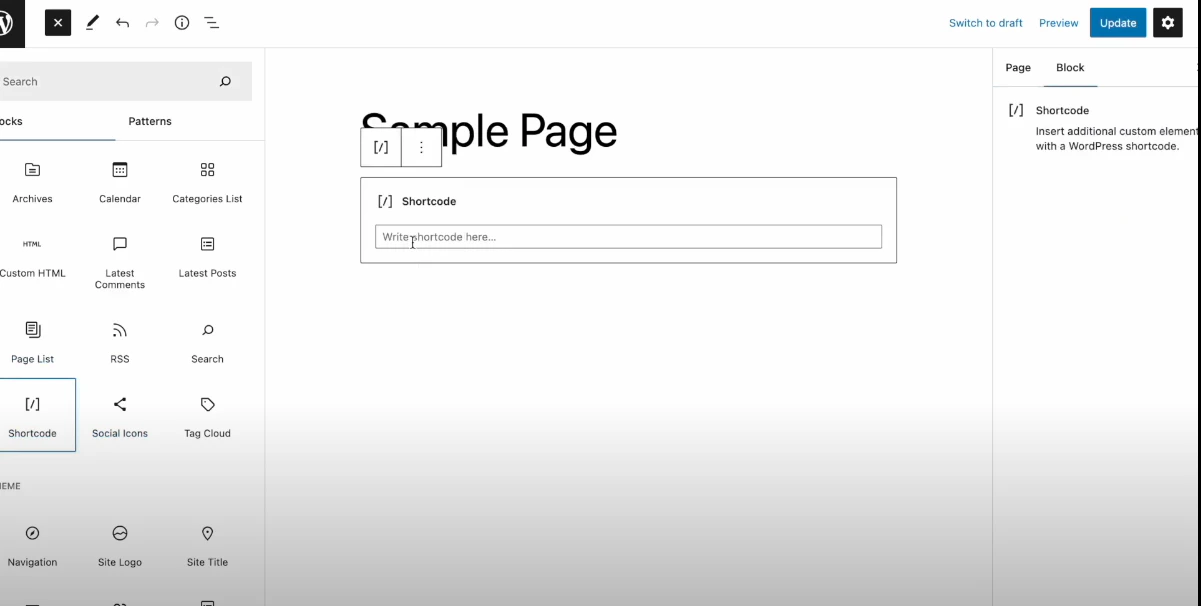
Navigate to the page that should have the verification button, select **Add block > Shortcode** and paste the iDenfy code.
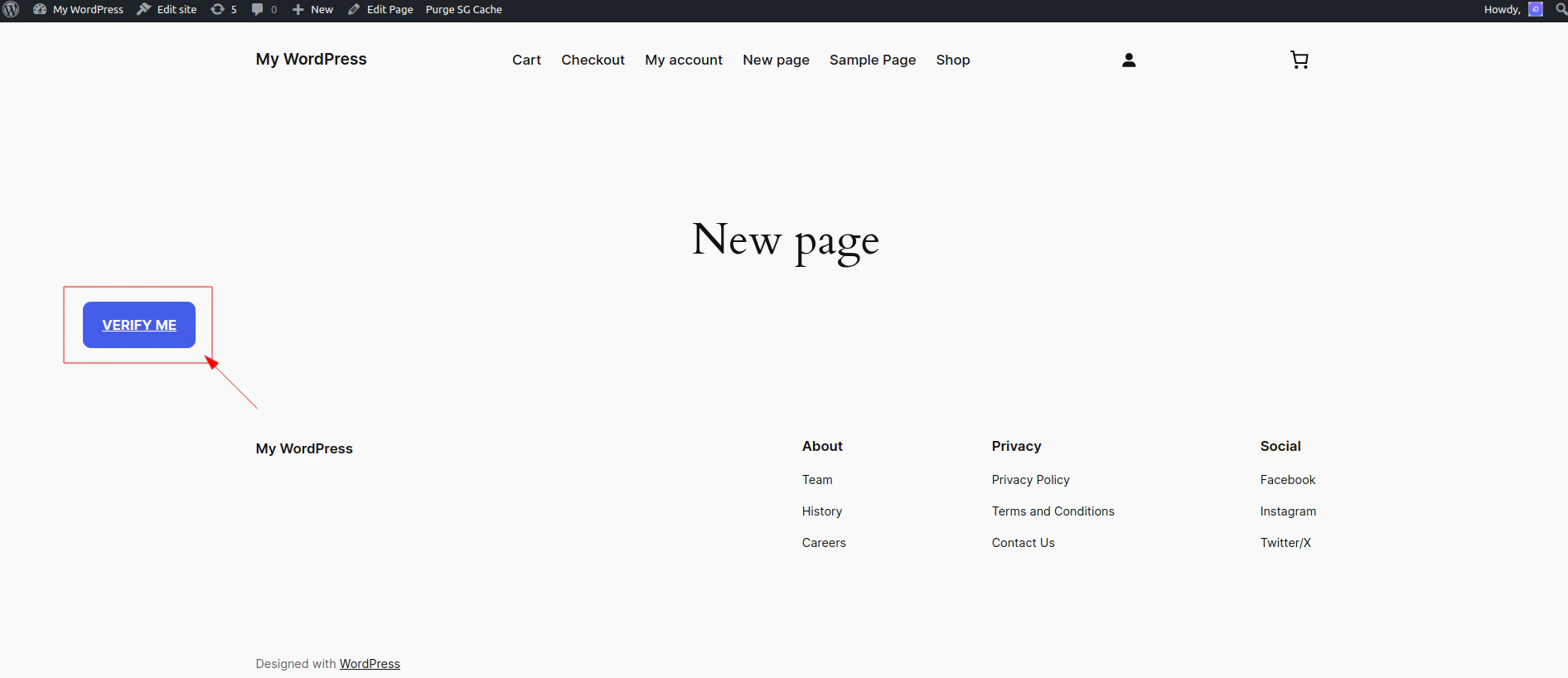
Upon reviewing the page, you should find that the button is available and functioning properly.
### Redirect User After Verification
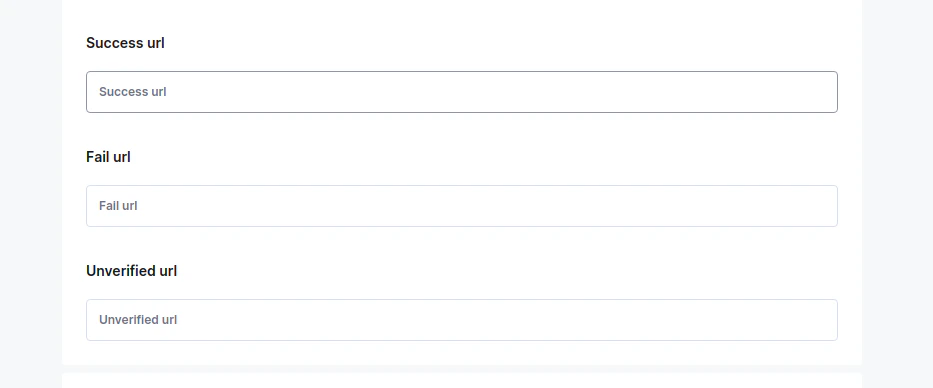
When verification is finished, you can redirect users to your site based on verification results (instantly after automatic check or later, after manual review). More information on [how redirect works](/kyc/generate-token#session-parameters). You can configure the success and/or failed URL by navigating to **Settings > Configuration > General** in the dashboard.
You can handle/manage users in WordPress by navigating to **All users > Idenfy verifications**.
## Editing Button Appearance
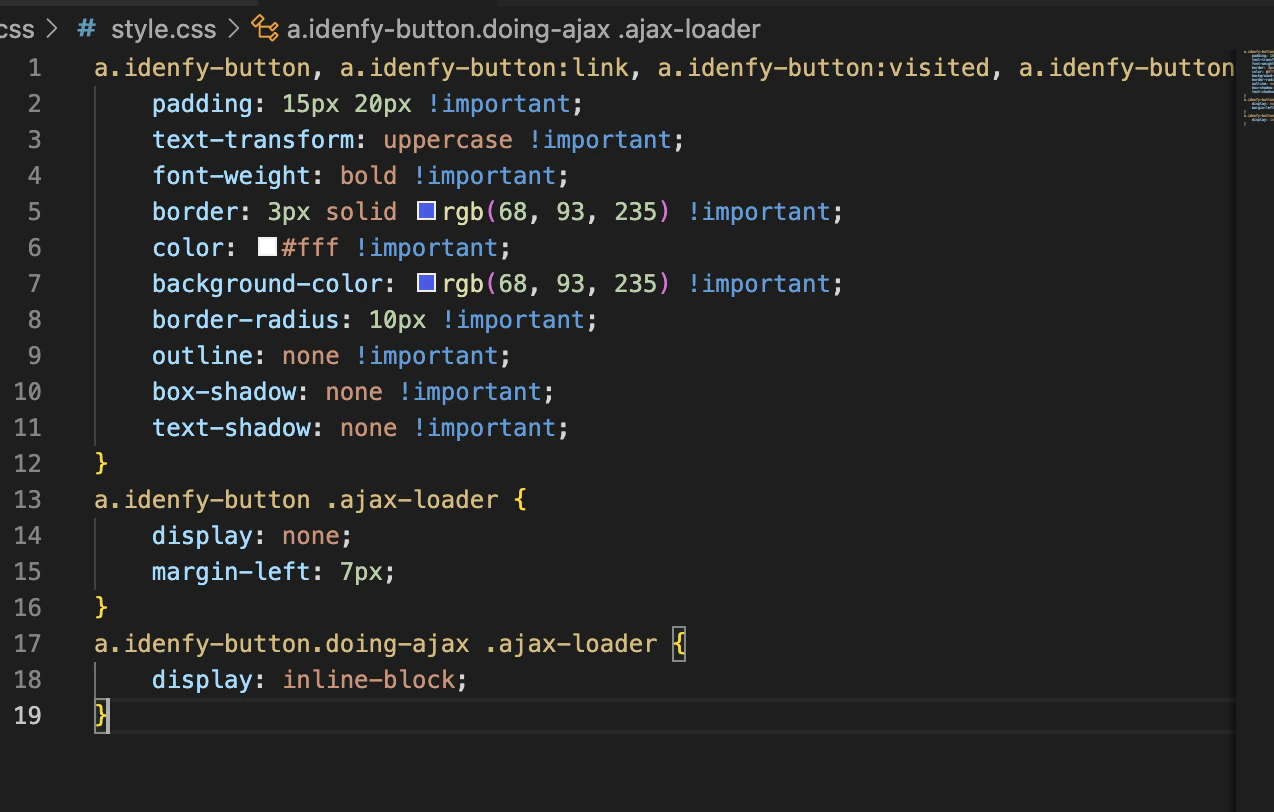
You can edit the appearance of the button by visiting the `style.css` of the plugin in the **Plugin File Editor**:
1. Log in to your WordPress admin dashboard.
2. Navigate to **Plugins** in the left-hand menu.
3. Click on **Plugin File Editor** (or **Editor**).
4. Select the plugin from the dropdown menu in the upper right.
5. The plugin's files will be displayed in the editor.
## Detailed Video Guide
 ### Authorize Connection
Once the plugin is activated, navigate to **iDenfy > Settings**.
### Authorize Connection
Once the plugin is activated, navigate to **iDenfy > Settings**.
 To successfully connect and grant access to iDenfy, you need to complete authorization. You can manage your environment API key(s) and secret(s) on iDenfy's side by navigating to [Settings > API keys](/guides/dashboard/settings/api-keys).
### Implement the Verification Button
When the authorization step is finished, you can copy the shortcode.
To successfully connect and grant access to iDenfy, you need to complete authorization. You can manage your environment API key(s) and secret(s) on iDenfy's side by navigating to [Settings > API keys](/guides/dashboard/settings/api-keys).
### Implement the Verification Button
When the authorization step is finished, you can copy the shortcode.
 Navigate to the page that should have the verification button, select **Add block > Shortcode** and paste the iDenfy code.
 Upon reviewing the page, you should find that the button is available and functioning properly.
 ### Redirect User After Verification
When verification is finished, you can redirect users to your site based on verification results (instantly after automatic check or later, after manual review). More information on [how redirect works](/kyc/generate-token#session-parameters). You can configure the success and/or failed URL by navigating to **Settings > Configuration > General** in the dashboard.
### Redirect User After Verification
When verification is finished, you can redirect users to your site based on verification results (instantly after automatic check or later, after manual review). More information on [how redirect works](/kyc/generate-token#session-parameters). You can configure the success and/or failed URL by navigating to **Settings > Configuration > General** in the dashboard.
 ## Detailed Video Guide