> ## Documentation Index
> Fetch the complete documentation index at: https://documentation.idenfy.com/llms.txt
> Use this file to discover all available pages before exploring further.
# Create KYB Session
> Create a KYB session by generating a business verification token via the iDenfy API with custom flow, settings, and finance options.
**Requirements**
* **API** key pair
* [**Custom flow**](/guides/dashboard/kyb/identity-verification-on-kyb-custom-flow) created via dashboard
* Session creation via API **enabled** (done by iDenfy's staff)
* **Finances**
***
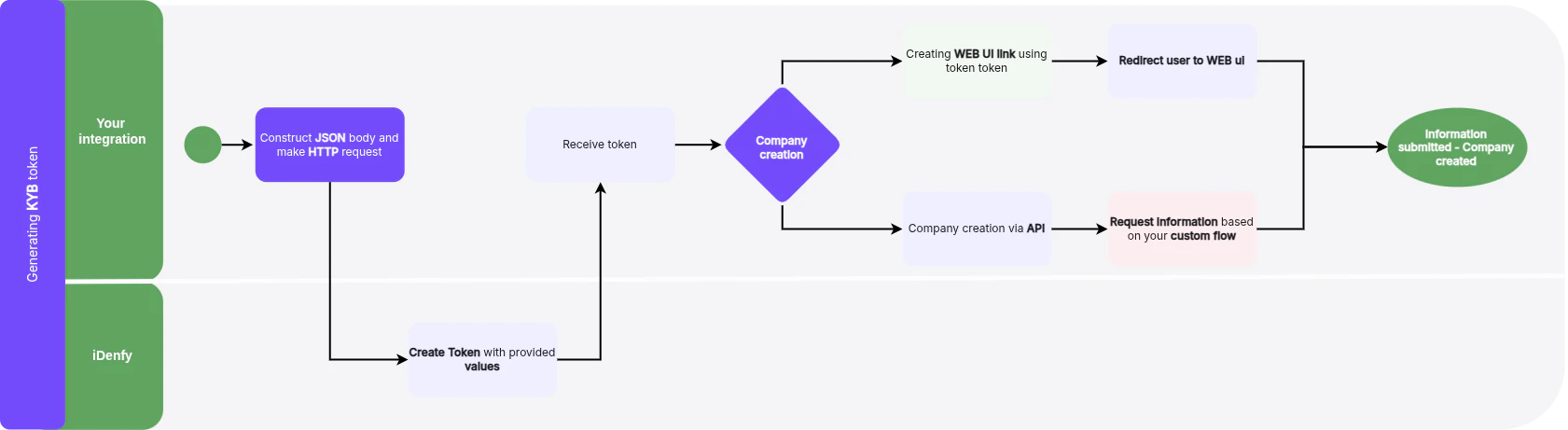 ## Step 1: Create Business Verification Form Session
For full request and response details, see the **API Reference** tab for the `kybTokensCreate` endpoint.
***
## Step 2: Creating Company
Once the token is generated you can either:
* [Create a company via **API**](/kyb/collect-information)
* [Create a **redirection** link to the Web UI](#create-redirection-link-to-web-ui)
### Create Redirection Link to Web UI
To redirect the user to the iDenfy Business verification UI, construct the redirect **URL** as follows:
1. Start with the base URL
2. Obtain the `tokenString` value from the **new Business verification token response**
3. Append this `tokenString` value directly to the end of the base URL: `https://kyb.ui.idenfy.com/welcome?authToken=`
**Example:**
If the `tokenString` received from the API is `9TIMoX4oSVmWDJ8qS7zeFUMTh5hi1EcqqLTrPR9r`, the complete redirect URL will be:
```
https://kyb.ui.idenfy.com/welcome?authToken=9TIMoX4oSVmWDJ8qS7zeFUMTh5hi1EcqqLTrPR9r
```
## Step 1: Create Business Verification Form Session
For full request and response details, see the **API Reference** tab for the `kybTokensCreate` endpoint.
***
## Step 2: Creating Company
Once the token is generated you can either:
* [Create a company via **API**](/kyb/collect-information)
* [Create a **redirection** link to the Web UI](#create-redirection-link-to-web-ui)
### Create Redirection Link to Web UI
To redirect the user to the iDenfy Business verification UI, construct the redirect **URL** as follows:
1. Start with the base URL
2. Obtain the `tokenString` value from the **new Business verification token response**
3. Append this `tokenString` value directly to the end of the base URL: `https://kyb.ui.idenfy.com/welcome?authToken=`
**Example:**
If the `tokenString` received from the API is `9TIMoX4oSVmWDJ8qS7zeFUMTh5hi1EcqqLTrPR9r`, the complete redirect URL will be:
```
https://kyb.ui.idenfy.com/welcome?authToken=9TIMoX4oSVmWDJ8qS7zeFUMTh5hi1EcqqLTrPR9r
```