> ## Documentation Index
> Fetch the complete documentation index at: https://documentation.idenfy.com/llms.txt
> Use this file to discover all available pages before exploring further.
# KYC Webhooks
> Receive identity verification results and status changes via HTTP POST webhook callbacks from iDenfy with SSL certificate validation.
Webhooks let your server receive verification results automatically as soon as they are available. iDenfy sends an HTTP POST request to your configured endpoint with a JSON payload describing the verification outcome.
## Prerequisites
You must have an **Admin** role in the iDenfy dashboard to configure webhook endpoints.
Go to **Settings → Notifications → Webhook URLs** in the dashboard and enter your callback URL.
Your endpoint must be served over HTTPS with a valid, non-self-signed SSL certificate.
If your endpoint does not return a **2xx** HTTP status code, iDenfy will retry delivery. Make sure your endpoint responds with `200 OK` promptly to avoid duplicate deliveries.
A legacy **IDENTIFICATION** event exists that fires for all verification outcomes in a single webhook. While still supported, we recommend subscribing to the individual events listed below for more predictable integration logic.
***
## Webhook Events and Timing
Verification results arrive at different times depending on how the verification was processed. The table below summarises every event and when it fires.
You can find all response bodies for webhooks in [API Reference → Identity Verification → Webhooks](/api-reference/overview)
| Event | Timing | `final` flag | Description |
| -------------------------------- | ----------------- | ------------ | --------------------------------------------------------------------------------------------------------- |
| `IDENTIFICATION_AUTO_FINISHED` | Instant (seconds) | `true` | Automated review completed with a definitive result. No manual review will follow. |
| `IDENTIFICATION_AUTO_FINISHED` | Instant (seconds) | `false` | Automated review completed but the result is preliminary — a manual review will follow. |
| `IDENTIFICATION_MANUAL_FINISHED` | Minutes | `true` | A human reviewer has finalised the verification. Always final. |
| `IDENTIFICATION_RESUBMITTED` | Instant (seconds) | `true` | Client submitted the requested information. No further review needed. |
| `IDENTIFICATION_RESUBMITTED` | Instant (seconds) | `false` | Client submitted the requested information, but manual review of the submitted material is still pending. |
| `IDENTIFICATION_CANCELLED` | Varies | — | The verification was cancelled before completion. |
| `IDENTIFICATION_EXPIRED` | Delayed | — | The verification token expired before the user completed the flow. |
Fires within seconds of the user completing the verification flow. The `IDENTIFICATION_AUTO_FINISHED` event is sent with one of two `final` flag values:
* **`final: true`** — the automated system reached a conclusive decision. No manual review will follow.
* **`final: false`** — the automated system produced a preliminary result. A follow-up `IDENTIFICATION_MANUAL_FINISHED` webhook will arrive once a human reviewer has made the final decision.
If you want to act only on definitive results, wait for a webhook where `final` is `true`.
When a verification requires human review, the `IDENTIFICATION_MANUAL_FINISHED` event fires once the reviewer submits their decision. This always carries `final: true`.
Manual reviews typically complete within minutes but may take longer during peak periods.
The `IDENTIFICATION_RESUBMITTED` event fires when an end-user completes a re-upload requested by your system via `POST /kyc/identifications/{scanRef}/request-information/`.
**Flow:**
1. Your server calls `POST /kyc/identifications/{scanRef}/request-information/` — this reactivates the user's token and sends them an email with a re-upload link. No webhook fires at this point.
2. The user opens the link and uploads the requested documents or answers.
3. The user submits — **this** triggers `IDENTIFICATION_RESUBMITTED`.
The `final` flag tells you whether to expect more activity:
* **`final: true`** — submission is complete, no manual review needed. The case is resolved.
* **`final: false`** — the submitted material (e.g. a utility bill) still requires manual review. Expect a follow-up `IDENTIFICATION_MANUAL_FINISHED` webhook.
If the user never submits before the token expires, `IDENTIFICATION_EXPIRED` fires instead and no resubmission webhook is sent.
If the user never completes the verification and the token reaches its `tokenExpiry` or the session exceeds `sessionLength`, the `IDENTIFICATION_EXPIRED` event fires automatically.
The `IDENTIFICATION_CANCELLED` event fires when a verification is explicitly cancelled — either by the user abandoning the flow or by an API call.
***
## Verification Workflow
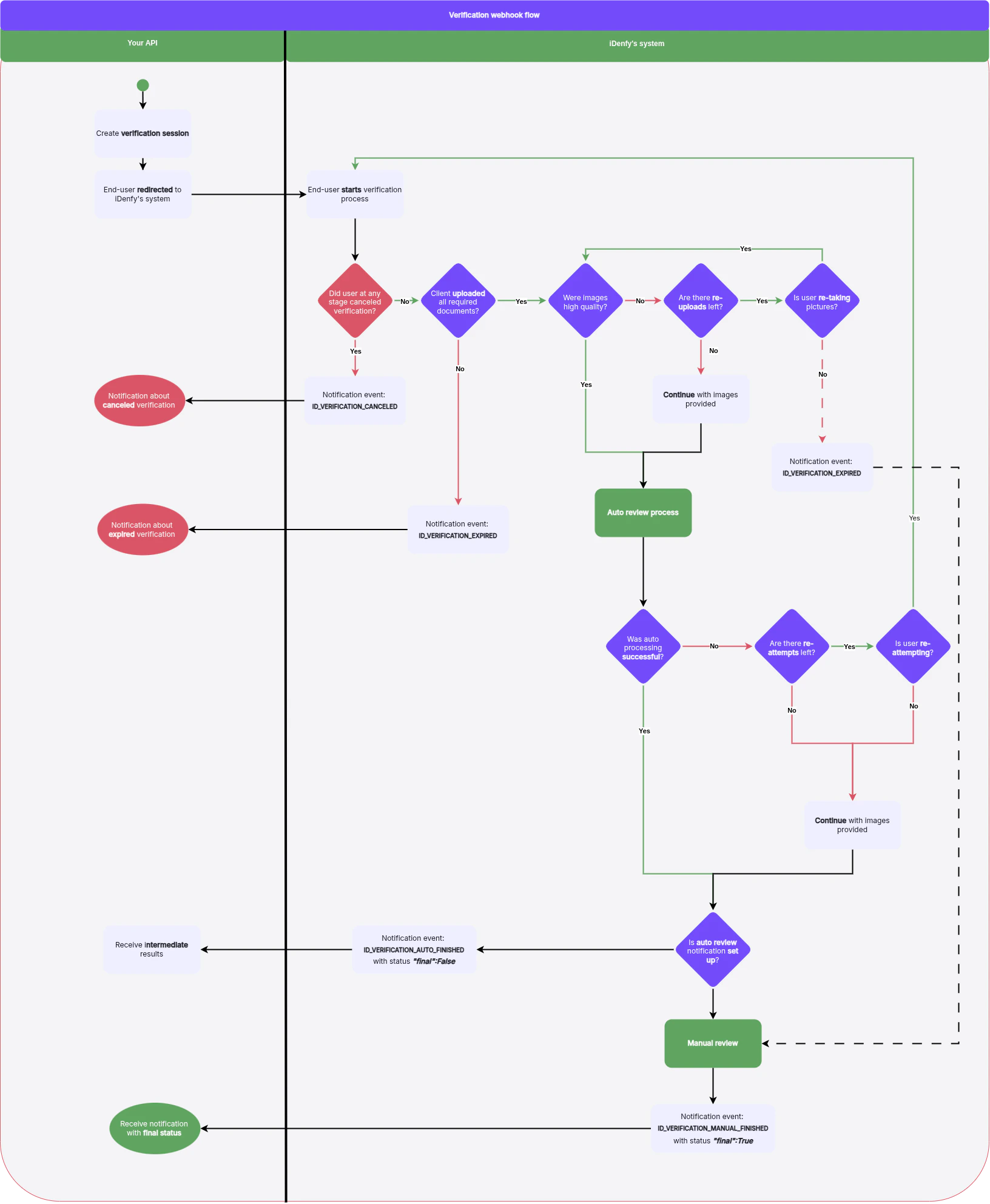
The flowchart below shows the general webhook event flow. You can adjust, skip, or ignore events depending on your setup.
 ***
## Request Headers
Every webhook delivery includes the following HTTP headers:
| Header | Value |
| ------------------- | -------------------------------------------------------------------------- |
| `Idenfy-Event-Type` | Event name, e.g. `IDENTIFICATION_AUTO_FINISHED` |
| `Content-Type` | `application/json; charset=utf-8` |
| `Idenfy-Signature` | HMAC-SHA256 signature of the request body (if a signing key is configured) |
Use `Idenfy-Signature` to verify that the request genuinely came from iDenfy. Compute the HMAC-SHA256 of the raw request body using your configured signing key and compare it against the header value.
***
## Callback Payload
For the full webhook callback JSON structure and field definitions, see the **API Reference** tab. The callback body includes overall status, document data, face-match results, fraud indicators, and extracted personal information.
***
## Re-Attempts and Retries
iDenfy gives users a configurable number of chances to submit acceptable documents:
* **Overall re-attempts** — the number of times a user may retry a failed verification with the same token. This defaults to **1** but is configurable per token at generation time.
* **Per-step upload attempts** — for each individual upload step (e.g. a utility bill), users get up to **3** attempts before the step counts as failed.
Re-attempt limits are configurable per token at generation time. See [Create Session](/kyc/generate-token) for details.
***
## Handling the SUSPECTED Status
A verification may return an overall status of **SUSPECTED** rather than a clear APPROVED or DENIED. This indicates the system found anomalies that require your attention.
When you receive a `SUSPECTED` result, inspect the following fields in the callback payload:
| Field | What to check |
| ------------------ | -------------------------------------------------------------------------------------------------------------- |
| `suspicionReasons` | Lists the specific reasons suspicion was raised (e.g. `FACE_SUSPECTED`, `DOC_MOBILE_PHOTO`, `AML_SUSPECTION`). |
| `fraudTags` | Mirrors suspicion reasons — lists all fraud indicators detected. |
| `mismatchTags` | Highlights data inconsistencies between the document and submitted information. |
| `autoDocument` | The automated validation result for the submitted document (`DOC_VALIDATED` or `DOC_REJECTED`). |
| `autoFace` | The automated face-match result (`FACE_MATCH` or `FACE_NOT_MATCH`). |
| `manualDocument` | The manual reviewer's document decision, if a human reviewed it (otherwise `null`). |
| `manualFace` | The manual reviewer's face-match decision, if a human reviewed it (otherwise `null`). |
Build your business logic to handle `SUSPECTED` explicitly. Depending on your risk appetite, you may choose to approve, deny, or escalate these cases for manual internal review.
***
## Troubleshooting
If you are not receiving webhooks, work through the following checklist:
Confirm the URL configured in the dashboard is correct, publicly reachable, and not behind a firewall or VPN.
Your certificate must be valid and issued by a trusted CA. Self-signed certificates are rejected.
Your endpoint must respond with a **2xx** HTTP status code (e.g., `200 OK`). Any other status triggers retries. The request times out after **10 seconds**, so ensure your endpoint responds promptly.
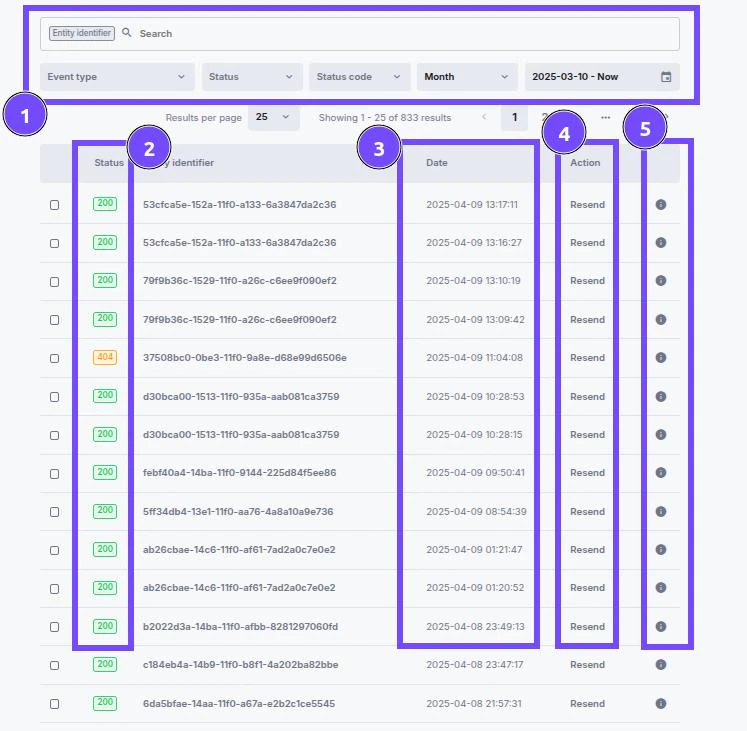
In the iDenfy dashboard, go to **Settings → Notifications → Recently sent** to inspect delivery attempts, response codes, and payloads.
iDenfy will retry failed deliveries a configurable number of times with a fixed wait interval between attempts. If all retries are exhausted, you will receive a failure notification email (if configured) and the webhook will not be resent automatically. Use the **Resend** button in the dashboard to manually retry.
***
## Dashboard Review
You can inspect all recently sent webhooks directly in the iDenfy dashboard:
1. Go to **Settings → Notifications → Recently sent**.
2. Review the list of delivered webhooks, including timestamps, HTTP response codes, and payload previews.
3. Use this view to debug integration issues or confirm that specific verification results were delivered.
* **`0`** - No Response: No communication; server unreachable.
* **`2xx`** - Success: Request successful, information returned.
* **`3xx`** - Redirection: Further action needed, request redirected.
* **`4xx`** - Client Errors: Your server could not handle the response.
* **`5xx`** - Server Errors: Request valid, there is a problem with the server.
4. Use the **Resend** button to retry delivery for a specific notification.
5. Click **Details** to see the full JSON payload that was sent.
***
## Request Headers
Every webhook delivery includes the following HTTP headers:
| Header | Value |
| ------------------- | -------------------------------------------------------------------------- |
| `Idenfy-Event-Type` | Event name, e.g. `IDENTIFICATION_AUTO_FINISHED` |
| `Content-Type` | `application/json; charset=utf-8` |
| `Idenfy-Signature` | HMAC-SHA256 signature of the request body (if a signing key is configured) |
Use `Idenfy-Signature` to verify that the request genuinely came from iDenfy. Compute the HMAC-SHA256 of the raw request body using your configured signing key and compare it against the header value.
***
## Callback Payload
For the full webhook callback JSON structure and field definitions, see the **API Reference** tab. The callback body includes overall status, document data, face-match results, fraud indicators, and extracted personal information.
***
## Re-Attempts and Retries
iDenfy gives users a configurable number of chances to submit acceptable documents:
* **Overall re-attempts** — the number of times a user may retry a failed verification with the same token. This defaults to **1** but is configurable per token at generation time.
* **Per-step upload attempts** — for each individual upload step (e.g. a utility bill), users get up to **3** attempts before the step counts as failed.
Re-attempt limits are configurable per token at generation time. See [Create Session](/kyc/generate-token) for details.
***
## Handling the SUSPECTED Status
A verification may return an overall status of **SUSPECTED** rather than a clear APPROVED or DENIED. This indicates the system found anomalies that require your attention.
When you receive a `SUSPECTED` result, inspect the following fields in the callback payload:
| Field | What to check |
| ------------------ | -------------------------------------------------------------------------------------------------------------- |
| `suspicionReasons` | Lists the specific reasons suspicion was raised (e.g. `FACE_SUSPECTED`, `DOC_MOBILE_PHOTO`, `AML_SUSPECTION`). |
| `fraudTags` | Mirrors suspicion reasons — lists all fraud indicators detected. |
| `mismatchTags` | Highlights data inconsistencies between the document and submitted information. |
| `autoDocument` | The automated validation result for the submitted document (`DOC_VALIDATED` or `DOC_REJECTED`). |
| `autoFace` | The automated face-match result (`FACE_MATCH` or `FACE_NOT_MATCH`). |
| `manualDocument` | The manual reviewer's document decision, if a human reviewed it (otherwise `null`). |
| `manualFace` | The manual reviewer's face-match decision, if a human reviewed it (otherwise `null`). |
Build your business logic to handle `SUSPECTED` explicitly. Depending on your risk appetite, you may choose to approve, deny, or escalate these cases for manual internal review.
***
## Troubleshooting
If you are not receiving webhooks, work through the following checklist:
Confirm the URL configured in the dashboard is correct, publicly reachable, and not behind a firewall or VPN.
Your certificate must be valid and issued by a trusted CA. Self-signed certificates are rejected.
Your endpoint must respond with a **2xx** HTTP status code (e.g., `200 OK`). Any other status triggers retries. The request times out after **10 seconds**, so ensure your endpoint responds promptly.
In the iDenfy dashboard, go to **Settings → Notifications → Recently sent** to inspect delivery attempts, response codes, and payloads.
iDenfy will retry failed deliveries a configurable number of times with a fixed wait interval between attempts. If all retries are exhausted, you will receive a failure notification email (if configured) and the webhook will not be resent automatically. Use the **Resend** button in the dashboard to manually retry.
***
## Dashboard Review
You can inspect all recently sent webhooks directly in the iDenfy dashboard:
1. Go to **Settings → Notifications → Recently sent**.
2. Review the list of delivered webhooks, including timestamps, HTTP response codes, and payload previews.
3. Use this view to debug integration issues or confirm that specific verification results were delivered.
* **`0`** - No Response: No communication; server unreachable.
* **`2xx`** - Success: Request successful, information returned.
* **`3xx`** - Redirection: Further action needed, request redirected.
* **`4xx`** - Client Errors: Your server could not handle the response.
* **`5xx`** - Server Errors: Request valid, there is a problem with the server.
4. Use the **Resend** button to retry delivery for a specific notification.
5. Click **Details** to see the full JSON payload that was sent.