> ## Documentation Index
> Fetch the complete documentation index at: https://documentation.idenfy.com/llms.txt
> Use this file to discover all available pages before exploring further.
# Android SDK Quickstart
> Install and configure the iDenfy Android SDK with API Level 24+ support to run your first identity verification in an Android app.
The SDK supports **API Level 24** and above.
## iDenfy Identity Verification Flow
Below you can check a full regular flow.
This flow can be customized and success results can be omitted as well. We recommend omitting them using our [immediate redirect feature](#identity-verification-results-screen-changes).
## Getting Started
### Obtain a Session Token
The SDK requires a session token to start initialization. See the [session creation guide](/kyc/generate-token).
### Add the SDK Dependency
In the **root** level (project module) Gradle, add the following repository:
```gradle theme={"system"}
repositories {
maven { url 'https://jitpack.io' }
}
```
In the **app** level Gradle, add the following dependency with the **latest version**. The latest version is available from the [changelog](/sdks/android/migration-guide).
```gradle theme={"system"}
repositories {
dependencies {
implementation 'com.github.idenfy:sdk-api:9.1.0'
}
}
```
If you are not using Advanced Liveness detection, you can reduce the SDK size by excluding the **sdk-liveness** module:
```gradle theme={"system"}
repositories {
dependencies {
implementation ('com.github.idenfy:sdk-api:9.1.0') {
exclude group: 'com.github.idenfy', module: 'sdk-liveness'
}
}
}
```
If you are not overriding any custom views or applying customization, you can use the dynamic version. If you did make layout changes, do not use the dynamic version, since **runtime** crashes can occur.
If you understand the disadvantages and still want to use the latest version, integrate the SDK as follows:
```gradle theme={"system"}
repositories {
dependencies {
implementation 'com.github.idenfy:sdk-api:+'
}
}
```
### Configure Android Studio
The SDK uses Java 11. Verify that the version is configured:
```gradle theme={"system"}
compileOptions {
targetCompatibility 11
sourceCompatibility 11
}
kotlinOptions {
jvmTarget = "11"
}
```
Also make sure that you have these lines in your **gradle.properties** file:
```gradle theme={"system"}
android.useAndroidX=true
```
### Configure the SDK
Provide the following configuration:
```kotlin theme={"system"}
val idenfySettingsV2 = IdenfySettingsV2.IdenfyBuilderV2()
.withAuthToken("AUTH_TOKEN")
.build()
```
### Present the Verification Activity
Create an instance of IdenfyController to start the verification flow:
```kotlin theme={"system"}
IdenfyController.getInstance().initializeIdenfySDKV2WithManual(
this,
identificationResultsCallback,
idenfySettingsV2
)
```
### Handle Verification Callbacks
The SDK returns verification results using Activity Result Contract, which you pass during initialization.
The SDK provides the `idenfyIdentificationResult` callback class.
If your service uses only the [automatic (default) callback](/kyc/webhooks#default-callback), then you should only check `idenfyIdentificationResult.autoIdentificationStatus`.
Since version 7.1.0, the SDK includes a SUSPECTED response. You can read about it [here](/kyc/webhooks#verification-status-table) and decide whether you would like it to impact your UI.
```kotlin theme={"system"}
var identificationResultsCallback = registerForActivityResult(
ActivityResultContracts.StartActivityForResult()
) { result: ActivityResult ->
val resultCode = result.resultCode
val data = result.data
if (resultCode == IdenfyController.IDENFY_IDENTIFICATION_RESULT_CODE) {
val idenfyIdentificationResult: IdenfyIdentificationResult = data!!.getParcelableExtra(
IdenfyController.IDENFY_IDENTIFICATION_RESULT
)!!
when (idenfyIdentificationResult.manualIdentificationStatus) {
ManualIdentificationStatus.APPROVED -> {
//The user completed a verification flow, was verified manually and the verification status, provided by a manual reviewer, is APPROVED.
}
ManualIdentificationStatus.FAILED -> {
//The user completed a verification flow, was verified manually and the verification status, provided by a manual reviewer, is FAILED.
}
ManualIdentificationStatus.WAITING -> {
//The user was only verified by an automated platform, not by a manual reviewer.
}
ManualIdentificationStatus.INACTIVE -> {
//The user was only verified by an automated platform and still waiting for manual reviewing.
}
}
when (idenfyIdentificationResult.autoIdentificationStatus) {
AutoIdentificationStatus.APPROVED -> {
//The user completed a verification flow and the verification status, provided by an automated platform, is APPROVED.
}
AutoIdentificationStatus.FAILED -> {
//The user completed a verification flow and the verification status, provided by an automated platform, is FAILED.
}
AutoIdentificationStatus.UNVERIFIED -> {
//The user did not complete a verification flow and the verification status, provided by an automated platform, is UNVERIFIED.
}
}
Toast.makeText(
this@MainActivity,
"Auto - ${idenfyIdentificationResult.autoIdentificationStatus} \n" +
"Manual - ${idenfyIdentificationResult.manualIdentificationStatus} \n",
Toast.LENGTH_LONG
).show()
}
}
```
## Callback Status Reference
### autoIdentificationStatus
| Name | Description |
| ------------ | ---------------------------------------------------------------------------------------------------------------------------- |
| `APPROVED` | The user completed a verification flow and the verification status, provided by an automated platform, is APPROVED. |
| `FAILED` | The user completed a verification flow and the verification status, provided by an automated platform, is FAILED. |
| `UNVERIFIED` | The user did not complete a verification flow and the verification status, provided by an automated platform, is UNVERIFIED. |
### manualIdentificationStatus
| Name | Description |
| ---------- | ------------------------------------------------------------------------------------------------------------------------------------------------------------------------------------------------------------------------------------------------- |
| `APPROVED` | The user completed a verification flow and was verified manually while waiting for the manual verification results in the iDenfy SDK. The verification status, provided by a manual review, is APPROVED. |
| `FAILED` | The user completed a verification flow and was verified manually while waiting for the manual verification results in the iDenfy SDK. The verification status, provided by a manual review, is FAILED. |
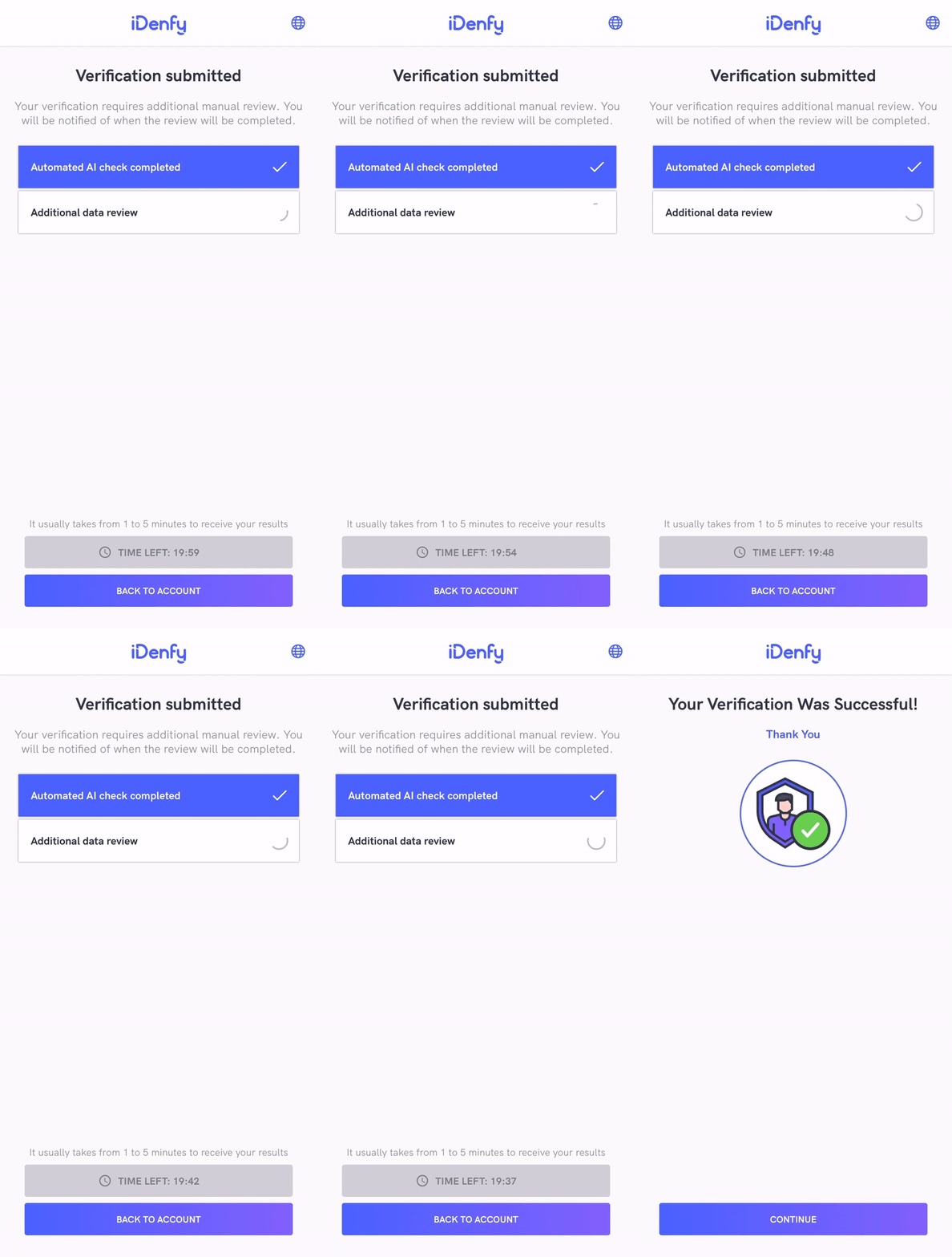
| `WAITING` | The user completed a verification flow and started waiting for the manual verification results in the iDenfy SDK. The user decided to stop waiting and clicked the "BACK TO ACCOUNT" button. The manual verification review is **still ongoing**. |
| `INACTIVE` | The user was only verified by an automated platform, not by a manual reviewer. The verification performed by the user can still be verified by the manual review if your system uses the manual verification service. |
The manualIdentificationStatus always returns INACTIVE unless your system [implemented manual verification flow (step 11)](/kyc/webhooks#callbacks-with-auto-callback). The manual verification screen looks like this:
To disable it, refer to the [immediate redirect feature](/sdks/android/customizing-flow#identity-verification-results-screen-changes).
These SDK statuses are the same as **iFrame** integration statuses. The only difference is that the SDK returns INACTIVE if the manual verification screen was not opened during the verification session, instead of returning null as the iFrame does.
Also, the iFrame does **not close automatically** since it can deliver results without closing itself.
After the SDK finishes and closes itself, you will also receive a [webhook callback](/kyc/webhooks#verification-result-webhook-callback) to your backend system.
It might be useful to **completely ignore the SDK status** and communicate between your app and your backend service about verification status.
## Samples
Our [sample application](https://github.com/idenfy/iDenfyResources/blob/main/sdk/android/tutorials/sample/idenfy_sample_android.zip) demonstrates the integration of the iDenfy SDK.
## FAQ
**1. Is there a possibility to change the verification results view?**
Yes, it can be achieved by providing a [custom verification results view](/sdks/android/ui-customization#customization-by-providing-a-custom-verification-results-view).
**2. How to change the position of the top titles?**
Any component and its properties can be changed either by [overriding the XML layout](/sdks/android/ui-customization#customization-with-overriding-layouts-of-sdk) or providing a [custom Jetpack Compose view](/sdks/android/ui-customization#customization-by-providing-your-own-implementations-of-jetpack-compose-composables).
**3. How do I report an issue within the SDK?**
Please report any issue via the [Jira customer portal](https://idenfy-ivs.atlassian.net/servicedesk/customer/portal/1). Attach the SDK and Gradle versions you are using, and describe the problem in as much detail as possible.
**4. When I override liveness fonts, the size does not change. Why is that?**
Liveness font size is dynamically determined according to the screen resolution, and it **cannot be manually changed**.
 To disable it, refer to the [immediate redirect feature](/sdks/android/customizing-flow#identity-verification-results-screen-changes).