> ## Documentation Index
> Fetch the complete documentation index at: https://documentation.idenfy.com/llms.txt
> Use this file to discover all available pages before exploring further.
# iOS SDK Additional Features
> Enable NFC reading, document blur and glare detection, localization, and other advanced features in the iDenfy iOS SDK verification flow.
## Automatic Country and Document Detection
This feature skips the country and document selection step without requiring data in the token. The system automatically detects your user's country via IP address and displays the accepted documents for that location. The captured document is also detected by the automated system.
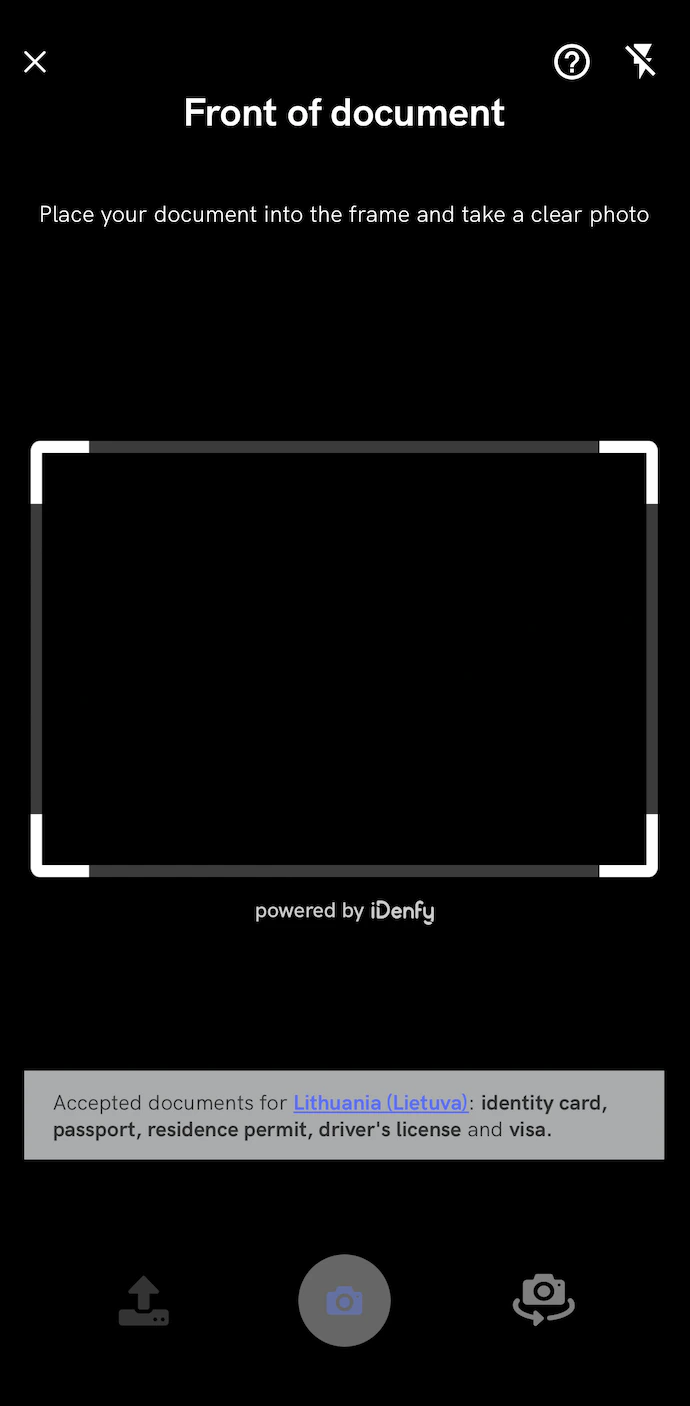 Contact our tech support via [**Jira customer portal**](https://idenfy-ivs.atlassian.net/servicedesk/customer/portal/1/group/-1) for enabling this feature.
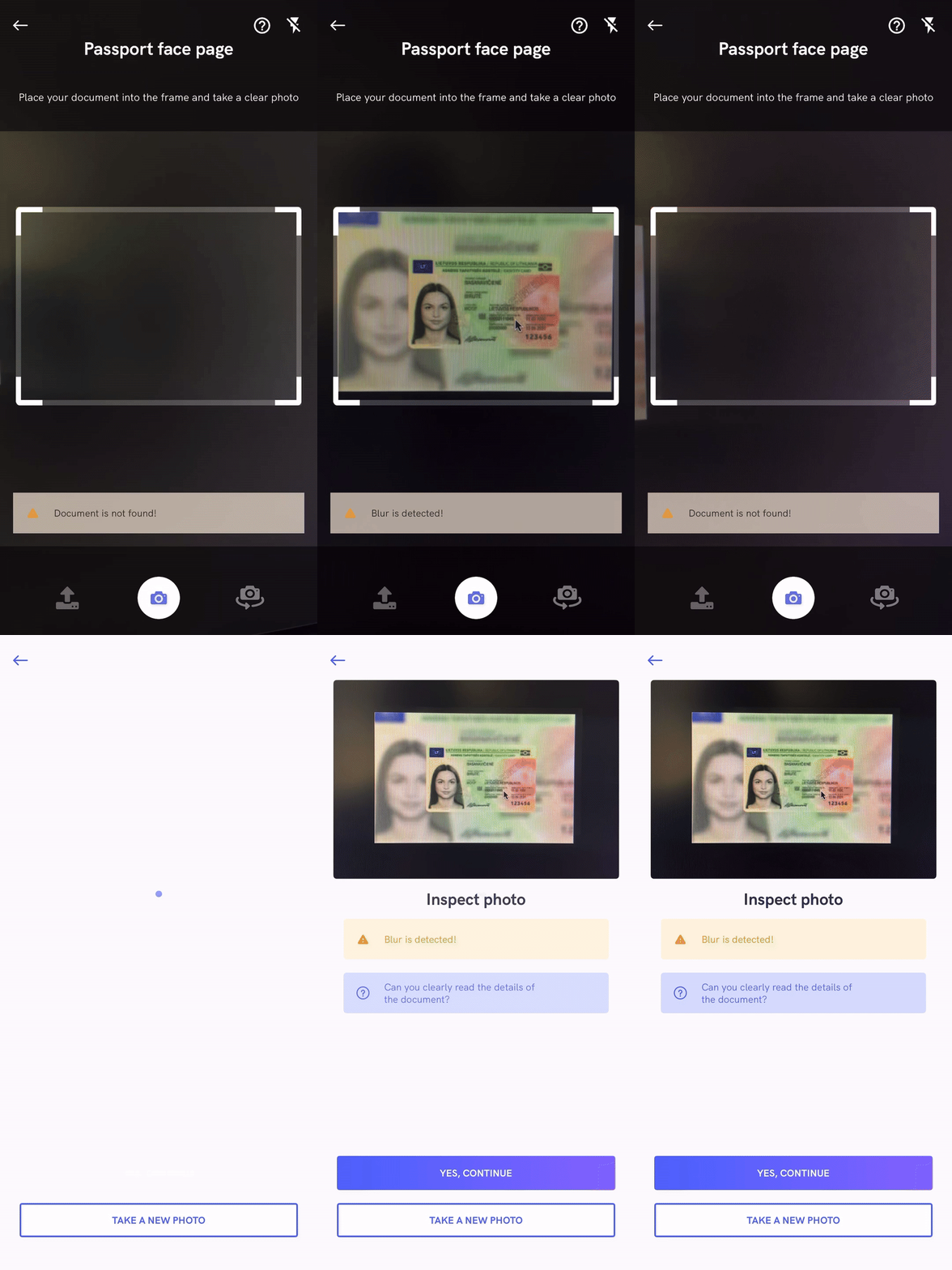
## Realtime Document Blur Glare Detection
This feature provides real-time document blur and glare detection. A warning alert notifies users when blur or glare is detected in the camera feed. An additional warning also appears in the photo result view.
Contact our tech support via [**Jira customer portal**](https://idenfy-ivs.atlassian.net/servicedesk/customer/portal/1/group/-1) for enabling this feature.
## Realtime Document Blur Glare Detection
This feature provides real-time document blur and glare detection. A warning alert notifies users when blur or glare is detected in the camera feed. An additional warning also appears in the photo result view.
 ### Adding the Document Blur Glare Detection Dependency
Add the following line to your Podfile with the **latest version**. The latest version is accessible from the [changelog](/sdks/ios/migration-guide).
```ruby theme={"system"}
pod 'iDenfySDK/iDenfyBlurGlareDetection', '9.1.0'
```
**iDenfySDK/iDenfyBlurGlareDetection** module also includes **Liveness detection**.
Contact tech support via the [Jira customer portal](https://idenfy-ivs.atlassian.net/servicedesk/customer/portal/1) to enable this feature.
## Trusted Service
This feature requires users to rotate their document according to templates in a random sequence before capturing the document, in order to detect any inconsistencies:
### Adding the Document Blur Glare Detection Dependency
Add the following line to your Podfile with the **latest version**. The latest version is accessible from the [changelog](/sdks/ios/migration-guide).
```ruby theme={"system"}
pod 'iDenfySDK/iDenfyBlurGlareDetection', '9.1.0'
```
**iDenfySDK/iDenfyBlurGlareDetection** module also includes **Liveness detection**.
Contact tech support via the [Jira customer portal](https://idenfy-ivs.atlassian.net/servicedesk/customer/portal/1) to enable this feature.
## Trusted Service
This feature requires users to rotate their document according to templates in a random sequence before capturing the document, in order to detect any inconsistencies:
 Contact tech support via the [Jira customer portal](https://idenfy-ivs.atlassian.net/servicedesk/customer/portal/1) to enable this feature.
## Document Recognition
This feature provides real-time document recognition. Documents shown in FRONT and BACK steps will be automatically detected and captured, allowing for a better picture of the document.
Contact tech support via the [Jira customer portal](https://idenfy-ivs.atlassian.net/servicedesk/customer/portal/1) to enable this feature.
## Document Recognition
This feature provides real-time document recognition. Documents shown in FRONT and BACK steps will be automatically detected and captured, allowing for a better picture of the document.
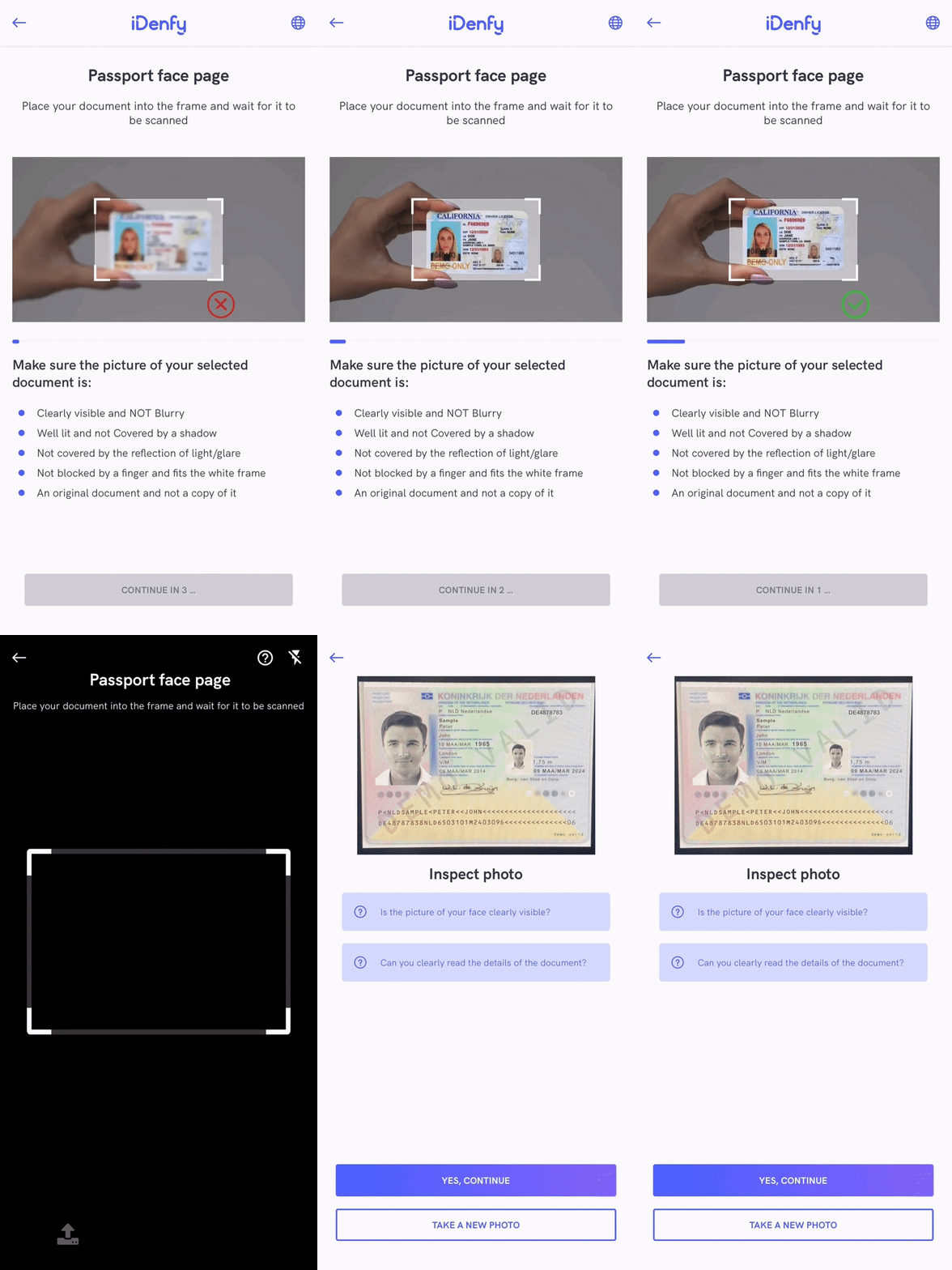 To seek a better result, documents that are **not fully visible** or **do not match** the selected **country** and **document type** will **NOT** be recognized and captured. As a result, the final verification status will be more accurate.
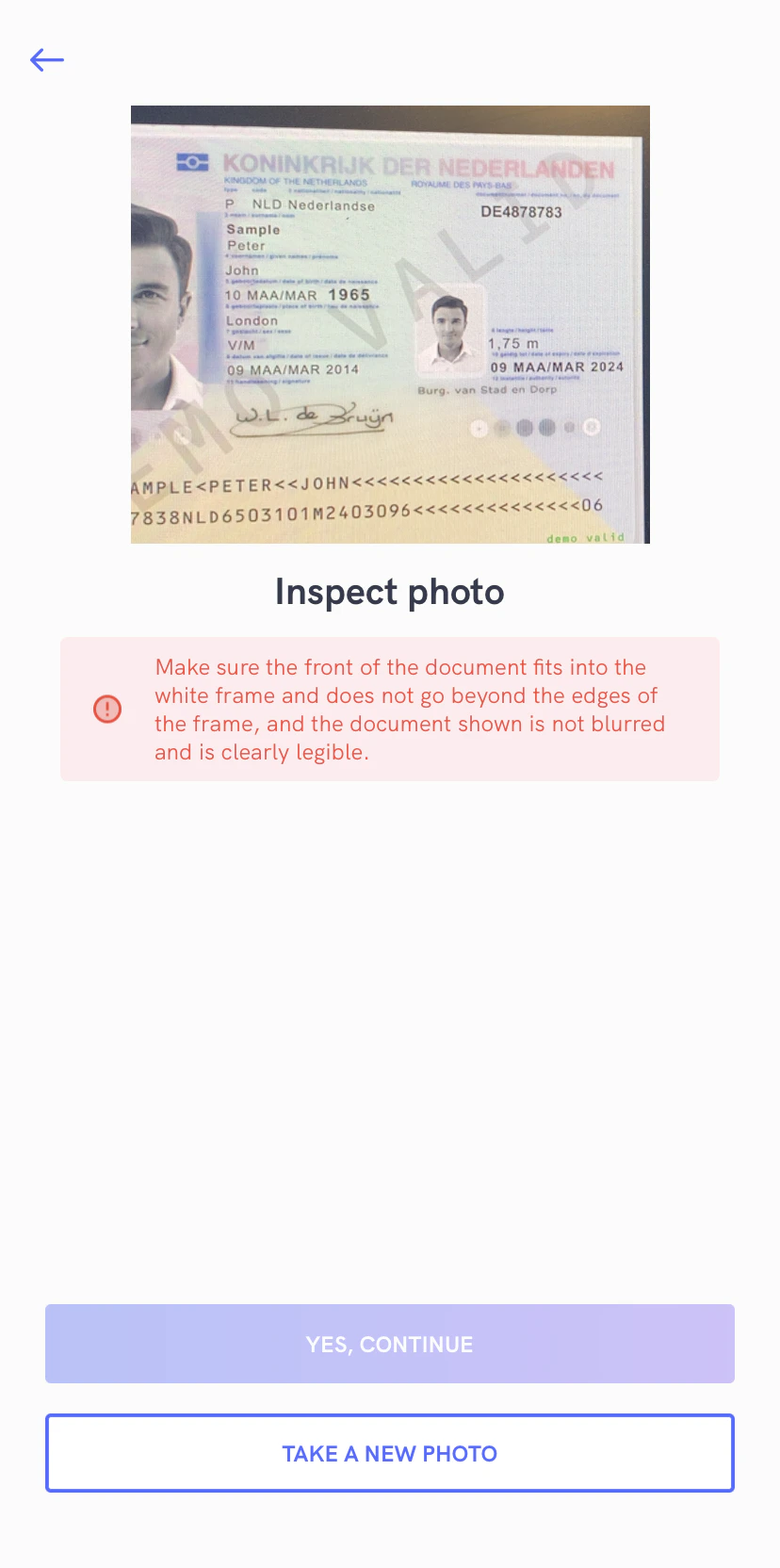 If a document cannot be recognized within a certain period of time (10 seconds), the SDK will fall back to regular photo capturing.
 This feature is still in an early stage. Minor bugs might occur.
### Adding the Document Recognition Dependency
Add the following line to your Podfile with the **latest version**:
```ruby theme={"system"}
pod 'iDenfySDK/iDenfyRecognition', '9.1.0'
```
**iDenfySDK/iDenfyRecognition** module also includes **Liveness detection**.
To enable Document Recognition, contact technical support via the [Jira customer portal](https://idenfy-ivs.atlassian.net/servicedesk/customer/portal/1).
## Face Detection
While taking a regular face photo, you can enable the face detection feature, which requires users to place their face into the marked area before taking a photo. For better success rate, faces that are far away from the camera will not pass.
This feature is still in an early stage. Minor bugs might occur.
### Adding the Document Recognition Dependency
Add the following line to your Podfile with the **latest version**:
```ruby theme={"system"}
pod 'iDenfySDK/iDenfyRecognition', '9.1.0'
```
**iDenfySDK/iDenfyRecognition** module also includes **Liveness detection**.
To enable Document Recognition, contact technical support via the [Jira customer portal](https://idenfy-ivs.atlassian.net/servicedesk/customer/portal/1).
## Face Detection
While taking a regular face photo, you can enable the face detection feature, which requires users to place their face into the marked area before taking a photo. For better success rate, faces that are far away from the camera will not pass.
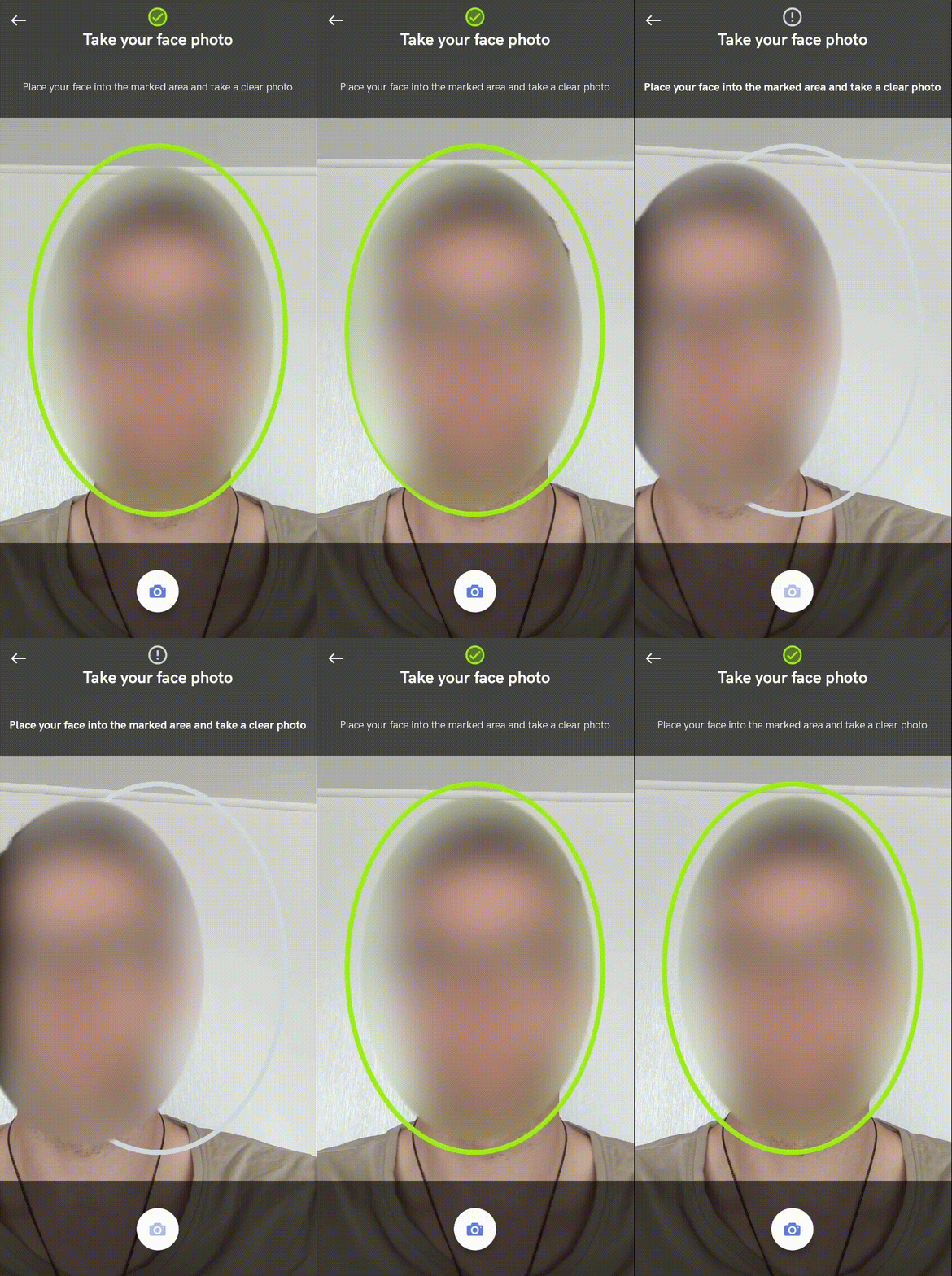 Contact tech support via the [Jira customer portal](https://idenfy-ivs.atlassian.net/servicedesk/customer/portal/1) to enable this feature. Face detection will apply to **both** KYC verification and face authentication flows.
## Face Auto Capture
While taking a regular face photo, you can enable the face auto capture feature, which requires users only to place their face into the marked area. The face photo is then automatically captured. For better success rate, faces that are too close or far away from the camera will not pass.
Contact tech support via the [Jira customer portal](https://idenfy-ivs.atlassian.net/servicedesk/customer/portal/1) to enable this feature. Face detection will apply to **both** KYC verification and face authentication flows.
## Face Auto Capture
While taking a regular face photo, you can enable the face auto capture feature, which requires users only to place their face into the marked area. The face photo is then automatically captured. For better success rate, faces that are too close or far away from the camera will not pass.
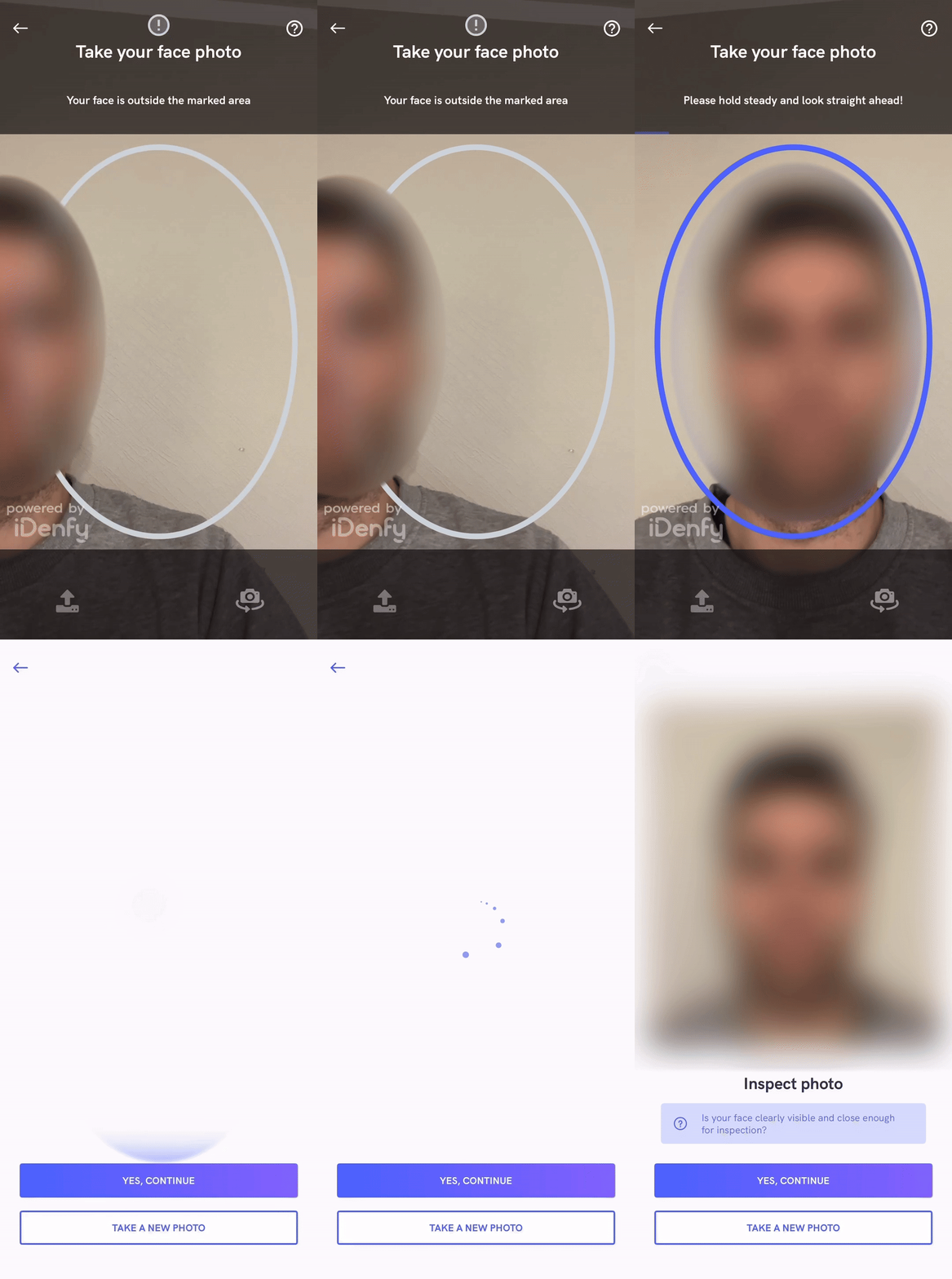 Contact tech support via the [Jira customer portal](https://idenfy-ivs.atlassian.net/servicedesk/customer/portal/1) to enable this feature.
## Advanced Liveness Detection
Contact tech support via the [Jira customer portal](https://idenfy-ivs.atlassian.net/servicedesk/customer/portal/1) to enable this feature.
## Advanced Liveness Detection
 The SDK provides an advanced liveness recognition feature.
The new major liveness version is released every 6-12 months. Your app must update the liveness module after every major release. If the SDK is not updated, it can lead to **runtime crashes**.
If you already have installed `iDenfySDK/iDenfyLiveness`, you only need to configure localization.
To use a localized version of the liveness feature, add FaceTec.strings to your app module.
Strings are located in **../Pods/iDenfySDK/iDenfySDK/IdenfyAssets/IdenfyStrings** folder or at the following [URL](https://s3-eu-west-1.amazonaws.com/prod-ivs-sdk.builds/ios-sdk/9.1.0/spm/IdenfyAssets/IdenfyAssets.zip).
Contact tech support via the [dashboard](https://admin.idenfy.com/auth/login) to enable the liveness feature.
## NFC Support
The SDK provides NFC enhanced identity verification.
For more integration details and potential advantages, contact tech support via the [dashboard](https://admin.idenfy.com/auth/login).
The SDK provides an advanced liveness recognition feature.
The new major liveness version is released every 6-12 months. Your app must update the liveness module after every major release. If the SDK is not updated, it can lead to **runtime crashes**.
If you already have installed `iDenfySDK/iDenfyLiveness`, you only need to configure localization.
To use a localized version of the liveness feature, add FaceTec.strings to your app module.
Strings are located in **../Pods/iDenfySDK/iDenfySDK/IdenfyAssets/IdenfyStrings** folder or at the following [URL](https://s3-eu-west-1.amazonaws.com/prod-ivs-sdk.builds/ios-sdk/9.1.0/spm/IdenfyAssets/IdenfyAssets.zip).
Contact tech support via the [dashboard](https://admin.idenfy.com/auth/login) to enable the liveness feature.
## NFC Support
The SDK provides NFC enhanced identity verification.
For more integration details and potential advantages, contact tech support via the [dashboard](https://admin.idenfy.com/auth/login).
 After NFC is enabled for your client settings, follow these integration details:
### Adding the NFC Reading Dependency
Add the following line to your Podfile with the **latest version**:
```ruby theme={"system"}
pod 'iDenfySDK/iDenfyNFCReading', '9.1.0'
```
### Add Near Field Communication Tag Reading Capability
Add the Near Field Communication Tag Reading capability to your app target.
### Update Info.plist File
Add the following lines to the **Info.plist** file:
```xml theme={"system"}
...
NFCReaderUsageDescription
This app uses NFC to scan passports
com.apple.developer.nfc.readersession.iso7816.select-identifiers
A0000002471001
A0000002472001
00000000000000
```
### NFC Required
If the NFC required feature is enabled, devices that do not support NFC will immediately fail verification. This is a security feature that ensures a person does not change devices **just to perform verification**.
To enable verifications for **all devices**, your app can handle this scenario:
1. Create two different accounts: with NFC enabled and without.
2. Check if the device supports NFC before creating a verification session.
3. If the device supports NFC, create a verification session with the NFC-enabled account's credentials. If NFC is not supported, use the other account's credentials.
### NFC Optional
If the NFC optional feature is enabled, the user is asked to perform document NFC reading **ONLY** if the **device** and **selected document** type support NFC chip reading. Otherwise, a regular identity verification will be performed.
## Bank Verification Feature
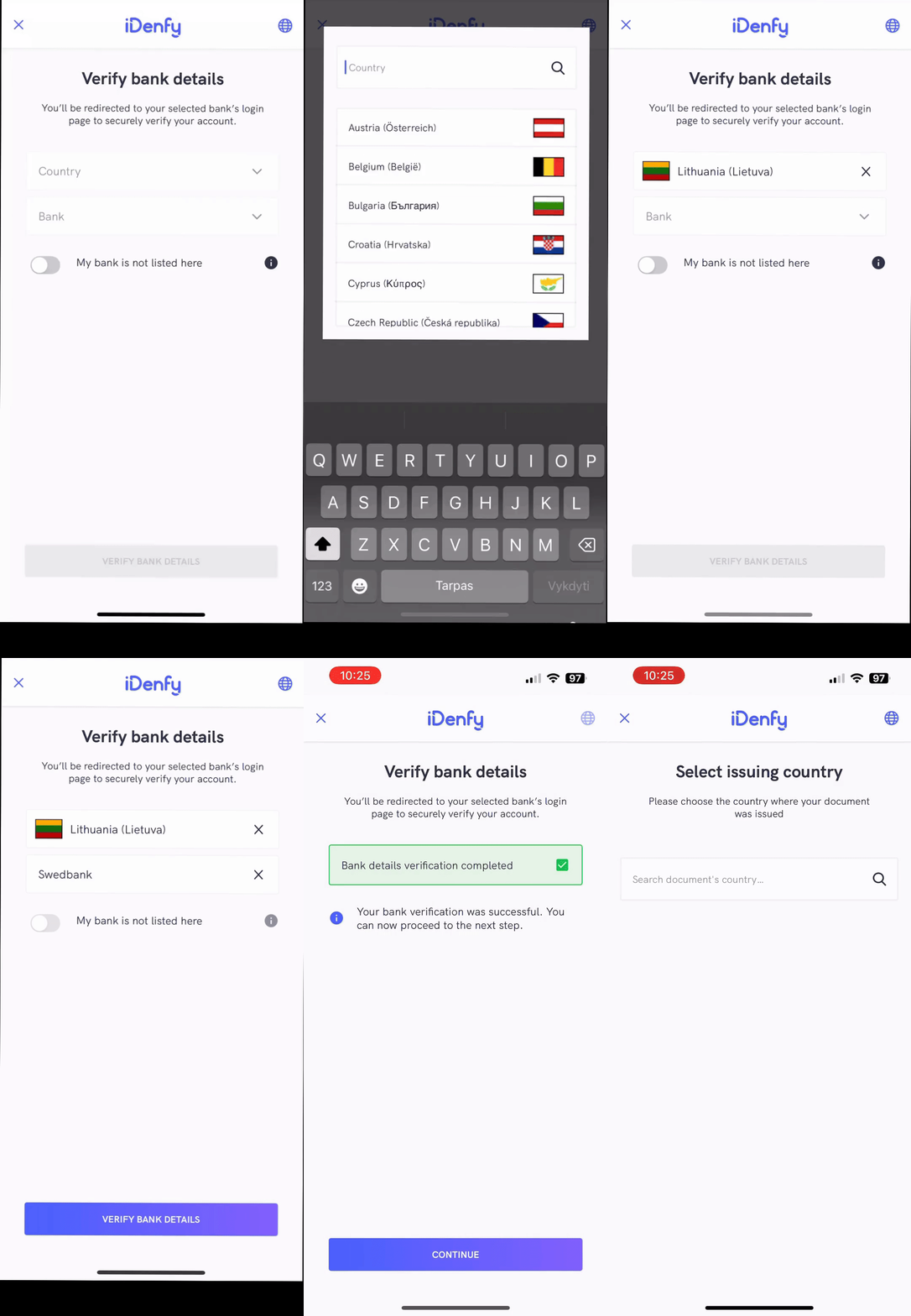
Use this feature to confirm the authenticity of your customer's bank account during the account verification process. This step requires your customer to provide personal information, ensuring the financial institution interacts with a legitimate individual rather than someone using forged documents or stolen data.
After NFC is enabled for your client settings, follow these integration details:
### Adding the NFC Reading Dependency
Add the following line to your Podfile with the **latest version**:
```ruby theme={"system"}
pod 'iDenfySDK/iDenfyNFCReading', '9.1.0'
```
### Add Near Field Communication Tag Reading Capability
Add the Near Field Communication Tag Reading capability to your app target.
### Update Info.plist File
Add the following lines to the **Info.plist** file:
```xml theme={"system"}
...
NFCReaderUsageDescription
This app uses NFC to scan passports
com.apple.developer.nfc.readersession.iso7816.select-identifiers
A0000002471001
A0000002472001
00000000000000
```
### NFC Required
If the NFC required feature is enabled, devices that do not support NFC will immediately fail verification. This is a security feature that ensures a person does not change devices **just to perform verification**.
To enable verifications for **all devices**, your app can handle this scenario:
1. Create two different accounts: with NFC enabled and without.
2. Check if the device supports NFC before creating a verification session.
3. If the device supports NFC, create a verification session with the NFC-enabled account's credentials. If NFC is not supported, use the other account's credentials.
### NFC Optional
If the NFC optional feature is enabled, the user is asked to perform document NFC reading **ONLY** if the **device** and **selected document** type support NFC chip reading. Otherwise, a regular identity verification will be performed.
## Bank Verification Feature
Use this feature to confirm the authenticity of your customer's bank account during the account verification process. This step requires your customer to provide personal information, ensuring the financial institution interacts with a legitimate individual rather than someone using forged documents or stolen data.
 To enable Bank Verification, contact technical support via the [Jira customer portal](https://idenfy-ivs.atlassian.net/servicedesk/customer/portal/1).
## Custom KYC Questionnaire
This feature allows you to create a custom questionnaire that users must fill in at the beginning of every identity verification process. The questionnaire can contain **required** or **optional** questions and a variety of **question types**.
To enable Bank Verification, contact technical support via the [Jira customer portal](https://idenfy-ivs.atlassian.net/servicedesk/customer/portal/1).
## Custom KYC Questionnaire
This feature allows you to create a custom questionnaire that users must fill in at the beginning of every identity verification process. The questionnaire can contain **required** or **optional** questions and a variety of **question types**.
 To enable the custom KYC questionnaire feature, contact technical support via the [Jira customer portal](https://idenfy-ivs.atlassian.net/servicedesk/customer/portal/1).
### Custom KYC Questionnaire Conditions
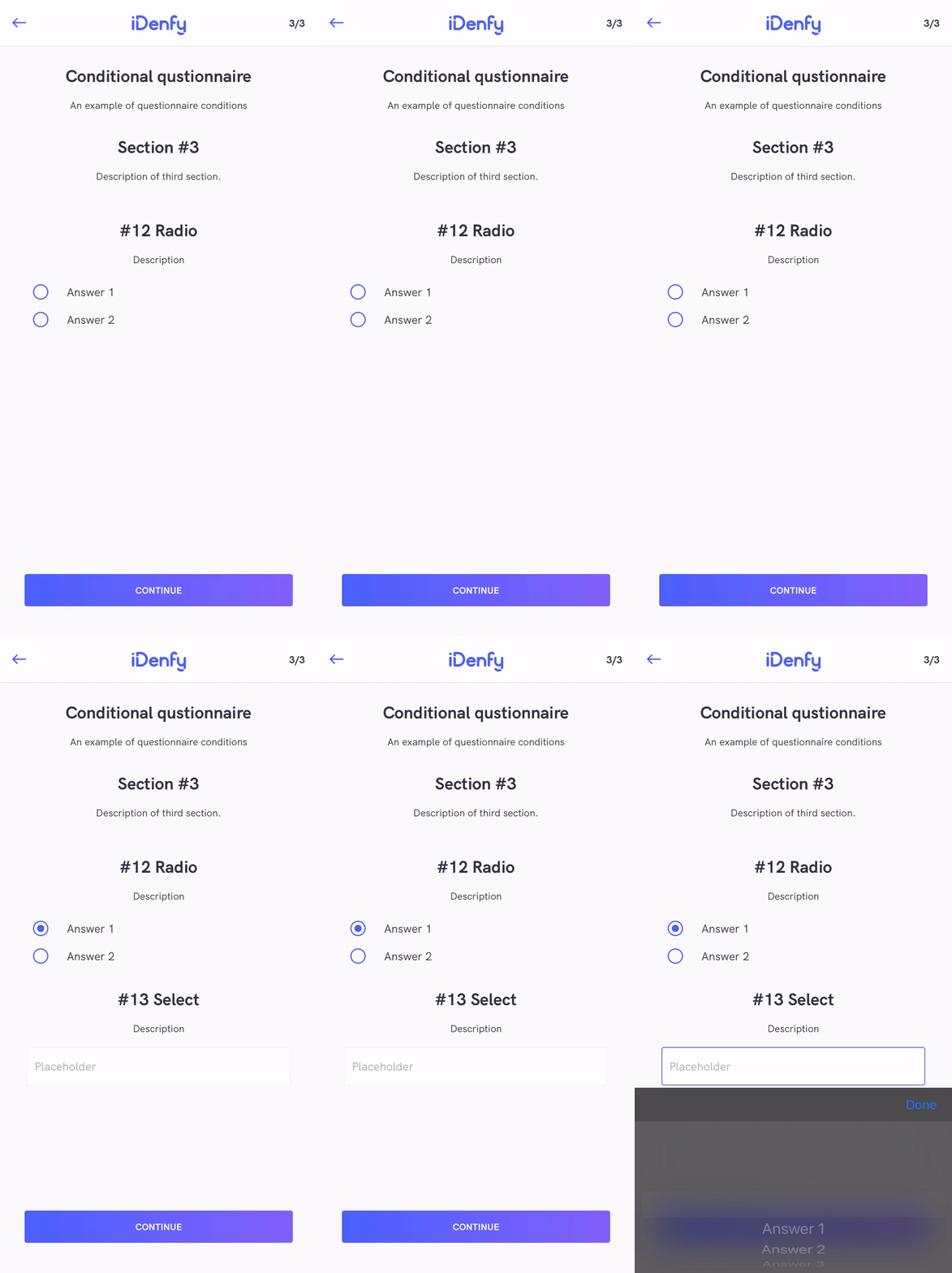
Questionnaires can be created using conditions, based on answers to previous questions:
To enable the custom KYC questionnaire feature, contact technical support via the [Jira customer portal](https://idenfy-ivs.atlassian.net/servicedesk/customer/portal/1).
### Custom KYC Questionnaire Conditions
Questionnaires can be created using conditions, based on answers to previous questions:
 ## Custom Privacy Policy
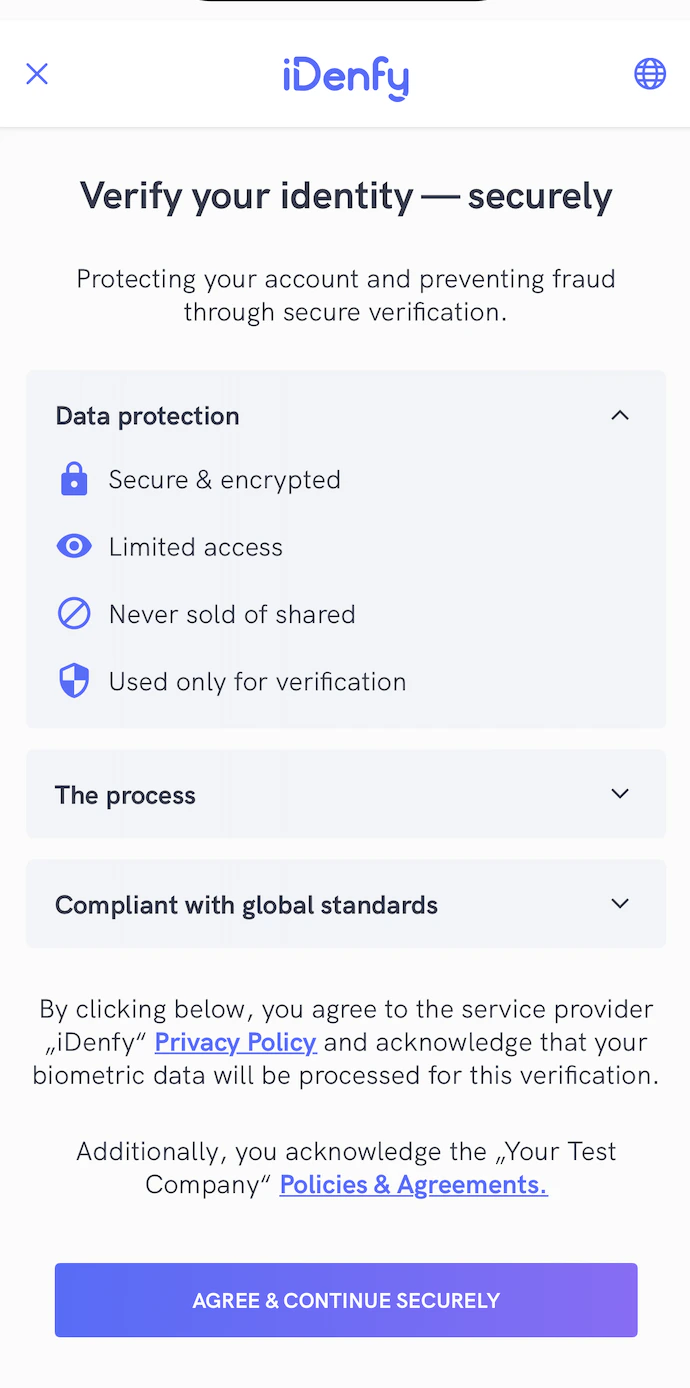
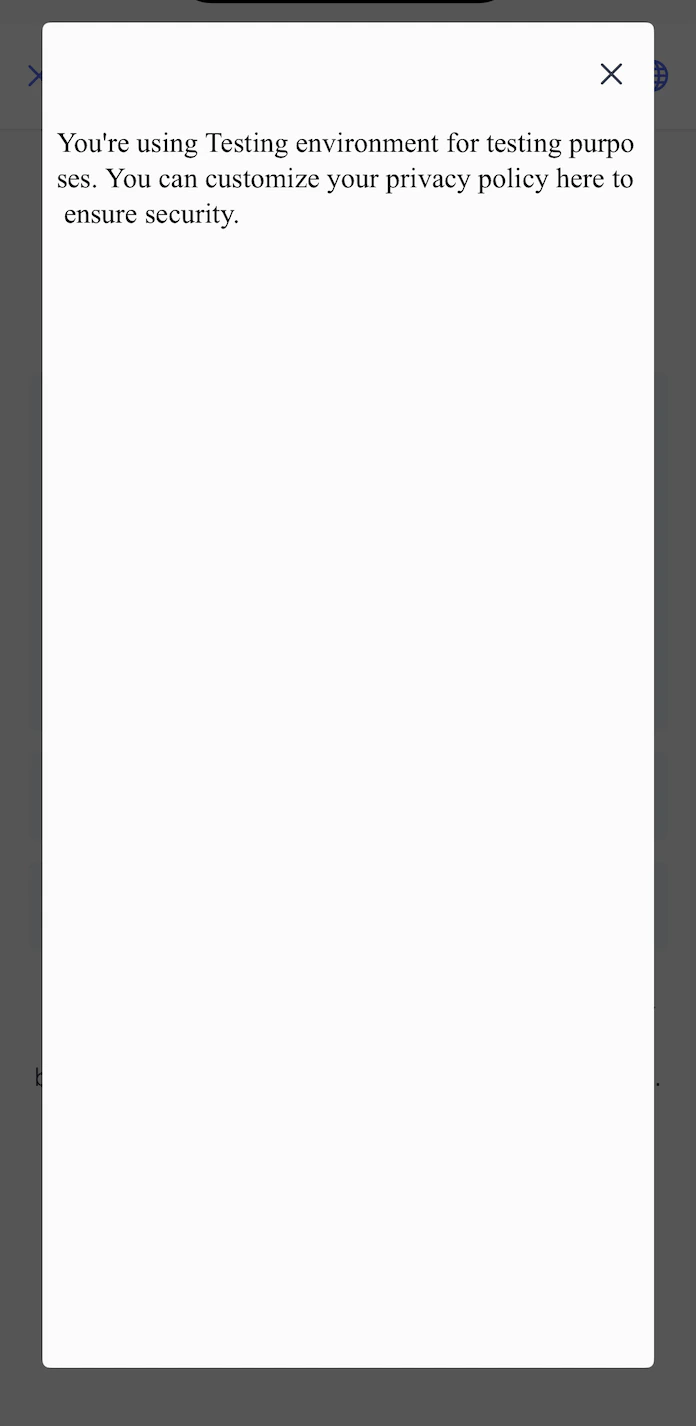
This feature allows you to create a custom privacy policy that users must agree to at the beginning of every identity verification process. Along with the iDenfy privacy policy, an additional sentence is added with an alert dialog, that shows your privacy policy as an HTML that can be fully customized.
To enable the custom privacy policy feature, contact technical support via the [Jira customer portal](https://idenfy-ivs.atlassian.net/servicedesk/customer/portal/1).
## Email Verification
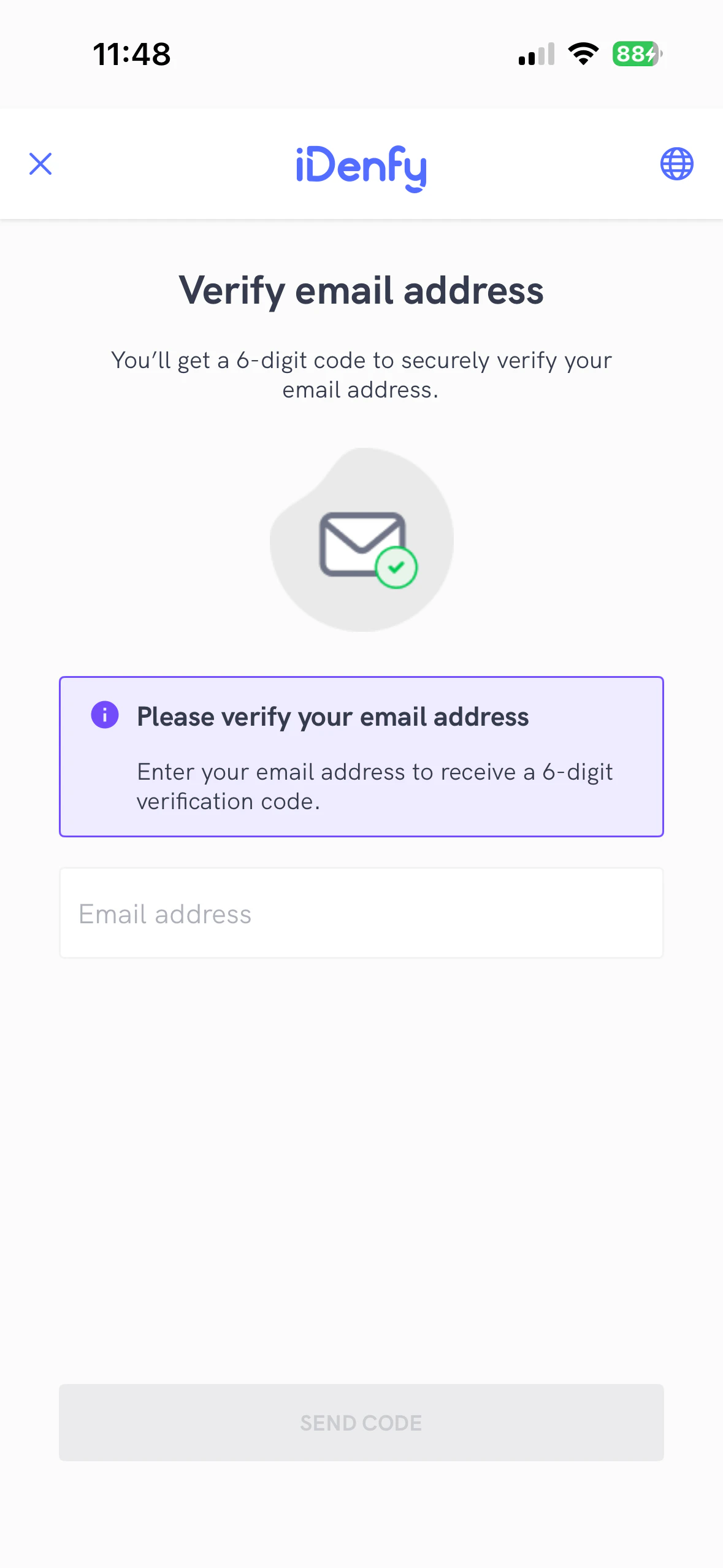
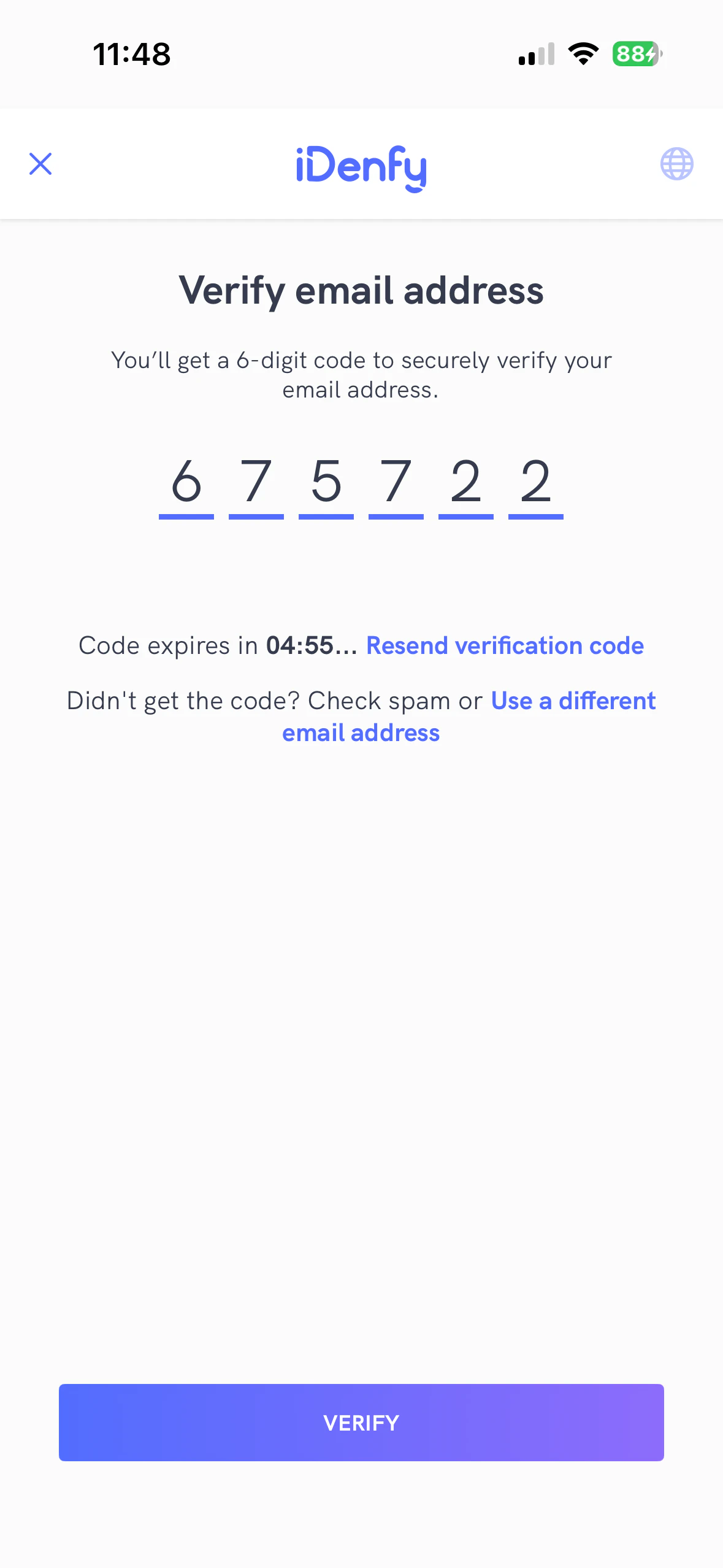
This feature requires users to verify their email address before their identity verification.
To enable the email verification feature, contact technical support via the [Jira customer portal](https://idenfy-ivs.atlassian.net/servicedesk/customer/portal/1).
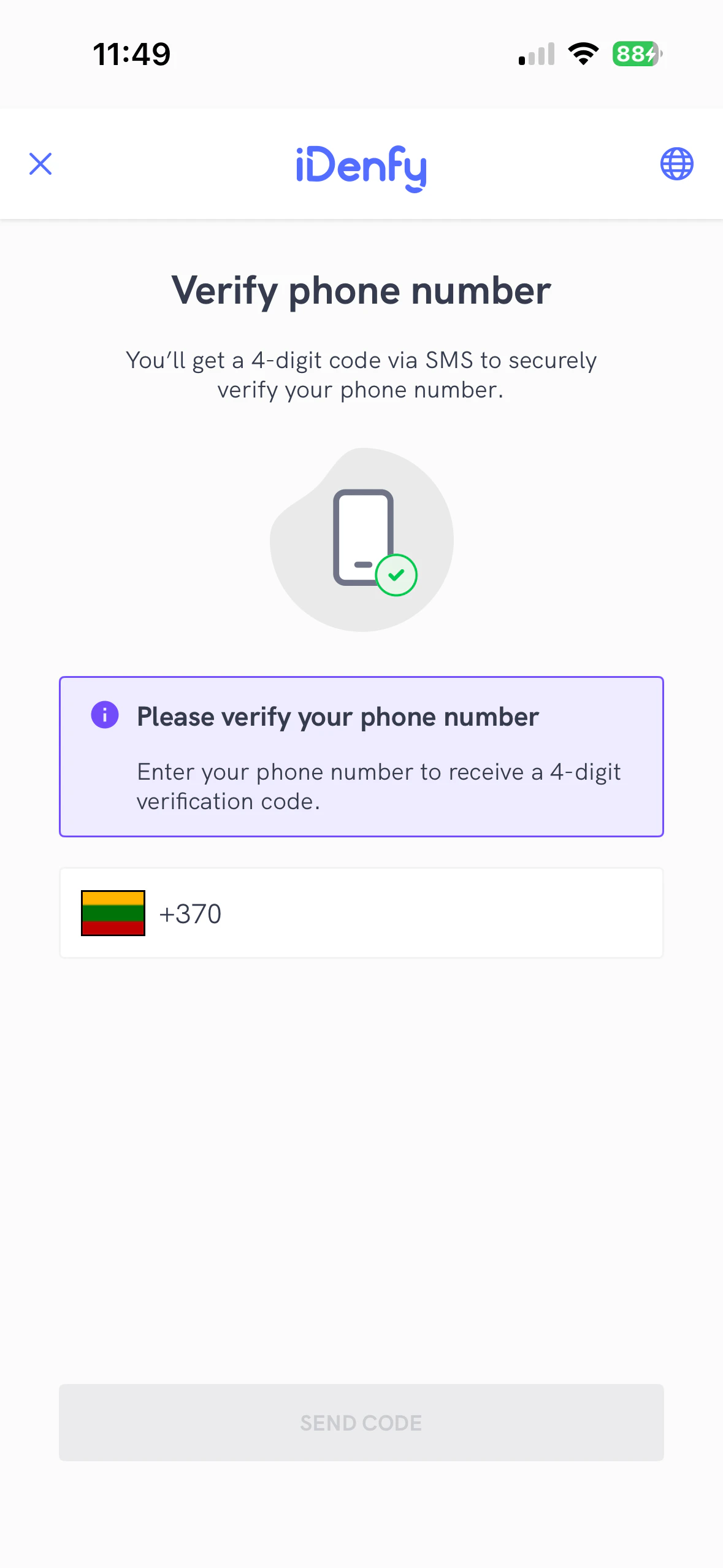
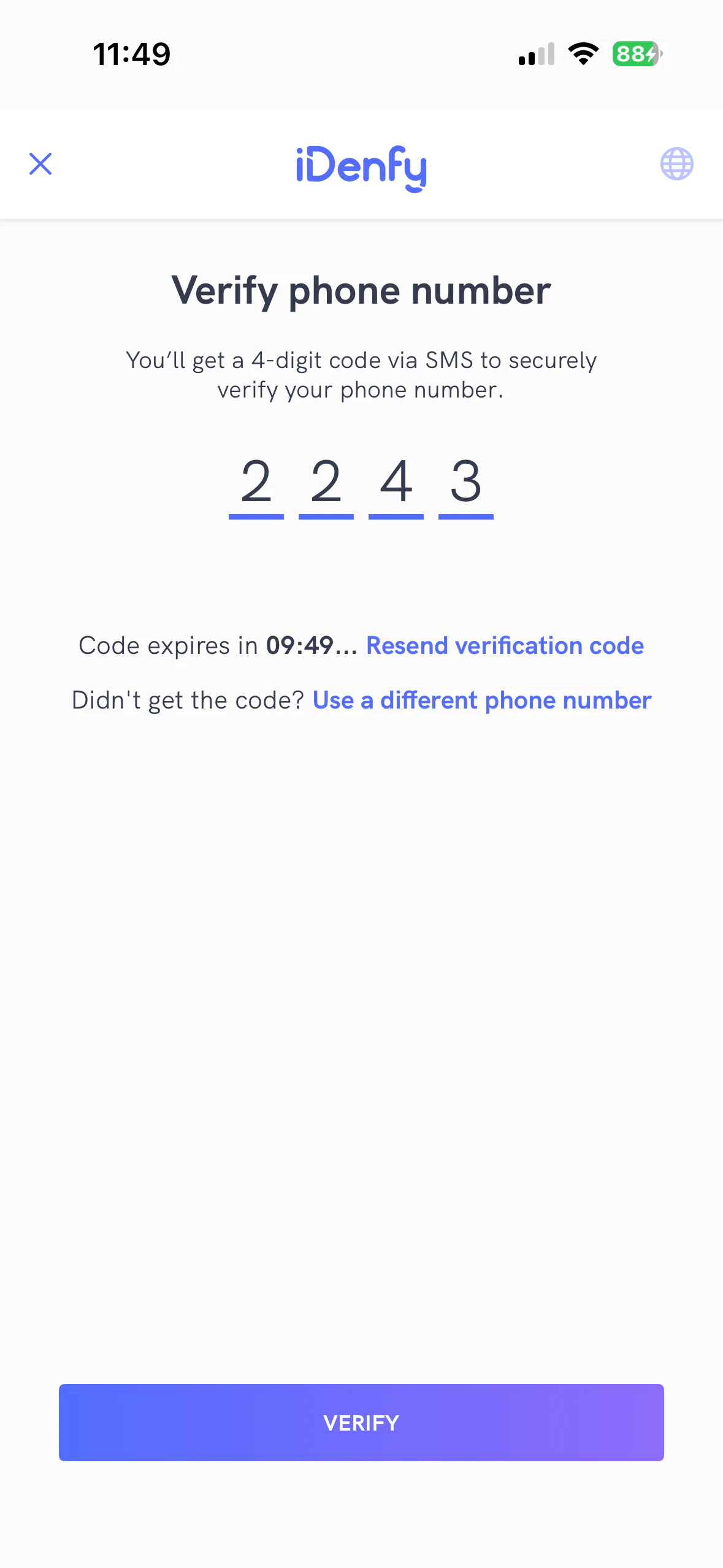
## Phone Number Verification
This feature requires users to verify their phone number before their identity verification.
To enable the phone number verification feature, contact technical support via the [Jira customer portal](https://idenfy-ivs.atlassian.net/servicedesk/customer/portal/1).
## Request Update
This feature allows you to collect updated verification information (POA documents, questionnaires, risk assessments) for an existing verification using a token from the [Request Update API](/kyc/request-update).
### Launching
Starting the request update flow is the same as launching the SDK with a KYC token — just use the token from the [Request Update API](/kyc/request-update) instead. Follow the [quickstart guide](/sdks/ios/quickstart#4-presenting-the-sdk) for the full launching instructions.
### Receiving Results
Use `handleIdenfyCallbacksForRequestUpdate` to receive the result:
```swift theme={"system"}
idenfyController.handleIdenfyCallbacksForRequestUpdate { status in
switch status {
case .EXPIRED:
break
case .COMPLETED:
break
@unknown default:
break
}
}
```
### Status Reference
| Status | Description |
| ----------- | ----------------------------------------------------------------- |
| `EXPIRED` | The request update session was cancelled or the token has expired |
| `COMPLETED` | The request update has been completed. |
## Custom Privacy Policy
This feature allows you to create a custom privacy policy that users must agree to at the beginning of every identity verification process. Along with the iDenfy privacy policy, an additional sentence is added with an alert dialog, that shows your privacy policy as an HTML that can be fully customized.
To enable the custom privacy policy feature, contact technical support via the [Jira customer portal](https://idenfy-ivs.atlassian.net/servicedesk/customer/portal/1).
## Email Verification
This feature requires users to verify their email address before their identity verification.
To enable the email verification feature, contact technical support via the [Jira customer portal](https://idenfy-ivs.atlassian.net/servicedesk/customer/portal/1).
## Phone Number Verification
This feature requires users to verify their phone number before their identity verification.
To enable the phone number verification feature, contact technical support via the [Jira customer portal](https://idenfy-ivs.atlassian.net/servicedesk/customer/portal/1).
## Request Update
This feature allows you to collect updated verification information (POA documents, questionnaires, risk assessments) for an existing verification using a token from the [Request Update API](/kyc/request-update).
### Launching
Starting the request update flow is the same as launching the SDK with a KYC token — just use the token from the [Request Update API](/kyc/request-update) instead. Follow the [quickstart guide](/sdks/ios/quickstart#4-presenting-the-sdk) for the full launching instructions.
### Receiving Results
Use `handleIdenfyCallbacksForRequestUpdate` to receive the result:
```swift theme={"system"}
idenfyController.handleIdenfyCallbacksForRequestUpdate { status in
switch status {
case .EXPIRED:
break
case .COMPLETED:
break
@unknown default:
break
}
}
```
### Status Reference
| Status | Description |
| ----------- | ----------------------------------------------------------------- |
| `EXPIRED` | The request update session was cancelled or the token has expired |
| `COMPLETED` | The request update has been completed. |