Set up the iDenfy Zapier integration to automate identity verification workflows with step-by-step connection and Shopify example.
This guide explains how to connect and set up Zapier with iDenfy. Below you will find step-by-step instructions on how to create a Zapier connection with iDenfy, including an example of a Shopify-iDenfy integration. You can connect any Zapier-supported application with iDenfy.
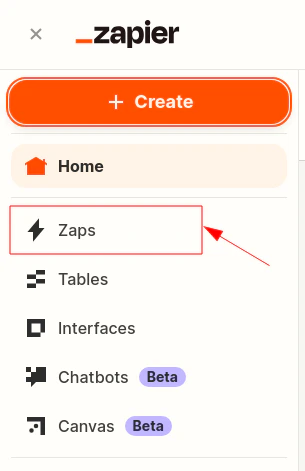
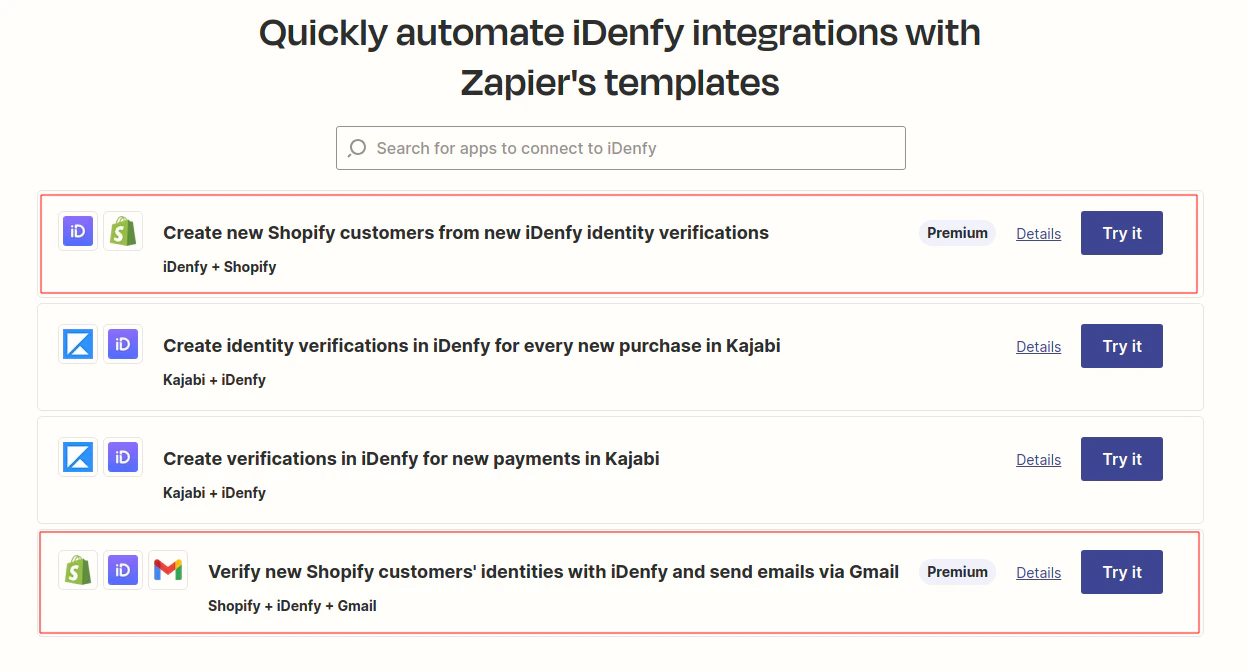
Once logged in, navigate to the top-left and click + Create, then Zaps.Alternatively, you can explore and use the pre-made Zapier templates, such as iDenfy-Shopify.
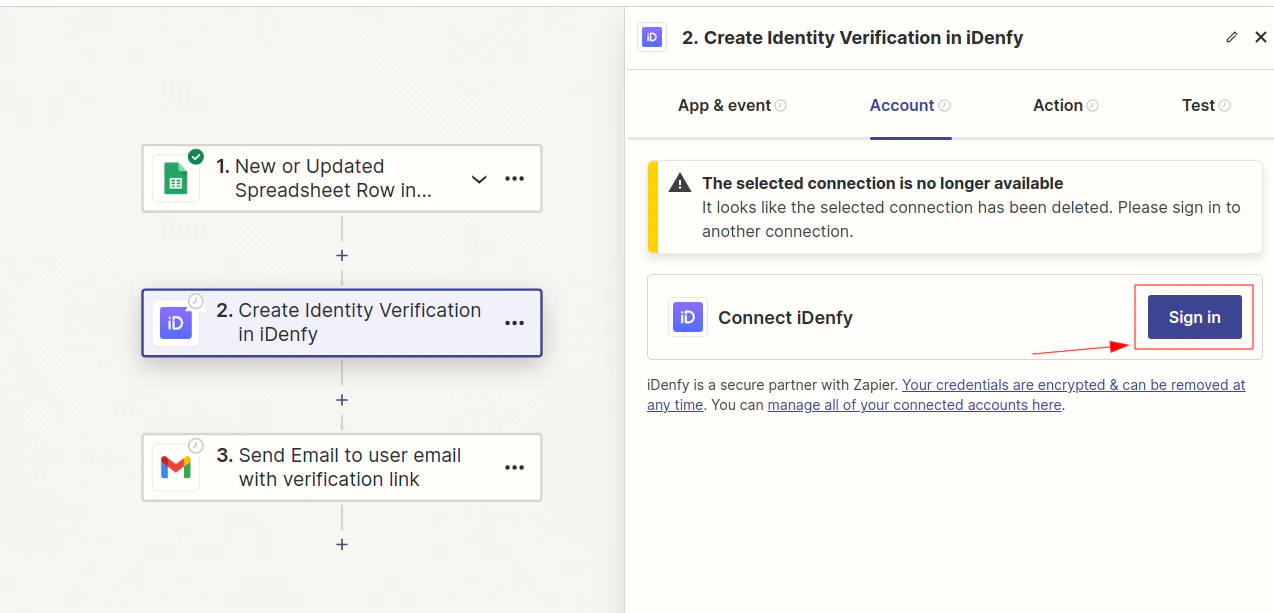
When a new iDenfy step is created, after completing the App & event section, proceed to the Account tab and click Log in.
The action number and event selected on the App & event tab do not matter for this step. This step only explains how to authorize Zapier to connect to iDenfy.
To complete authorization successfully, provide:
API key as Username
API secret as Password
You can manage your environment API key(s) and secret(s) on iDenfy’s side by navigating to Settings > API keys.
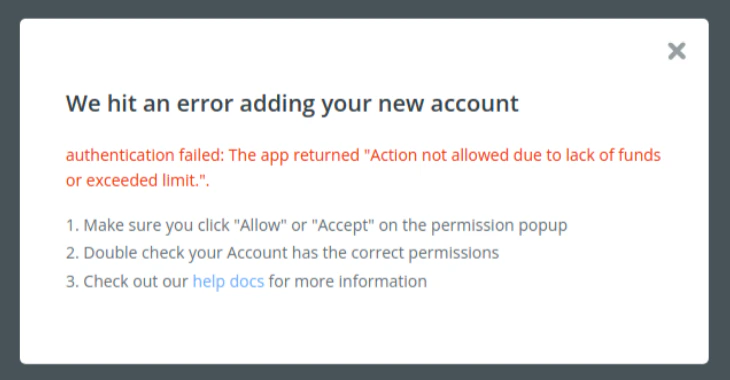
If you receive an authorization error, contact technical support via the dashboard using your account. Alternatively, check whether you can create a standard KYC session successfully, either via the dashboard or API. This is required for successful authorization.