Face Matching authentication works from 8.0.1 Android SDK versions.

Introduction

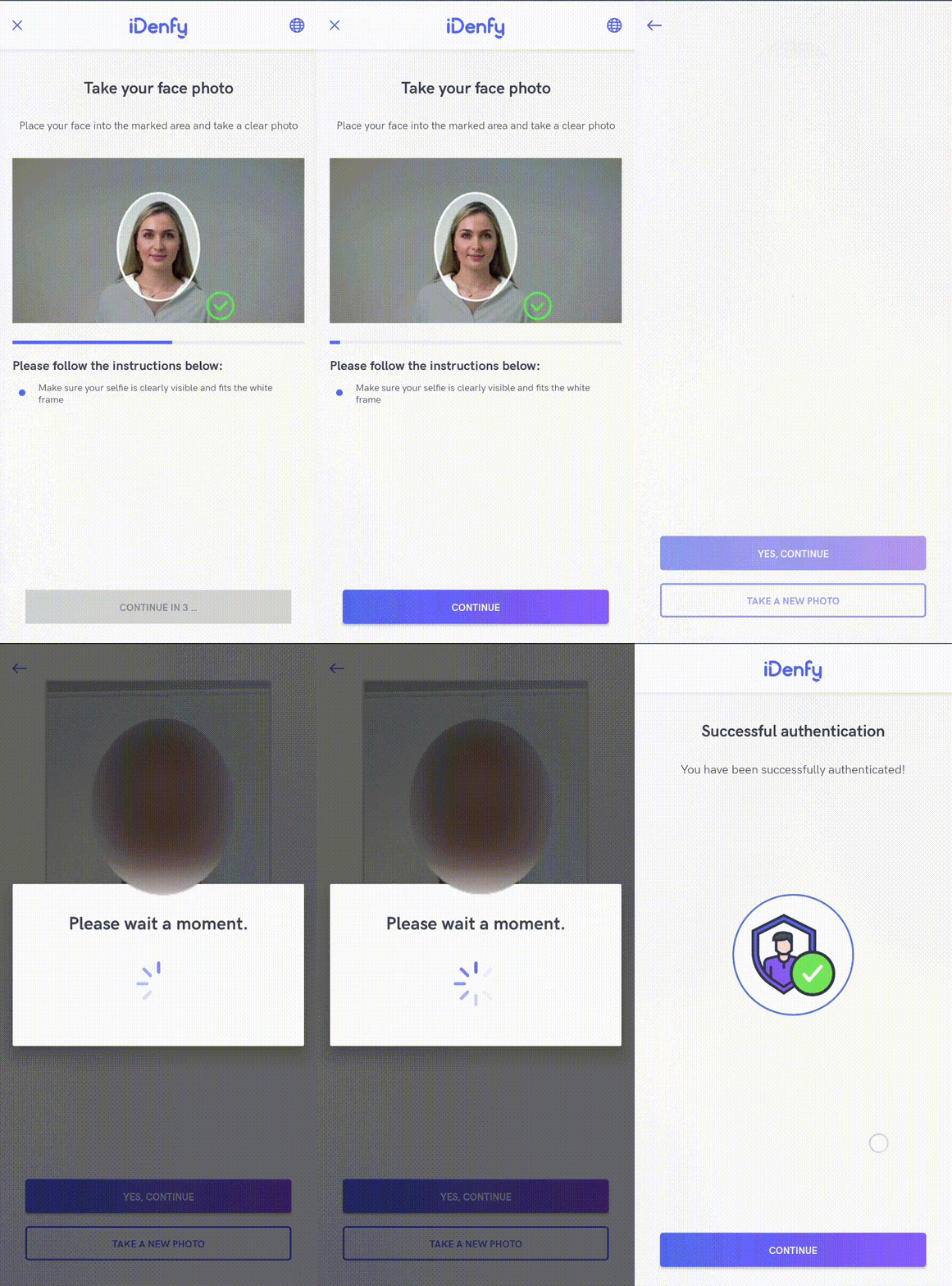
Face authentication is a tool to perform KYC checks once and then use the same scanRef to perform multiple verifications in just 30 seconds. The flow only requires the user to take a regular face photo to perform the authentication. Face matching authentication
Pre-conditions

A successful verification must be performed before initializing face authentication. For face authentication all you need is a scanRef, which is obtained during token generation.

Getting started

Follow the iDenfy SDK integration guide, which is required for face authentication as well. After completing the steps and the application compiles successfully, you are ready to implement face-auth specific logic.
You can also download the sample app, which supports face authentication. Download here.
1
Handle webhook callback
2
You will receive a webhook callback if it is your preferred way of handling results (recommended as it is more secure and reliable). The webhook structure is:
3
{
  "token": "token",
  "clientId": "clientId",
  "scanRef": "scanRef",
  "status": "SUCCESS",
  "type": "AUTHENTICATION",
  "method": "FACE_MATCHING",
  "facePhoto": "https://s3.eu-west-1.amazonaws.com/production.users.storage/users_storage/users/<HASH>/FRONT.png?AWSAccessKeyId=<KEY>&Signature=<SIG>&Expires=<STAMP>"
}
4
The facePhoto key is a String (URL), can be null, with a max length of 500. It provides a URL to download the selfie photo used for authentication.
5
The status key has the following values:
6
NameDescriptionSUCCESSThe user completed face authentication flow and the authentication status, provided by an automated platform, is SUCCESS.FAILEDThe user completed face authentication flow and the authentication status, provided by an automated platform, is FAILED.CANCELEDThe user did not complete the face authentication flow and canceled it and the identification status, provided by an automated platform, is EXIT.EXPIREDThe user did not complete the face authentication flow, but did not cancel it explicitly and the identification status, provided by an automated platform, is EXPIRED.
7
To set your webhook URL, contact tech support via the dashboard.
8
Handle callback in SDK
9
If you also want to handle results directly in the mobile app, implement the result handling in the SDK:
10
private var identificationResultsCallback = registerForActivityResult(
    ActivityResultContracts.StartActivityForResult()
) { result: ActivityResult ->
    val resultCode = result.resultCode
    val data = result.data

    if (resultCode == IdenfyController.IDENFY_FACE_AUTHENTICATION_RESULT_CODE) {
        val faceAuthenticationResult: FaceAuthenticationResult =
            data!!.getParcelableExtra(IdenfyController.IDENFY_FACE_AUTHENTICATION_RESULT)!!
        Toast.makeText(this, "Face Authentication Status: " + faceAuthenticationResult.faceAuthenticationStatus.status, Toast.LENGTH_SHORT).show()
        when (faceAuthenticationResult.faceAuthenticationStatus) {
            FaceAuthenticationStatus.SUCCESS -> {
                // The user completed authentication flow, was successfully authenticated
            }
            FaceAuthenticationStatus.FAILED -> {
                // The user completed authentication flow, was not successfully authenticated
            }
            FaceAuthenticationStatus.EXIT -> {
                // The user did not complete authentication flow
            }
        }
    }
}

11
Check face authentication status and generate the token
12
Before initializing the SDK, you need to check whether the user can use face authentication and generate an authToken. See the Token Generation for SDK documentation.
13
Initialize SDK
14
Pass the generated token to start face authentication:
15
   val faceAuthenticationInitialization = FaceAuthenticationInitialization(token)
   IdenfyController.getInstance().initializeFaceAuthenticationSDKV2(requireActivity(), (requireActivity() as BaseActivity).identificationResultsCallback, faceAuthenticationInitialization)

Customization

Immediate redirect

An additional boolean can be passed to set the immediate redirect feature. This controls whether the results from the SDK should be received immediately without any additional result pages. The client completes the verification, a loading state appears and closes — without showing the final status screen.
   val faceAuthenticationInitialization = FaceAuthenticationInitialization(token, true)

Face detection

Face detection can be enabled, which requires users to place their face into the marked area before taking a photo. Face detection
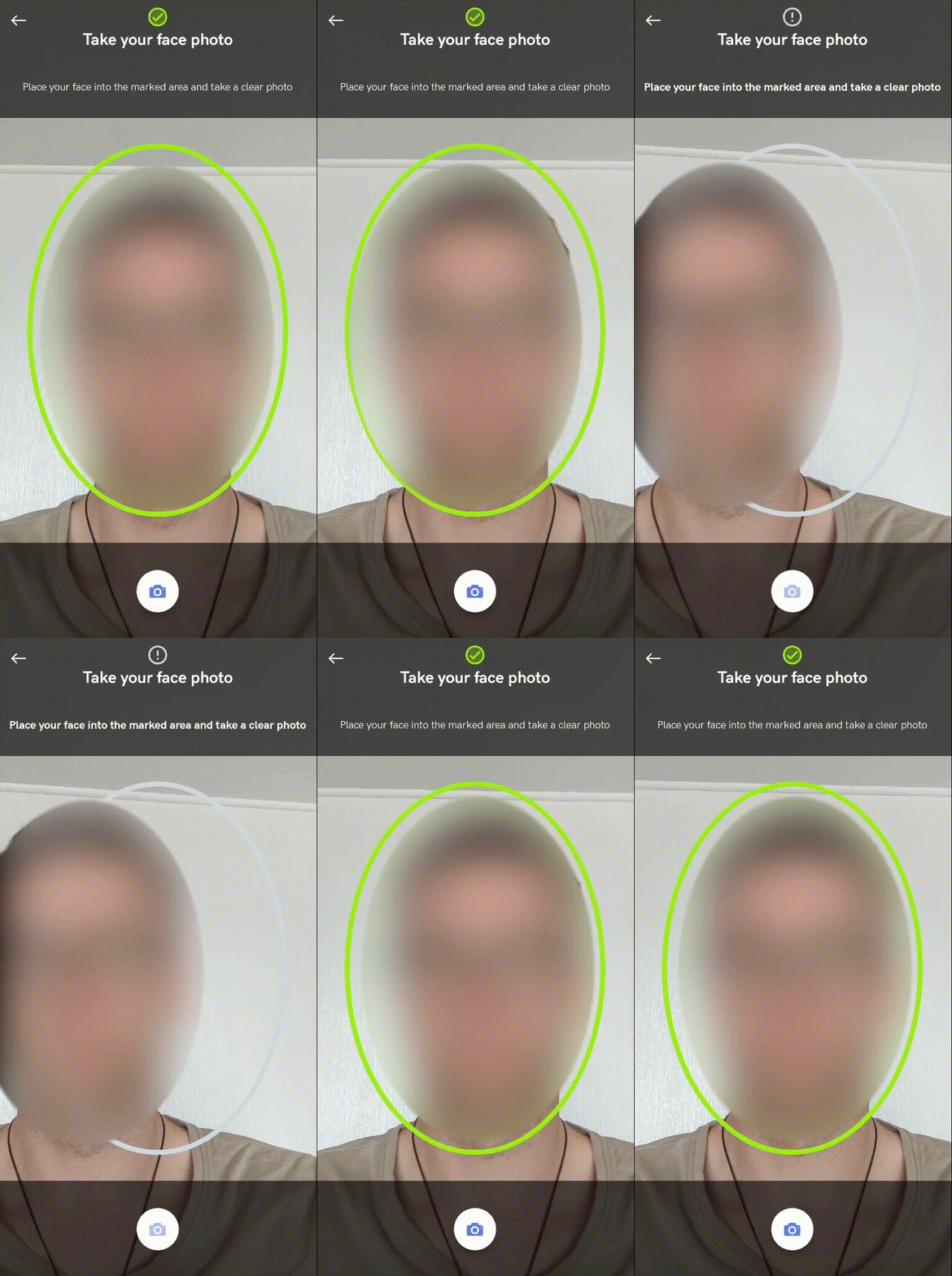
Contact tech support via the Jira customer portal to enable this feature. Face detection will apply to both KYC verification and face authentication flows.

Passive liveness detection

While using face matching authentication, passive liveness detection can be enabled to detect whether a selfie photo is genuine or not.
Contact tech support via the Jira customer portal to enable this feature. This will apply to both KYC verification and face authentication flows.

Auto capture

Auto capture can be enabled, which requires users to place their face into the marked area and the picture will be automatically taken and immediately processed: Face authentication auto capture
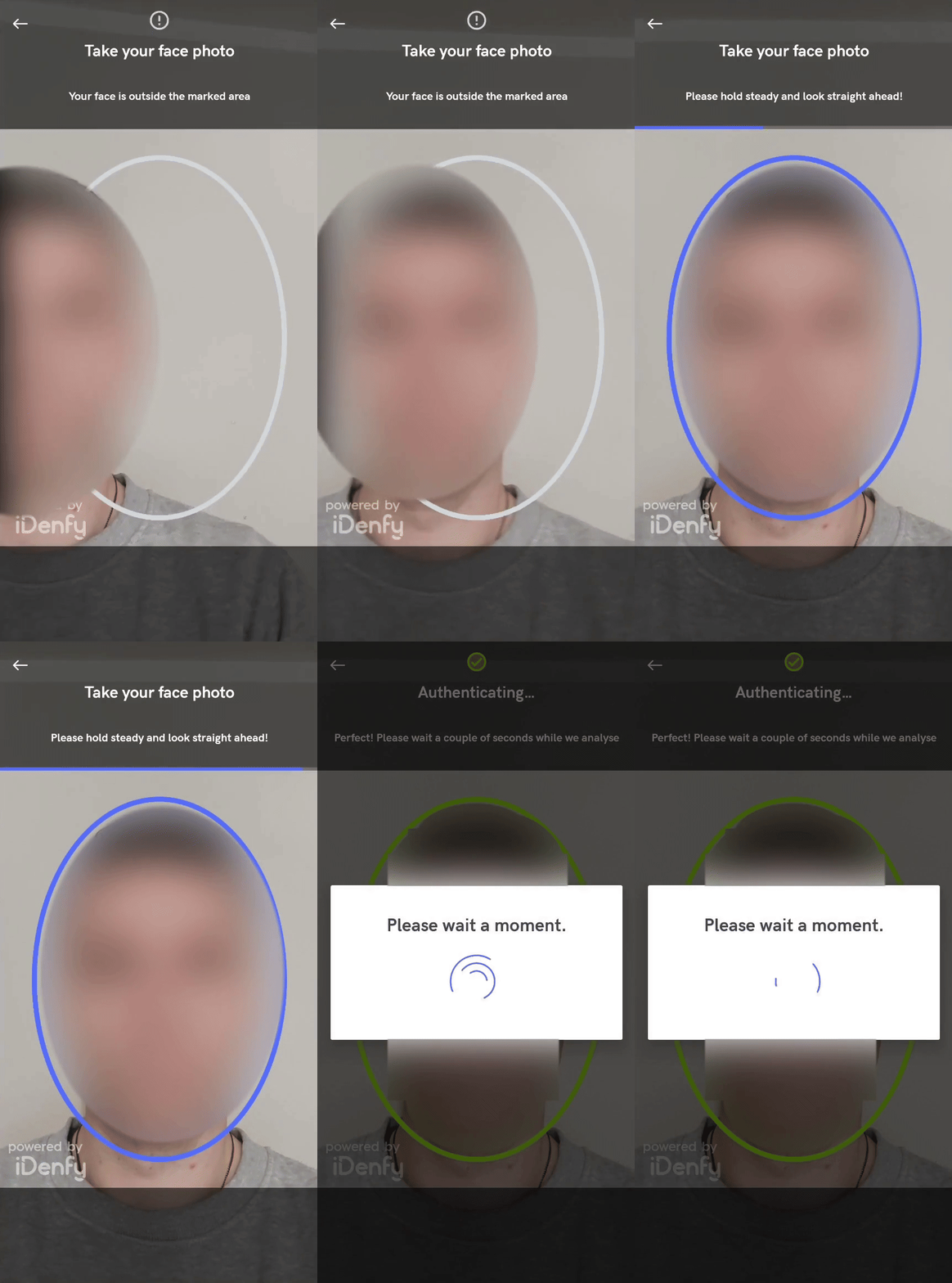
Contact tech support via the Jira customer portal to enable this feature for face authentication.

UI Customization

The UI can be customized the same as the KYC verification flow. Main colors or styles in the styles.xml or colors.xml files of your app target can be overridden, as well as the layouts. Colors, styles, and layouts can be found in the repository. Face authentication flow has additional UI settings that can be passed using IdenfyFaceAuthUIBuilder along with FaceAuthenticationInitialization:
val idenfyFaceAuthUISettings = IdenfyFaceAuthUISettings.IdenfyFaceAuthUIBuilder()
    //Show or hide language selection button
    .withLanguageSelection(true)
    //Show or skip camera on boarding screen
    .withOnBoardingView(true)
    .build()

val faceAuthenticationInitialization = FaceAuthenticationInitialization(
    token,
    idenfyFaceAuthUISettings = idenfyFaceAuthUISettings
)