

SSL Pinning Support
By default, the SDK does not utilize SSL pinning as suggested by AWS services. If you need this option, you can enable SSL pinning. Our SSL pinning implementation follows the AWS recommendations and uses pinning for the Root certificates. They are valid for more than 5 years. However, during this timeframe, major changes can occur and we might be forced to change SSL pinning. Such changes will be notified at least 1 month prior. We strongly encourage you to enable this feature only if you are planning to actively update the SDK.Localization
By default the SDK provides the following translations:- English (en) GB
- Polish (pl) PL
- Russian (ru) RU
- Lithuanian (lt) LT
- German (de) DE
- French (fr) FR
- Italian (it) IT
- Latvian (lv) LV
- Romanian (ro) RO
- Swedish (sv) SV
- Spanish (es) ES
- Estonian (et) ET
- Czech (cs) CS
- Bulgarian (bg) BG
- Dutch (nl) NL
- Ukrainian (uk) UK
- Portuguese (pt) PT
- Vietnamese (vi) VI
- Slovak (sk) SK
- Indonesian (id) ID
- Thai (th) TH
- Hindi (hi) HI
- Hungarian (hu) HU
- Danish (da) DA
- Greek (el) EL
- Croatian (hr) HR
- Norwegian (no) NO
- Serbian (sr) SR
- Finnish (fi) FI
- Turkish (tr) TR
- Chinese (zh) ZH
- Slovenian (sl) SL
- Japanese (ja) JA
- Korean (ko) KO
- Chinese Traditional (zh-Hant) ZH-HANT
- Arabic (ar) AR
strings.xml and changes will take effect.
Forcing a Specific Language
The SDK uses the device’s language configuration as its default language. To force a particular locale, use one of these methods:IdenfySettings
Along with Session Creation
Set the locale during session creation.If no locale is forced, the SDK will fall back to the device’s selected language.
Enabling Screenshot Blocking
When enabled, any screenshots or screen recordings in camera fragments will result in a black screen.Skipping Parts of the Verification Flow
The SDK provides a set of tools to omit some views, which you could implement in your own application for a fine-grained approach. For example, you might want to implement document selection and the document’s issuing country selection in the same view instead of having two separate screens.All customization options listed below can be combined, e.g. you can skip document selection, document onboarding screen, and document issuing country selection at the same time.
Contact tech support to enable any of these features in your account settings, since they are configured from the backend, not the SDK. Contact support via the Dashboard using your account.
Skip Document Issuing Country Selection Screen
Create a verification session with the provided document issuing country. See the session creation documentation. Example JSON request body:Skip Document Selection Screen
Create a verification session with the provided document type. See the session creation documentation. Example JSON request body:Skip Document Onboarding Screen
After you enable this feature, the SDK skips the onboarding screen. Your user can select a document from the documents list and goes directly to the camera screen.Blur and Glare Flow Changes
If your account has enabled blur or glare detection, the SDK will include blur and glare checks in the photo validation. The SDK shows an unsuccessful result immediately after each step.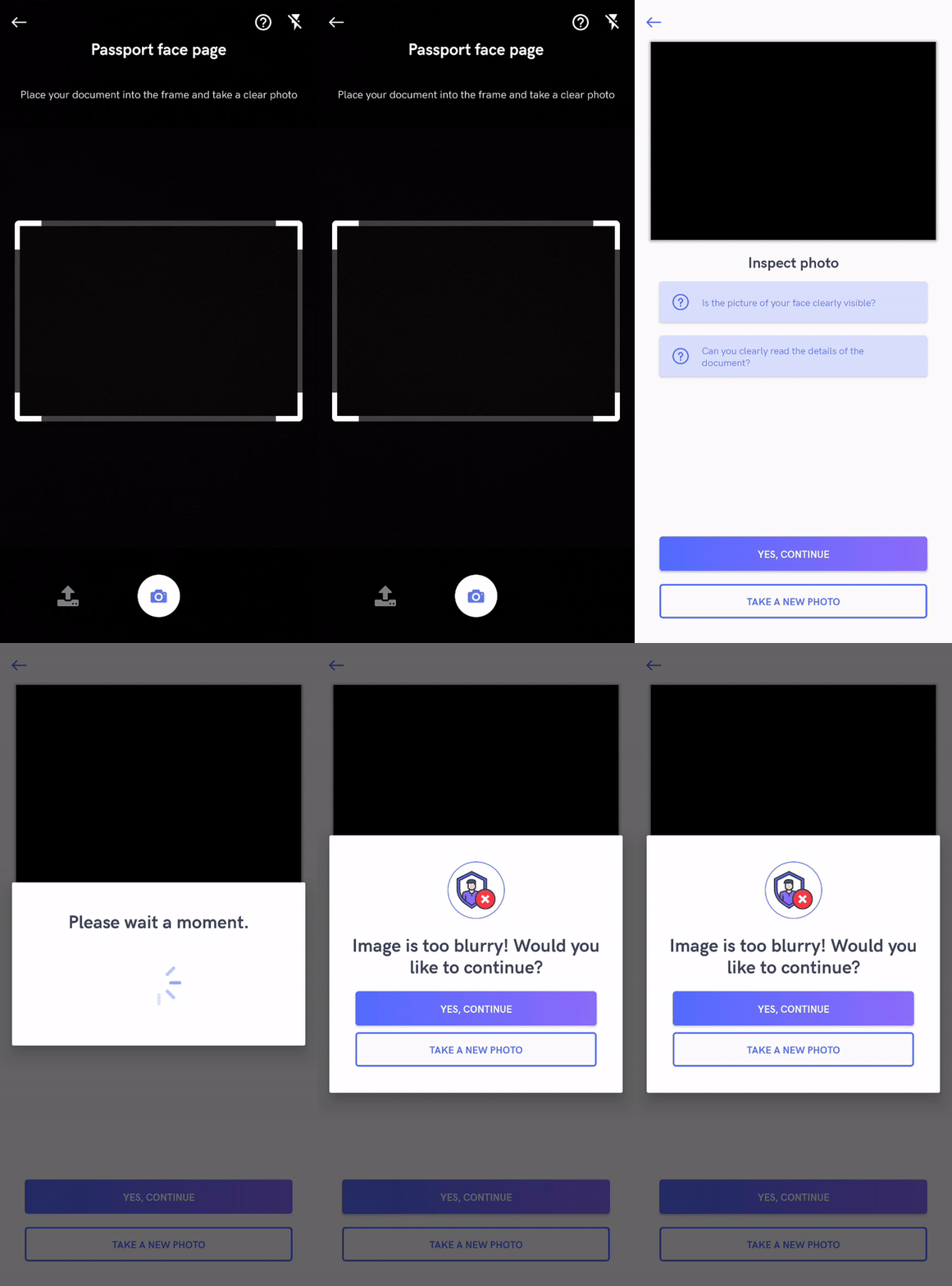
To enable blur and glare detection, contact tech support via the dashboard.
Passive Liveness Check
If your account has enabled passive liveness check, the SDK will include a liveness check in photo validation. The SDK shows an unsuccessful result immediately after each step.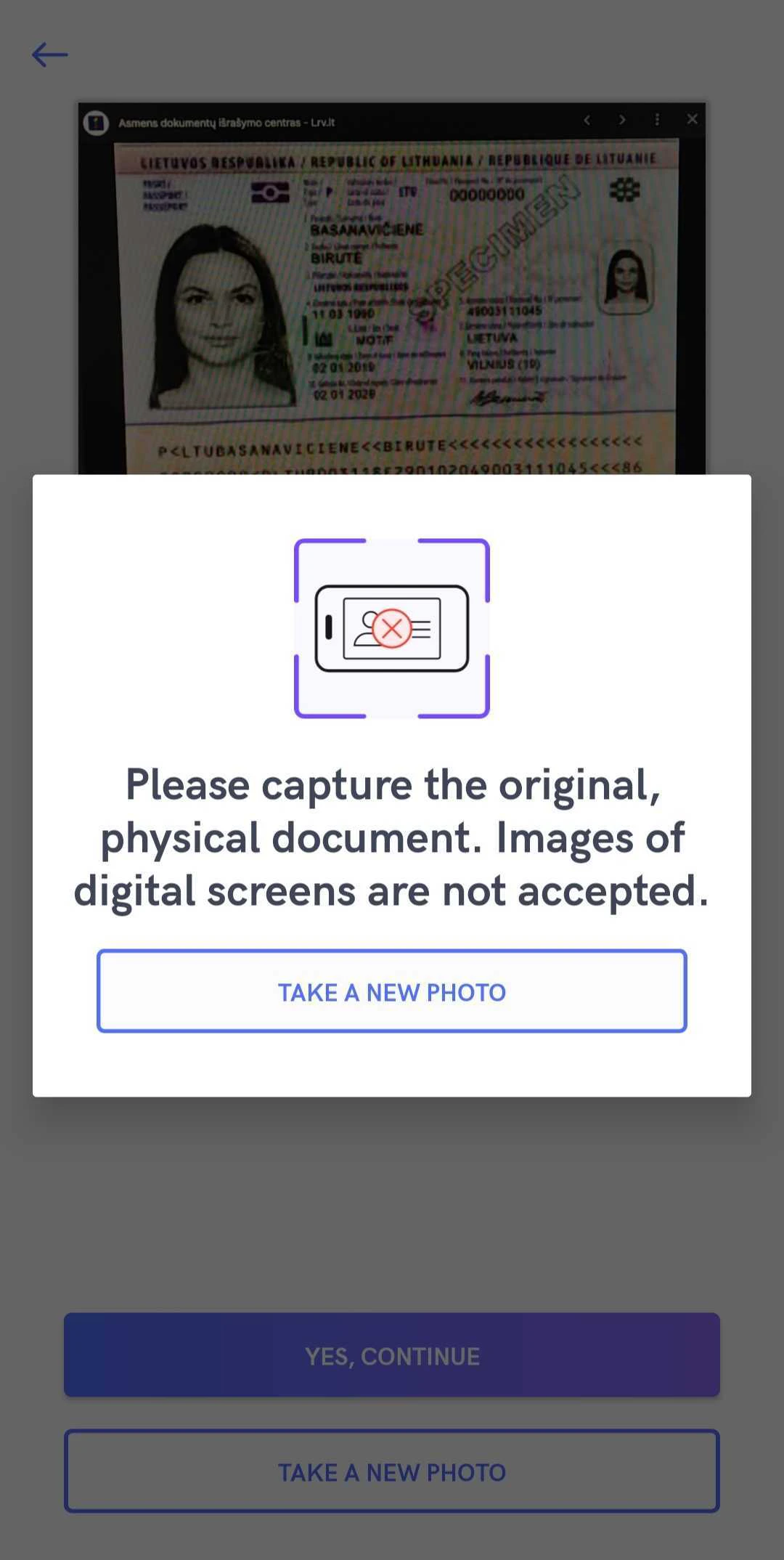
To enable passive liveness check, contact tech support via the dashboard.
Identity Verification Results Screen Changes
If you have implemented manual verification flow (step 11), it might be wise to disable the Manual results view, DENIED, and APPROVED views for better UX. You will most likely display a loading screen after the user completes the verification flow. With this feature, the SDK finishes during the loading screen without showing the actual status, letting you customize the experience.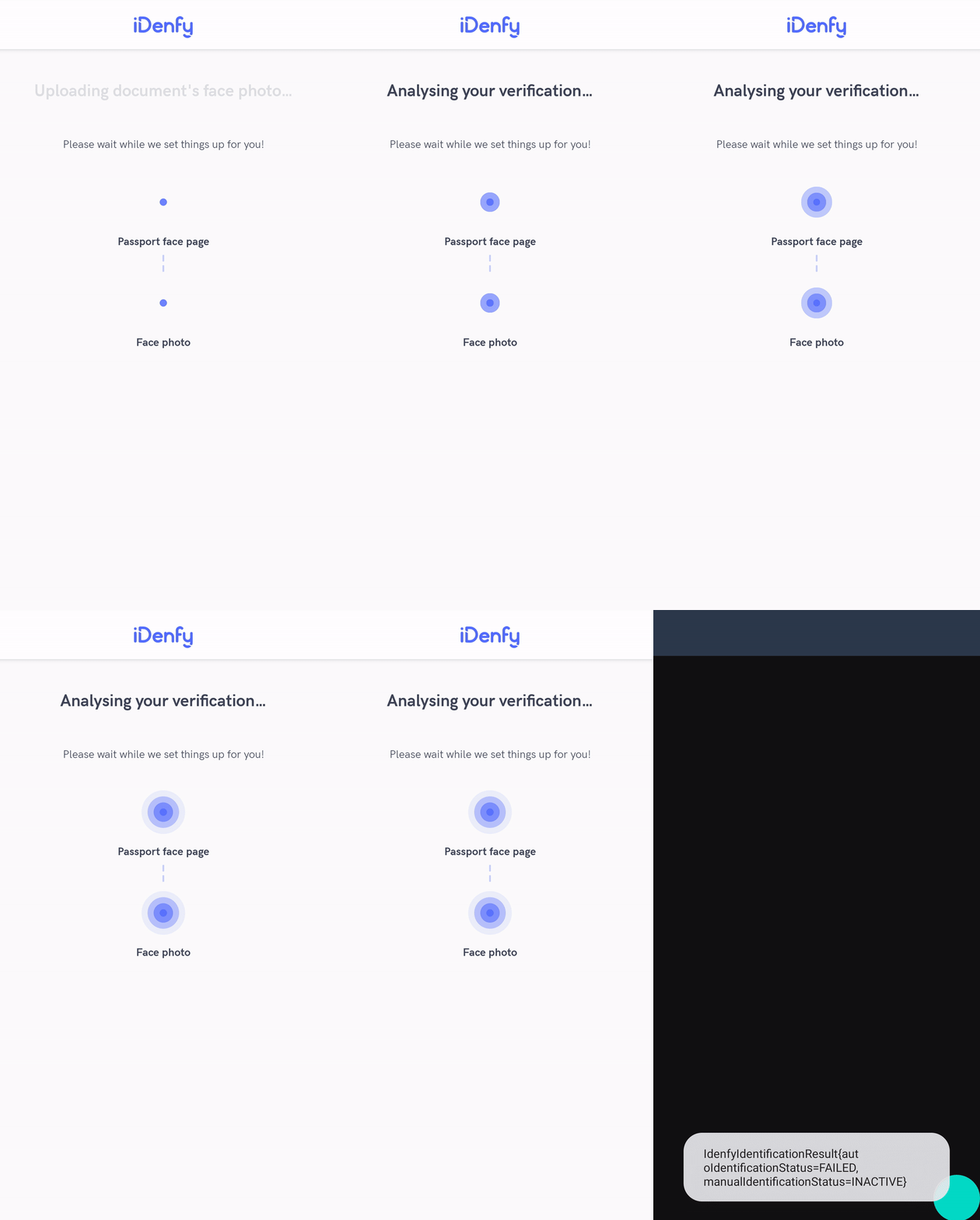
APPROVED Screen Will Not Be Visible
If verification was approved, your user will not see a success screen. The SDK will close while displaying a loading screen, allowing you to show a success screen yourself.DENIED Screen Will Not Be Visible
The denied screen will not be visible. The SDK will close while displaying a loading screen, allowing you to display an error screen yourself.Manual Verification Screen Will Not Be Visible
The manual verification screen (shown above) will be skipped.To enable immediate redirect, contact technical support via the Jira customer portal.