The SDK supports API Level 24 and above.

iDenfy identity verification flow

Below you can check a full regular flow.This flow can be customized and success results can be omitted as well. We recommend omitting them using our immediate redirect feature.Full flow

Getting started

1
Obtain a verification token
2
The SDK requires a verification token to start initialization. See the verification token generation guide.
3
Add the SDK dependency
4
In the root level (project module) Gradle, add the following repository:
5
repositories {
    maven { url 'https://jitpack.io' }
}
6
In the app level Gradle, add the following dependency with the latest version. The latest version is available from the changelog.
7
repositories {
    dependencies {
      implementation 'com.github.idenfy:sdk-api:8.7.6'
    }
}
8
If you are not using Advanced Liveness detection, you can reduce the SDK size by excluding the sdk-liveness module:
repositories {
    dependencies {
      implementation ('com.github.idenfy:sdk-api:8.7.6') {
        exclude group: 'com.github.idenfy', module: 'sdk-liveness'
      }
    }
}
9
If you are not overriding any custom views or applying customization, you can use the dynamic version. If you did make layout changes, do not use the dynamic version, since runtime crashes can occur. If you understand the disadvantages and still want to use the latest version, integrate the SDK as follows:
repositories {
    dependencies {
      implementation 'com.github.idenfy:sdk-api:+'
    }
}
10
Configure Android Studio
11
The SDK uses Java 11. Verify that the version is configured:
12
    compileOptions {
        targetCompatibility 11
        sourceCompatibility 11
    }
    kotlinOptions {
        jvmTarget = "11"
    }
13
Also make sure that you have these lines in your gradle.properties file:
14
android.useAndroidX=true
android.enableJetifier=true
15
Configure the SDK
16
Provide the following configuration:
17
val idenfySettingsV2 = IdenfySettingsV2.IdenfyBuilderV2()
                .withAuthToken("AUTH_TOKEN")
                .build()
18
Present the verification activity
19
Create an instance of IdenfyController to start the verification flow:
20
IdenfyController.getInstance().initializeIdenfySDKV2WithManual(
    this,
    identificationResultsCallback,
    idenfySettingsV2
)
21
Handle verification callbacks
22
Verification results are returned using Activity Result Contract, which is passed during initialization of the SDK.
23
The SDK provides the idenfyIdentificationResult callback class.
24
If your service uses only the automatic (default) callback, then you should only check idenfyIdentificationResult.autoIdentificationStatus.
25
Since version 7.1.0, the SDK includes a SUSPECTED response. You can read about it here and decide whether you would like it to impact your UI.
26
    var identificationResultsCallback = registerForActivityResult(
    ActivityResultContracts.StartActivityForResult()
) { result: ActivityResult ->
    val resultCode = result.resultCode
    val data = result.data

    if (resultCode == IdenfyController.IDENFY_IDENTIFICATION_RESULT_CODE) {
        val idenfyIdentificationResult: IdenfyIdentificationResult = data!!.getParcelableExtra(
            IdenfyController.IDENFY_IDENTIFICATION_RESULT
        )!!
        when (idenfyIdentificationResult.manualIdentificationStatus) {
            ManualIdentificationStatus.APPROVED -> {
                //The user completed a verification flow, was verified manually and the verification status, provided by a manual reviewer, is APPROVED.
            }
            ManualIdentificationStatus.FAILED -> {
                //The user completed a verification flow, was verified manually and the verification status, provided by a manual reviewer, is FAILED.
            }
            ManualIdentificationStatus.WAITING -> {
                //The user was only verified by an automated platform, not by a manual reviewer.
            }
            ManualIdentificationStatus.INACTIVE -> {
                //The user was only verified by an automated platform and still waiting for manual reviewing.
            }
        }
        when (idenfyIdentificationResult.autoIdentificationStatus) {
            AutoIdentificationStatus.APPROVED -> {
                //The user completed a verification flow and the verification status, provided by an automated platform, is APPROVED.
            }
            AutoIdentificationStatus.FAILED -> {
                //The user completed a verification flow and the verification status, provided by an automated platform, is FAILED.
            }
            AutoIdentificationStatus.UNVERIFIED -> {
                //The user did not complete a verification flow and the verification status, provided by an automated platform, is UNVERIFIED.
            }
        }
        Toast.makeText(
            this@MainActivity,
            "Auto - ${idenfyIdentificationResult.autoIdentificationStatus} \n" +
                    "Manual - ${idenfyIdentificationResult.manualIdentificationStatus} \n",
            Toast.LENGTH_LONG
        ).show()
    }
}

Callback status reference

autoIdentificationStatus

NameDescription
APPROVEDThe user completed a verification flow and the verification status, provided by an automated platform, is APPROVED.
FAILEDThe user completed a verification flow and the verification status, provided by an automated platform, is FAILED.
UNVERIFIEDThe user did not complete a verification flow and the verification status, provided by an automated platform, is UNVERIFIED.

manualIdentificationStatus

NameDescription
APPROVEDThe user completed a verification flow and was verified manually while waiting for the manual verification results in the iDenfy SDK. The verification status, provided by a manual review, is APPROVED.
FAILEDThe user completed a verification flow and was verified manually while waiting for the manual verification results in the iDenfy SDK. The verification status, provided by a manual review, is FAILED.
WAITINGThe user completed a verification flow and started waiting for the manual verification results in the iDenfy SDK. Then he/she decided to stop waiting and pressed a “BACK TO ACCOUNT” button. The manual verification review is still ongoing.
INACTIVEThe user was only verified by an automated platform, not by a manual reviewer. The verification performed by the user can still be verified by the manual review if your system uses the manual verification service.
The manualIdentificationStatus always returns INACTIVE unless your system implemented manual verification flow (step 11). The manual verification screen looks like this:Manual flowTo disable it, refer to the immediate redirect feature.
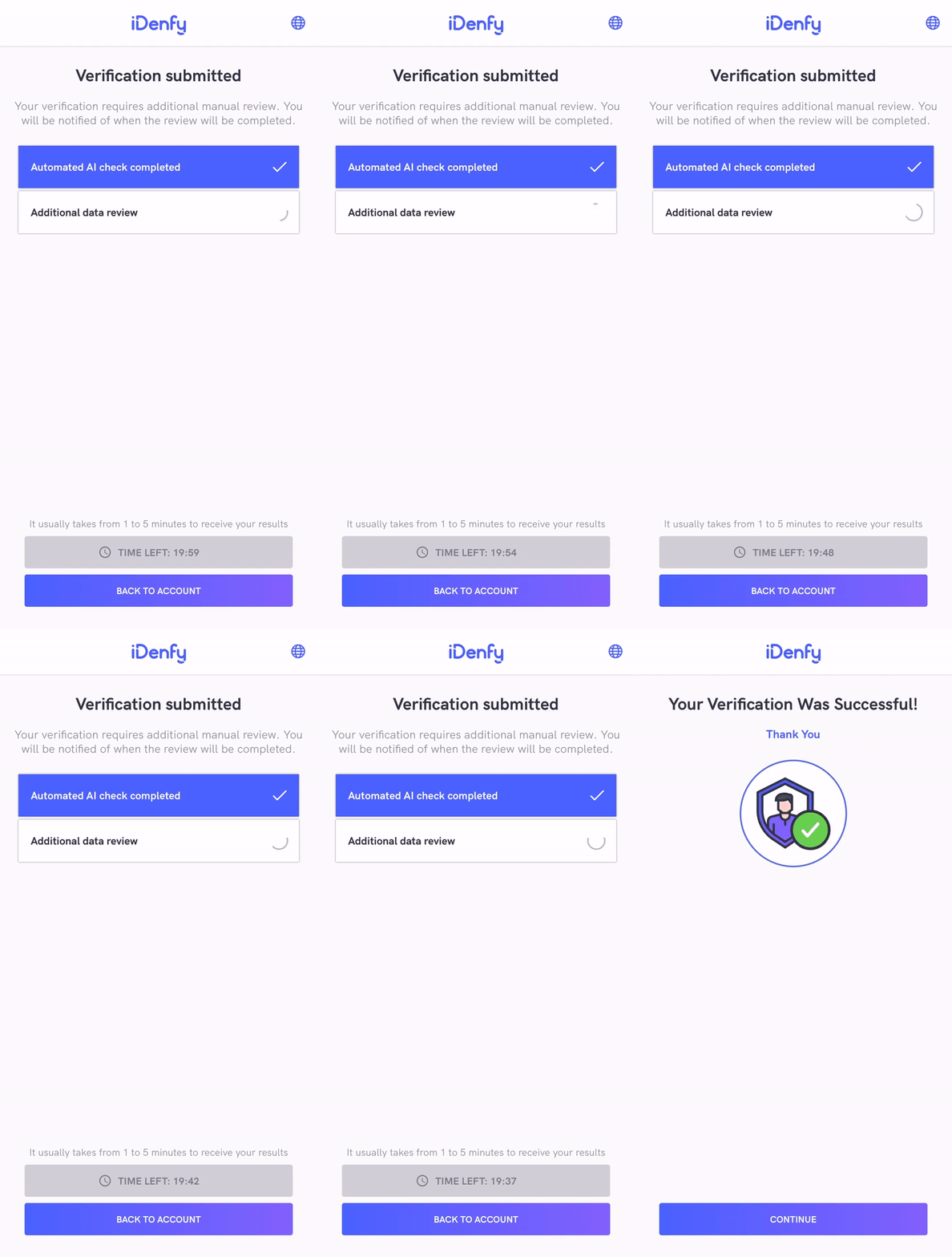
These SDK statuses are the same as iFrame integration statuses. The only difference is that the SDK returns INACTIVE if the manual verification screen was not opened during the verification session, instead of returning null as the iFrame does. Also, the iFrame does not close automatically since it can deliver results without closing itself.
After the SDK finishes and closes itself, you will also receive a webhook callback to your backend system.It might be useful to completely ignore the SDK status and communicate between your app and your backend service about verification status.

Samples

Our sample application demonstrates the integration of the iDenfy SDK.

FAQ

1. Is there a possibility to change the verification results view? Yes, it can be achieved by providing a custom verification results view. 2. How to change the position of the top titles? Any component and its properties can be changed either by overriding the XML layout or providing a custom Jetpack Compose view. 3. How do I report an issue within the SDK? Please report any issue via the Jira customer portal. Attach the SDK and Gradle versions you are using, and describe the problem in as much detail as possible. 4. When I override liveness fonts, the size does not change. Why is that? Liveness font size is dynamically determined according to the screen resolution, and it cannot be manually changed.