The minimum version of iOS supported by the SDK is 13.0.
If Apple Review team asks for the privacy manifest file that is missing in the SDK, please update to version 8.4.2. The lottie-ios library that caused this issue has been updated and the privacy manifest file will be included.
During the review process of your app, Apple might ask you to describe NFC usage in your app, even if you don’t have the NFC feature enabled. To successfully pass the review, try sending them this video, which shows NFC usage in the KYC flow. If Apple still does not confirm, contact us for further communication.

iDenfy identity verification flow

Below you can check a full regular flow.This flow can be customized and success results can be omitted as well. We recommend omitting them using the immediate redirect feature.Full flow

Getting started

1
Obtain a verification token
2
The SDK requires a verification token to start initialization. See the verification token generation guide.
3
Provide permissions
4
NSCameraUsageDescription must be provided in the application’s Info.plist file:
5
<key>NSCameraUsageDescription</key>
<string>Required for document and facial capture</string>
6
Add the SDK dependency
7
We recommend using Swift Package Manager, since it is quicker to set up and causes fewer issues.
8
Swift Package Manager
1. Add a packageYou can add it to your project with the following package repositories. You need to choose only one SDK option.Base iDenfySDK dependency:iDenfySDK with Advanced Liveness detection feature:iDenfySDK with Advanced Liveness detection and Document blur glare detection features:iDenfySDK with Advanced Liveness detection, Document blur glare detection and NFC Reading features:iDenfySDK with Advanced Liveness detection, Document blur glare detection, NFC Reading and Document Auto Capture features:
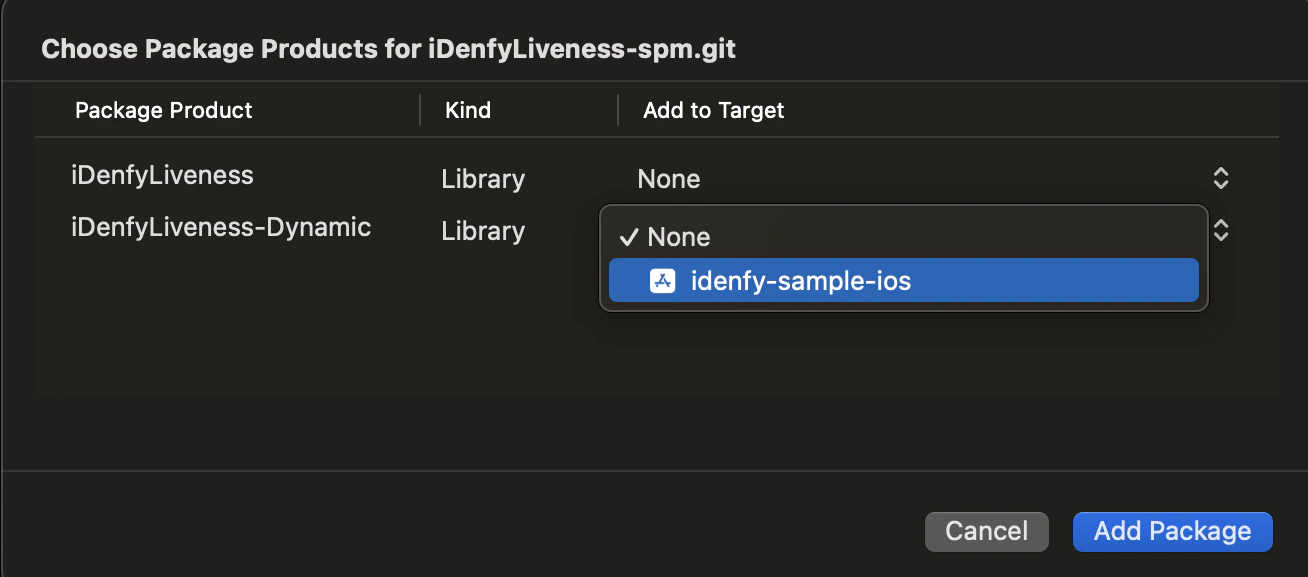
We strongly recommend choosing an exact version of the latest SDK.
2. Select the libraryChoose either static or dynamic versions of the SDK and add the package.Embed & Sign
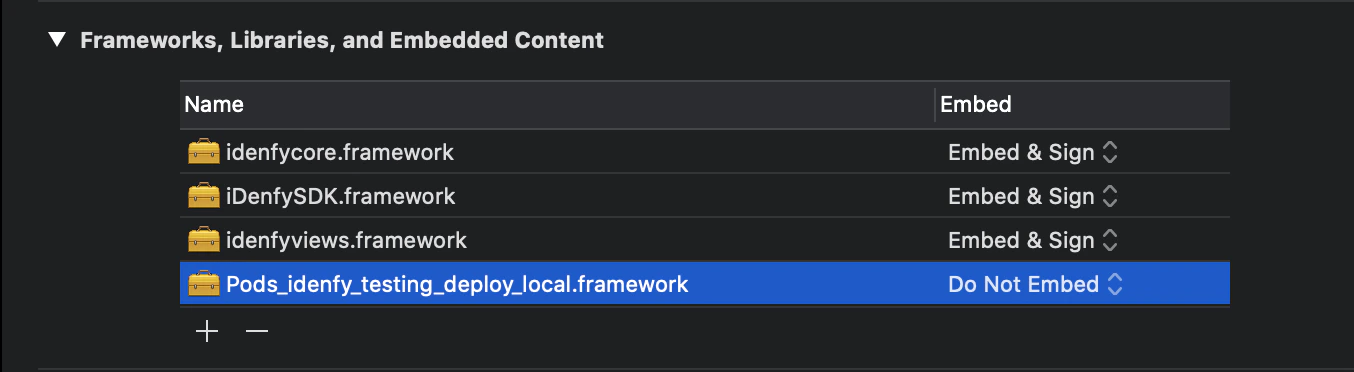
If you are using the dynamic framework, make sure you have embedded and signed it in your application.
Embed & Sign
To use the localized version of the liveness feature, add FaceTec.strings to your app module. Otherwise, the localization will not work. iDenfy Assets can be found at the following URL. Strings are located in ../IdenfyAssets/IdenfyStrings folder.
CocoaPods
1. Add dependencyAdd the following line to your Podfile with the latest version. The latest version is accessible from the changelog.Base iDenfySDK dependency:
pod 'iDenfySDK', '8.8.1'
iDenfySDK with Advanced Liveness detection feature:
pod 'iDenfySDK/iDenfyLiveness', '8.8.1'
iDenfySDK with Advanced Liveness detection and Document blur glare detection features:
pod 'iDenfySDK/iDenfyBlurGlareDetection', '8.8.1'
iDenfySDK with Advanced Liveness detection, Document blur glare detection and NFC Reading features:
pod 'iDenfySDK/iDenfyNFCReading', '8.8.1'
iDenfySDK with Advanced Liveness detection, Document blur glare detection, NFC Reading and Document Auto Capture features:
pod 'iDenfySDK/iDenfyRecognition', '8.8.1'
If you are not overriding any custom views or applying customization, you can use the dynamic version. If you did make layout changes, do not use the dynamic version, since runtime crashes can occur.
pod 'iDenfySDK/iDenfyLiveness'
2. Update podsRun pod install to install iDenfySDK or pod update to update the current iDenfySDK.
After installing the SDK you may face some compile errors related to CocoaPods. To solve them, read the troubleshooting guide.
Manual
1. Download iDenfySDKDownload the latest iDenfySDK build.2. Include required modulesCopy all frameworks from the IdenfyLiveness folder into your app target folder.
To use the localized version of the liveness feature, add FaceTec.strings to your app module. Otherwise, the localization will not work. Strings are located in ../iDenfySDK/IdenfyAssets/IdenfyStrings.
3. Embed & SignEmbed and sign the included frameworks.Embed & Sign4. Include internal dependenciesiDenfySDK uses several internal dependencies. Your project should also include those dependencies using CocoaPods or any other preferred method.
If you face compile issues please read the troubleshooting guide.
9
Troubleshooting compile errors
10
If your application uses Objective-C bridging headers you might face the following compile error: using bridging headers with module interfaces is unsupported. Command CompileSwiftSources failed with a nonzero exit code.

11
12
To solve this error, change the post_install script:
13
post_install do |installer|
    installer.pods_project.targets.each do |target|
        if target.name == "lottie-ios"
          target.build_configurations.each do |config|
            config.build_settings['BUILD_LIBRARY_FOR_DISTRIBUTION'] = 'YES'
        end
      end
    end
end
14
If your application has bitcode disabled and your build fails due to enabled bitcode on any of the pods, use:
15
post_install do |installer|
    installer.pods_project.targets.each do |target|
        target.build_configurations.each do |config|
            config.build_settings['ENABLE_BITCODE'] = 'NO'
        end
    end
end
16
Configure the SDK
17
Provide the following configuration:
18
Swift
let idenfySettingsV2 = IdenfyBuilderV2()
    .withAuthToken("AUTH_TOKEN")
    .build()

let idenfyController = IdenfyController.shared
idenfyController.initializeIdenfySDKV2WithManual(idenfySettingsV2: idenfySettingsV2)
Objective-C
IdenfyBuilderV2 *idenfyBuilderV2 = [[IdenfyBuilderV2 alloc] init];
idenfyBuilderV2 = [idenfyBuilderV2 withAuthToken:authToken];

IdenfySettingsV2 *idenfySettingsV2 = [idenfyBuilderV2 build];

IdenfyController *idenfyController = [IdenfyController shared];
[idenfyController initializeIdenfySDKV2WithManualWithIdenfySettingsV2:idenfySettingsV2];
19
Present the ViewController
20
UIKit:
21
Swift
let idenfyVC = idenfyController.instantiateNavigationController()
self.present(idenfyVC, animated: true, completion: nil)
Objective-C
UINavigationController *idenfyVC = [idenfyController instantiateNavigationController];
[self presentViewController:idenfyVC animated:YES completion:nil];
22
SwiftUI:
23
To initialize the SDK in a SwiftUI project, create a UIViewControllerRepresentable and present it in your view:
24
struct iDenfySDKUIViewController: UIViewControllerRepresentable {

    let authToken: String

    init(_ token: String) {
        self.authToken = token
    }

    func makeUIViewController(context: Context) -> IdenfySDKNavigationController {
        return initializeIdenfySDKDefault(authToken: authToken)
    }

    func updateUIViewController(_ viewController: IdenfySDKNavigationController, context: Context) {
        //update Content
    }

    private func initializeIdenfySDKDefault(authToken: String) -> IdenfySDKNavigationController {
        let idenfyUISettingsV2 = IdenfyUIBuilderV2()
            .build()

        let idenfySettingsV2 = IdenfyBuilderV2()
            .withAuthToken(authToken)
            .withUISettingsV2(idenfyUISettingsV2)
            .build()

        let idenfyController = IdenfyController.shared
        idenfyController.initializeIdenfySDKV2WithManual(idenfySettingsV2: idenfySettingsV2)

        handleSDKResults(idenfyController)
        return idenfyController.instantiateNavigationController()
    }
}
25
Full initialization code of iDenfySDK using SwiftUI is available in the sample application.
26
Handle verification callbacks
27
The SDK provides the idenfyIdentificationResult callback class.
28
If your service uses only the automatic (default) callback, then you should only check idenfyIdentificationResult.autoIdentificationStatus.
29
With getIdenfyResultWithDismiss method
30
     /// Returns user's verification result in the UIViewController dismiss completion webhook.
    private func handleSDKResults(_ idenfyController: IdenfyController) {
        idenfyController.getIdenfyResultWithDismiss(idenfyIdentificationResult: {
            idenfyIdentificationResult
            in
            print("Auto: \(idenfyIdentificationResult.autoIdentificationStatus.rawValue), Manual: \(idenfyIdentificationResult.manualIdentificationStatus.rawValue)")
            switch idenfyIdentificationResult.autoIdentificationStatus {
            case .APPROVED:
                // The user completed an identification flow and the identification status, provided by an automated platform, is APPROVED.
                break
            case .FAILED:
                // The user completed an identification flow and the identification status, provided by an automated platform, is FAILED.
                break
            case .UNVERIFIED:
                // The user did not complete an identification flow and the identification status, provided by an automated platform, is UNVERIFIED.
                break
            @unknown default:
                break
            }

            switch idenfyIdentificationResult.manualIdentificationStatus {
            case .APPROVED:
                // The user completed an identification flow and was verified manually while waiting for the manual verification results in the iDenfy SDK. The identification status, provided by a manual review, is APPROVED.
                break
            case .FAILED:
                // The user completed an identification flow and was verified manually while waiting for the manual verification results in the iDenfy SDK. The identification status, provided by a manual review, is FAILED.
                break

            case .WAITING:
                // The user completed an identification flow and started waiting for the manual verification results in the iDenfy SDK. Then he/she decided to stop waiting and pressed a "BACK TO ACCOUNT" button. The manual identification review is still ongoing.
                break

            case .INACTIVE:
                // The user was only verified by an automated platform, not by a manual reviewer. The identification performed by the user can still be verified by the manual review if your system uses the manual verification service.
                break
            @unknown default:
                break
            }

        })
    }

Callback status reference

autoIdentificationStatus

NameDescription
APPROVEDThe user completed a verification flow and the verification status, provided by an automated platform, is APPROVED.
FAILEDThe user completed a verification flow and the verification status, provided by an automated platform, is FAILED.
UNVERIFIEDThe user did not complete a verification flow and the verification status, provided by an automated platform, is UNVERIFIED.

manualIdentificationStatus

NameDescription
APPROVEDThe user completed a verification flow and was verified manually while waiting for the manual verification results in the iDenfy SDK. The verification status, provided by a manual review, is APPROVED.
FAILEDThe user completed a verification flow and was verified manually while waiting for the manual verification results in the iDenfy SDK. The verification status, provided by a manual review, is FAILED.
WAITINGThe user completed a verification flow and started waiting for the manual verification results in the iDenfy SDK. Then he/she decided to stop waiting and pressed a “BACK TO ACCOUNT” button. The manual verification review is still ongoing.
INACTIVEThe user was only verified by an automated platform, not by a manual reviewer. The verification performed by the user can still be verified by the manual review if your system uses the manual verification service.
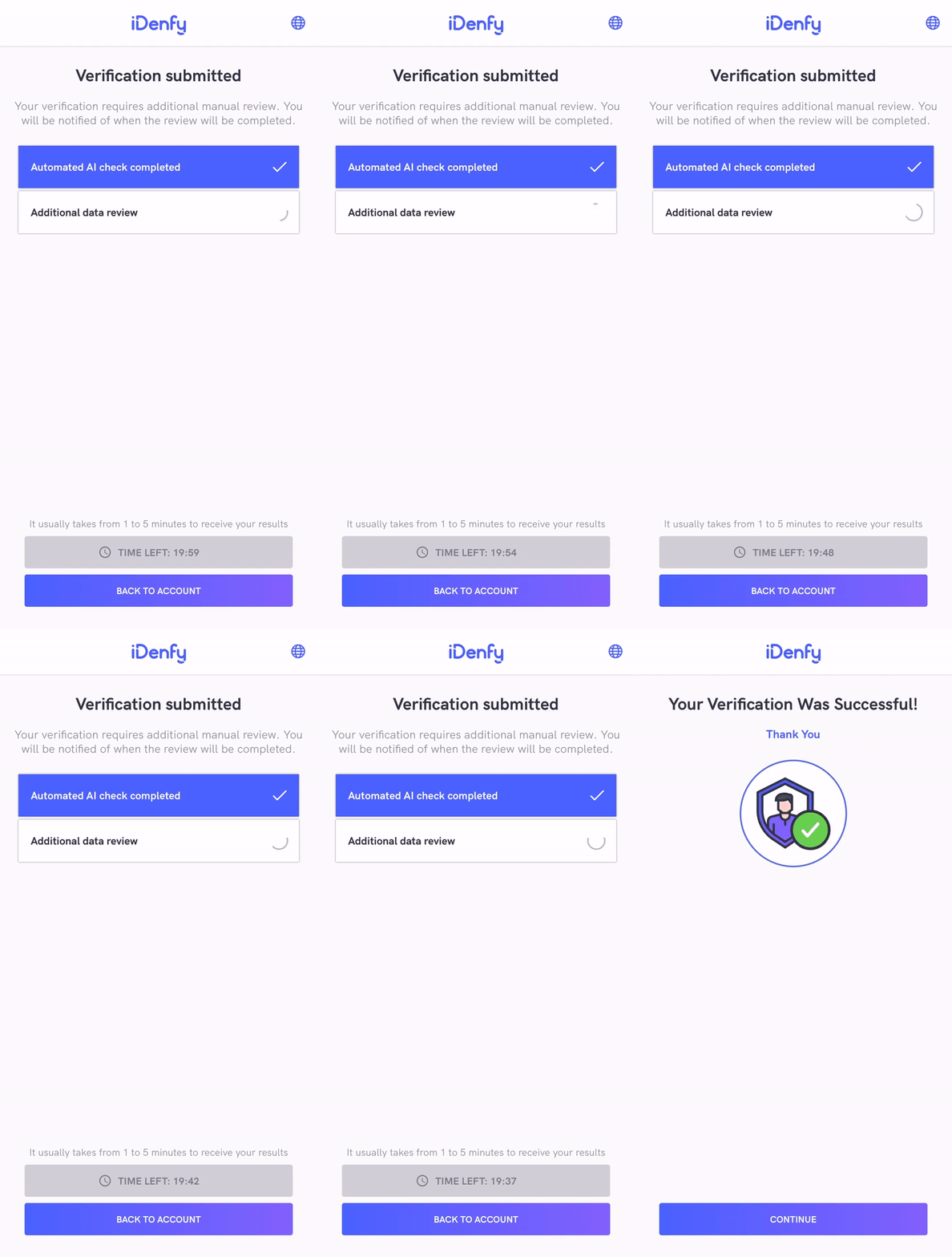
The manualIdentificationStatus always returns INACTIVE unless your system implemented manual verification flow (step 11). The manual verification screen looks like this:Manual flowTo disable it, refer to the immediate redirect feature.
These SDK statuses are the same as iFrame integration statuses. The only difference is that the SDK returns INACTIVE if the manual verification screen was not opened during the verification session, instead of returning null as the iFrame does. Also, the iFrame does not close automatically since it can deliver results without closing itself.
After the SDK finishes and closes itself, you will also receive a webhook callback to your backend system.It might be useful to completely ignore the SDK status and communicate between your app and your backend service about verification status.

Samples

Our UIKit sample and SwiftUI sample applications demonstrate the integration of the iDenfy SDK.

FAQ

1. Is there a possibility to change the verification results view? Yes, you can achieve this by providing a custom waiting view controller. 2. How to change the position of the top titles? Any component and its properties can be changed by supplying your implementation of UIView. 3. How do I report an issue within the SDK? Please report any issue via the Jira customer portal. Attach the SDK and Xcode versions you are using, and describe the problem in as much detail as possible. 4. When I override liveness fonts, the size does not change. Why is that? Liveness font size is dynamically determined according to the screen resolution, and it cannot be manually changed. 5. What if Apple Review team denies our application because of iDenfy SDK?
  • Check the iDenfy privacy policy for possible answers.
  • If Apple Review team asks for a demo of NFC functionality, provide the following video.