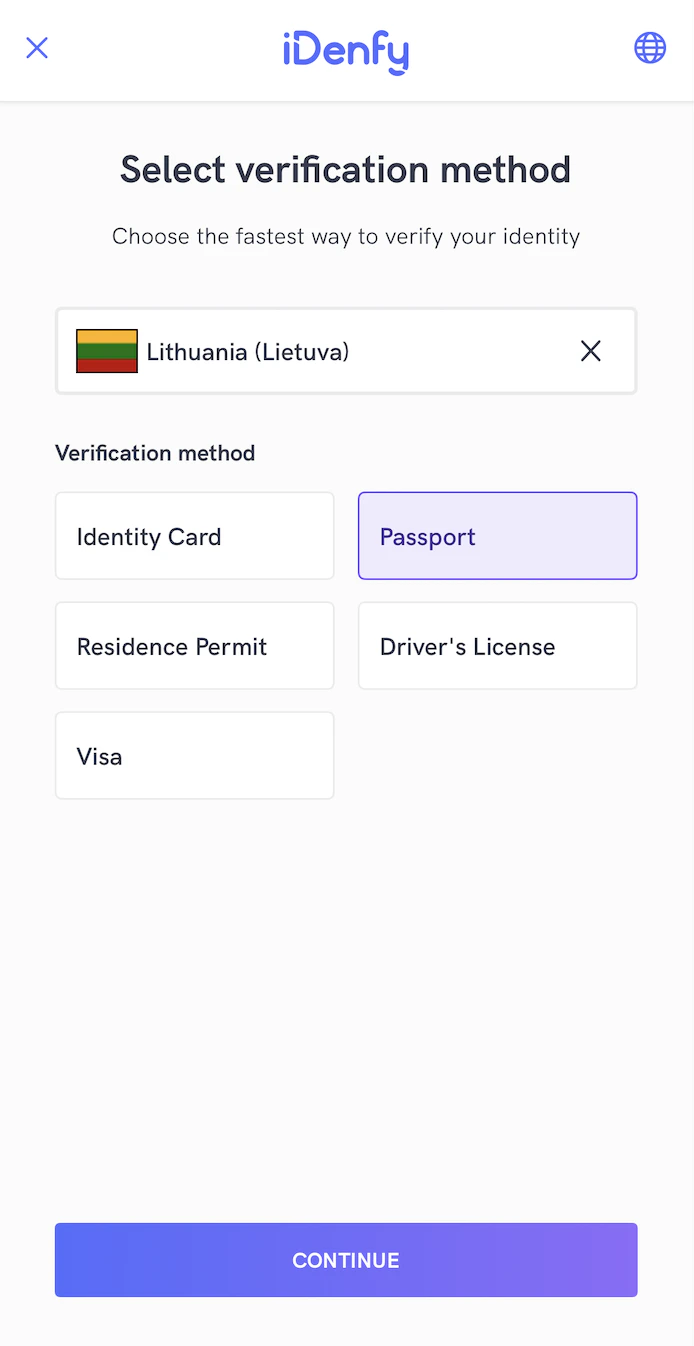
The iOS SDK provides various customization options with programming code.

Getting started

Create IdenfyUISettings

Create an instance of the IdenfyUISettingsV2 class:
let idenfyUISettings = IdenfyUIBuilderV2()
    .build()

Update IdenfyUISettingsV2

let idenfySettings = IdenfyBuilderV2()
    .withUISettings(idenfyUISettings)
    ...
    .build()
    

Customization options

Customization with IdenfyUISettingsV2

Camera OnBoarding view

    IdenfyUIBuilderV2()
    /**
     Camera OnBoarding View acts as additional step(single or multiple), which helps user to familiarize himself with identification process
     - Parameter idenfyOnBoardingViewType: sets camera onBoarding  view type
     */
    .withOnBoadringViewType(_ idenfyOnBoardingViewType: IdenfyOnBoardingViewTypeEnum)
    ...
The possible options of the Camera OnBoarding View:
IdenfyOnBoardingViewTypeEnumDescriptionUI
noneOnBoarding view is skipped
multipleStaticShows an onBoarding view before EVERY step of the verification process with a static instruction list (default from 7.x)Multiple Static

Language selection

    IdenfyUIBuilderV2()
    /**
     Enables language selection window, which provides option to change locale
     - Parameter isLanguageSelectionNeeded: changes visibility of locale selection
     */
    .withLanguageSelection(_ isLanguageSelectionNeeded: Bool)
    ...

Document camera rectangle visibility

Since some documents are non-regular size, you can hide the camera rectangle. This way the whole screen is dedicated to document capturing. The rectangle can be hidden for all document types:
    IdenfyUIBuilderV2()
    /**
     * Camera rectangle will be hidden for ALL countries and document types
     */
    .withDocumentCameraFrameVisibility(DocumentCameraFrameVisibility.hiddenForAllCountriesAndDocumentTypes)
    ...
Or for specific countries and document types:
    var countryDocumentMap: [String: [DocumentTypeEnum]] = [:]
    countryDocumentMap["LT"] = [DocumentTypeEnum.PASSPORT]
    ...
        
    let documentCameraFrameVisibility = DocumentCameraFrameVisibility.hiddenForSpecificCountriesAndDocumentTypes(countryDocumentMap: countryDocumentMap)

    IdenfyUIBuilderV2()
    /**
    * Camera rectangle will be hidden ONLY for Lithuanian passport
    */
    .withDocumentCameraFrameVisibility(documentCameraFrameVisibility)
    ...

Idenfy toolbar

You can hide the iDenfy toolbar:
    IdenfyUIBuilderV2()
    /**
     * An option to hide idenfy toolbar
     */
    .withIdenfyToolbarHidden()
    ...

Customization by changing views from idenfyviews module

All UI elements are located in the separate module idenfyviews. Classes are marked as public, so you can override them. 1. Including idenfyviews:
import idenfyviews
2. Applying customization: Take for example IdenfyDocumentSelectionViewUISettingsV2 settings:
@objc open class IdenfyDocumentSelectionViewUISettingsV2: NSObject {

  // Idenfy Document Selection View Colors
  @MainActor @objc public static var idenfyDocumentSelectionViewBackgroundColor = IdenfyCommonColors.idenfyBackgroundColorV2
  @MainActor @objc public static var idenfyDocumentSelectionViewTitleTextColor = IdenfyCommonColors.idenfySecondColorV2
  @MainActor @objc public static var idenfyDocumentSelectionViewDescriptionTextColor = IdenfyCommonColors.idenfySecondColorV2
  @MainActor @objc public static var idenfyDocumentSelectionViewDocumentTableViewBorderColor = IdenfyCommonColors.idenfySecondColorV2.withAlphaComponent(0.06)
  @MainActor @objc public static var idenfyDocumentSelectionViewDocumentTableViewBackgroundColor = IdenfyCommonColors.idenfyWhite
  @MainActor @objc public static var idenfyDocumentSelectionViewDocumentTableViewCellBackgroundColor = IdenfyCommonColors.idenfyWhite
  @MainActor @objc public static var idenfyDocumentSelectionViewDocumentTableViewCellBorderColor = IdenfyCommonColors.idenfySecondColorV2.withAlphaComponent(0.06)
  @MainActor @objc public static var idenfyDocumentSelectionViewDocumentTableViewCellTitleTextColor = IdenfyCommonColors.idenfySecondColorV2
  @MainActor @objc public static var idenfyDocumentSelectionViewDocumentTableViewCellHighlightedTextColor = IdenfyCommonColors.idenfyWhite
  @MainActor @objc public static var idenfyDocumentSelectionViewDocumentTableViewCellHighlightedBackgroundColor = IdenfyCommonColors.idenfyMainColorV2
  @MainActor @objc public static var idenfyDocumentSelectionViewContinueButtonDisabledTextColor = IdenfyCommonColors.idenfySecondColorV2.withAlphaComponent(0.5)
  @MainActor @objc public static var idenfyDocumentSelectionViewContinueButtonDisabledBackgroundColor = IdenfyCommonColors.idenfySecondColorV2.withAlphaComponent(0.2)
  @MainActor @objc public static var idenfyDocumentSelectionViewContinueButtonEnabledTextColor = IdenfyCommonColors.idenfyWhite

  // Idenfy Document Selection View Fonts
  @MainActor @objc public static var idenfyDocumentSelectionViewTitleFont = UIFont(name: ConstsIdenfyFonts.idenfyFontBoldV2, size: 22)
  @MainActor @objc public static var idenfyDocumentSelectionViewDescriptionFont = UIFont(name: ConstsIdenfyFonts.idenfyFontRegularV2, size: 13)
  @MainActor @objc public static var idenfyDocumentSelectionViewDocumentTypeFont = UIFont(name: ConstsIdenfyFonts.idenfyFontRegularV2, size: 13)
  @MainActor @objc public static var idenfyDocumentSelectionViewDocumentTypeHighlightedFont = UIFont(name: ConstsIdenfyFonts.idenfyFontBoldV2, size: 13)

  // Idenfy Document Selection View Style
  @MainActor @objc public static var idenfyDocumentSelectionViewDocumentTableViewBorderWidth = CGFloat(2)
  @MainActor @objc public static var idenfyDocumentSelectionViewDocumentTableViewCornerRadius = CGFloat(3)
  @MainActor @objc public static var idenfyDocumentSelectionViewDocumentTableViewCellBorderWidth = CGFloat(2)
  @MainActor @objc public static var idenfyDocumentSelectionViewDocumentTableViewCellHeight = CGFloat(56)
}

You can customize it as follows:
    IdenfyDocumentSelectionViewUISettingsV2.idenfyDocumentSelectionViewBackgroundColor = UIColor.red
    IdenfyDocumentSelectionViewUISettingsV2.idenfyDocumentSelectionViewTitleTextColor = UIColor.red
UI Settings classes of all the views can be found in the repository.

Applying SDK-wide color changes

If color and asset changes are the only requirement, they can be easily customized by changing the main colors.
Color nameDescriptionDefault color value
idenfyMainColorV2Defines the color of most single-colored assets and focused parts in the SDK.#536DFE
idenfyMainDarkerColorV2Defines the color of some focused parts in the SDK, similar to idenfyMainColorV2.#5D7CE4
idenfyBackgroundColorV2Defines the background color.#FBFBFB
idenfySecondColorV2Defines the text color.#F2353B4E
Example:
    IdenfyCommonColors.idenfyMainColorV2 = UIColor.green
    IdenfyCommonColors.idenfyMainDarkerColorV2 = UIColor.green
Colors are also applied to images that use a single color from IdenfyImagesV2.xcassets. If you override the provided images with icons using more than one color, you can disable the tint by setting color values to nil:
    IdenfyToolbarUISettingsV2.idenfyDefaultToolbarLogoIconTintColor = nil
    IdenfyToolbarUISettingsV2.idenfyDefaultToolbarBackIconTintColor = nil
    IdenfyToolbarUISettingsV2.idenfyLanguageSelectionToolbarLanguageSelectionIconTintColor = UIColor.yellow
    IdenfyToolbarUISettingsV2.idenfyLanguageSelectionToolbarCloseIconTintColor = nil
    IdenfyToolbarUISettingsV2.idenfyCameraPreviewSessionToolbarBackIconTintColor = nil
    IdenfyIdentificationResultsViewUISettingsV2.idenfyIdentificationResultsDividerIconStatusErrorTintColor = nil
    IdenfyIdentificationResultsViewUISettingsV2.idenfyIdentificationResultsDividerIconStatusLoadingTintColor = nil

Applying custom fonts

Custom fonts can be passed to the SDK (make sure the font files exist in your bundle):
   ConstsIdenfyFonts.customFontBoldFileName = "Inter-Bold.ttf"
   ConstsIdenfyFonts.customFontSemiBoldFileName = "Inter-SemiBold.ttf"
   ConstsIdenfyFonts.customFontRegularFileName = "Inter-Regular.ttf"

Customization by providing supplying your own implementations of UIViews protocol

For more advanced customization (fonts, constraints, layout structure, etc.), you can override the SDK layouts by providing your own implementations. All views used in the SDK are located in the idenfyviews module and expose public protocols. 1. Create an instance of IdenfyViewsV2 Use IdenfyViewsBuilderV2 to create an instance of IdenfyViewsV2 with your custom views that conform to the protocols provided by the SDK:
let idenfyViewsV2:IdenfyViewsV2 = IdenfyViewsBuilderV2()
            .withSplashScreenV2View(SplashScreenV2View())
            ...
            .build()
2. Initialize iDenfySDK with an instance of IdenfyViewsV2
 idenfyController.initializeIdenfySDKV2WithManual(idenfySettingsV2: idenfySettingsV2, idenfyViewsV2: idenfyViewsV2)
All iDenfy viewables and their implementations can be found in the sample application.
If you need very custom issuing country or document selection screens or want to merge them into a single screen, it is always better to use the skipping views customization options.
If you need a very custom verification results screen, it is better to use the CustomWaitingViewController solution.

Customization by providing a CustomWaitingViewController

To fully customize your verification results waiting view, you can pass your own view controller.
After supplying your own implementation of the results ViewController, the SDK will not load its own ViewController and will navigate directly to your own VC.
You can then control when and after which additional steps you want to retry the verification session: Custom vc 1. Create a class that implements IdenfyInProcessIdentificationResultsDelegate Pass an instance of your created class to the initializeWithCustomWaitingViewController() method of IdenfyController:
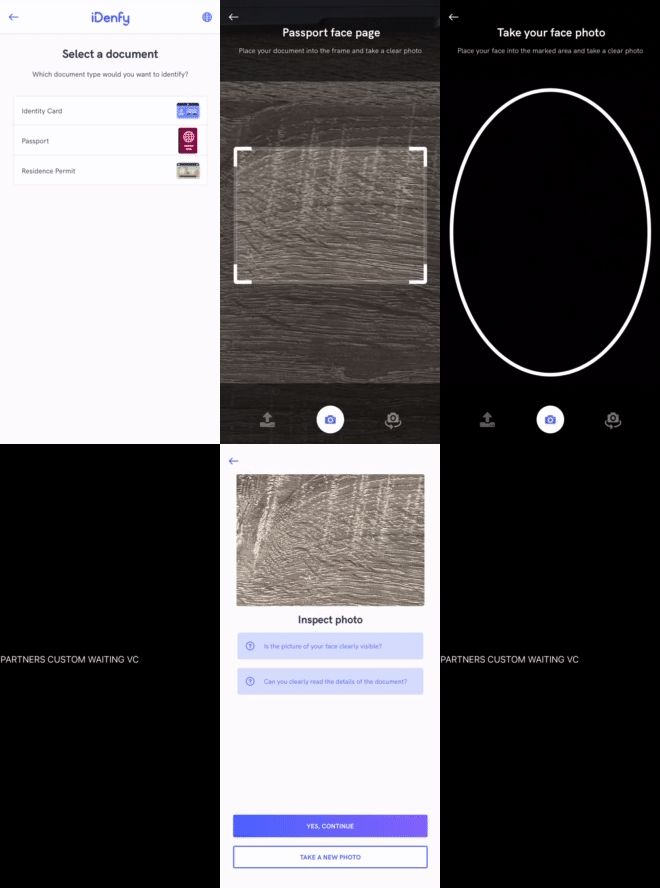
idenfyController.initializeWithCustomWaitingViewController(idenfySettingsV2: idenfySettingsV2, idenfyInProcessIdentificationResultsDelegate: idenfyInProcessIdentificationResultsDelegateImpl())
2. Create an instance of your CustomWaitingViewController Return the created instance in the onIdenfyFlowFinished() method of your IdenfyInProcessIdentificationResultsDelegate implementation:
    /**
     - Parameter idenfyIdentificationResultStatus: returns a current verification status. This status is updated until FINISHED is returned.
     */
    func onIdenfyFlowFinished(idenfyFlowSettings _: IdenfyFlowSettings) -> CustomWaitingViewController {
            return CustomWaitingViewController.ViewControllerProvided(vc: PartnersCustomWaitingViewController())
    }
For details regarding the verification process, see IdenfyFlowSettings:
/**
 Has set of properties for providing information about user verification flow.
 */
public struct IdenfyFlowSettings {
    /**
    Provides an array of steps used during the verification process.
     */
    public let identificationSteps: [Step]
}
3. Call a static method of IdenfyController to continue the flow Your IdenfyInProcessIdentificationResultsDelegate implementation has an onIdentificationStatusReceived() method that returns an IdenfyIdentificationResultStatus. When IdenfyIdentificationStatus is FINISHED, call the static continueFlow() method of IdenfyController:
    /**
     - Parameter idenfyIdentificationResultStatus: returns a current verification status. This status is updated until FINISHED is returned.
     */
    func onIdentificationStatusReceived(idenfyIdentificationResultStatus: IdenfyIdentificationResultStatus) {
        switch idenfyIdentificationResultStatus.idenfyProcessingResultState {
        case .FINISHED(canRetry: _, retakeSteps: _):
            IdenfyController.continueFlow()
            break
        case .PROCESSING:
            break
        }
    }
IdenfyIdentificationResultStatus contains all information about the current state of verification results:
public class IdenfyIdentificationResultStatus {
    public let idenfyIdentificationStatus: IdenfyIdentificationStatus
    public let idenfyProcessingResultState: IdenfyProcessingResultState
    
    public init(idenfyIdentificationStatus: IdenfyIdentificationStatus, idenfyProcessingResultState: IdenfyProcessingResultState) {
        self.idenfyIdentificationStatus = idenfyIdentificationStatus
        self.idenfyProcessingResultState = idenfyProcessingResultState
    }
}

public enum IdenfyProcessingResultState {
    case PROCESSING
    case FINISHED(canRetry: Bool, retakeSteps: RetakeSteps?)
}

public enum IdenfyIdentificationStatus: String, Codable {
    case APPROVED
    case DENIED
    case SUSPECTED
    case REVIEWING
    case UNKNOWN
}

Customization with IdenfyUISettingsV2

Adding instructions in camera session

The SDK provides informative instructions during the verification session. They can help tackle common issues: bad lighting, wrong document side, etc. Instructions can be customized by changing all UI elements or even using your MP4 video files. Using IdenfyInstructionsEnum dialog: Instructions Dialog Using IdenfyInstructionsEnum none: Instructions None Enable instructions in IdenfyUISettingsV2:
  let idenfyUISettingsV2 = IdenfyUIBuilderV2()
            .withInstructions(IdenfyInstructionsEnum.dialog)
            .build()

Liveness Customization

The SDK provides additional liveness customization.

1. Creating IdenfyLivenessUIHelper

let idenfyLivenessUISettings = IdenfyLivenessUISettings()

2.1 Applying regular settings

If you only need color, text, or width customization, you can use properties from the IdenfyLivenessUISettings class:
    @objc public class IdenfyLivenessUISettings: NSObject {
    // Used for different ui parts
    public var idenfyLivenessPrimaryColor = UIColor.white
    public var idenfyLivenessAccentColor = UIColor(red: 139 / 255.0, green: 199 / 255.0, blue: 224 / 255.0, alpha: 1.0)
    public var idenfyLivenessTextColor = UIColor.black

    // Liveness session feedback settings
    public var livenessFeedbackBackgroundColor = UIColor(red: 139 / 255.0, green: 199 / 255.0, blue: 224 / 255.0, alpha: 1.0)
    public var livenessFeedbackFont: UIFont = UIFont(name: ConstsIdenfyFonts.idenfyFontBoldV2, size: 18) ?? UIFont.boldSystemFont(ofSize: 18)
    public var livenessFeedbackFontSizeMobile: CGFloat?
    public var livenessFeedbackFontSizeTablet: CGFloat?
    public var livenessFeedbackFontColor: UIColor?

    // Liveness session frame settings
    public var livenessFrameBackgroundColor: UIColor = UIColor.black.withAlphaComponent(0.72)
    public var livenessFrameColor: UIColor?
    public var livenessFrameWidth: Int32? = 0
    
    //Liveness session cancel button settings
    public var livenessCancelButtonImage = UIImage(named: "idenfy_ic_liveliness_camera_session_cancel_image", in: Bundle(identifier: "com.idenfy.idenfysdk"), compatibleWith: nil)

    // Liveness session progress settings
    public var livenessIdentificationOvalProgressColor1 = UIColor(red: 139 / 255.0, green: 199 / 255.0, blue: 224 / 255.0, alpha: 1.0)
    public var livenessIdentificationProgressStrokeColor = UIColor(red: 139 / 255.0, green: 199 / 255.0, blue: 224 / 255.0, alpha: 1.0)
    public var livenessIdentificationOvalProgressColor2 = UIColor(red: 139 / 255.0, green: 199 / 255.0, blue: 224 / 255.0, alpha: 1.0)
    public var livenessIdentificationProgressStrokeWidth: Int32 = 4
    public var livenessIdentificationStrokeWidth: Int32 = 3
    public var livenessIdentificationProgressRadialOffset: Int32 = 6
    // Liveness session overlay settings
    public var livenessOverlayBrandingImage = UIImage(named: "idenfy_ic_liveliness_overlay_branding_image", in: Bundle(identifier: "com.idenfy.idenfysdk"), compatibleWith: nil)

    // Liveness ready screen settings
    public var livenessReadyScreenForegroundColor: UIColor?
    public var livenessReadyScreenBackgroundColors: [UIColor]?
    public var livenessReadyScreenTextBackgroundColor: UIColor?
    public var livenessReadyScreenButtonBorderColor: UIColor?
    public var livenessReadyScreenButtonBorderWidth: Int32? = 1
    public var livenessReadyScreenButtonCornerRadius: Int32? = 4
    public var livenessReadyScreenButtonBackgroundNormalColor: UIColor?
    public var livenessReadyScreenButtonBackgroundHighlightedColor: UIColor?
    public var livenessReadyScreenShowBrandingImage: Bool? = true
    
    //Camera permissions screen
    public var livenessCameraPermissionsScreenImage = UIImage(named: "idenfy_ic_liveliness_camera_permissions_screen_image", in: Bundle(identifier: "com.idenfy.idenfysdk"), compatibleWith: nil)

    // Liveness result screen settings
    public var livenessResultScreenForegroundColor: UIColor?
    public var livenessResultScreenIndicatorColor: UIColor?
    public var livenessResultScreenUploadProgressFillColor: UIColor?
    public var livenessResultScreenUploadProgressTrackColor: UIColor?
    public var livenessResultScreenShowUploadProgressBar: Bool? = true
    public var livenessResultScreenResultAnimationSuccessBackgroundImage = UIImage(named: "idenfy_ic_liveliness_results_success_icon_background", in: Bundle(identifier: "com.idenfy.idenfysdk"), compatibleWith: nil)


    public var livenessCustomUISettings: FaceTecCustomization?

    // ID check customization
    public var livenessIdCheckCustomization = LivenessIdCheckCustomization()

    }
LivenessIdCheckCustomization:
@objc public class LivenessIdCheckCustomization: NSObject {
    public var buttonBackgroundNormalColor: UIColor?
    public var buttonBackgroundHighlightColor: UIColor?
    public var captureScreenTextBackgroundColor: UIColor?
    public var reviewScreenTextBackgroundColor: UIColor?
    public var captureFrameStrokeColor: UIColor?
}

2.2 Applying full customization

If you require more changes, you can directly set the livenessCustomUISettings property in IdenfyLivenessUISettings with your instance of the FaceTecCustomization class:
    idenfyLivenessUISettings.livenessCustomUISettings = FaceTecCustomization()
Full customization options are available here.
This will override all other set properties of the IdenfyLivenessUISettings class.

3. Updating IdenfyUISettings

      let idenfyUISettings = IdenfyUIBuilder()
            .withLivenessUISettings(idenfyLivenessUISettings)
            ...
            .build()