Initiating a Review
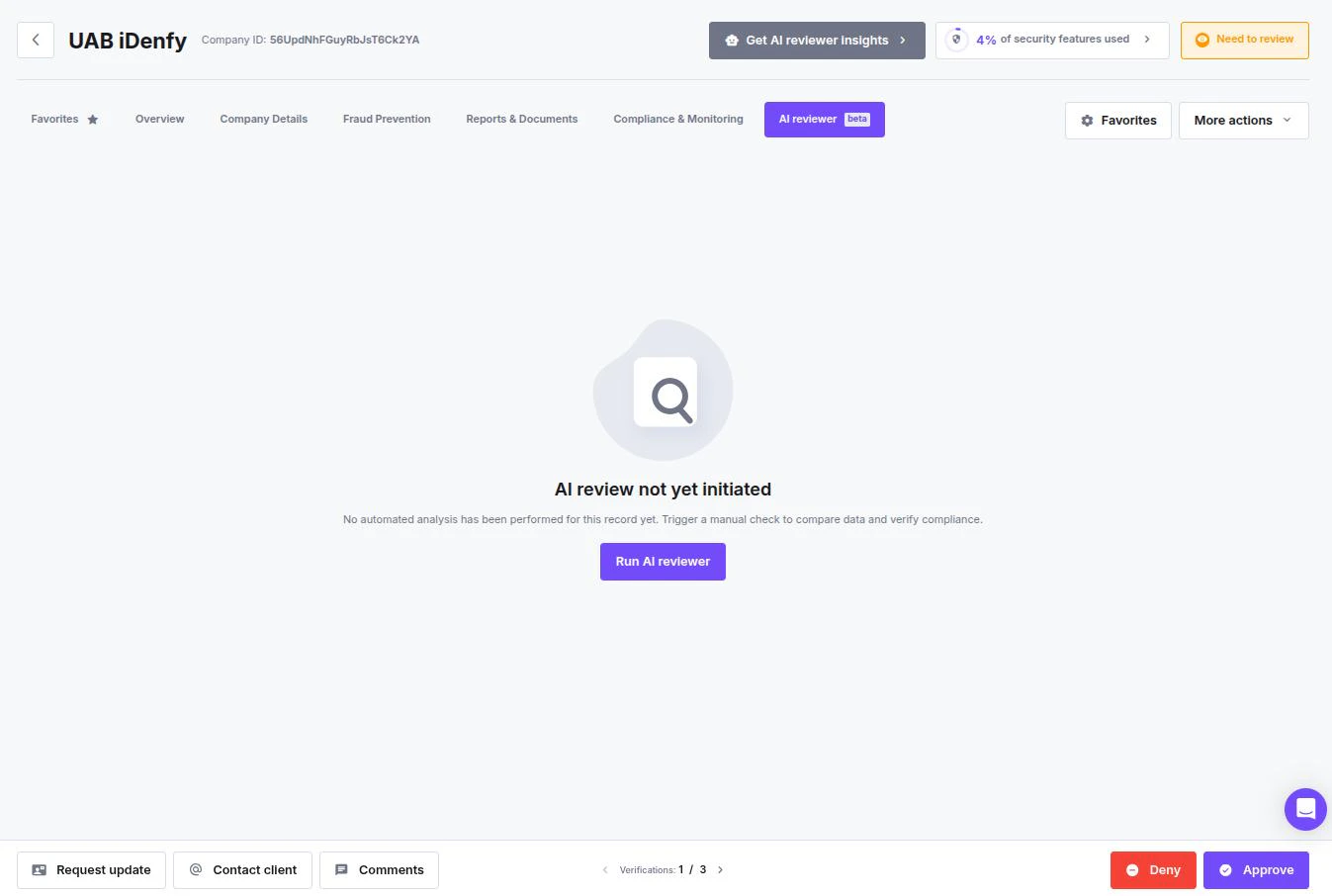
If the automated analysis has not been triggered yet, the main window will display an “AI review not yet initiated” status.- To start the process, Click the Run AI reviewer button in the center of the screen.
- Alternative: You can also click the Get AI reviewer insights button located in the top header next to the company status.
Feature enablingTo use this feature, you first need settings enabled and an AI flow set up.
AI Review Results
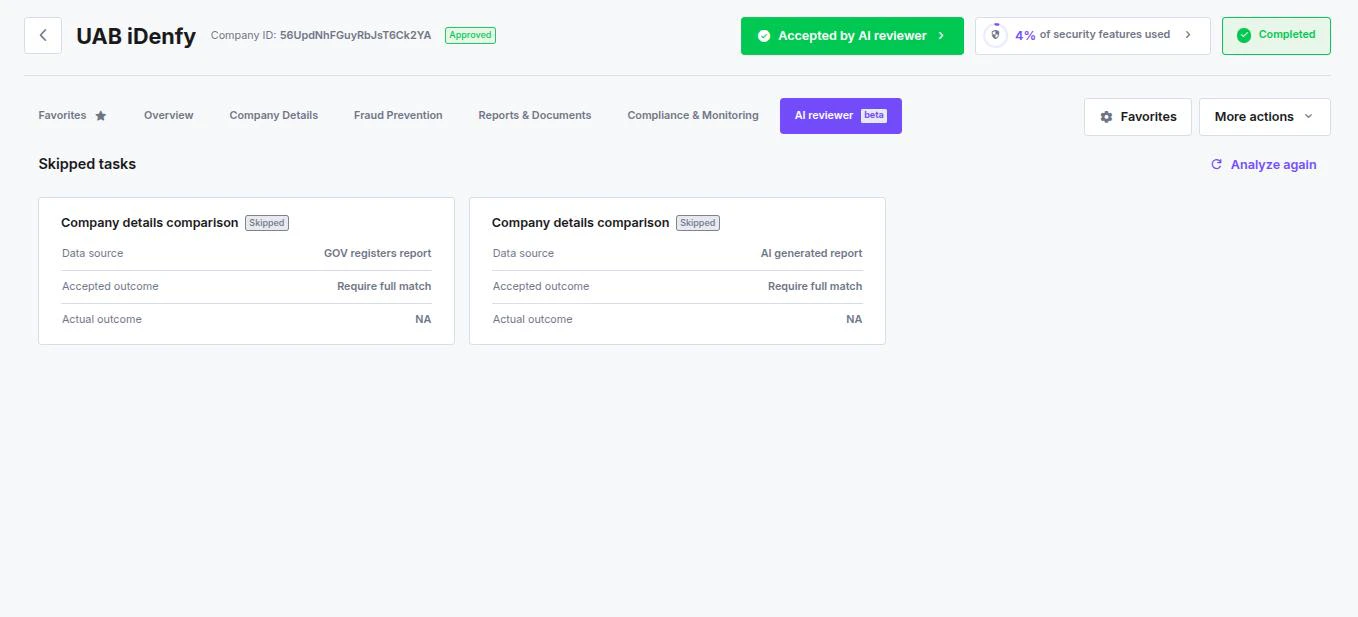
Once the AI Reviewer finishes its analysis, the interface updates to reflect the automated decision. You can verify the outcome using the status indicators and detailed task cards.Verifying the Outcome
Immediately assess the general result at the top of the company profile:- Company Status Badge: Look for the green Approved badge next to the Company ID.
- AI Decision Button: A green button labeled Accepted by AI reviewer indicates that the automation logic successfully cleared the entity.
Analyzing Specific Tasks
In the AI reviewer tab, the system breaks down the individual rules that were processed. Understanding Task Cards: Each comparison rule is displayed as a card.- Skipped tasks: If the AI could not perform a check (e.g., data was missing or the specific report wasn’t available), the task is marked as Skipped.
- Actual outcome: Displays the result of the check. If skipped, this will show NA.
- Analyze again: If you have updated data or fixed a configuration, click the Analyze again icon to re-run the specific check.