General Settings
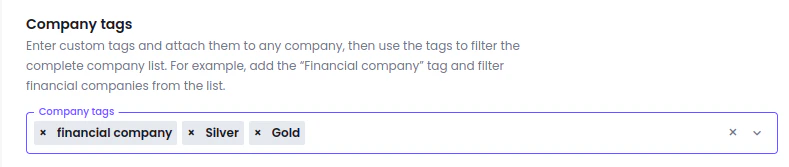
- Add/delete/edit the company tags
-
Configure custom tags and attach them to any company later. The tags can be linked to the specific company while generating a Business verification (KYB) session.
- Add/delete/edit the review levels - Create a custom review level and select the specific review level for the company and filter companies by review levels.

- Set the default review level
-
Select the default review level from the dropdown of our created list. The default review level will be set for new entries.

- Turn on filtering by review level
-
Enable the company status filter to filter companies by set levels.

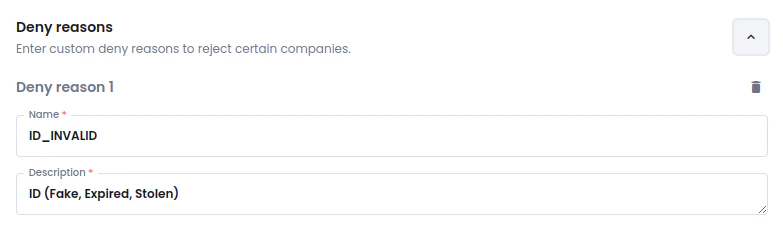
- Add/delete/edit the deny reasons
-
Customize the deny reasons and select them when denying the company. Furthermore, set the denial reasons for the automation to differentiate why the company has been denied.
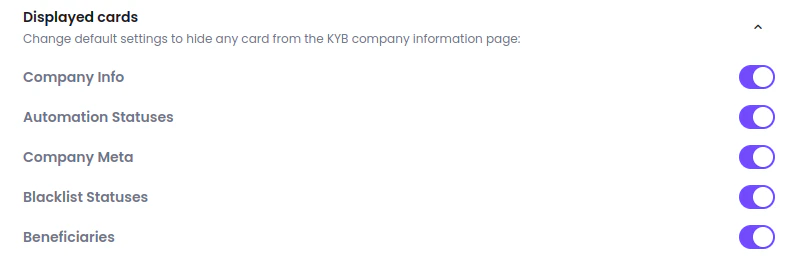
- Customize the company profile
-
Hide unimportant cards from the company profile view page.
KYB UI Settings
- Enter your company name
- Type your company name to display it on the Business verification (KYB) form.
- Adjust the background color
- Select the primary color based on your branding for our Business Verification (KYB) form
- Customize fonts
- Select/enter the custom fonts to be displayed in Business Verification (KYB) form.
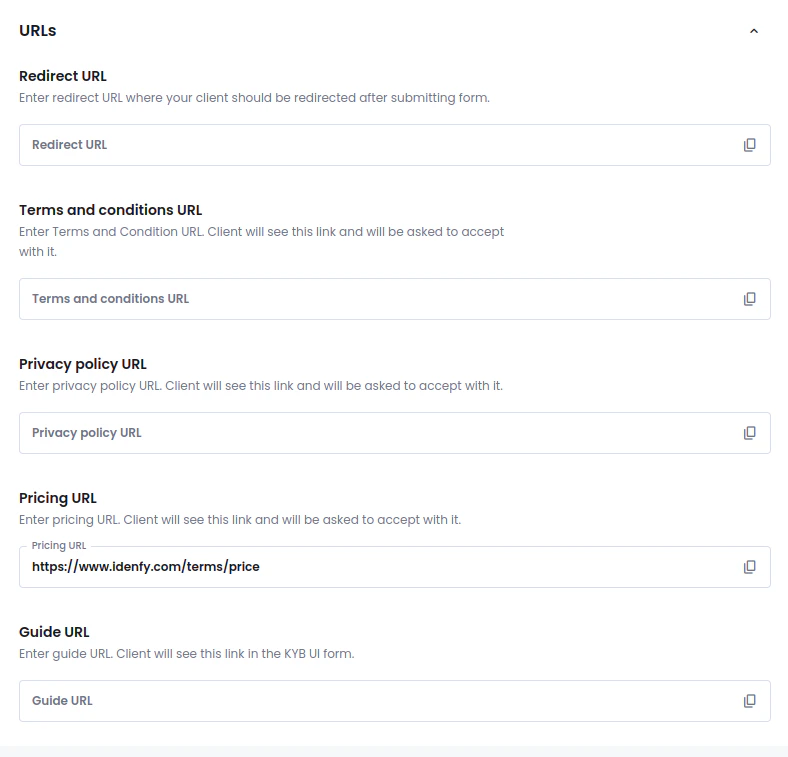
- Enter your own URLs
- Type in the URLs to be added to the Business Verification (KYB) form and let your end users see the personalized information. If the field is left empty, no information is displayed.