

Step 1: Navigate to Blocklist
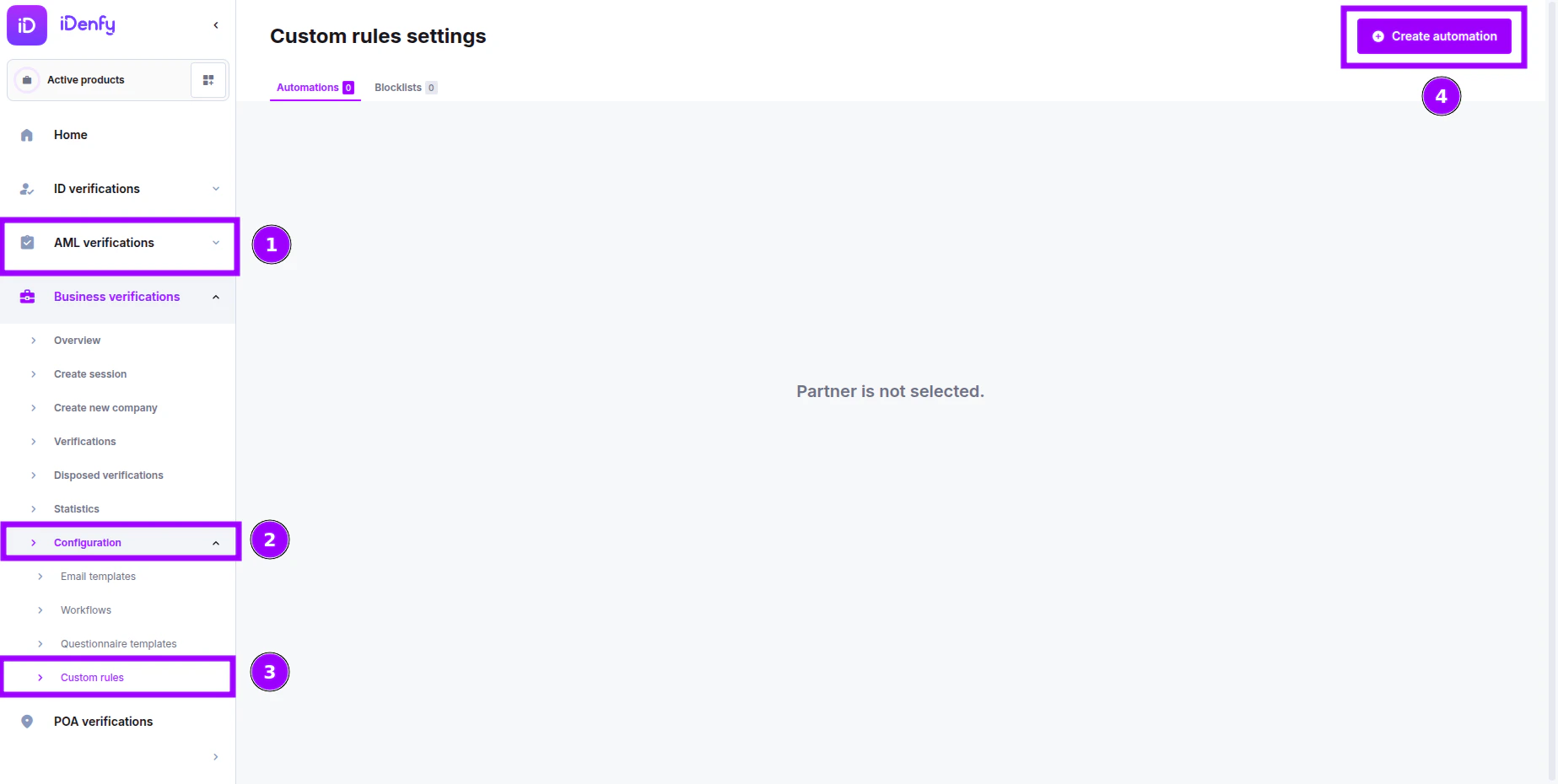
- Go to Custom Rules → Blocklist tab. You’ll find it next to the Automations tab under Configuration → Custom Rules.
- Here you can:
- View existing blocklist entries.
- Import or export lists for backup or migration.
- Click “Create Blocklist” to add a new rule.
Step 2: Create a New Blocklist Entry
Each blocklist entry consists of:- A title (for identification),
- One or more data fields used for matching,
- And an action to perform when a match is found.
Title
Give your blocklist entry a unique, descriptive name — for example:This title will help differentiate your blocklist rules later.Suspicious Lithuanian CompaniesorFraudulent Payment Domains.
Step 3: Define Matching Fields
In the Blocklist Values section, you can specify details across several categories: Company, Applicant, UBO, Representative, and Timezone. Each field is optional, but at least one must be filled.Company Information
Applicant Information
Applies to the person submitting or representing the company.UBO (Ultimate Beneficial Owner) Information
Representative Information
Timezone
Step 4: Matching Logic
Matching is strict and rule-based to ensure accuracy.- Perfect match only: No fuzzy or similarity scoring. “ABCLTD” will not match “ABC LTD” unless identical after normalization.
- Case-insensitive and accent-insensitive:
A=a,ą,Â, etc. (handled via database collation). - Empty fields count as a match: If both sides (company and blocklist) leave a field blank → it counts as matching.
- At least one field must match between the blocklist and the company data.
- Multiple blocklists: If a company matches one rule, later blocklists or automations won’t proceed when the action is Block.
Example
A match is triggered because one field (registration number) matches exactly.
Unless overridden, the action set in the blocklist will execute immediately.
Step 5: Select Action
Select what happens when a match is detected:Step 6: Save and Activate
Click Save to finalize the rule. The entry becomes active immediately — no further activation steps required.Notes and Best Practices
- Use registration number whenever possible for precision.
- Combine email domain and country for effective applicant-level blocking.
- Regularly review flagged entries to refine your lists.
- Use Import/Export for bulk updates or cross-environment synchronization.