

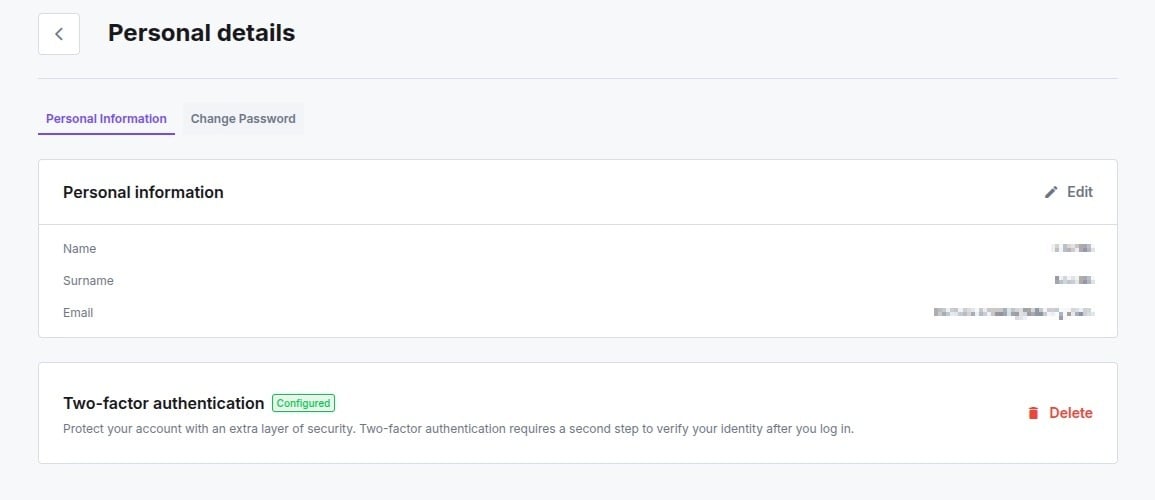
Personal Information
- Personal Information: Click the Edit button to update your Name, Surname, or Email.
- Security: You can set up Two-factor authentication to add an extra layer of security. If it is already enabled, click Delete to remove your configuration.
Change Password
This tab allows you to securely update your login credentials. You will be required to enter your Current password for verification before setting and confirming a New password. Changing your password ends every active session on your account. The same applies when you sign out: all access and refresh tokens are terminated, so you’ll need to sign in again on every device and browser tab.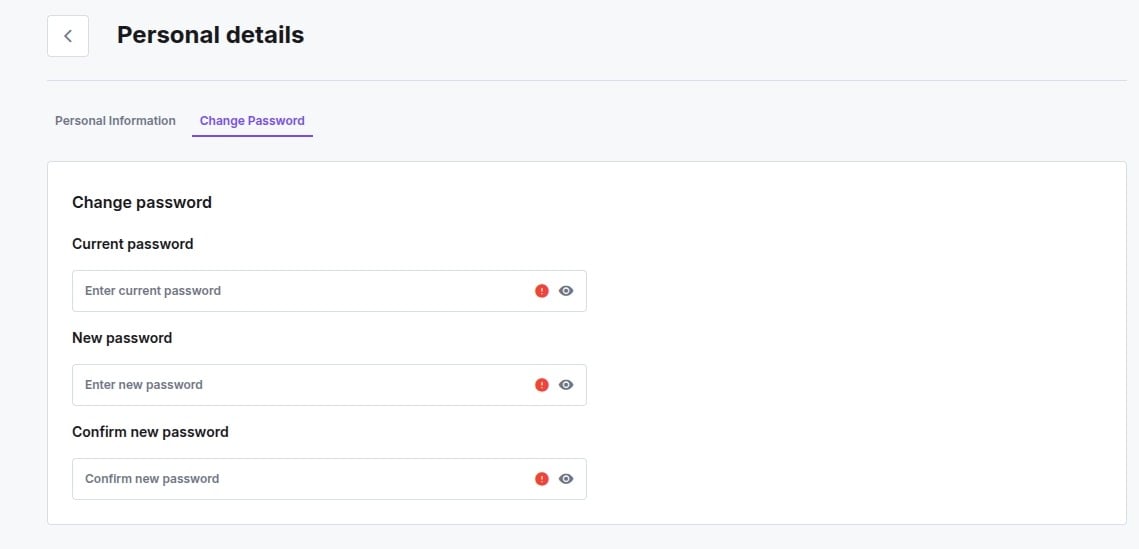
Connected Apps
Lists the AI assistants connected to your manager account through the iDenfy account MCP server. Each one shows the date it was connected and the access it holds, such as View on finances or Edit on settings. You only see and manage your own connections.- Disconnect: removes the assistant’s access straight away, after you confirm. Anything it already did stays in place.
- No AI apps connected yet: shown when nothing is connected. You connect a new assistant from that assistant’s own settings, not from this tab.