

What Is Face Authentication?
Face authentication is a biometric verification method that uses the unique facial features of an individual to grant or deny access to systems, applications, or physical areas. It is a subset of facial recognition technology and is primarily used for verification purposes. Once a user’s identity verification is approved in the iDenfy system, they are eligible to proceed with face authentication. During the session, the user takes a selfie, which iDenfy compares against the selfie from the original identity verification.Safety Features
iDenfy compares the selfie taken during face authentication to the selfie taken during the identity verification check. iDenfy uses the following safety measures to prevent fraud:- Face matching. The process of comparing a selfie photo taken during a face authentication session with a selfie from the identity verification.
- Passive liveness. The process of checking the liveness of the user’s face image (selfie). You can adjust the probability threshold in the settings to control whether the submitted image is genuine or taken from a screen. Modifying this value lets you tune the sensitivity for detecting spoofed or manipulated images. Contact iDenfy to enable this feature.
- Image detection. The process of comparing images taken in the previous face authentication sessions in order to determine the uniqueness of each image. This safety measurement is enabled by default.
Integration
- Mobile SDK. You can integrate face authentication with the mobile SDK. See the mobile SDK instructions.
- iFrame. For integration details, see the iFrame documentation.
Notifications
You can create a notification for completed face authentication sessions in the iDenfy Dashboard under Settings → Notifications (How to create a notification). Webhook notification example: { “id”: “ebd19964-0899-4bfa-b14e-95e84214dc26”, “scanRef”: “fb5885c5-10fe-4e24-ba2e-6c3847fafbdd”, “clientId”: “6334bfbf-ab4c-4a6e-b887-98784bb4b2fe”, “status”: “SUCCESS”, “token”: “uFrYLi9HRDOyjTmivKXMRdCytnXZrUYOjozNrrWP”, “type”: “AUTHENTICATION”, “method”: “FACE_MATCHING”, “facePhoto”: null }Dashboard Guide
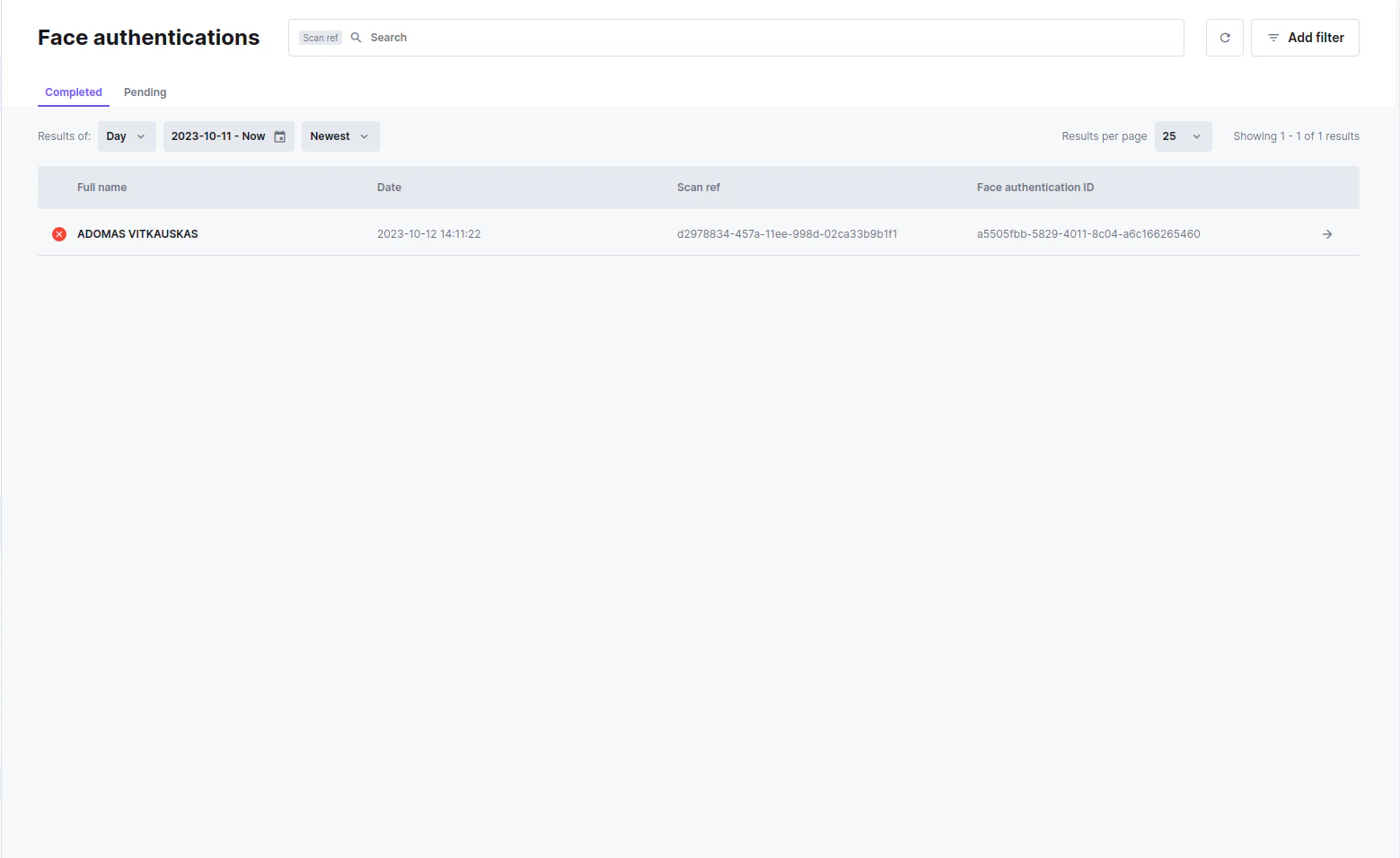
Find all the necessary information on the iDenfy Dashboard below:- Face authentication list page. This page displays the full list of face authentication sessions, both completed and pending. Find this page under ID verifications → Face authentications.
- Face authentication detailed view. This page displays detailed information about a specific face authentication session. To open it, click the full name or the arrow.
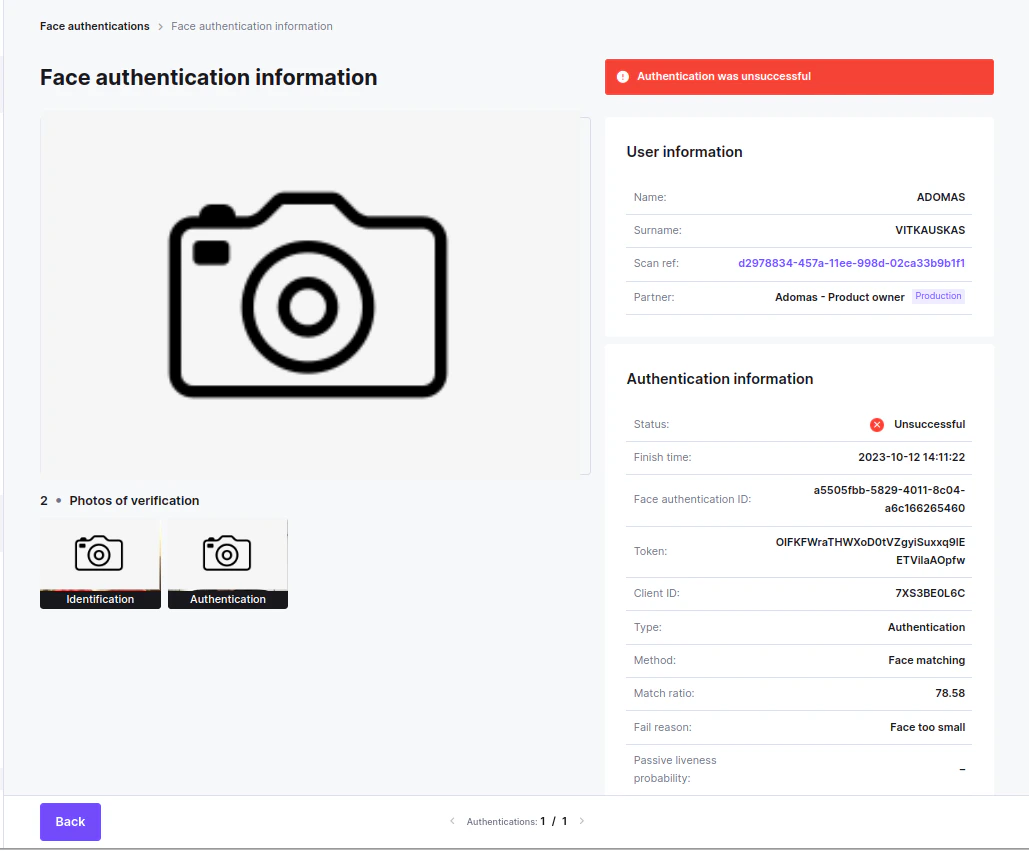
- There are identity verification and face authentication images that have been compared.
- The user information card contains identity verification information and the hyperlink to a particular person’s identity verification.
- The authentication information contains information about the particular face authentication session:
- Status - authentication can be successful (approved) or unsuccessful (denied).
- Finish time - the timestamp of when the authentication has been finished.
- Face authentication ID - the unique number of face authentication.
- Token - the face authentication session token.
- Client ID - the client ID taken from identity verification.
- Type - the type of face authentication:
- Authentication - general face authentication.
- Method - the method used to authenticate:
- Face matching - comparing the selfies.
- Match ratio - the score of face comparison. For a successful match, the face match ratio must exceed 50%.
- Fail reason - the unsuccessful authentication fail reason:
- FACE_NOT_FOUND
- TOO_MANY_FACES
- FACE_ANGLE_TOO_LARGE
- PROBABILITY_TOO_SMALL
- FACE_TOO_SMALL
- FACE_CLOSE_TO_BORDER
- FACE_TOO_CLOSE
- FACE_CROPPED
- FACE_IS_OCCLUDED
- EYES_CLOSED
- FAKE_CAPTURE
- DUPLICATE_IMAGE
- FAKE_FACE
- FACE_MISMATCH
- Passive liveness probability - the score of the liveness of the selfie.
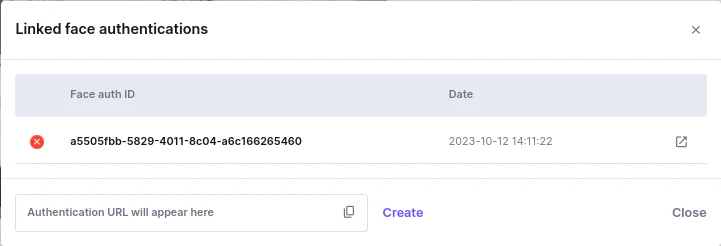
- The identity verification and face authentication. If an identity verification has a completed face authentication session, you can find it in the identity verification footer. Select the three-dot menu, then select Face authentication.
White-Labeling
Face authentication uses identity verification personalization for white-labeling options. For details, see the white-labeling guide.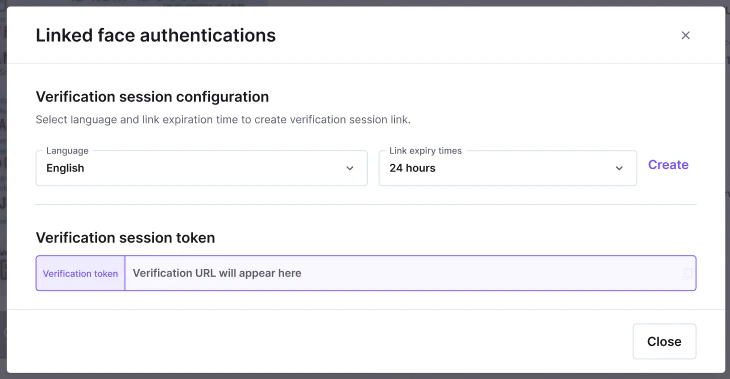
Testing
To test face authentication:- Open the Identity Verification interface and navigate to the footer.
- Select the three-dot menu, then select Face Authentication.
- In the pop-up, select Create.
- Copy the generated session URL for use.