

Blocklist Overview
The Blocklist helps prevent known fraudulent or repeat individuals from completing identity verification. The check runs automatically once a verification is approved, comparing new data (face, document, or personal info) against existing blocklist entries. If a match is found, the verification is marked “suspected” and flagged with one of the following tags:Face_Blacklisted— selfie image matchedDoc_Face_Blacklisted— face from document matchedData_Blacklisted— personal details matched
The face blocklist runs as a 1:N comparison against biometric templates stored for your account. Enabling it is one of the cases where those templates are retained — see Face Matching and Biometric Data.
Interface Notes
- Access via sidebar: Menu → Blocklist
- Tabs:
- Selfie
- 🪪 Face in Document
- Document Data
- Use the search bar to find existing records by ScanRef or enable Search all records.
- Use the Create new button to open the blocklist creation form.
- Required fields are marked — incomplete entries cannot be submitted.
Face Blocklist (Selfie / Face in Document)
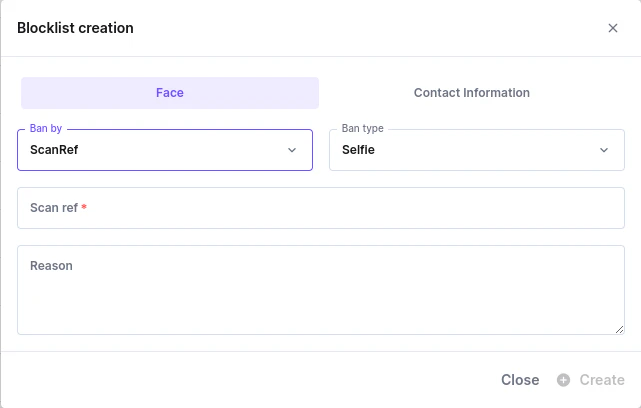
Use when you want to block by image.Fields in “Create New → Face”
How It Works
- If Ban by = Photo → you must upload a file.
- If Ban by = ScanRef → the system uses the face(s) from that verification.
- On future approved verifications, the system compares faces and flags with
Face_BlacklistedorDoc_Face_Blacklisted.
Document Data Blocklist (Personal Information)
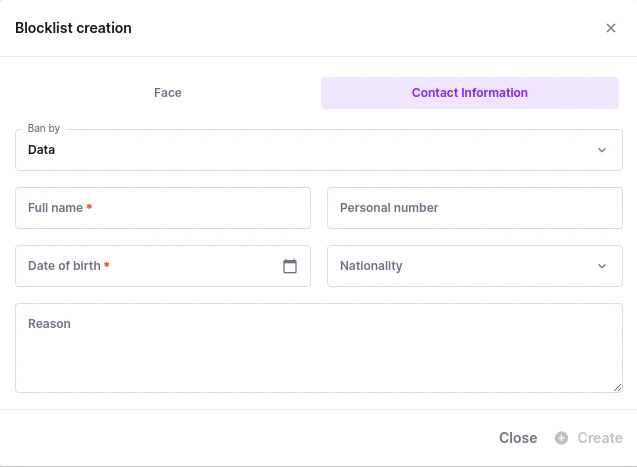
Use when you want to block by identity details (no image required).Fields in “Create New → Document Data”
How It Works
- If details match on a future approved verification, it’s flagged with
Data_Blacklisted. - If created via ScanRef, the system pre-fills name, DOB, personal number, and nationality (when available).
Validation and Behavior
- Required fields are enforced (you’ll see “Please fill in all required fields.” if missing).
- Files: Accepts PNG / JPG / HEIF.
- Dates: Must be valid (DOB uses a date picker).
- Submission: Create is disabled until the required fields are completed.
Directly from a Verification
On any verification results page, click Add verification to a blocklist (top-right corner). This opens a quick-action modal allowing you to add that verification immediately.Fields
Block Reason Options
- Fake document
- Same person, multiple identities
- Deepfake / AI-generated face
- Fraudulent behavior during onboarding
- Blocklist by internal risk rules
- Confirmed criminal activity
- Other
