

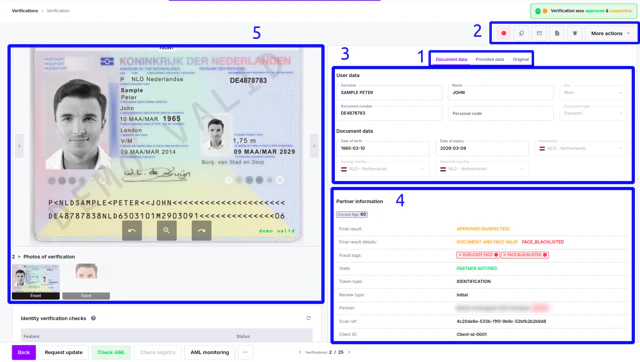
End-User Data
- Document data - information read from the document
- Provided data - information you provided for cross-matching
- Original - information provided in the native language, additional fields read from the document
Actions for Verification
Document Information
Here you can find data read from the document.Depending on your needs, these fields can be adjusted.
Partner Information
Status
- Final result - final status of verification
- Final result details - results of document and face reading
- State - if notification is sent
Other Verification-Related Information
- Token type - identifies if verification was document & face, or document only
- Review type - auto or manual
- Partner - environment, in which verification was performed
- Scan ref - identifier generated by iDenfy
- Client ID - identifier generated by Partner
- Company ID - identifier for the company, if verification is part of KYB
- Platform - device, on which verification was performed
- Client IP - IP from which the client performed verification
- Client location - approximate city and country from which the client performed verification
- Risk level - status based on risk assessment feature
- Start time - time when the review process started
- Finish time - time when the review processing finished
- Additional step (POA) reupload date - date when the additional step was reuploaded. Refreshes after each re-upload
- Attempt Count - how many attempts the user took to upload all the correct documents
- Email address - shows the user’s email, if email verification is used
- Phone number - shows the user’s phone, if phone verification is used
Photos
Uploaded image section In case of re-uploads, all previously uploaded (low quality, blurry, expired) documents will be shown on the right side, numbered by attempts.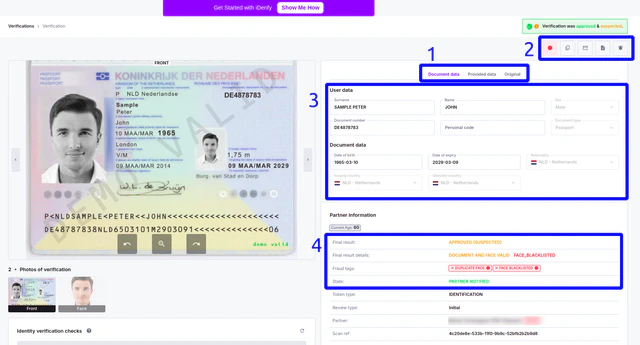
Bank Card Verification
If the user completed both IDV and Bank Card Verification, a Bank Card Verification panel is shown with:- Status - Match or No Match
- Submitted - date and time the bank card verification was submitted
- Check ID - link to the Bank Card Verification detail page
- Cardholder - name read from the card
- Card Number - first 6 and last 4 digits of the card
- Expected Card Number - last 4 digits provided by the partner, if any were provided. This field is not shown if no expected card number was set.
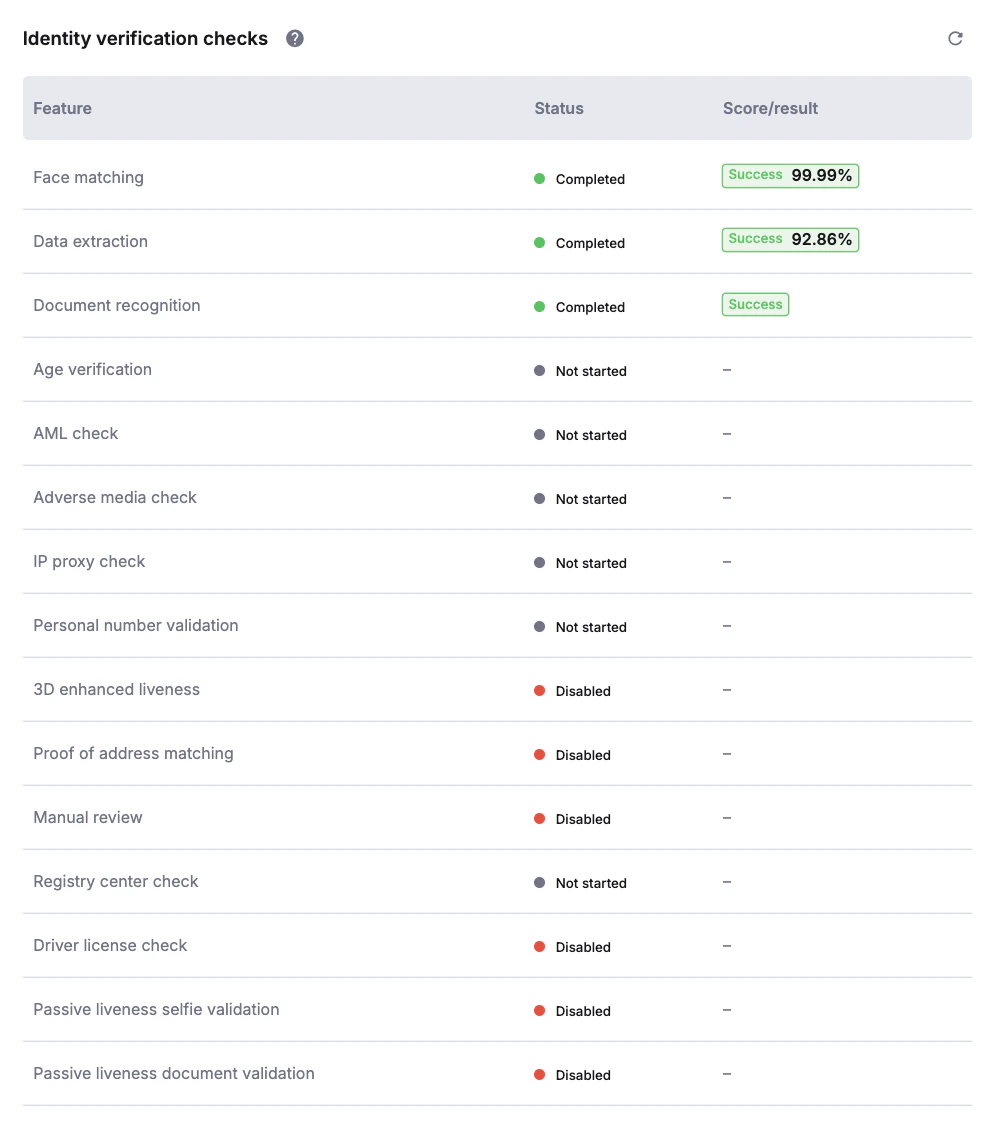
Checks performed The section indicates what checks have been performed during verification.
Some checks will not be performed if verification has failed:
- AML check
- Criminal background
- Registry centers
- Lid
-
USA driver’s license
