

The Solution: Removing Tags
If you review a verification and determine that the discrepancy is acceptable, you can remove the mismatch tag to validate the session.How to Remove a Mismatch Tag
- Open Verification: Navigate to the specific verification profile in your dashboard.
- Locate Tags: Look for the Mismatch tags section (located in the “Partner information” under “User data” card).
- Click ‘X’: Find the specific tag you wish to clear (e.g., NAME or OVER_AGE ) and click the ‘X’ icon next to it.
- Confirm Action: A pop-up window will appear asking: “Are you sure you want to remove [TAG_NAME] mismatch tag?” Click Confirm to proceed.
- (Optional) Send Webhook Notification: If you have a webhook integration set up, you can manually trigger a status notification after removing the tag. Click the More button in the top right corner of the verification profile, then select Send Notifications.

Important: Removing a tag is a permanent action for the current session. Once removed, the tag will not reappear or be re-triggered automatically, even if you refresh the page.
Example of Status Change
Example of Status Change
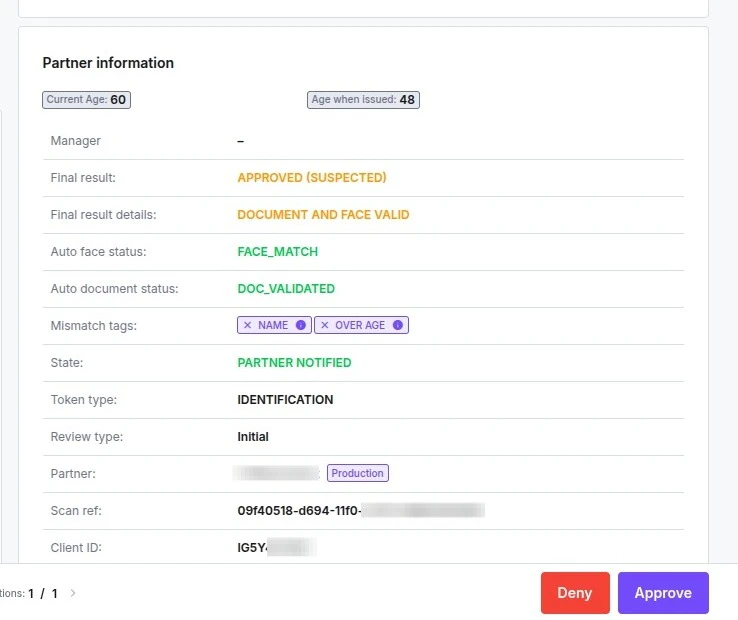 | 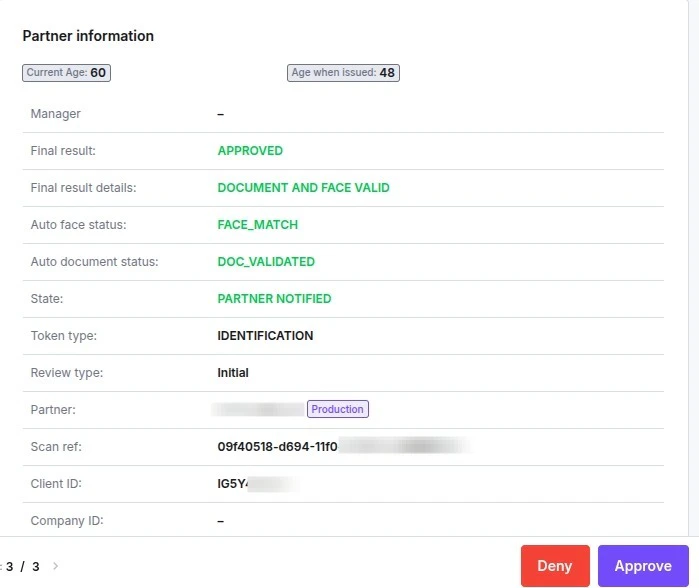 |
Automatic Status Update: Once you remove the tag, the system automatically re-evaluates the verification status.
- If the tag was the only reason for rejection, the status will automatically change from Suspected/Denied to Approved.
- You do not need to click the “Approve” button manually after removing the tag.
False Positive Vs. Policy Override
It is important to distinguish between fixing a system error and making a conscious exception. Removing a tag works for both scenarios.1. False Positive (System Error)
- Scenario: The user is named “John”, but the automated system read “Jon” and applied a
NAMEmismatch tag. - Action: You remove the tag to correct the mistake.
2. Policy Override (Exception)
- Scenario: You have set a minimum age of 18 in your configuration. A 17-year-old user applies, and the system correctly flags them with an
UNDER_AGEtag. - Action: If you decide to make a business exception for this specific user, you can remove the
UNDER_AGEtag to bypass the rule. - Result: The system will treat the user as compliant and change the status to Approved, effectively overriding your age policy for this one session.