

Good to know
- Only one Utility Bill can be collected for processing.
- Multiple Custom steps can be collected in a single flow.
- Utility Bill can be combined with Custom steps to collect several different documents.
- Titles and descriptions of steps support localization.
- Titles and descriptions of both Utility Bill and Custom steps are fully customizable.
- Supported file formats: - JPG - PNG - PDF
Proof of Address (POA)
When using an additional step to collect a Utility Bill for proof of address, three different upload handling types are available:Upload Types
When an additional step is used to collect a Utility bill for proof of address, there are 3 types of handling provided: images of the document.Upload
- User uploads the document
- The document is attached to the identity verification
No additional processing or validation happens for these upload types
Extract
- User uploads the document
- The document is attached to the identity verification
- The address is read (using OCR) from the uploaded document and added to the verification
Compare
- The user uploads the document.
- The document is attached to the identity verification.
- The address is read and compared with the address you provided.
POA AI Checks
Additional checks for the uploaded POA document. These tags will result in verification to be marked as APPROVED (SUSPECTED).Allowed POA Documents
Restricts POA submissions to specific document types.- If an unsupported type is uploaded, the IDV is flagged with:
NOT SUPPORTED POA DOCUMENT TYPE
Allowed POA Countries
Defines which issuing countries are accepted for POA documents.- If the issuing country is not on the list, the IDV is flagged with:
NOT SUPPORTED POA DOCUMENT COUNTRY
POA Country Match
Checks if the issuing country of the document matches the country stated in the POA.- If there’s a mismatch, the IDV is flagged with:
POA COUNTRY MISMATCH
Block POA Screenshots
Detects whether the submitted POA document is a screenshot.- If enabled and a screenshot is detected, the IDV is flagged with:
POA SCREENSHOT DETECTED
POA Issuing Date Range
Defines an acceptable date range for POA issuance (e.g., last 12 months).- If the document was issued before this range, the IDV is flagged with:
EXPIRED ADDITIONAL STEP INFORMATION
Providing an Address for the Compare Method
Through Dashboard
- Select ID Verifications section
- Select New Verification
- Select the Advanced settings tab
- In the Additional verification steps section, find the Proof of address option and ensure it’s enabled
- Enter the information in the Address field
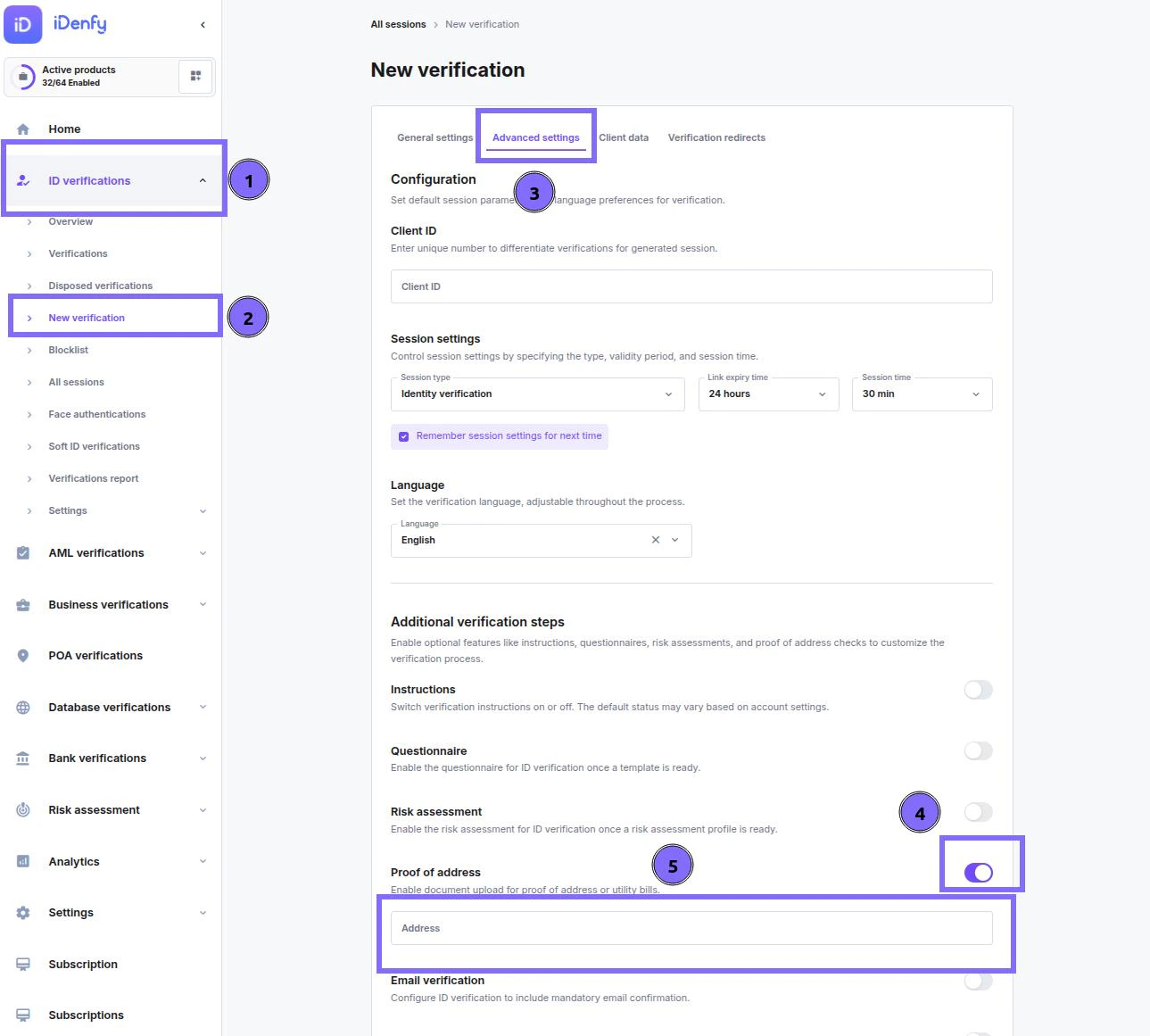
Through API
You can also enable and provide an address when generating verification tokens via API. You can read more about it in our API documentation.Custom Additional Step
Custom steps allow you to collect any additional documents or images required by your industry.Examples of Supported Documents
- Second ID document
- Second utility bill
- Back side of documents
- Industry-specific documents (e.g., licenses, certificates, declarations)
Upload Types
- Only the Upload type is supported.
- No processing or OCR is applied — these steps are meant to remain flexible and customizable.