

Feature enablingTo use this feature, you first need settings enabled and an AI flow configured. See AI Reviewer Settings for setup instructions.
How the AI Reviewer Works
The AI reviewer runs a configured sequence of checks against a company and its associated people (directors, shareholders, UBOs, and so on). Each check produces one of three outcomes:
Once all checks complete, the reviewer sets the overall company result:
- Approved — every check is Accepted or Skipped.
- Denied — at least one check is Unaccepted.
- Flagged — checks passed, but unresolved AML flags exist on the case. The company stays in its previous status until the flags are resolved manually.
Initiating a Review
If the automated analysis has not been triggered yet, the main window will show an “AI review not yet initiated” status. There are two ways to start it:- Click Run AI reviewer in the center of the screen.
- Click Get AI reviewer insights in the top header, next to the company status.
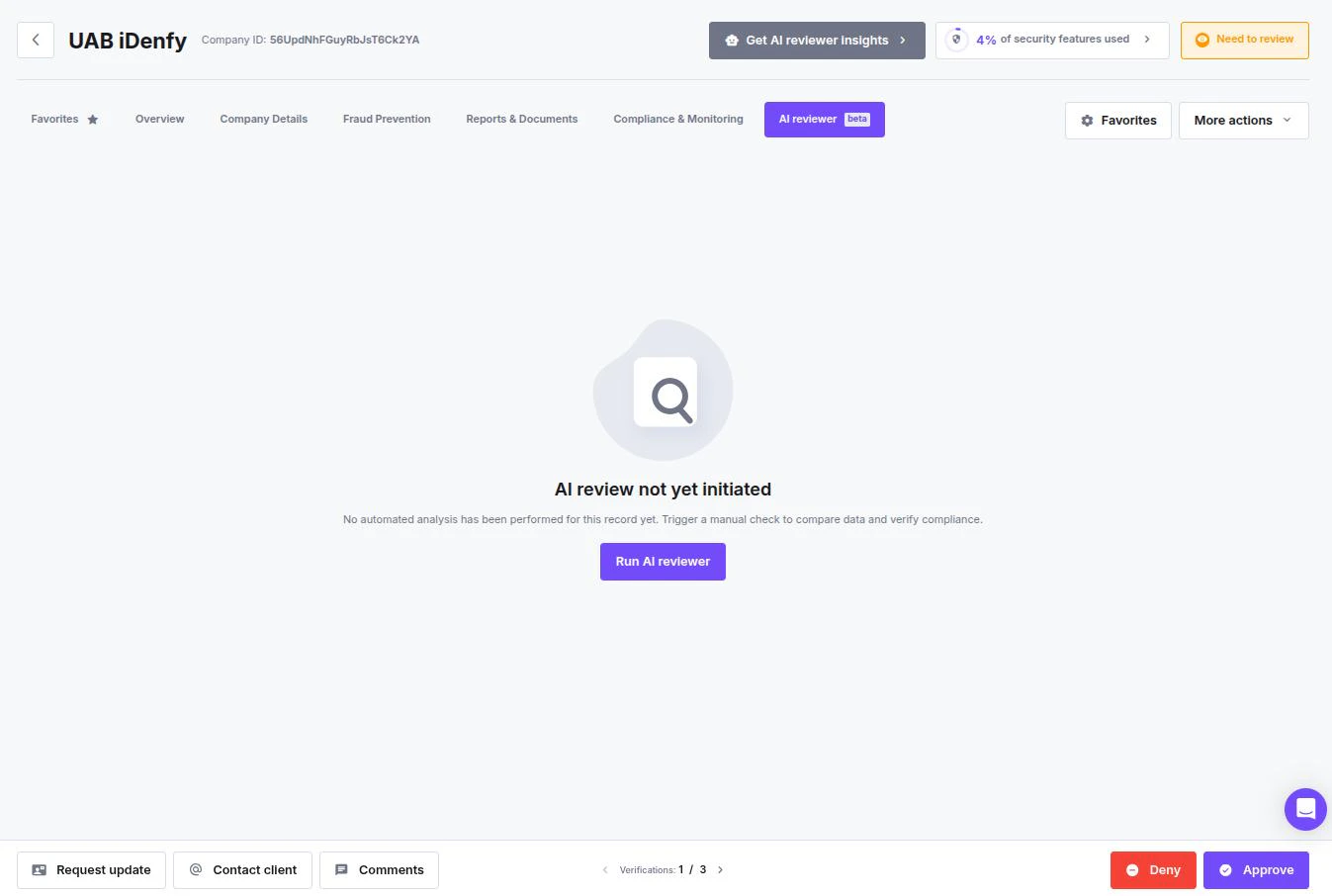
If the Automated AI review toggle is enabled in settings, the reviewer runs automatically for every new business verification — no manual trigger needed.
Reading the Results
Once the review finishes, the interface updates to reflect the automated decision.Overall Outcome
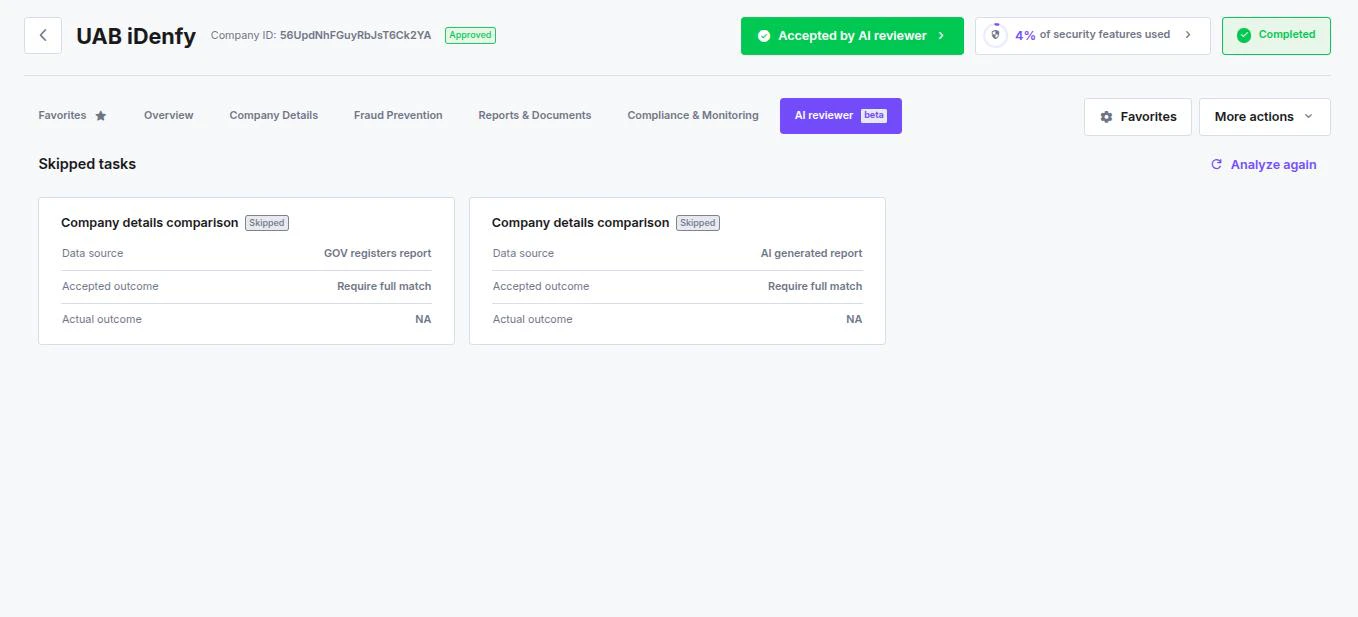
Check the top of the company profile:- Company Status Badge — shows the current status (e.g. a green Approved badge).
- AI Decision Button — a green Accepted by AI reviewer button confirms the automation cleared the entity.
Task Cards
The AI reviewer tab breaks the review down into individual check cards, one per configured rule. Each card shows:- Check name — identifies which rule ran (e.g. AML check, Company details comparison).
- Actual outcome — the result of the check. Shows NA if the check was skipped.
- Skipped indicator — if the AI could not perform a check (missing data, unavailable report, API error), the card is marked Skipped.
- Analyze again icon — re-runs this specific check after you have updated data or fixed a configuration issue.
Company name matching treats minor spelling and formatting differences as Full match — including case variants, special-character equivalents (e.g. Müller = Mueller), legal-form abbreviations, punctuation, ”&” vs “and”, and extra whitespace. Word-order differences still produce a Partial match. The same logic applies to beneficiary name and surname fields.
Concurrent Reviews
The system locks per company during a review run. If two people trigger a review at the same time, only one runs — the other is rejected. Wait for the first review to complete before retrying.Next Steps
- For skip and failure reasons on each check type, see Checks Reference.
- To configure rules and automation settings, see AI Reviewer Settings.