

Header Information and Status
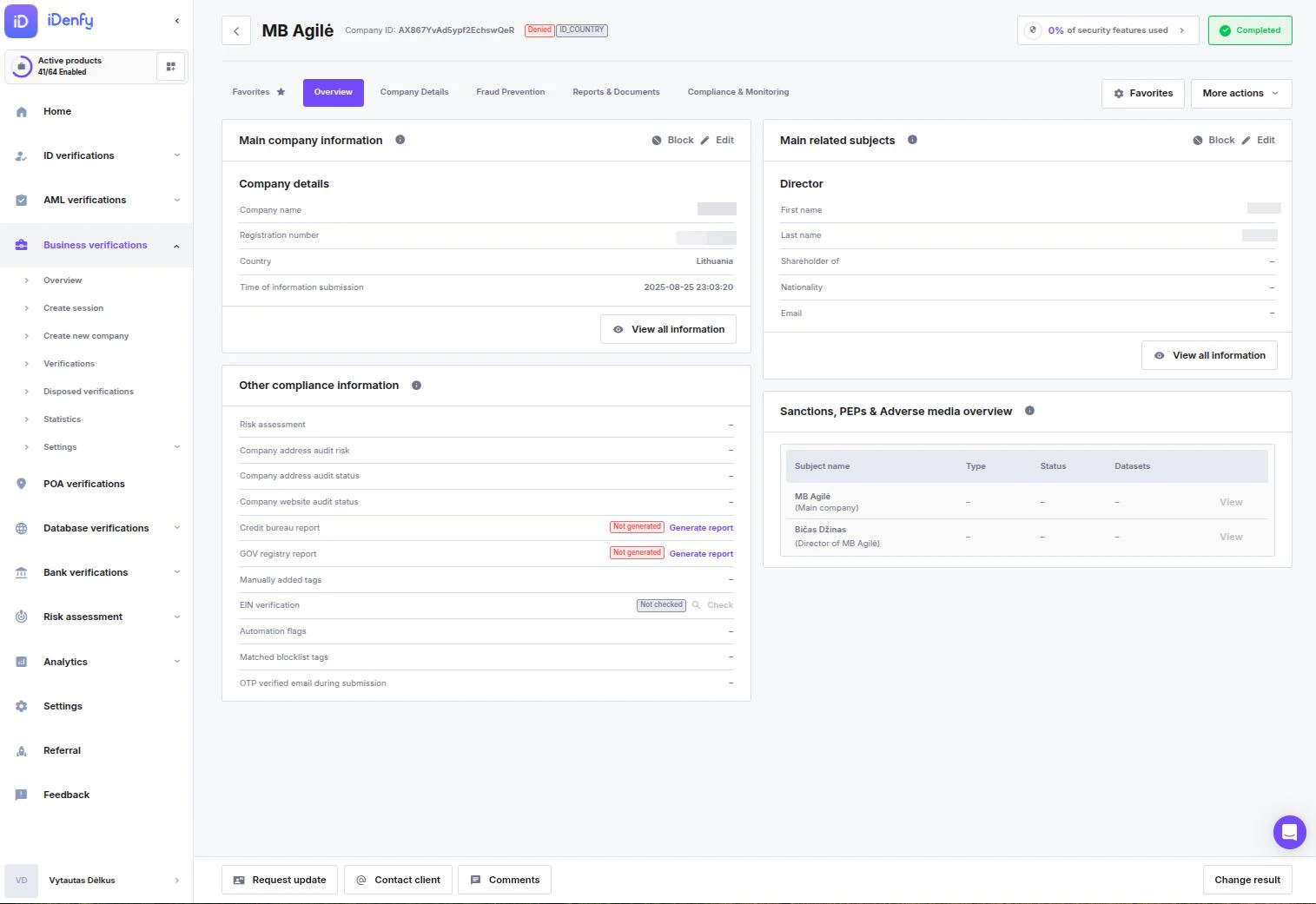
The top bar displays critical identification and state data for the record:- Company Name — The legal name of the entity as submitted or retrieved.
- Company ID — A unique internal identifier (e.g.,
7bPN6YMQ9F7...). This ID is the primary way to reference specific companies when contacting iDenfy support. - Verification Result — Displays the final outcome:
- Approved — The company has passed all checks.
- Denied — The verification failed. A reason badge (e.g.,
ID_COUNTRY) indicates why. - Security Progress — Percentage indicating how many available security features are active for this record.
- Process Status:
Favorites Tab
Your personalized dashboard where you can pin the most relevant data cards for your workflow.- Setup — Click “Configure favorite cards” to select which sections (like Risk Factors or Documents) appear here.
- Customize — Use the Star icon on any individual card throughout the profile to add or remove it from this view.
Overview Tab
The Overview tab centralizes summary data for quick manual review.Main Company Information
- Core Data — View the legal name, registration number, and country.
- Quick Actions — Use the Edit button to correct details or Block to restrict the record.
Compliance and Risk Overview
- Other Compliance Info — View the status of external reports like GOV Registry or Credit Bureau checks.
- Other Risk Factors — Real-time indicators for technical risks, including IP Proxy use, email duplicates, and fraud probability.
- AML & Monitoring — Manage screening results for the company and its directors. Trigger AML Single Checks or enroll subjects into continuous AML Monitoring.
Related Subjects and Ownership
- Main Related Subjects — Summary of key personnel (directors/beneficiaries).
- Ownership Structure — Visual or tabular breakdown of the company’s legal structure (where data is available).
Workflow Toolbar
The fixed toolbar at the bottom of the screen allows you to take immediate action: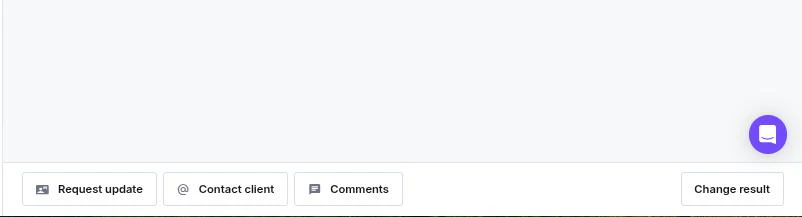
- Request Update — Send a request to the client to update specific information or documents.
- Comments — Log internal notes or view the audit history of team discussions.
- Change Result — Manually override the verification outcome (e.g., approving a record after manual document review).
- Navigation — Cycle through the previous or next records in your filtered list.