- Identity Verification (KYC): Usually appears before the verification starts.
- Business Verification (KYB): Usually appears at the end of the verification form.
Accessing the Questionnaire Builder
While the builder tool is the same, the access location depends on which service you are configuring:- For Identity Go to ID Verifications → Configurations → Questionnaire Templates.
- For Business: Go to Business Verifications → Configurations → Questionnaire Templates.
- Questionnaires do not forcefully expire sessions
- Questionnaires do not block verifications
- Questionnaires are always done before identity verifications, currently no option to do it after.
- Questionnaires are always done after business verifications, currently no option to do it before.
Creating a New Questionnaire
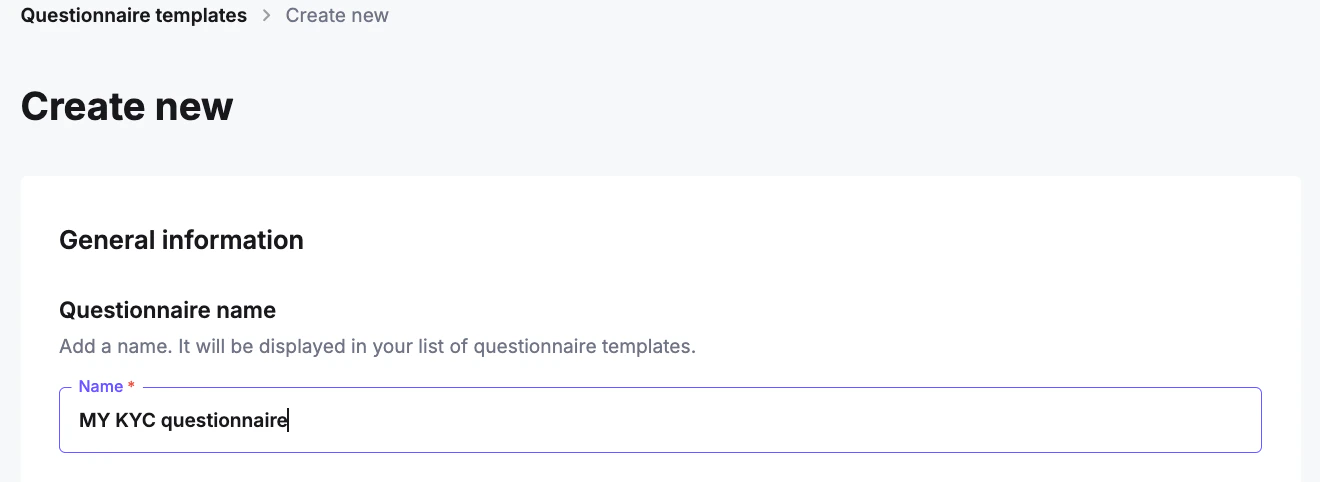
When creating a new template, you will define the basic settings and then build the structure using Sections and Questions.1. Basic Setup
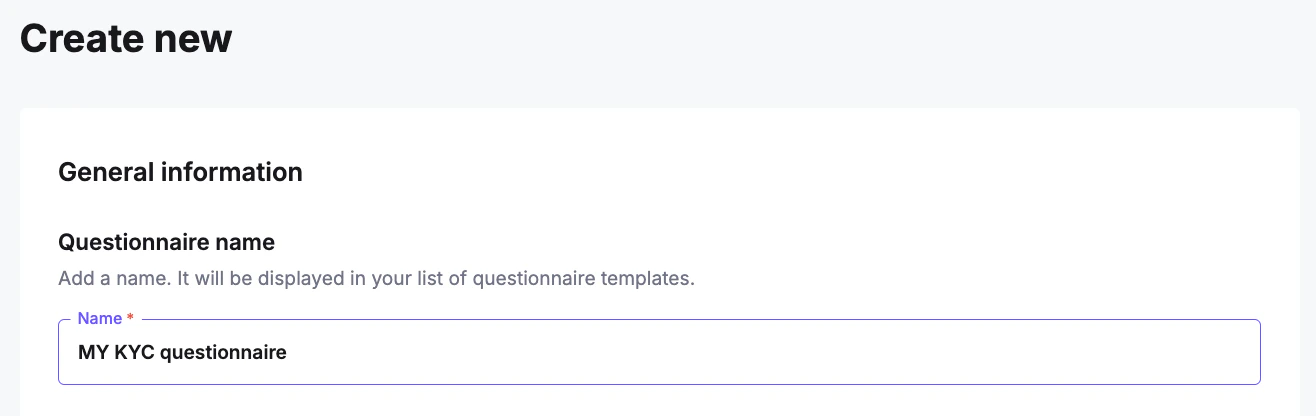
After clicking Create New, fill in the required details:- Name: An internal identifier for the template (must be unique).
- Title: The header text the user will see.
- Description: Optional text to explain the form’s purpose to the user.
2. Structuring with Sections
Questionnaires are organized into Sections. Even if you only need a few questions, they must be contained within a section.- Title: The section heading displayed to the user.
- Condition: Optional rule to hide/show the entire section (see Conditional Logic below).
3. Adding Questions
Inside a section, click Add Question. You will need to configure:- Title: The actual question text.
- Type: The format of the answer (text, date, file upload, etc.).
- Required: Mark if the user must answer this to proceed.
- Choices: (For dropdowns/radio buttons) Define the available answers and their specific keys.
Full List of Field Types
Full List of Field Types
4. Conditional Logic
Conditional logic allows you to show specific follow-up questions based on the user’s answer to a previous question. Example: You ask “Do you have a different correspondence address?”.- If they answer Yes → Show address fields (Street, City, Zip).
- If they answer No → Go straight to the next topic.

How to Configure Logic
Logic is managed directly inside the Answer settings of a “Select” or “Radio” question.- Create all questions first: Ensure the questions you want to show/hide (e.g., “Street Name”) exist in the template.
- Open the “Trigger” question: Edit the question that decides the flow (e.g., “Do you have a different address?”).
- Configure the “Lead to” path:
- Find the specific answer (e.g., “YES”).
- In the When selected lead to dropdown, select all the questions that should appear when this answer is chosen.
- Repeat for other answers (e.g., for “NO”, select only the next relevant question or leave it blank to skip).
Managing Questionnaires
Once you have created templates, you can manage them from the Questionnaire Templates list. Click the (…) menu on any template to access these actions:- Edit: Modify the existing questions, logic, or settings. Note: Changes apply to new verification sessions immediately.
- Create a copy: Duplicates the entire template structure. This is useful for creating “Version 2.0” of a form for testing without affecting the live version.
- Set as default: Marks this questionnaire as the standard form. It will automatically appear for all new verifications unless a different one is manually specified via API.
- Export questionnaire: Downloads the template structure as a JSON file. Use this for backups or to migrate templates between different accounts/environments.
- Delete: Permanently removes the template. Note: You cannot delete a template that is currently set as the Default.
Translations
You can localize your questionnaire into multiple languages without recreating the structure or logic.- In the Questionnaire Templates list, click (…) → Translate.
- Click Additional language at the bottom of the modal to select your target language (e.g., Lithuanian, Spanish).
- Enter Translations: The screen displays your original text on the left (disabled) and input fields on the right.
- Manual: Type the translation into the corresponding fields.
- Automatic: Click the Auto-translate icon next to the language name to generate translations for all fields instantly.
- Click Save.