Enabling Sole Proprietorship
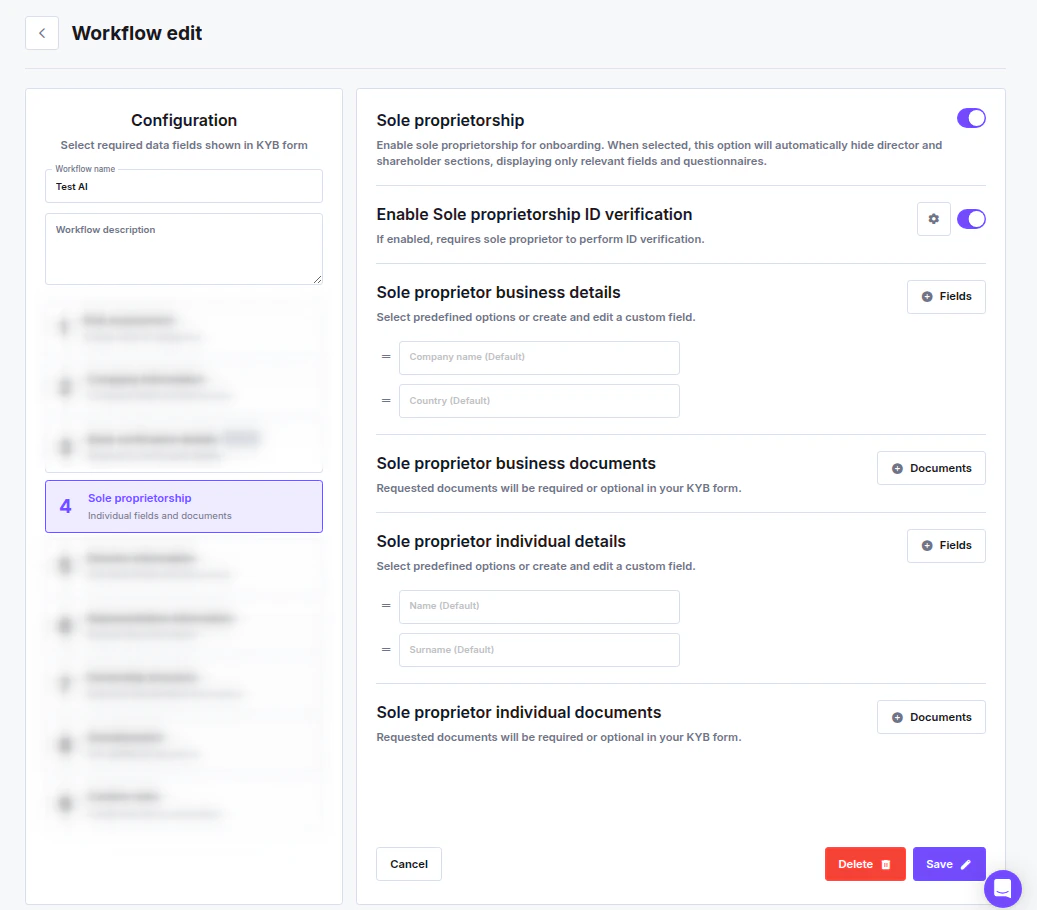
Toggle Sole proprietorship to activate the step. Once enabled, the director and shareholder sections are automatically hidden — only the fields and questionnaires relevant to a sole proprietor are shown to the applicant.Identity Verification for the Owner
When the main toggle is on, an additional option becomes available: Enable Sole proprietorship ID verification — when toggled on, the sole proprietor is required to complete a personal identity verification (IDV) check as part of the KYB onboarding process.Configurable Sections
Each section can be customized with additional fields or document requirements.Sole Proprietor Business Details
Configure the business information collected from the sole proprietor. Default fields:- Company name (Default)
- Country (Default)
Sole Proprietor Business Documents
Define which business documents the sole proprietor must upload. Use the Documents button to configure accepted document types and requirements. See Document Management.Sole Proprietor Individual Details
Configure the personal information collected from the owner. Default fields:- Name (Default)
- Surname (Default)
Sole Proprietor Individual Documents
Define which personal identity documents the sole proprietor must provide. Use the Documents button to configure accepted types and requirements.Testing Your Configuration
To verify the flow works correctly, create a test session manually:-
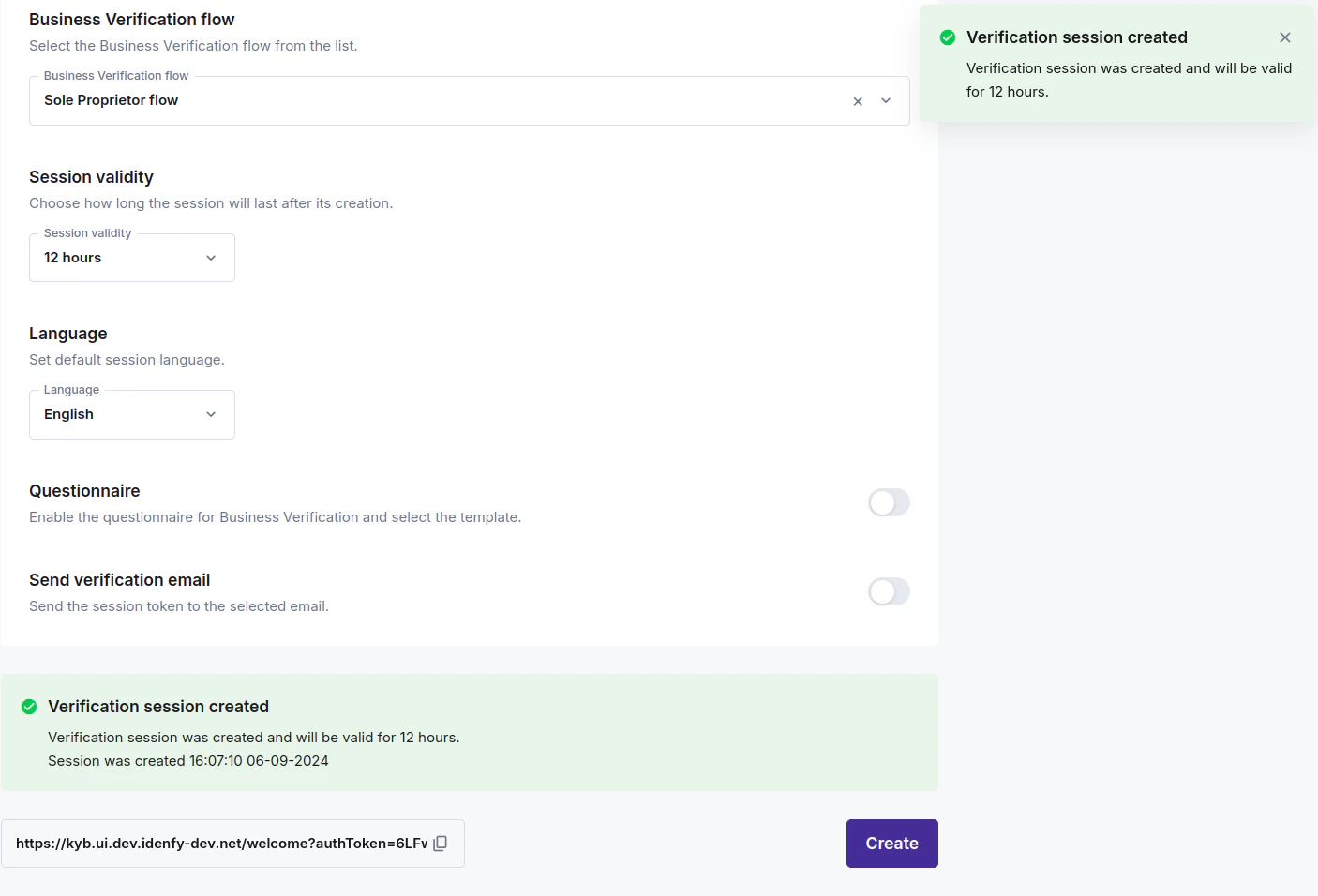
Go to Business Verifications → Create session, select the flow you configured, and submit.

-
Open the generated link and begin onboarding as a client would.
-
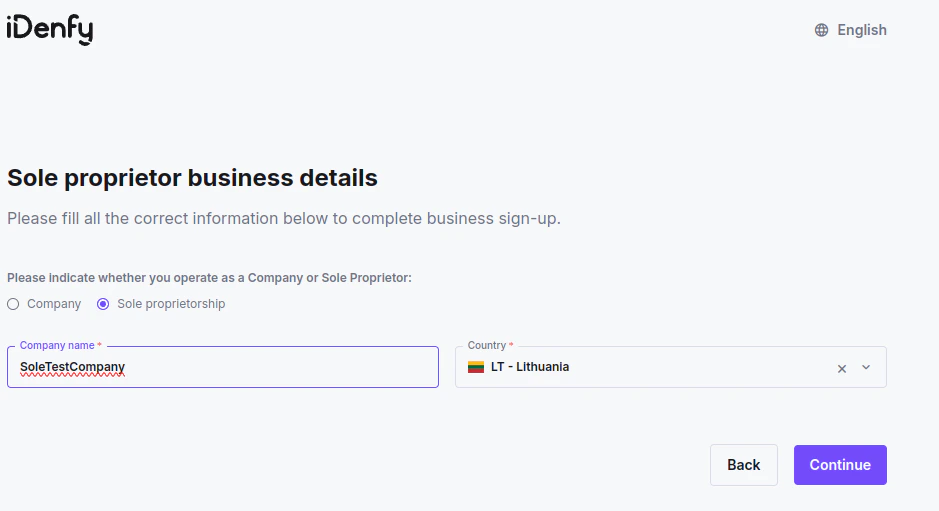
On the Company details page, confirm the Sole proprietorship option is visible and selectable. Once chosen, the director and shareholder sections should disappear and the sole proprietor fields should appear.