1. Default Fields (Always Included)
These fields are mandatory to ensure the entity can be identified in the system.Sole proprietor flows default to Company Name and Country only — no Registration Number. See Sole Proprietorship Workflow Step.
2. Adding Standard Fields
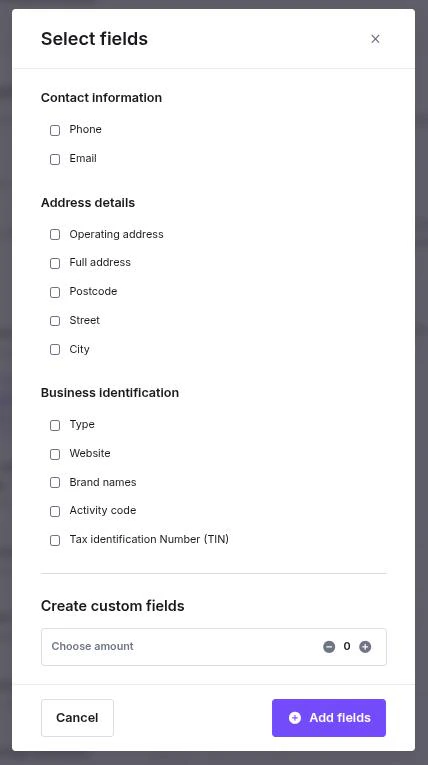
If you need more than just the basics, you can pull from our pre-defined library of data points.- Click the + Fields button.
- A popup will appear. Browse the groups (see the table below).
- Check the boxes for the data points you require (e.g., Date of birth, VAT number, or City).
- Click Add Fields to save your selection.
3. Creating Custom Fields
Need something hyper-specific that isn’t in our list? You can build it yourself.- Location: Scroll to the bottom of the + Fields popup to Create custom fields.
- Configuration: Once added, you can define:
- Label: The name shown to the client (e.g., “Internal Reference ID”). Maximum 64 characters.
- Key: The identifier used in the API and exports. Maximum 32 characters.
- Type: Text, Integer, Date, Checkbox, Select, Multi select, Country, or Country multi select.
- Options: The choices offered — required for Select and Multi select.
- Description: Optional helper text displayed under the field.
- Translations: Per-language versions of the field’s text, used when the client opens the form in that language.
- Required: Toggle whether the client must fill this out to proceed.
Individual Fields:
Standard Fields by Entity Type
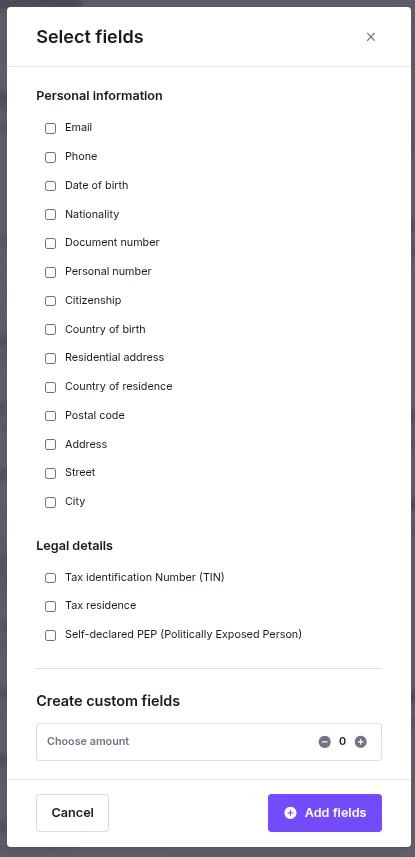
The two entity types do not share the same field groups.- There is no Passport No. field. The nearest equivalent is Document number.
- Nationality, Citizenship, Residential address, and Self-declared PEP exist for individuals only — they are not company fields.
- Website sits under Business identification, not contact details.
- The TIN field’s label is configurable per workflow — VAT number, EIN, TIN, or Tax ID number. Only one can be active. See TIN and EIN Verification.
- Shareholder and beneficiary field sets additionally offer Ownership percentage.
Two behaviors are handled for you rather than configured:
- Company flows manage a hidden Region field alongside Country. It is added and removed automatically and is required for US and Canadian companies.
- An individual’s identity fields become read-only once that applicant has an identity verification token.
Reordering Fields
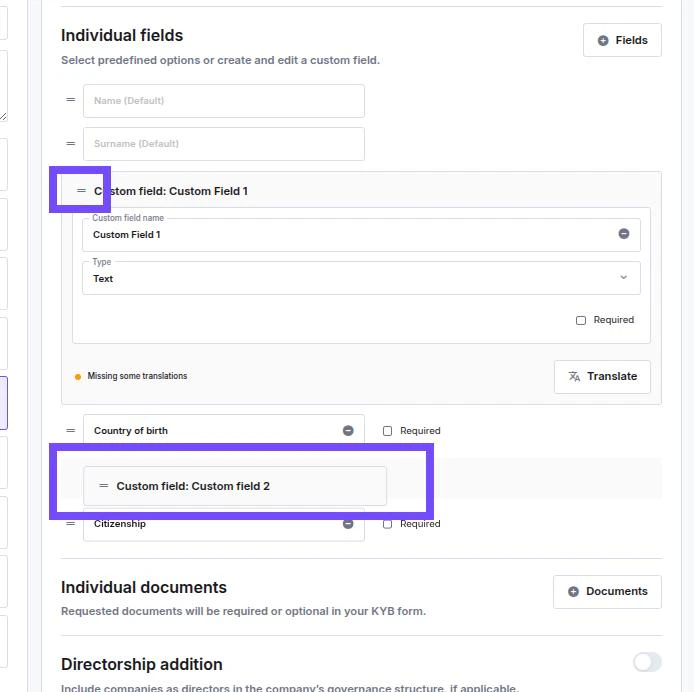
You can change the order in which fields appear to the client. Click and hold the Drag Handle (::) on the left side of any field row and move it up or down. The order is saved with the workflow; any field without an explicit position is shown last.