What Are Dynamic Workflows?
KYB Dynamic Workflow is a feature that eliminates the need to manually select a KYB verification workflow for each client. Instead of deciding which process to assign, you create a Dynamic Workflow — a short questionnaire that your clients answer before starting verification. Based on their responses, the system automatically routes them to the correct KYB workflow.The Problem It Solves
If your business serves different types of clients — varying company structures, risk profiles, jurisdictions, or licensing requirements — you likely maintain multiple KYB workflows. Until now, someone on your team had to review each case and manually select the right one. This is:- Time-consuming — each session requires a manual decision
- Error-prone — selecting the wrong workflow leads to incomplete verifications or unnecessary steps
- Hard to scale — as client diversity grows, manual selection becomes unsustainable
The Value
With KYB Dynamic Workflow, you define the rules once. The system handles routing for every session going forward. Your team saves time, clients get the right verification process from the start, and compliance stays consistent.How It Works
Example: You have 2 workflows — one for US clients, another for European clients. In your Dynamic Workflow, you add a country question. If the client selects USA, they get Workflow 1. If they select a European country, they get Workflow 2.
Two Routing Methods
- Score-based routing — each answer carries a weight. The system sums all weights and matches the total to a workflow trigger range you defined.
- Instant routing — for critical answers (e.g., a specific high-risk country), you can create instant triggers that override scoring and route the client directly to a designated workflow.
Where to Find It
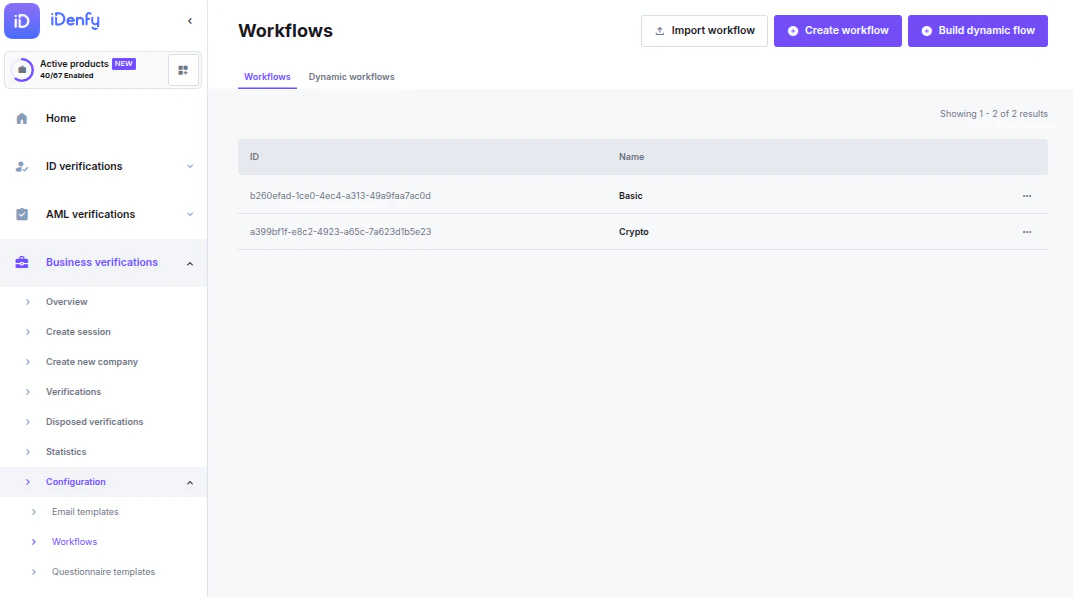
Go to Business Verifications → Configuration → Workflows → click Build dynamic flow.At least one workflow must exist before you can create a dynamic flow.
Setting Up a Dynamic Workflow
Step 1 — General Information
Enter a Dynamic Workflow name (required). This name is visible to your team when selecting the workflow during session creation.Step 2 — Add Questions
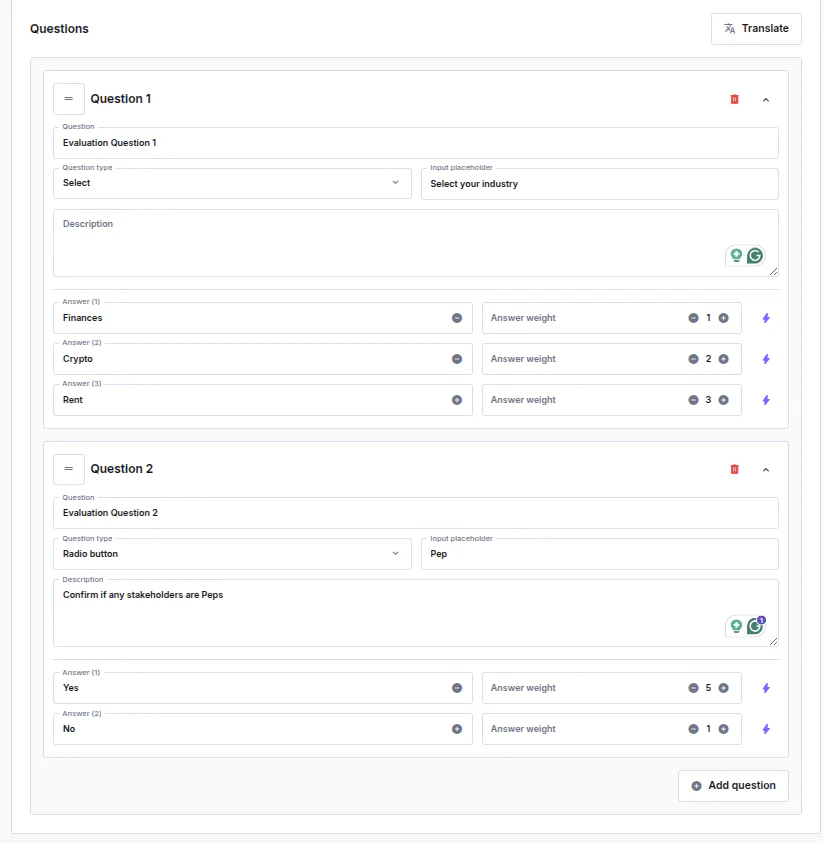
Add as many questions as needed. For each question, provide:- Question text (required)
- Question type — select from:
- Select — single choice from a dropdown
- Select multi — multiple choices from a dropdown
- Country select — single country picker
- Country select multi — multiple country picker
- Checkbox — multiple choice with checkboxes
- Radio button — single choice with radio buttons
- Input placeholder (optional) — hint text shown in the input field
- Description (optional) — additional context displayed below the question
- Answer text — what the client sees
- Answer weight — a numeric score (0 or higher) used for routing calculation
- Default group — a single weight applied to all countries not assigned to a custom group (covers all 243 ungrouped countries by default)
- Custom groups — bundle specific countries together and assign a shared weight to the group. Click Add weight group to add more groups.
Step 3 — Configure Score Calculation
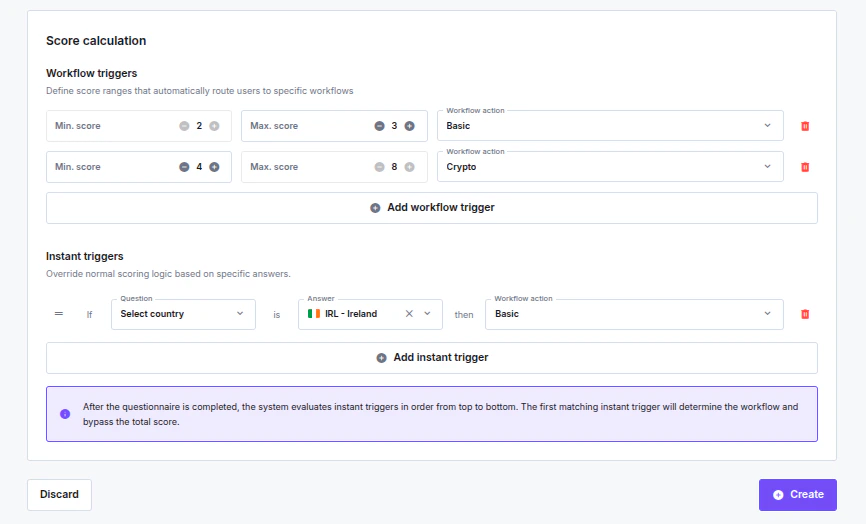
The Score Calculation section appears automatically based on your questions and answer weights. Score range is calculated in real time:- Minimum = sum of the lowest weight from each question
- Maximum = for single-select types (select, country select, radio): the highest weight; for multi-select types (select multi, country select multi, checkbox): sum of all weights
Country select and Country select multi question types fully support weighted scoring and can be used in score-based routing — not only as instant triggers. Each country option carries a configurable weight that contributes to the total score calculation.
- You must have at least one workflow trigger
- Triggers must cover the entire score range without gaps
- Score ranges update automatically in a cascading manner — changing one range adjusts adjacent ranges
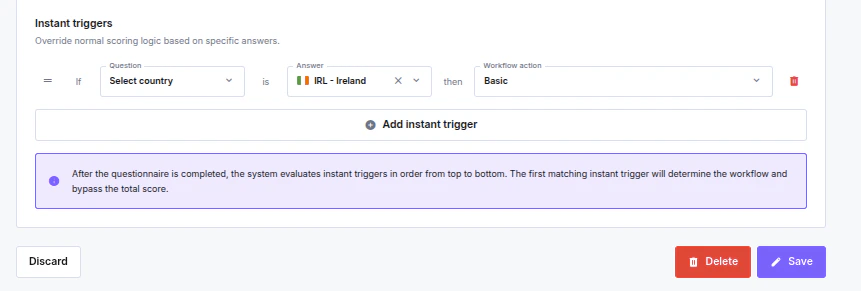
Step 4 — Configure Instant Triggers (Optional)
Instant triggers override score calculation entirely. When a client selects a specific answer, they are immediately routed to the designated workflow regardless of their total score. Example: If a client selects “Germany” in a country question, an instant trigger can route them directly to a “Simple” workflow. Each instant trigger requires:- Question — which question to watch
- Answer — which specific answer activates the trigger
- Action type — which workflow to assign, or Decline to automatically decline the session when the answer is selected
Step 5 — Translations (Optional)
Click Translate in the Questions section header to add multi-language support. You can:- Select a language and manually translate all question texts and answer options
- Use AI Translate to auto-generate translations, then review and adjust
Step 6 — Save
Click Create (or Save when editing). The system validates that:- All required fields are filled
- Score ranges fully cover the possible range
- Referenced questions and answers in instant triggers exist
Creating a Session with Dynamic Workflow
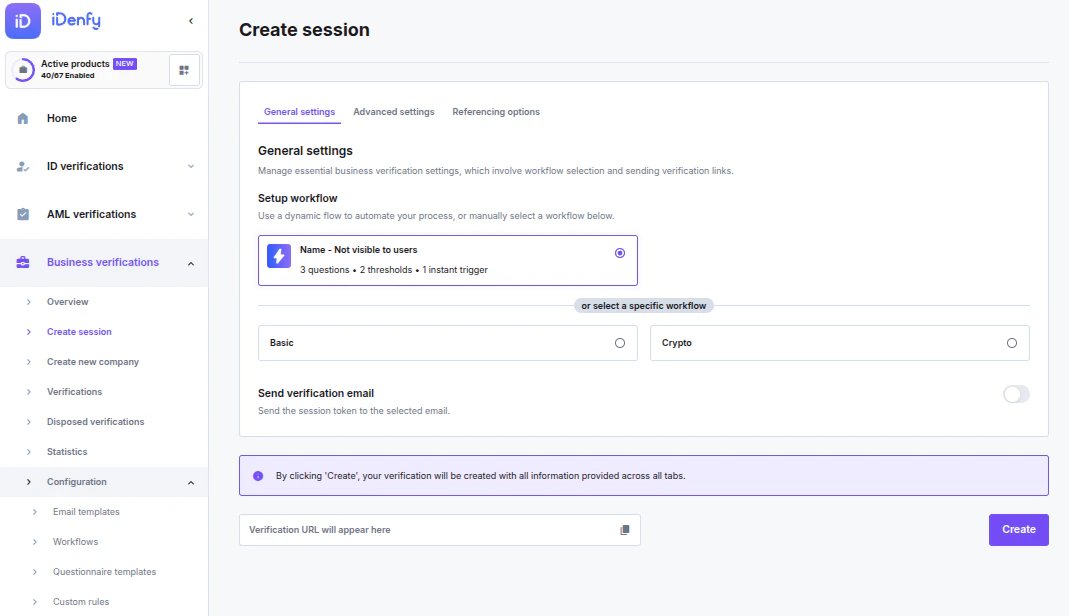
Go to KYB → Create session In the General settings tab, a Setup workflow section appears above the standard workflow list. This section is only visible if you have at least one active Dynamic Workflow. Each Dynamic Workflow is shown as a card displaying:- Name
- Number of questions (e.g., “5 questions”)
- Number of score thresholds (e.g., “3 thresholds”)
- Number of instant triggers (e.g., “2 instant triggers”)
- Selecting a Dynamic Workflow is optional
- You can select either a Dynamic Workflow or a standard workflow — not both
- All Advanced Settings (Client ID, Session validity, Language, etc.) apply regardless of which option you select
End-User Experience
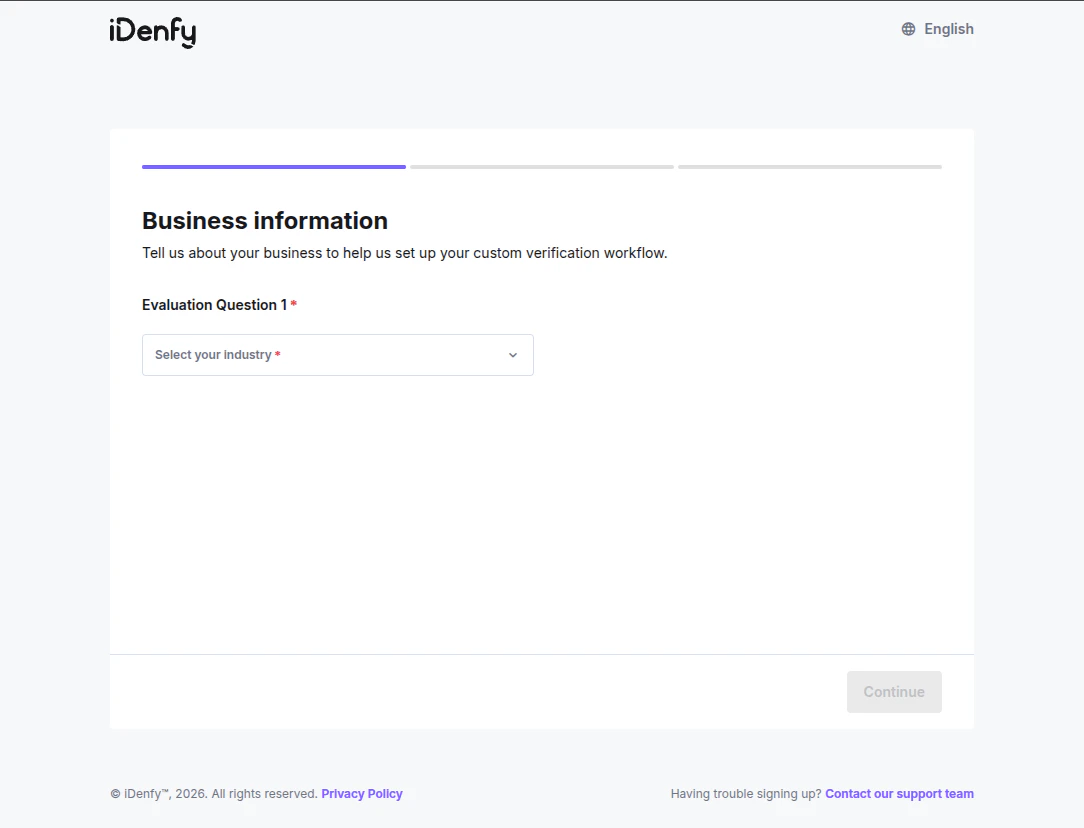
When a client opens a verification link that uses a Dynamic Workflow, they see a step-by-step questionnaire before the standard KYB form. What the client sees:- Progress bar at the top, showing how many steps remain
- One question at a time, displayed in the language configured for the session
- “Next” button — only enabled after the client selects an answer (all questions are mandatory)
- “Back” button — returns to the previous question with the previous answer preserved
- On the last question, the button changes to “Start verification”
- After clicking “Start verification”, the system processes the answers and immediately redirects the client to the assigned KYB workflow
The client never sees scores, routing logic, or which workflow was selected. The transition is seamless — the questionnaire simply leads into the verification form.