

- Available rules (Left): Rules you have already created under Custom Rules that are not yet attached to this workflow. This is not a catalogue of built-in check types, so on a new account the column stays empty until you create your first rule.
- Selected rules (Right): The rules that will actually run for this specific workflow.
How to Configure
- Add a Rule: Drag and drop a rule from the Available column to the Selected column. You can also use the Move all to the right button to select everything at once.
- Remove a Rule: Drag a rule back to the left column or use the Move all to the left button.
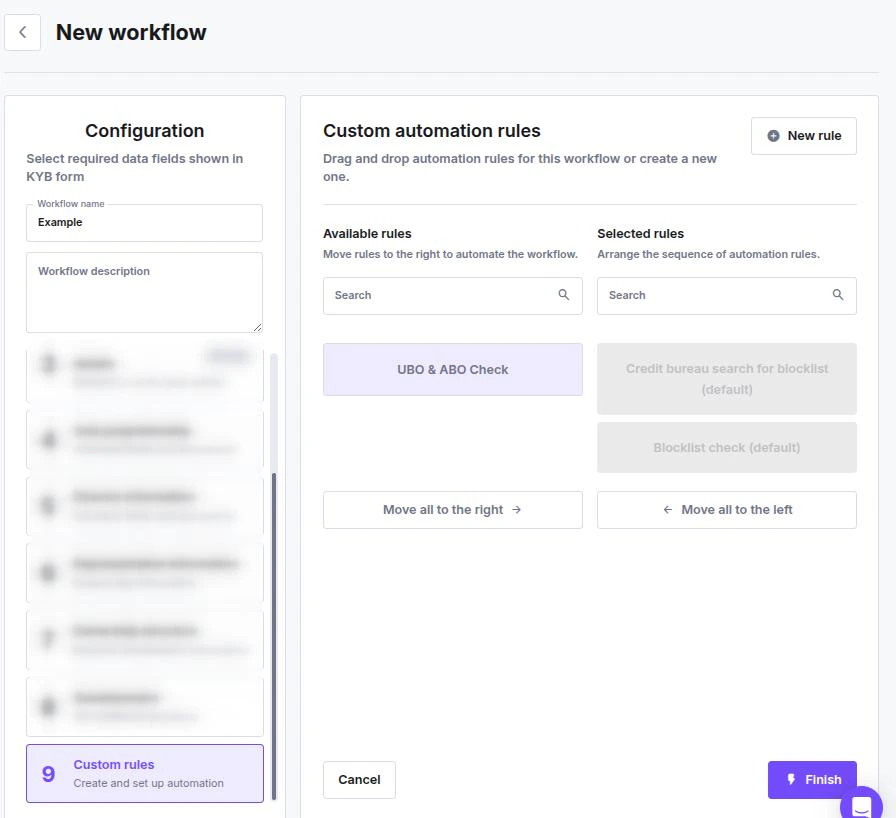
A rule’s position in the Selected rules column does not change the execution order. Blocklist checks always run first, followed by the automation rules in the order they were created.
Rule Behavior and Limits
- You set what a rule does when you create it, not in this step. This includes the action (Do nothing, Flag, or Block), the deny reasons attached to Block, the recheck condition (Proceed once, Proceed if changed, or Always proceed — availability depends on the check type), and the stakeholder roles it applies to (Director, Representative, Shareholder, UBO, ABO). See Custom Rules.
- Once a Block rule fires, every remaining rule in the step is skipped entirely — not evaluated and not billed.
- The same check can be attached to a workflow only once.
- Your contract caps the total number of rules on your account. Once that cap is reached, creating a new rule fails.