10 configurable steps
Risk, company info, directors, owners, representatives, bank, questionnaire, custom rules, identity verification, and sole proprietorship.
All steps are optional
Toggle any step on or off. Disabled steps are skipped in the client-facing flow.
Multiple workflows
Create different workflows for different company types and route companies automatically with Dynamic Workflows.
Getting to Workflows
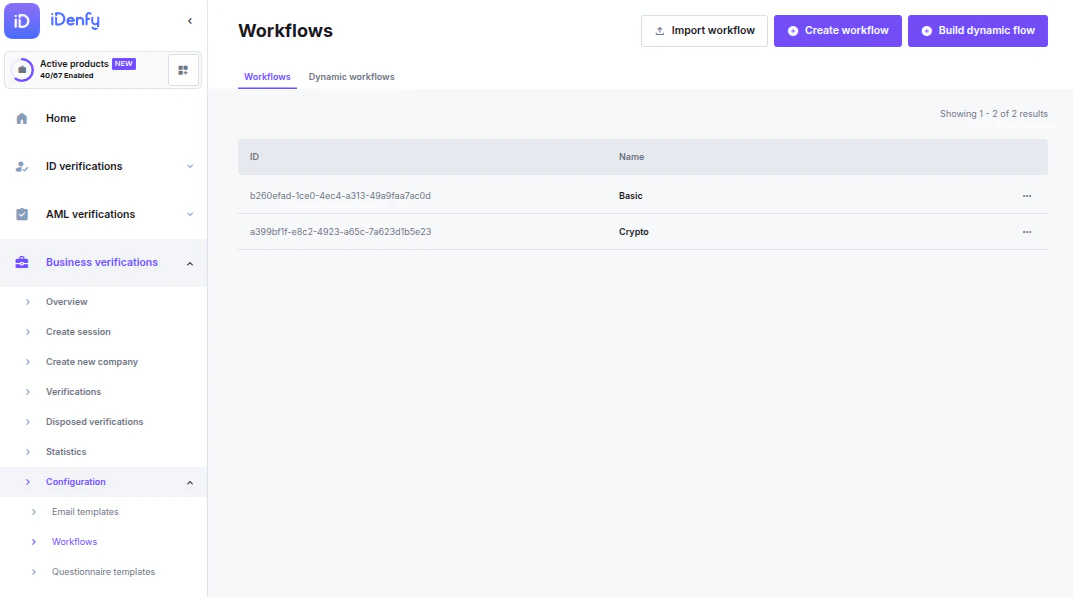
Navigate to Business Verifications → Configuration → Workflows. From this screen you can:| Action | How |
|---|---|
| Create a new workflow | Create New button (top right) |
| Import a workflow file | Import button |
| Edit an existing workflow | Click ⋮ → Edit |
| Duplicate as a template | Click ⋮ → Create a copy |
| Set as default workflow | Click ⋮ → Set as default |
| Export for backup or transfer | Click ⋮ → Export workflow |
| Delete | Click ⋮ → Delete (blocked if verifications are attached) |
Configuring Steps
Inside the workflow editor, each step has a toggle in the top-right corner of its panel. Enable the steps you need — the rest are skipped. The steps below follow the order they appear in the workflow editor.Risk Assessment
Attach a pre-configured risk profile to automatically score the company.
Details & configuration
Details & configuration
Scores are calculated based on the rules and weights you defined in the risk profile. The profile must be created outside the workflow builder before adding this step.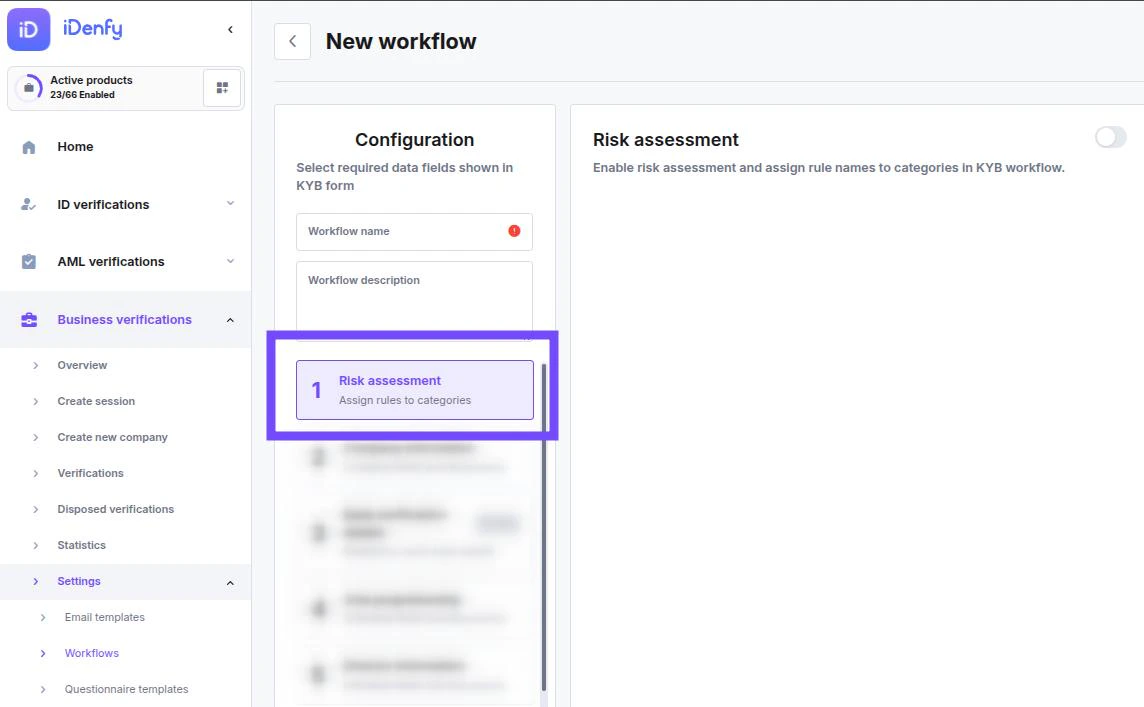
Company Information
Define required company data fields, documents, and auto-fill settings.
Details & configuration
Details & configuration
Enable company search auto-fill via name or registration number, configure email verification, and set which fields and documents the company must provide.Configure Company Information step →
Bank Verification
Collect IBAN details, account balances, and transaction history via open banking.
Details & configuration
Details & configuration
Covers 2,500+ European banks. Clients connect their bank account directly during the verification flow — no manual uploads required.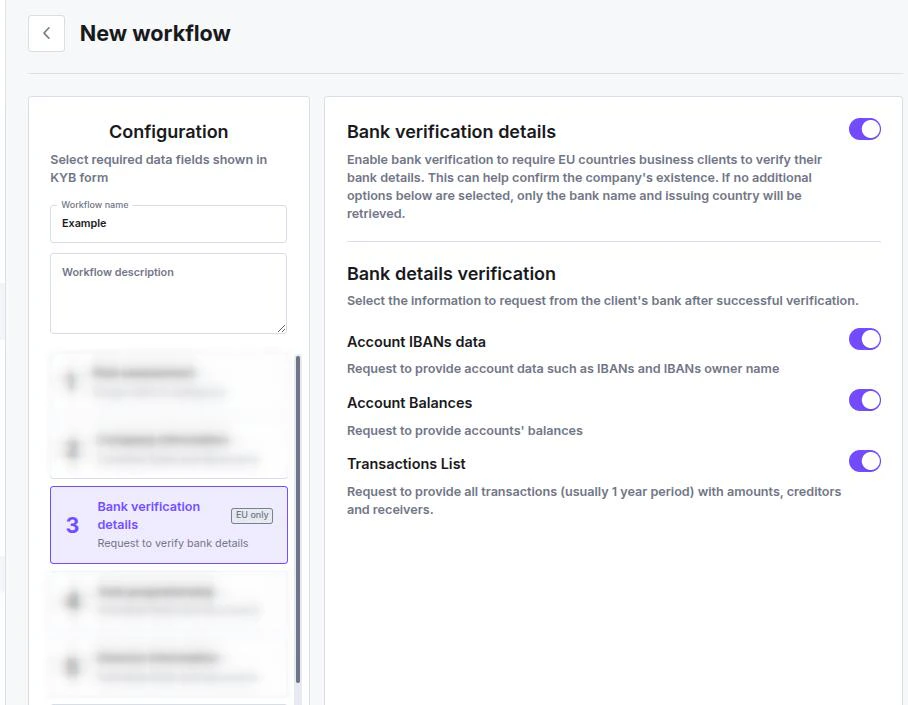
Sole Proprietorship
Collect owner-specific fields and documents for sole traders.
Details & configuration
Details & configuration
Tailor the verification form for sole proprietors with fields and documents that differ from standard company verification.Configure Sole Proprietorship step →
Director Information
Collect and verify details for company directors.
Details & configuration
Details & configuration
Configure whether identity verification is required for directors, handle corporate directors (companies acting as directors), and set custom fields and documents.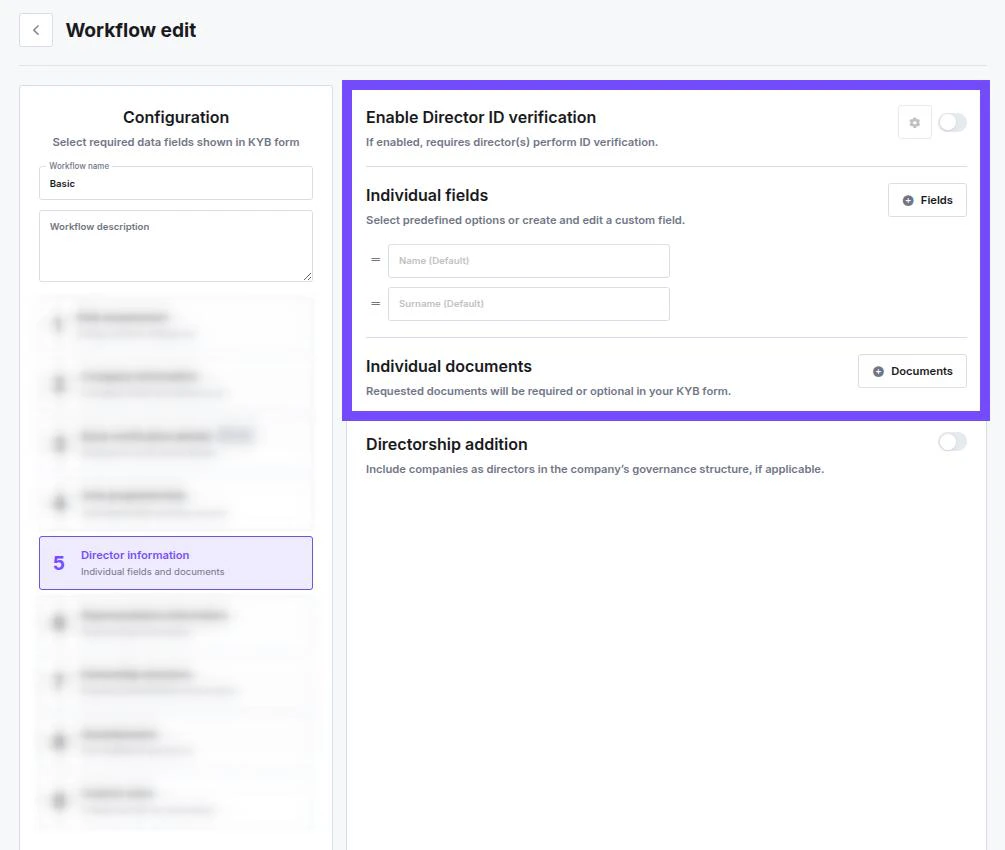
Representative Information
Configure data and verification requirements for the company representative.
Details & configuration
Details & configuration
Set whether a representative is required, what data and documents they must provide, and whether identity verification applies to them.Configure Representative Information step →
Ownership Structure
Declare shareholders and configure UBO verification thresholds.
Details & configuration
Details & configuration
Set ownership thresholds that trigger UBO checks and configure the depth of verification required for Ultimate Beneficial Owners.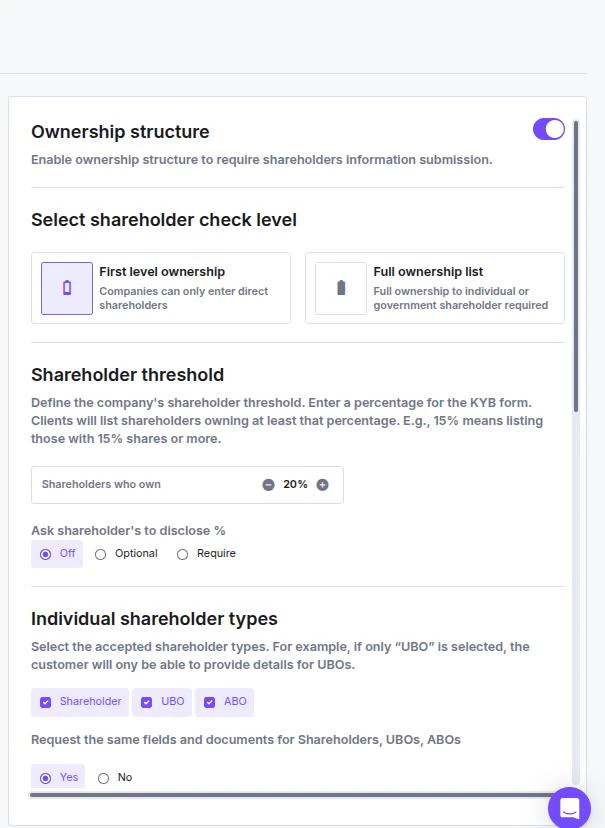
Questionnaire
Collect source of funds, compliance answers, or custom data via a structured form.
Details & configuration
Details & configuration
Add one or more questionnaire sections to gather business-specific information from the company or its representatives during verification.Configure Questionnaire step →
Custom Rules
Run automated risk and blocklist checks against the company.
Details & configuration
Details & configuration
Select and order the rules to apply. Rules run sequentially and flag or block companies based on the conditions you define.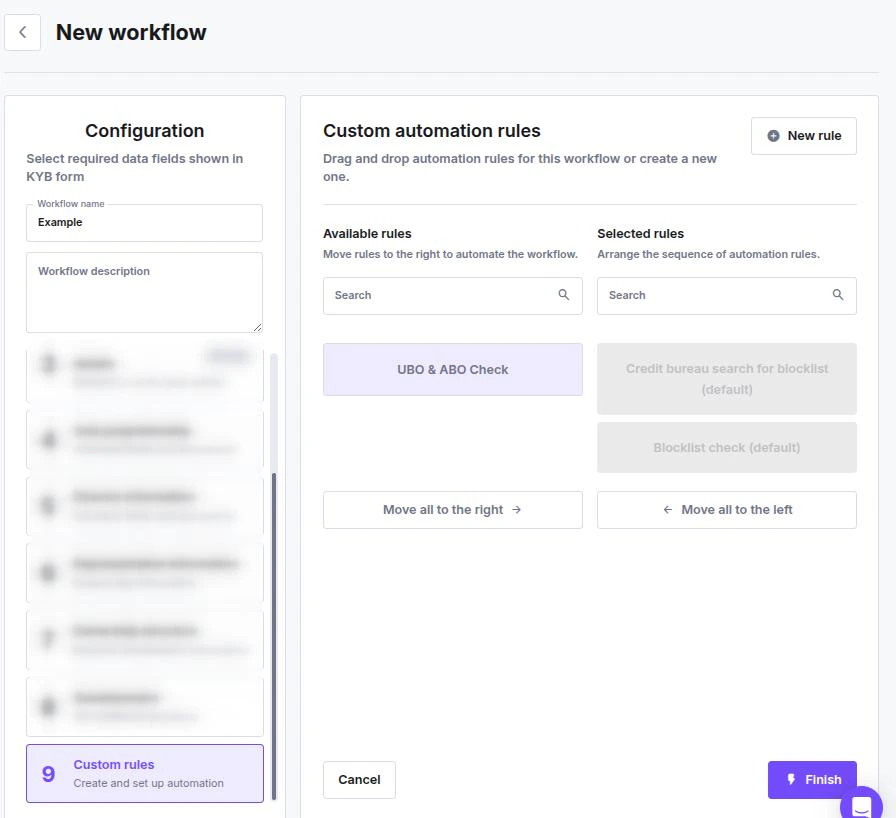
Identity Verification
Embed KYC identity checks for directors, shareholders, and representatives.
Details & configuration
Details & configuration
Enable document scan and selfie/liveness verification for people within the KYB flow — no separate KYC session required.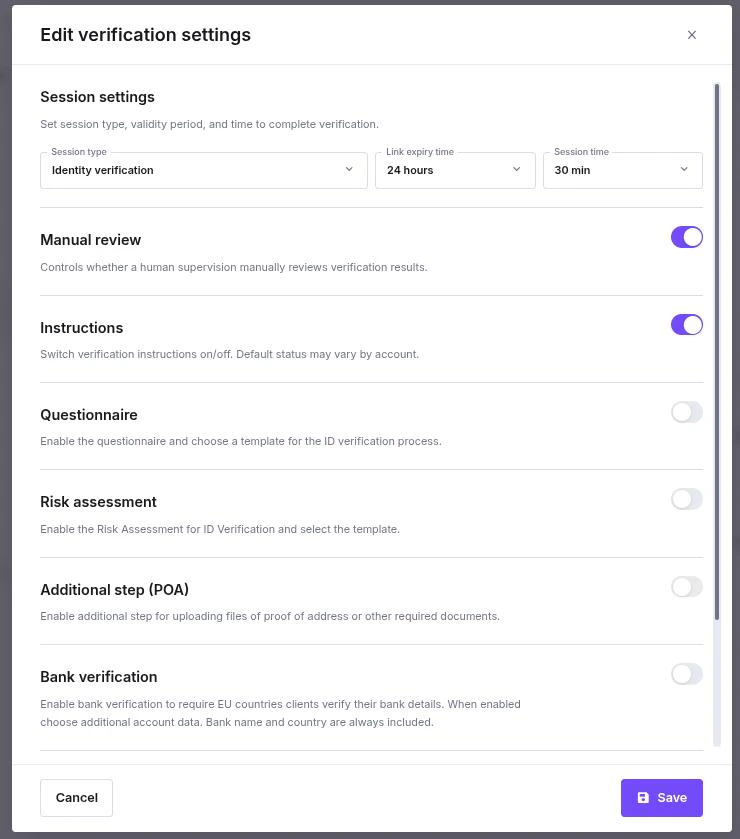
Dynamic Workflows
Route companies to different workflows automatically based on their answers to a short screening questionnaire — for example, directing sole traders to a lighter flow and LTDs to a full KYB.Details & configuration
Details & configuration